How to Turn on Tozo Earbuds: A Simple Guide
So, you’ve got yourself a shiny new pair of TOZO earbuds, and you’re eager to get those tunes flowing! But wait – how do you actually turn them on? Don’t worry, it’s a super simple process, and I’m here to walk you through it. Whether you’re a tech whiz or a complete newbie, I’ll break down everything you need to know to get your TOZO earbuds up and running in no time.
We’ll cover the basics, from initial charging to the different ways you can power them on. I’ll also touch on troubleshooting common issues, so you can enjoy your music without any interruptions. Let’s get started and get those earbuds connected!
Getting Started: Charging Your Tozo Earbuds
Before you can even think about turning on your TOZO earbuds, you’ll need to make sure they’re charged. This is the first and most crucial step. A dead battery means no music, so let’s get that sorted out.
Charging the Earbuds Themselves
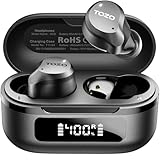
Most TOZO earbuds come with a charging case. This case not only protects your earbuds but also acts as a portable charger. Here’s how to charge the earbuds inside the case:
- Place the earbuds inside the charging case: Make sure the earbuds are correctly seated in their designated slots. You should feel a slight click or see the charging indicator lights turn on.
- Close the charging case lid: This is important. Closing the lid ensures the earbuds are connected to the charging pins inside the case.
- Check the charging indicators: The charging case usually has LED lights that indicate the charging status of both the case and the earbuds. Refer to your specific TOZO earbuds’ manual for the exact meaning of these lights, but generally:
- Solid light: Indicates the earbuds are charging.
- Flashing light: Might indicate the case needs charging or that the earbuds aren’t properly seated.
- Solid green light: Often means the earbuds are fully charged.
- Charging time: The earbuds typically take about 1-2 hours to fully charge.
Charging the Charging Case
The charging case itself needs power too! Here’s how to charge the case:
- Locate the charging port: The charging port is usually a USB-C or Micro-USB port located on the bottom or back of the case.
- Connect the charging cable: Use the charging cable that came with your TOZO earbuds. Connect the small end of the cable to the charging port on the case and the USB end to a power source.
- Power source options: You can plug the USB end into a wall adapter, a computer, a power bank, or any other USB power source.
- Check the charging indicator: The charging case will have indicator lights that show the charging status. Again, consult your manual for specifics, but common indicators include:
- Flashing light: Indicates the case is charging.
- Solid light: Indicates the case is fully charged.
- Charging time: The charging case usually takes about 1-2 hours to fully charge.
Important Note: Always use the charging cable provided with your TOZO earbuds. Using a different cable might not charge the earbuds or case correctly, or it could even damage them.
Turning on Your Tozo Earbuds: The Methods
Now that your earbuds are charged, it’s time to turn them on. The method for turning on your TOZO earbuds depends on the model, but here’s a general guide. Check your user manual for specific instructions for your exact model.
Method 1: Automatic Power On
Many TOZO earbuds feature an automatic power-on function. This means they turn on automatically when you take them out of the charging case. Here’s how it usually works:
- Remove the earbuds from the case: Simply take both earbuds out of the charging case.
- They should power on automatically: Once removed, the earbuds should automatically power on and enter pairing mode. You’ll usually hear a voice prompt or see the LED lights on the earbuds flash.
- Pairing mode: The earbuds will now be in pairing mode, ready to connect to your device (smartphone, tablet, etc.).
Troubleshooting: If the earbuds don’t turn on automatically, make sure the charging case has enough power and that the earbuds were properly seated in the case to charge. If they still don’t turn on, try manually turning them on (see Method 2).
Method 2: Manual Power on (if Applicable)
Some TOZO models might require a manual power-on process. This usually involves touching or pressing a button on the earbuds.
- Locate the touch controls or button: Most TOZO earbuds have touch controls (capacitive touch) or a physical button on the outer surface of the earbud.
- Press and hold: Typically, you need to press and hold the touch control or button for a few seconds (usually 2-5 seconds).
- Listen for the power-on prompt: You should hear a voice prompt or see the LED lights on the earbuds turn on, indicating that they are powered on.
- Pairing mode: The earbuds will then enter pairing mode.
Important: The exact location of the button or touch control, and the duration you need to press it, will vary depending on your specific TOZO model. Always refer to your user manual for the correct instructions.
Pairing Your Tozo Earbuds with Your Device
Once your TOZO earbuds are powered on, they need to be paired with your device (smartphone, tablet, etc.). This process connects the earbuds to your device so you can listen to music or take calls.
Pairing Steps
- Enable Bluetooth on your device: Go to the Bluetooth settings on your smartphone or tablet. Usually, you can find this in the settings menu. Make sure Bluetooth is turned on.
- Put the earbuds in pairing mode: As described in the previous sections, the earbuds should automatically enter pairing mode when you take them out of the case or when you manually turn them on.
- Search for available devices: Your device will start searching for nearby Bluetooth devices.
- Select your TOZO earbuds: In the list of available devices, you should see your TOZO earbuds listed (e.g., “TOZO T10”, “TOZO NC9”, etc.). Tap on the name of your earbuds to connect.
- Pairing confirmation: Your device might ask you to confirm the pairing. You might see a pop-up asking if you want to pair with the device. Tap “Pair” or “OK” to confirm.
- Connected!: Once paired, your device will show that the earbuds are connected. You should also hear a confirmation sound in your earbuds.
Troubleshooting Pairing Issues:
- Make sure the earbuds are in pairing mode: If your device isn’t finding the earbuds, double-check that they are in pairing mode.
- Check the distance: Make sure the earbuds and your device are within the Bluetooth range (usually around 33 feet or 10 meters).
- Forget and re-pair: If you’ve paired the earbuds before, try “forgetting” the device in your Bluetooth settings and then re-pairing them.
- Restart your device and earbuds: Sometimes, a simple restart of both your device and the earbuds can fix pairing issues.
- Check for interference: Bluetooth signals can be affected by other devices. Try moving away from other Bluetooth devices or Wi-Fi routers.
- Factory reset (if necessary): If all else fails, you might need to perform a factory reset on your TOZO earbuds. Consult your user manual for instructions on how to do this for your specific model.
Understanding the LED Indicators
The LED lights on your TOZO earbuds and charging case provide important information about their status. Knowing what these lights mean can help you understand the charging status, pairing status, and any potential issues.
Earbud LED Indicators
The LED lights on the earbuds themselves usually indicate the following:
- Power On/Off: The LED flashes briefly when the earbuds are turned on or off.
- Pairing Mode: The LED flashes rapidly or alternates colors when the earbuds are in pairing mode (ready to connect to your device).
- Connected: The LED might flash slowly or stay solid when the earbuds are connected to your device. Some models might have no light when connected.
- Charging: The LED might show a solid color or flash while the earbuds are charging in the case.
- Low Battery: The LED might flash red or show a specific color when the battery is low.
Charging Case LED Indicators
The LED lights on the charging case usually indicate the following:
- Charging the Case: The LED flashes or shows a specific color while the case is charging.
- Fully Charged Case: The LED might stay solid or turn green when the case is fully charged.
- Charging Earbuds: The LED might flash or show a specific color while the earbuds are charging inside the case.
- Case Battery Level: Some cases have LEDs that indicate the battery level of the case. For example, some might have four LEDs, each representing 25% of the battery.
Important: The exact meaning of the LED indicators can vary slightly depending on your specific TOZO model. Always refer to your user manual for the most accurate information.
Troubleshooting Common Problems
Even with the best technology, you might run into some hiccups. Here are some common problems and how to fix them.
Earbuds Won’t Turn On
- Check the charge: Make sure the earbuds are fully charged. Place them back in the charging case for a while and then try again.
- Manual power on: Try manually turning them on by pressing and holding the touch controls or button.
- Factory reset: If nothing else works, try performing a factory reset. See your user manual for instructions.
Earbuds Won’t Pair
- Check Bluetooth: Ensure Bluetooth is enabled on your device.
- Pairing mode: Make sure the earbuds are in pairing mode.
- Forget and re-pair: Forget the earbuds in your device’s Bluetooth settings and then re-pair them.
- Restart: Restart both your device and the earbuds.
- Interference: Move away from other Bluetooth devices or Wi-Fi routers.
One Earbud Isn’t Working
- Check the charge: Make sure both earbuds are fully charged.
- Reset: Try resetting the earbuds (see your user manual).
- Re-pair: Re-pair the earbuds with your device.
- Clean the contacts: Ensure the earbuds are properly seated in the charging case and that the charging contacts are clean.
Sound Quality Issues
- Check the source: Make sure the audio source (e.g., music app) is playing high-quality audio.
- Adjust the volume: Make sure the volume is turned up on both your device and the earbuds.
- Clean the earbuds: Clean the ear tips and speaker mesh of the earbuds to remove any debris that might be affecting the sound.
- Equalizer settings: Adjust the equalizer settings on your device or in your music app to optimize the sound.
Earbuds Disconnecting
- Check the distance: Stay within the Bluetooth range of your device.
- Interference: Move away from other Bluetooth devices or Wi-Fi routers.
- Low battery: Make sure the earbuds are charged.
- Restart: Restart both your device and the earbuds.
Maximizing Your Tozo Earbud Experience
Now that you know how to turn on and use your TOZO earbuds, here are some tips to get the most out of them:
- Choose the right ear tips: Your TOZO earbuds likely come with different sizes of ear tips. Experiment with the different sizes to find the ones that fit comfortably and securely in your ears. A good fit is essential for optimal sound quality and noise isolation.
- Proper fit is key: Ensure a snug fit for the best audio experience. A good fit will also help with noise cancellation (if your model has it).
- Control your music: Familiarize yourself with the touch controls or button functions on your earbuds. Most models allow you to play/pause music, skip tracks, adjust the volume, and answer/end calls.
- Manage calls: Learn how to answer, end, and reject calls using your earbuds. This usually involves tapping or pressing the touch controls.
- Explore features: Check if your earbuds have any special features, such as active noise cancellation (ANC), transparency mode, or voice assistant integration. Refer to your user manual for details.
- Keep them clean: Regularly clean your earbuds to remove earwax and debris. Use a soft, dry cloth or a cotton swab to clean the ear tips and speaker mesh.
- Store them properly: When not in use, store your earbuds in the charging case to protect them and keep them charged.
- Consult the manual: Always refer to your user manual for specific instructions and troubleshooting tips for your TOZO model.
- Software Updates: Check for any available software updates. Some TOZO models have companion apps that allow you to update the firmware of your earbuds, which can improve performance and add new features.
By following these tips, you can ensure that your TOZO earbuds provide you with a long-lasting and enjoyable listening experience.
Final Verdict
Turning on your TOZO earbuds is a straightforward process, and with this guide, you should be able to get your music playing in no time. Remember to charge your earbuds fully before the first use, and always consult your user manual for model-specific instructions. Now, go forth and enjoy your favorite tunes!
If you encounter any issues, don’t hesitate to refer back to the troubleshooting tips provided in this article or contact TOZO customer support for further assistance. With a little bit of know-how, you can fully enjoy the convenience and sound quality that your TOZO earbuds offer.
Recommended Products