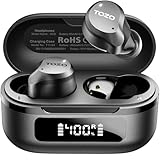
How to Sync Tozo Earbuds: A Simple Guide to Pairing
So, you’ve got yourself a shiny new pair of TOZO earbuds, and you’re eager to get them paired up and pumping out your favorite tunes. But maybe you’re finding the initial setup a little…tricky? Don’t worry, it’s a common experience! Syncing your TOZO earbuds is usually a straightforward process, but sometimes a few minor hiccups can throw you off course.
That’s where I come in! I’ve put together this comprehensive guide to walk you through the entire process, step-by-step. We’ll cover everything from the initial pairing to troubleshooting common issues. Whether you’re a tech whiz or a complete beginner, this guide will have you listening to your music in no time. We’ll explore the various models and provide specific instructions for each. So, let’s get those earbuds connected!
Understanding Tozo Earbuds: A Quick Overview
TOZO earbuds have gained popularity for their affordability and decent sound quality. They offer a range of models, from basic true wireless earbuds to those with advanced features like noise cancellation and wireless charging. Before we jump into syncing, let’s briefly touch upon what makes TOZO earbuds tick.
Key Features of Tozo Earbuds
- True Wireless Design: No wires connecting the earbuds to each other or your device, giving you freedom of movement.
- Bluetooth Connectivity: Uses Bluetooth technology to connect to smartphones, tablets, and other devices.
- Charging Case: Most models come with a charging case that extends the battery life of the earbuds.
- Variety of Models: TOZO offers a diverse range of models, each with slightly different features and price points.
Common Tozo Earbud Models
While the syncing process is generally similar across all models, some specific instructions might vary slightly. Here are some of the popular TOZO earbud models you might have:
- TOZO T10
- TOZO T6
- TOZO T12
- TOZO NC9
- TOZO T5
- TOZO A1
The instructions provided in this guide are generally applicable to most of these models. However, I will offer specific instructions where necessary.
Step-by-Step Guide: How to Sync Your Tozo Earbuds
Now, let’s get down to the core of the matter: syncing your TOZO earbuds. The process is usually very similar regardless of the model you own. Here’s a detailed, step-by-step guide to help you get started:
Step 1: Charging Your Earbuds and Case
Before you begin, make sure both your earbuds and the charging case are adequately charged. This is crucial for a smooth pairing experience. A low battery can cause connectivity issues or prevent pairing altogether.
- Charging Case: Use the provided USB-C or Micro-USB cable to connect the charging case to a power source. The case usually has an LED indicator that shows the charging status. When fully charged, the indicator will typically change color or stop blinking.
- Earbuds: Place the earbuds inside the charging case. The case will charge the earbuds. Again, the LED indicators on the earbuds or the case will show their charging status.
- Full Charge Time: The charging time varies depending on the model, but it usually takes around 1-2 hours for both the case and the earbuds to fully charge.
Important Tip: While charging, make sure the charging case lid is closed to ensure the earbuds charge properly.
Step 2: Preparing Your Device for Pairing
Next, you’ll need to prepare your smartphone, tablet, or other Bluetooth-enabled device for pairing. This involves turning on Bluetooth and making sure your device is ready to discover new devices.
- Enable Bluetooth: On your device, go to the settings menu and find the Bluetooth option. Toggle the Bluetooth switch to the ‘on’ position.
- Make Your Device Discoverable: Some devices automatically become discoverable when Bluetooth is enabled. Others might require you to tap on the Bluetooth settings to make it actively search for new devices.
- Check for Previously Paired Devices: If you’ve previously connected other Bluetooth devices, they might automatically connect. If this happens, disconnect them temporarily to avoid confusion during the pairing process.
Note: The exact steps for enabling Bluetooth can vary slightly depending on your device’s operating system (Android or iOS) and the specific version. But generally, the process is very similar.
Step 3: Entering Pairing Mode on Your Tozo Earbuds
This is where the magic happens! You need to put your TOZO earbuds into pairing mode. The method varies slightly depending on the model, but here’s how it generally works:
- For Most Models (T10, T6, T12, etc.):
- Open the charging case. The earbuds should automatically enter pairing mode. You’ll usually see an LED indicator on the earbuds blinking blue or red/blue.
- If the earbuds don’t automatically enter pairing mode when you open the case, try taking them out of the case. Sometimes this action triggers pairing mode.
- For Some Models (e.g., A1):
- Some models may require you to press and hold the touch controls on both earbuds for a few seconds until the LED indicators start flashing.
Important Note: Refer to your specific TOZO earbud model’s user manual for precise instructions on entering pairing mode, as there might be slight variations.
Step 4: Pairing Your Earbuds with Your Device
Now that your earbuds are in pairing mode, it’s time to connect them to your device:
- Scan for Devices: On your device, go to the Bluetooth settings. It should start scanning for available devices automatically.
- Select Your Earbuds: Look for your TOZO earbud model name (e.g., TOZO T10, TOZO T6) in the list of available devices. Tap on the name to select them.
- Pairing Confirmation: Your device might ask for confirmation to pair with the earbuds. Tap ‘Pair’ or ‘OK’ to accept.
- Connected: Once the pairing is successful, you should see a ‘Connected’ status next to your earbuds’ name in your device’s Bluetooth settings. The LED indicators on the earbuds might also change color or stop blinking to indicate a successful connection.
Troubleshooting Tip: If you don’t see your earbuds listed, make sure they are in pairing mode and that they are within range of your device (usually within 30 feet or 10 meters).
Step 5: Testing the Connection
Once your earbuds are connected, it’s time to test the connection. Play some music, a podcast, or any other audio content to confirm that sound is coming through both earbuds.
- Sound Check: Ensure that you can hear audio clearly in both earbuds. If only one earbud is working, don’t worry, we’ll cover troubleshooting this issue later.
- Volume Control: Adjust the volume using the controls on your device or the touch controls on the earbuds themselves (if your model has them).
- Range Test: Walk a short distance away from your device to check the Bluetooth range. The audio should remain consistent without any dropouts.
If everything works as expected, congratulations! You’ve successfully synced your TOZO earbuds.
Troubleshooting Common Syncing Issues
Sometimes, things don’t go perfectly the first time. Here are some common issues and how to resolve them:
1. Earbuds Not Appearing in the Bluetooth List
If your earbuds don’t show up in the Bluetooth devices list, try the following:
- Make sure the earbuds are in pairing mode: Double-check that you’ve followed the steps for entering pairing mode correctly.
- Check the battery level: Ensure that both the earbuds and the charging case have sufficient battery charge.
- Restart the earbuds: Place the earbuds back in the charging case, close the lid, wait a few seconds, and then take them out again.
- Restart your device: Sometimes, a simple restart of your smartphone or tablet can resolve Bluetooth connectivity issues.
- Clear Previous Bluetooth Connections: If you have previously connected to other Bluetooth devices, disconnect them temporarily to avoid interference.
- Move Closer: Make sure your earbuds are within a reasonable range of your device (typically within 30 feet).
2. Only One Earbud Is Working
This is a common issue. Here’s how to fix it:
- Put the earbuds back in the case and take them out again: This often resets the connection and allows both earbuds to pair correctly.
- Forget the device and re-pair: On your device, go to the Bluetooth settings, find your TOZO earbuds, and tap on ‘Forget’ or ‘Unpair’. Then, follow the pairing steps again.
- Check the earbud’s touch controls: Some earbuds have a function that allows you to control which earbud is playing the audio. Make sure you haven’t accidentally activated this feature.
- Clean the earbuds: Sometimes, dirt or debris can interfere with the connection. Clean the earbuds, especially the charging contacts, with a soft, dry cloth.
3. Bluetooth Connection Drops or Cuts Out
If the Bluetooth connection frequently drops or cuts out, try these solutions:
- Reduce Interference: Bluetooth signals can be affected by interference from other devices, such as Wi-Fi routers, microwaves, and other Bluetooth devices. Try to move away from these sources.
- Check the distance: Ensure that your earbuds and your device are within the recommended range.
- Update your device’s software: Make sure your smartphone or tablet has the latest software updates installed.
- Reset the earbuds: Some TOZO models have a reset function. Consult your user manual for instructions on how to reset your specific model.
4. Earbuds Won’t Charge
If your earbuds won’t charge, try these steps:
- Check the charging case: Make sure the charging case is charged and that the earbuds are properly seated inside.
- Clean the charging contacts: Use a soft, dry cloth to clean the charging contacts on both the earbuds and the charging case.
- Try a different charging cable: The charging cable might be faulty. Try using a different USB-C or Micro-USB cable to see if that resolves the issue.
- Inspect the charging port: Ensure that the charging port on the case is not damaged or blocked by debris.
5. Sound Quality Issues
If you experience poor sound quality, try these tips:
- Adjust the volume: Make sure the volume is turned up on both your device and the earbuds.
- Check the ear tips: Ensure that the ear tips are properly fitted and create a good seal in your ear canal. This helps to improve bass response.
- Equalizer settings: Experiment with the equalizer settings on your device or in the music app to find the sound profile that you prefer.
- Update the firmware: Check for any available firmware updates for your earbuds, as these updates often improve sound quality and performance.
Advanced Tips and Tricks
Once you’ve mastered the basics of syncing your TOZO earbuds, here are some advanced tips and tricks to enhance your experience:
Using the Tozo App (if Applicable)
Some TOZO earbud models have a companion app that offers additional features and customization options. Check the app store (Google Play Store or Apple App Store) to see if there’s an app available for your specific model. The app might allow you to:
- Customize touch controls
- Adjust the equalizer settings
- Update the firmware
- Access user manuals and support
Resetting Your Earbuds
If you’re still experiencing issues, resetting your earbuds can often resolve them. The reset process varies depending on the model, so consult your user manual for specific instructions. Generally, it involves placing the earbuds in the charging case, pressing and holding a button on the case (or the earbuds themselves) for a certain amount of time, and then re-pairing them with your device.
Understanding Touch Controls
Most TOZO earbuds have touch controls that allow you to control music playback, answer calls, and activate voice assistants. Familiarize yourself with these controls:
- Play/Pause: Usually, a single tap on either earbud.
- Next Track: Double-tap the right earbud.
- Previous Track: Double-tap the left earbud.
- Answer/End Call: Single tap on either earbud.
- Reject Call: Press and hold on either earbud.
- Voice Assistant: Press and hold on either earbud (e.g., Siri or Google Assistant).
The specific functions of the touch controls might vary slightly depending on your model. Refer to your user manual for the exact details.
Optimizing Battery Life
To maximize the battery life of your TOZO earbuds:
- Charge regularly: Keep the earbuds and charging case charged.
- Turn off when not in use: Place the earbuds back in the charging case when you’re not using them.
- Reduce the volume: Listening at high volumes drains the battery faster.
- Disable unused features: If your earbuds have features like noise cancellation, turn them off when you don’t need them.
Cleaning and Maintenance
Regular cleaning and maintenance can prolong the life of your TOZO earbuds:
- Clean the earbuds regularly: Use a soft, dry cloth to wipe the earbuds and charging case.
- Clean the ear tips: Remove the ear tips and wash them with mild soap and water. Let them dry completely before reattaching them.
- Avoid extreme temperatures and humidity: Store your earbuds in a cool, dry place.
Pairing with Multiple Devices
While TOZO earbuds typically connect to one device at a time, you can often pair them with multiple devices and switch between them. Here’s how:
- Pair with the first device: Follow the standard pairing process to connect your earbuds to your first device (e.g., your smartphone).
- Pair with the second device: Put the earbuds back into pairing mode and pair them with your second device (e.g., your tablet or laptop). The earbuds will now be paired with both devices.
- Switching between devices: To switch between devices, you typically need to disconnect the earbuds from the currently connected device and then connect them to the other device through the Bluetooth settings. Some devices may allow you to switch devices more easily.
Note: The process of switching between devices might vary slightly depending on your device and the TOZO earbud model.
Tozo Earbud Models Comparison Table
Here’s a comparison table of some popular TOZO earbud models to help you choose the best one for your needs:
| Model | Key Features | Battery Life (Earbuds/Case) | Water Resistance | Price (Approximate) |
|---|---|---|---|---|
| TOZO T10 | Wireless charging, IPX8 waterproof, touch control | 6 hours / 30 hours | IPX8 | $20 – $30 |
| TOZO T6 | Wireless charging, touch control, ergonomic design | 6 hours / 30 hours | IPX8 | $25 – $35 |
| TOZO T12 | Wireless charging, touch control, comfortable fit | 6.5 hours / 32 hours | IPX5 | $30 – $40 |
| TOZO NC9 | Active noise cancellation, transparency mode, wireless charging | 8 hours / 24 hours | IPX5 | $40 – $50 |
| TOZO T5 | Bluetooth 5.0, touch control, lightweight design | 5 hours / 25 hours | IPX7 | $15 – $25 |
| TOZO A1 | Lightweight, comfortable fit, touch control | 6 hours / 18 hours | IPX5 | $15 – $20 |
Disclaimer: Prices may vary based on retailer and promotions.
Final Verdict
Syncing your TOZO earbuds is a process that can be easily accomplished with the correct steps. By following the guide, you should be able to enjoy your music. If you are having trouble, revisit the troubleshooting section for solutions. Remember to refer to your specific model’s user manual for any model-specific instructions. With a little patience, you’ll be enjoying your favorite audio content wirelessly in no time!
Congratulations! You’ve successfully navigated the world of syncing TOZO earbuds. By following these steps and troubleshooting tips, you should now be able to connect your earbuds to your device and enjoy your audio. Remember to keep the charging case and earbuds clean, and you should have many hours of listening pleasure. Enjoy your music!
Recommended Products