How to Reset Tws V5 3 Earbuds: How to Reset Tws V5.3 Earbuds:
Are your TWS V5.3 earbuds acting up? Maybe the connection is spotty, the sound is distorted, or they’re simply refusing to pair. Don’t worry, it happens! Before you consider replacing them, there’s a good chance you can fix the issue with a simple reset. Think of it like giving your earbuds a fresh start, clearing out any glitches or conflicts that might be causing problems.
In this comprehensive guide, we’ll walk you through the process of resetting your TWS V5.3 earbuds. We’ll cover the different methods, explain when each one is most useful, and provide step-by-step instructions. Whether you’re a tech novice or a seasoned user, you’ll find everything you need to get your earbuds working perfectly again. We’ll also troubleshoot some common issues you might encounter along the way, ensuring you have all the information necessary for a successful reset.
So, let’s get started and bring your TWS V5.3 earbuds back to their full potential! Get ready to enjoy your music, podcasts, and calls without any interruptions.
Understanding Your Tws V5.3 Earbuds
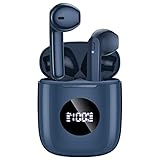
Before we jump into the reset process, let’s briefly discuss the TWS V5.3 earbuds. These are true wireless stereo earbuds, meaning they connect to your device via Bluetooth without any wires. The ‘V5.3’ refers to the Bluetooth version they use, which is a relatively modern standard. This generally means they should offer a stable connection, improved battery life, and faster pairing compared to older versions.
Key features of TWS V5.3 earbuds typically include:
- Bluetooth 5.3 connectivity for a stable and efficient connection.
- A compact and lightweight design for portability and comfort.
- A charging case for extended battery life.
- Touch controls for managing music playback, calls, and volume.
These earbuds are designed to be user-friendly, but like any electronic device, they can sometimes encounter issues. Understanding the basics can help you troubleshoot and resolve problems more effectively.
Why Reset Your Tws V5.3 Earbuds?
Resetting your earbuds is a troubleshooting step that can address a variety of issues. Here are some common reasons why you might need to reset your TWS V5.3 earbuds:
- Pairing Problems: The earbuds might not be connecting to your device, or they might be connecting but experiencing frequent disconnections.
- Sound Issues: You might be experiencing distorted audio, low volume, or sound only coming from one earbud.
- Connectivity Problems: The Bluetooth connection might be unstable, leading to dropouts or lag.
- Touch Control Malfunctions: The touch controls might not be responding correctly to your taps and swipes.
- Battery Drain: The earbuds might be draining the battery faster than usual.
- Software Glitches: Occasionally, the internal software of the earbuds can experience glitches that a reset can resolve.
A reset essentially restores the earbuds to their factory settings, clearing out any temporary files or configurations that might be causing these problems. It’s often the first and easiest solution to try before considering more drastic measures.
Methods for Resetting Tws V5.3 Earbuds
There are typically two main methods for resetting your TWS V5.3 earbuds: the hardware reset and the software reset. The specific steps for each method can vary slightly depending on the manufacturer and model, but the general principles remain the same.
This method usually involves pressing and holding a button on the earbuds or the charging case. It’s often the simplest and most common way to reset your earbuds. Here’s how it typically works:
- Place the Earbuds in the Charging Case: Ensure both earbuds are correctly seated inside the charging case.
- Identify the Reset Button: Look for a small button on the charging case. It might be recessed or located near the charging port. Check your user manual if you can’t find it.
- Press and Hold the Reset Button: Press and hold the reset button on the charging case for about 10-15 seconds. You might see an LED light on the case blink or change color, indicating that the reset is in progress.
- Wait for the Reset to Complete: The earbuds will typically power off and then back on automatically.
- Pair Again: After the reset, you’ll need to re-pair the earbuds with your device. Go to your device’s Bluetooth settings and select your earbuds from the list of available devices.
When to use the hardware reset:
- When the earbuds won’t pair at all.
- When the earbuds are unresponsive to touch controls.
- When the earbuds are experiencing significant sound or connection issues.
Method 2: Software Reset (through Bluetooth Settings)
Some earbuds allow you to reset them through your device’s Bluetooth settings. This method is usually more straightforward and doesn’t require any physical buttons on the charging case. Here’s how to do it:
- Go to Your Device’s Bluetooth Settings: Open the settings app on your smartphone, tablet, or computer, and navigate to the Bluetooth section.
- Find Your Earbuds: Locate your TWS V5.3 earbuds in the list of paired devices.
- Forget/Unpair the Earbuds: Tap on the earbuds to access their settings. You should see an option to ‘Forget’ or ‘Unpair’ the device. Select this option.
- Place the Earbuds in the Charging Case: Make sure both earbuds are in the charging case.
- Close and Reopen the Case: Close the charging case and then open it again. This is often the trigger for the reset. Some models may require you to hold the case’s button.
- Pair Again: The earbuds should now be in pairing mode. Go back to your device’s Bluetooth settings and select your earbuds from the list of available devices to re-pair them.
When to use the software reset:
- When you want to clear the pairing history.
- When you are experiencing minor connection issues.
- When you want a quick and easy reset without using any buttons.
Step-by-Step Reset Instructions (general Guide)
Since the exact reset process can vary slightly depending on the manufacturer, here’s a general step-by-step guide that you can adapt to your specific TWS V5.3 earbuds model:
- Charge the Earbuds and Case: Ensure both the earbuds and the charging case have sufficient battery power.
- Place the Earbuds in the Charging Case: Make sure both earbuds are correctly seated inside the charging case.
- Locate the Reset Button (If Applicable): Identify the reset button on the charging case. It’s usually a small, recessed button.
- Hardware Reset (Button Method): If your model uses a button, press and hold the reset button on the charging case for about 10-15 seconds. The LED indicator on the case may blink or change color.
- Software Reset (Bluetooth Settings Method): If your model uses this method, go to your device’s Bluetooth settings, find your earbuds, and select the ‘Forget’ or ‘Unpair’ option. Then, close and reopen the charging case.
- Wait for the Reset to Complete: Allow the earbuds to power off and then back on automatically.
- Re-Pair the Earbuds: Go to your device’s Bluetooth settings and select your earbuds from the list of available devices to re-pair them. Follow any on-screen prompts to complete the pairing process.
- Test the Earbuds: After pairing, test the earbuds to ensure that the sound, controls, and connection are working correctly.
Troubleshooting Common Issues After Resetting
Even after a reset, you might encounter some issues. Here’s how to troubleshoot them:
- Earbuds Won’t Pair: Make sure the earbuds are in pairing mode. Try putting them back in the charging case and closing and opening it again. Also, ensure Bluetooth is enabled on your device, and try restarting your device.
- Sound Issues (Distortion, Low Volume): Check the volume levels on both the earbuds and your device. Make sure the earbuds are clean and free of debris. Try adjusting the equalizer settings in your device’s audio settings.
- One Earbud Not Working: Place both earbuds back in the charging case and ensure they are charging. Try resetting them again. Make sure the earbuds are properly seated in your ears.
- Touch Controls Not Working: Check your user manual for the specific touch controls for your model. Clean the touch sensors on the earbuds.
- Connection Dropouts: Ensure the earbuds and your device are within a reasonable distance of each other. Minimize interference from other Bluetooth devices or Wi-Fi routers.
- Battery Drain: After resetting, monitor the battery life. If the drain persists, the battery might be faulty, or there might be an issue with the earbuds’ internal software.
Advanced Troubleshooting Tips
If the basic reset doesn’t solve your problems, here are some advanced troubleshooting steps:
- Check for Firmware Updates: Some earbuds have companion apps that allow you to update the firmware. Check the app store for your earbuds’ app and see if any updates are available.
- Factory Reset (If Available): Some models have a more comprehensive factory reset option, usually accessed through a companion app. This will erase all settings and data.
- Contact Customer Support: If you’ve tried everything and the earbuds still aren’t working, contact the manufacturer’s customer support. They might be able to offer further assistance or provide information about a possible warranty claim.
- Check the Charging Case: Sometimes, issues can stem from the charging case itself. Ensure the case is charging properly and that the earbuds are making good contact with the charging pins. Try cleaning the charging pins on both the earbuds and the case.
- Test with Another Device: Try pairing the earbuds with a different device to rule out any issues with your primary device. This can help you determine if the problem is with the earbuds or your device.
Comparing Reset Methods
Here’s a table comparing the two main reset methods:
| Feature | Hardware Reset (Button-Based) | Software Reset (Bluetooth Settings) |
|---|---|---|
| Method | Pressing and holding a button on the charging case. | Forgetting/Unpairing the device in Bluetooth settings. |
| Ease of Use | Generally simple. | Very straightforward. |
| Effectiveness | Often effective for more complex issues. | Good for minor problems and clearing pairing history. |
| Requires | Access to the charging case. | Access to your device’s Bluetooth settings. |
| Common Use Cases | Earbuds not pairing, unresponsive controls, major sound issues. | Clearing pairing history, minor connection problems. |
| Advantages | Often resolves the most stubborn problems. | Quick and easy; no physical buttons needed. |
| Disadvantages | Requires knowing where the reset button is. | Might not fix more complex issues. |
Maintaining Your Tws V5.3 Earbuds
Proper maintenance can help prevent issues and extend the lifespan of your earbuds. Here are some tips:
- Clean Regularly: Use a soft, dry cloth to clean the earbuds and the charging case regularly. Avoid using water or harsh chemicals.
- Protect from Moisture: Keep your earbuds away from moisture and extreme temperatures.
- Store Properly: Store your earbuds in the charging case when not in use to protect them from dust and damage.
- Charge Regularly: Charge your earbuds regularly to prevent the battery from draining completely.
- Avoid Extreme Temperatures: Do not expose your earbuds to extreme heat or cold, as this can damage the battery and other components.
- Handle with Care: Avoid dropping or subjecting the earbuds to impact.
- Keep the Charging Case Clean: Regularly clean the charging case to ensure good contact with the earbuds for charging.
Final Thoughts
Resetting your TWS V5.3 earbuds is a simple but effective solution for many common problems. By following the steps outlined in this guide, you can often restore your earbuds to their original functionality, saving you time and money. Remember to start with the basic hardware or software reset, and then move on to advanced troubleshooting steps if needed. Regular maintenance and care will help ensure your earbuds provide you with years of enjoyable listening.
By understanding the different reset methods and troubleshooting tips, you’re well-equipped to handle any issues that may arise with your TWS V5.3 earbuds. The process is generally straightforward, and a successful reset can often resolve pairing problems, sound issues, and connectivity glitches. Remember to consult your user manual for model-specific instructions and to keep your earbuds clean and well-maintained. Armed with this knowledge, you can quickly get back to enjoying your music, podcasts, and calls without interruption. You’ve now gained the skills to troubleshoot and potentially fix your earbuds yourself.
If you’ve followed all the steps and your earbuds are still not functioning correctly, consider reaching out to the manufacturer’s customer support. They may be able to offer further assistance or guide you through the warranty process if your earbuds are still covered. With a little patience and the right approach, you can keep your TWS V5.3 earbuds working at their best.
Recommended Products