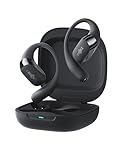
How to Pair Shokz Earbuds: A Simple, Step-by-Step Guide
Hey there! If you’re here, you’ve probably just snagged a pair of Shokz earbuds, or you’re thinking about it. Awesome choice! Shokz are fantastic for anyone who loves staying aware of their surroundings while enjoying their audio. But, getting started can sometimes feel a little tricky, right? Don’t worry, I’ve got you covered.
This guide will walk you through, step-by-step, how to pair your Shokz earbuds. Whether you’re connecting to your phone, tablet, or computer, I’ll break it down in a way that’s easy to understand. We’ll cover everything from the initial pairing process to troubleshooting common issues. Let’s get those earbuds connected and start enjoying your music, podcasts, or calls!
Understanding Shokz Earbuds
Before we jump into pairing, let’s quickly recap what makes Shokz special. They use bone conduction technology, which means the sound travels through your cheekbones directly to your inner ear. This design leaves your ears open, allowing you to hear ambient sounds. It’s a game changer for safety while running, cycling, or just being outdoors.
Shokz earbuds are known for their comfort and durability, making them ideal for active lifestyles. They’re also designed to be sweat-resistant and water-resistant, so you don’t have to worry about a little rain or sweat ruining your listening experience. They come in various models, each with its own set of features, but the pairing process is generally the same across the board.
Key Features of Shokz Earbuds
- Bone Conduction Technology: Delivers sound through your cheekbones, keeping your ears open.
- Open-Ear Design: Enhances situational awareness.
- Comfortable Fit: Designed for extended wear.
- Durable Build: Sweat and water-resistant.
- Bluetooth Connectivity: Connects to your devices wirelessly.
Pairing Your Shokz Earbuds: Step-by-Step
Now, let’s get to the main event: pairing your Shokz earbuds. The process is pretty straightforward, but it’s important to follow the steps correctly. I’ll guide you through the process for different devices, ensuring you get connected quickly and easily.
Pairing with Your Smartphone (ios & Android)
This is the most common scenario, so let’s start here. Pairing with your smartphone is simple and intuitive. Here’s what you need to do:
- Turn on Your Shokz Earbuds: Locate the power button on your Shokz earbuds (usually on the side). Press and hold it until the LED indicator light flashes. This indicates that the earbuds are in pairing mode.
- Enable Bluetooth on Your Smartphone: Go to your phone’s settings and find the Bluetooth option. Make sure Bluetooth is turned on.
- Search for Available Devices: Your phone will start scanning for nearby Bluetooth devices.
- Select Your Shokz Earbuds: Your Shokz earbuds should appear in the list of available devices (e.g., “Shokz OpenRun Pro”). Tap on them to connect.
- Confirm Pairing (if prompted): Sometimes, you may be asked to confirm the pairing. Just follow the on-screen prompts.
- Enjoy Your Audio: Once paired, you should hear a confirmation sound from your earbuds. You can now start playing audio from your phone, and it will stream through your Shokz.
Important Note: If you’re having trouble, make sure your earbuds are not already connected to another device. Also, check that your phone is within range (usually about 33 feet or 10 meters).
Pairing with Your Laptop or Computer (windows & Macos)
Pairing with a laptop or computer is similar to pairing with a smartphone, but the exact steps might vary slightly depending on your operating system. Here’s how to do it:
Windows:
- Turn on Your Shokz Earbuds: Same as with your smartphone, power on your Shokz and put them in pairing mode.
- Access Bluetooth Settings: Click on the Windows Start button, then go to Settings > Devices > Bluetooth & other devices.
- Add Bluetooth Device: Click on “Add Bluetooth or other device.”
- Select Bluetooth: Choose “Bluetooth” from the options.
- Select Your Shokz Earbuds: Your Shokz earbuds should appear in the list of available devices. Click on them to connect.
- Confirm Pairing (if prompted): Follow any on-screen prompts to complete the pairing.
- Configure Audio Output: After pairing, you might need to select your Shokz earbuds as the default audio output device. To do this, right-click on the speaker icon in your system tray (bottom right corner) and select your Shokz from the list of available audio devices.
Macos:
- Turn on Your Shokz Earbuds: Make sure your Shokz are in pairing mode.
- Access Bluetooth Settings: Click on the Apple menu (top left corner) > System Preferences > Bluetooth.
- Turn on Bluetooth: Ensure Bluetooth is turned on.
- Select Your Shokz Earbuds: Your Shokz earbuds should appear in the list of available devices. Click “Connect” next to your Shokz.
- Configure Audio Output: After pairing, you’ll need to select your Shokz as the audio output device. Click on the speaker icon in the menu bar (top right corner) and select your Shokz from the list of available audio devices. If you don’t see the speaker icon, go to System Preferences > Sound and check “Show volume in menu bar.”
Troubleshooting Tip: If your computer doesn’t recognize your Shokz, try restarting both your computer and your earbuds. Also, make sure your computer’s Bluetooth drivers are up to date.
Pairing with Multiple Devices
One of the great things about Shokz earbuds is that they can often remember multiple devices. However, they can only actively connect to one device at a time. This means you can easily switch between your phone and your laptop without having to go through the pairing process every time.
To switch between devices:
- Disconnect from the Current Device: On the device currently connected to your Shokz, either turn off Bluetooth or disconnect the earbuds from the Bluetooth settings.
- Connect to the New Device: On the new device, go to Bluetooth settings and select your Shokz earbuds from the list of paired devices. They should connect automatically.
Important Note: If your Shokz are already connected to a device, they won’t show up as available on another device. You need to disconnect them from the first device first.
Troubleshooting Common Pairing Issues
Sometimes, things don’t go as planned. Here are some common problems you might encounter and how to fix them:
Earbuds Not Showing Up in the Bluetooth List
If your Shokz earbuds aren’t appearing in the list of available devices, try these solutions:
- Ensure Pairing Mode: Make sure your earbuds are in pairing mode (LED flashing).
- Check Bluetooth Range: Bring your earbuds closer to the device you’re trying to connect to.
- Restart Devices: Turn off your earbuds and your device (phone, laptop, etc.) and then turn them back on.
- Forget and Re-pair: On your device, go to Bluetooth settings, “forget” your Shokz (if they are listed), and then try pairing again from scratch.
- Check for Interference: Move away from other Bluetooth devices or sources of electromagnetic interference (microwaves, Wi-Fi routers).
Earbuds Connecting but Not Playing Audio
If your earbuds are connecting, but you’re not hearing any sound, try these steps:
- Check Volume Levels: Make sure the volume is turned up on both your earbuds and your device.
- Select the Correct Audio Output: Ensure that your Shokz earbuds are selected as the audio output device in your device’s settings.
- Restart Audio Apps: Close and reopen the app you’re using (music player, podcast app, etc.).
- Test with Another App: Try playing audio from a different app to see if the problem is specific to one app.
Earbuds Disconnecting Randomly
If your earbuds are disconnecting frequently, try these fixes:
- Check Bluetooth Range: Stay within the recommended Bluetooth range (usually around 33 feet or 10 meters).
- Charge Your Earbuds: Low battery can sometimes cause connection issues. Make sure your earbuds are fully charged.
- Check for Interference: As mentioned earlier, interference can disrupt the connection.
- Reset Your Earbuds: Some Shokz models have a reset function. Consult your user manual for instructions on how to reset your specific model.
- Update Firmware: Check if there are any firmware updates available for your Shokz earbuds. Updates often include bug fixes and performance improvements.
Advanced Pairing and Usage Tips
Once you’ve successfully paired your Shokz earbuds, there are a few extra tips and tricks that can enhance your experience.
Understanding the Buttons and Controls
Familiarize yourself with the controls on your Shokz earbuds. These controls usually allow you to:
- Power On/Off: Press and hold the power button.
- Pair: Press and hold the power button when the earbuds are off to enter pairing mode.
- Play/Pause: Press the multifunction button (usually on one of the earbuds).
- Answer/End Calls: Press the multifunction button.
- Skip Tracks: Double-click the multifunction button to skip to the next track.
- Adjust Volume: Use the volume up/down buttons.
- Activate Voice Assistant: Press and hold the multifunction button for a few seconds.
Note: The exact button layout and functions may vary slightly depending on your Shokz model. Refer to your user manual for specific details.
Maximizing Sound Quality
While Shokz earbuds use bone conduction, you can still optimize the sound quality:
- Proper Fit: Ensure the transducers (the part that rests on your cheekbones) are positioned correctly for optimal sound transmission.
- Volume Levels: Avoid setting the volume too high, as this can cause sound leakage and reduce the clarity.
- Equalizer Settings: Experiment with the equalizer settings on your device or in your music app to find the sound profile that you prefer.
- Environmental Noise: Bone conduction works best in quieter environments. If you’re in a noisy place, you might need to increase the volume slightly.
Caring for Your Shokz Earbuds
Taking care of your Shokz earbuds will help them last longer and perform better. Here’s how:
- Cleaning: After workouts, wipe down your earbuds with a damp cloth to remove sweat and debris. Avoid using harsh chemicals or solvents.
- Storage: Store your earbuds in a cool, dry place when not in use.
- Charging: Use the charging cable provided by Shokz. Avoid overcharging the earbuds.
- Avoid Extreme Temperatures: Don’t expose your earbuds to extreme heat or cold.
- Regular Checks: Periodically check the earbuds for any signs of damage or wear and tear.
Specific Shokz Models: Pairing Differences
While the general pairing process is consistent across most Shokz models, there might be slight variations depending on the specific model you own. Let’s look at a few examples:
Shokz Openrun
The OpenRun model is known for its lightweight design and quick charging capabilities. The pairing process is the same as described earlier, but make sure to familiarize yourself with the charging port and power button location. The OpenRun also has a built-in microphone for calls, so ensure it’s positioned correctly when taking calls.
Shokz Openrun Pro
The OpenRun Pro is a step up, offering enhanced sound quality and a longer battery life. Pairing is identical to the OpenRun. The OpenRun Pro often has a slightly different button layout. The OpenRun Pro also includes a quick-charge feature, which is useful for topping up your battery before a run.
Shokz Openmove
The OpenMove is a more budget-friendly option, but it still delivers great bone conduction audio. The pairing procedure is the same, and the OpenMove is very easy to use. The OpenMove is great for entry-level users.
Shokz Opencomm
The OpenComm is designed for communication, featuring a boom microphone for clear calls. The pairing process is the same. The OpenComm is designed for extended use, so comfort is a key feature.
Shokz Openfit
The OpenFit is a more traditional earbud design, but it still utilizes bone conduction technology. It offers a more open feel. The pairing process is identical. The OpenFit offers great sound.
Tip: Always refer to the user manual that came with your specific Shokz model for detailed instructions and features.
Verdict
So, there you have it! Pairing your Shokz earbuds is a breeze once you know the steps. I hope this guide has made the process easier and more enjoyable for you. Remember to always check your device’s Bluetooth settings and the status of your Shokz earbuds. If you run into any trouble, don’t hesitate to consult the troubleshooting tips I’ve provided. With a little patience, you’ll be enjoying your Shokz in no time, staying connected to your audio while remaining connected to the world around you. Happy listening!
Recommended Products