How to Pair Jlab Mini Earbuds: A Simple Guide
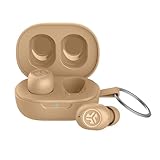
So, you’ve got your hands on a pair of JLab Mini earbuds – fantastic choice! These little guys pack a punch, offering a convenient and portable listening experience. But before you can enjoy your favorite tunes or podcasts, you need to get them paired with your device. Don’t worry, it’s a straightforward process, and I’m here to walk you through it.
Whether you’re an Android aficionado or an Apple enthusiast, the steps are remarkably similar. We’ll cover everything from the initial pairing to troubleshooting common issues. I’ll break down the process step-by-step, ensuring you can start enjoying your JLab Mini earbuds in no time. Let’s get started and get those earbuds connected!
Getting Started: What You’ll Need
Before we dive into the pairing process, let’s make sure you have everything you need. You’ll need your JLab Mini earbuds (obviously!), the charging case they came with, and the device you want to pair them with (smartphone, tablet, laptop, etc.). Make sure your device has Bluetooth enabled. It’s usually found in your device’s settings menu.
Important Tip: Ensure your earbuds are charged. While you can often pair them with a low battery, a full charge will ensure a smooth and uninterrupted experience. The charging case acts as a convenient power source, extending your listening time considerably. Check the LED indicators on the case to determine the charging status.
Understanding the Jlab Mini Earbud Controls
The JLab Mini earbuds typically use touch controls. Here’s a quick rundown:
- Play/Pause: Tap either earbud once.
- Volume Up: Tap the right earbud twice.
- Volume Down: Tap the left earbud twice.
- Next Track: Tap the right earbud three times.
- Previous Track: Tap the left earbud three times.
- Answer/End Call: Tap either earbud once.
- Reject Call: Press and hold either earbud for 1 second.
- Activate Voice Assistant (Siri, Google Assistant): Tap either earbud four times.
Pro Tip: Familiarizing yourself with these controls before you pair will save you time later. You can also customize some of these controls through the JLab app, which offers additional features.
Step-by-Step Pairing Guide for Your Jlab Mini Earbuds
Now, let’s get down to the actual pairing process. I’ll cover the steps for both Android and iOS devices, as the core principles are the same. Follow these instructions closely, and you should be listening to music in minutes.
Pairing with Android Devices:
- Open the Charging Case: Take the JLab Mini earbuds out of their charging case. The earbuds should automatically enter pairing mode. You’ll likely see a flashing light on one or both earbuds, indicating they’re ready to connect.
- Enable Bluetooth: On your Android device, go to the Settings menu. The exact location of the Bluetooth settings varies depending on your phone’s make and model, but it’s usually under ‘Connections’ or ‘Bluetooth & Device Connection’.
- Turn on Bluetooth: Toggle the Bluetooth switch to the ‘On’ position. Your device will begin scanning for available Bluetooth devices.
- Select Your Earbuds: Look for ‘JLab Mini’ or a similar name in the list of available devices. Tap on it to initiate the pairing process.
- Accept the Pairing Request: You might see a pairing request pop up on your screen. Tap ‘Pair’ or ‘Accept’ to confirm the connection.
- Confirmation: Once paired, the earbuds should connect automatically. You’ll likely see a small Bluetooth icon next to the earbud’s name in your Bluetooth settings, and you should hear a confirmation sound from the earbuds.
- Test the Connection: Play some music or a video to ensure the sound is coming through your earbuds. If not, check the volume levels on your device and the earbuds themselves.
Pairing with iOS Devices (iphone/ipad):
- Open the Charging Case: Just like with Android, open the charging case and remove the earbuds. The earbuds will enter pairing mode.
- Access Bluetooth Settings: On your iPhone or iPad, go to the Settings app. Tap on ‘Bluetooth’.
- Enable Bluetooth: If Bluetooth is not already enabled, toggle the switch to the ‘On’ position. Your device will start searching for nearby Bluetooth devices.
- Select Your Earbuds: In the list of available devices, find ‘JLab Mini’ or a similar name and tap on it.
- Pair the Devices: The connection should happen instantly. You might see a pairing request, but generally, iOS handles the connection seamlessly.
- Confirmation: Once connected, the earbuds will appear as ‘Connected’ in your Bluetooth settings. You should also hear a confirmation sound.
- Test the Audio: Open your music app, YouTube, or any other audio source and play something to confirm the connection.
Troubleshooting Common Pairing Issues
Sometimes, things don’t go as planned. Here are some common problems and how to fix them:
1. Earbuds Not Appearing in the Bluetooth List
* Solution: Make sure the earbuds are in pairing mode (flashing light). Try putting the earbuds back in the charging case and taking them out again. Also, ensure Bluetooth is enabled on your device, and that other Bluetooth devices aren’t interfering with the connection.
2. Unable to Pair
* Solution: Try forgetting the earbuds in your device’s Bluetooth settings and then re-pairing them. Restart both your device and the earbuds. Ensure the earbuds are fully charged, or have enough charge to pair. If this persists, reset the earbuds (instructions below).
3. Only One Earbud Is Working
* Solution: This is often a sign that the earbuds haven’t properly paired with each other. Put both earbuds back in the charging case and close the lid. Then, take them out again. This should initiate a new pairing sequence. If not, reset the earbuds.
4. Audio Cutouts or Disconnections
* Solution: This could be due to interference. Move closer to your device and ensure there are no physical obstructions between the earbuds and your device. Reduce the distance between the earbuds and the device. Try restarting both the earbuds and the device. Consider the environment. Certain frequencies can interfere with Bluetooth signals.
5. Resetting Your Jlab Mini Earbuds
If you’re still having trouble, resetting your earbuds can often resolve the issue. The exact reset procedure may vary slightly depending on the model, but here’s a general guide:
- Place the Earbuds in the Case: Put both earbuds back into the charging case and close the lid.
- Open the Case and Take Out Earbuds: Open the charging case. Take out the earbuds.
- Rapid Tapping: Quickly tap one of the earbuds (usually the right one) seven times. The earbud will flash blue and then turn solid blue.
- Repeat on the Other Earbud: Repeat the rapid tapping process on the other earbud (left one).
- Re-Pair: Put the earbuds back in the charging case, close the lid, and then re-pair them with your device.
Advanced Tips and Tricks
Now that you’ve got your JLab Mini earbuds paired, here are some tips to enhance your experience:
1. Using the Jlab App
The JLab app (available for both iOS and Android) provides additional customization options. You can adjust the EQ settings, customize the touch controls, and update the firmware of your earbuds. I highly recommend downloading the app to get the most out of your JLab Mini earbuds.
2. Battery Life Management
To maximize battery life, store your earbuds in the charging case when not in use. This keeps them charged and ready to go. You can also adjust the volume levels, as higher volumes drain the battery faster. The JLab app will typically show you the battery percentage.
3. Cleaning Your Earbuds
Regularly clean your earbuds to maintain optimal performance and hygiene. Use a soft, dry cloth to wipe them down. Avoid using water or harsh chemicals. It’s also a good idea to clean the charging case periodically.
4. Bluetooth Codec Consideration
Different Bluetooth codecs (like SBC, AAC) affect audio quality. While the JLab Mini earbuds typically support standard codecs, the specific codec used can vary depending on your device. The JLab app often provides information on the codec being used.
5. Explore Different Ear Tip Sizes
The JLab Mini earbuds come with different sizes of ear tips. Experiment to find the best fit for your ears. A proper fit ensures optimal sound quality and comfort. A good seal also helps with noise isolation.
6. Using with Multiple Devices
While you can only connect your JLab Mini earbuds to one device at a time, you can easily switch between devices. Simply disconnect from one device and pair with another. The earbuds will typically remember the devices they’ve been paired with.
7. Firmware Updates
Check the JLab app regularly for firmware updates. These updates can improve performance, fix bugs, and add new features. Keeping your firmware up to date is recommended.
Comparing Jlab Mini Earbuds to Other Models
If you’re considering other JLab models, here’s a quick comparison table:
| Feature | JLab Mini | JLab Go Air Pop | JLab Go Air Sport |
|---|---|---|---|
| Price | Budget-Friendly | Budget-Friendly | Mid-Range |
| Water Resistance | IPX4 | IPX4 | IPX6 |
| Battery Life (Earbuds/Case) | 5.5/18 hours | 8/32 hours | 8/32 hours |
| Fit | In-Ear | In-Ear | Over-Ear Hooks |
| Features | Touch Controls | Touch Controls | Touch Controls, Be Aware Audio |
| Best For | Portability, Basic Use | Extended Battery Life | Active Lifestyles |
Note: These are general comparisons, and specific features may vary slightly depending on the exact model and generation.
Final Verdict
Pairing your JLab Mini earbuds is a simple process, and with these steps, you should be enjoying your music in no time. Remember to familiarize yourself with the touch controls, troubleshoot any issues using the provided tips, and consider the extra features offered by the JLab app. I hope this guide helps you get the most out of your new earbuds. Happy listening!
If you encounter persistent issues, don’t hesitate to consult the JLab support website or contact their customer service for assistance. They have helpful resources and can provide specific solutions for any problems you’re experiencing. Enjoy your music!
Recommended Products