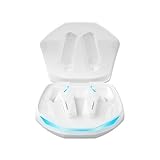
How to Pair Duo 5.3 Earbuds: A Simple Guide
So, you’ve got yourself a shiny new pair of Duo 5.3 earbuds! Congratulations! These little wonders promise to deliver your favorite tunes, podcasts, and calls right to your ears. But before you can experience the audio bliss, you need to get them paired with your device. Don’t worry, it’s a straightforward process, and I’m here to guide you through every step.
Whether you’re an Android aficionado, an iPhone enthusiast, or a Windows user, the pairing process is generally similar, with slight variations. We’ll cover all the bases, ensuring you can connect your earbuds to your smartphone, tablet, laptop, or any other Bluetooth-enabled device. This guide will help you troubleshoot common issues and get you listening in no time.
We’ll break down the steps clearly, providing helpful tips along the way. Get ready to enjoy your Duo 5.3 earbuds to the fullest. Let’s get started!
Understanding Your Duo 5.3 Earbuds
Before we jump into pairing, let’s get acquainted with your Duo 5.3 earbuds. These earbuds typically come with a charging case, which not only protects them but also provides extra battery life. You’ll find a charging port (usually USB-C) on the case. The earbuds themselves have touch controls for various functions like playing/pausing music, answering calls, and adjusting volume. The exact location and functionality of these controls can vary slightly, so refer to your user manual for specifics.
Key Features to Note:
- Bluetooth Version: Duo 5.3 usually supports Bluetooth 5.3, which offers improved connection stability, faster pairing, and better power efficiency.
- Charging Case: Provides extended battery life for on-the-go listening.
- Touch Controls: Allow you to manage music playback and calls.
- LED Indicators: The charging case and earbuds often have LED lights to indicate charging status and pairing mode.
Preparing for Pairing
To ensure a smooth pairing experience, there are a few preliminary steps you should take:
1. Charge the Earbuds and Case
Make sure both the earbuds and the charging case are adequately charged before you begin. This avoids interruptions during the pairing process. Fully charging your earbuds and case will ensure you have the maximum listening time available. Most earbuds will have LED indicators that show charging status: red for charging, green for fully charged. Check the manual for specifics.
2. Enable Bluetooth on Your Device
On your smartphone, tablet, or laptop, navigate to the Bluetooth settings. This is usually found in the settings app. Make sure Bluetooth is turned on. You can usually toggle it on and off with a simple switch. This is essential for your device to search for and connect to your Duo 5.3 earbuds. Ensure that no other devices are actively trying to pair with the device you intend to use.
3. Place the Earbuds in Pairing Mode
This is where the process can vary slightly depending on your specific model of Duo 5.3 earbuds. Typically, you’ll need to open the charging case. Some earbuds automatically enter pairing mode when the case is opened, while others may require you to press and hold a button on the case or the earbuds themselves. Consult your user manual for the exact method. Often, the LED lights on the case or earbuds will flash, indicating pairing mode.
Pairing with Your Smartphone (android & Ios)
Pairing your Duo 5.3 earbuds with your smartphone is generally the most common use case. Here’s a step-by-step guide for both Android and iOS devices:
Android Devices:
- Open Settings: Go to your phone’s settings app.
- Select Bluetooth: Tap on the Bluetooth option. This might be under ‘Connections’ or ‘Connected devices,’ depending on your Android version.
- Enable Bluetooth: If Bluetooth is off, toggle it on. Your phone will begin searching for available devices.
- Put Earbuds in Pairing Mode: Open the Duo 5.3 charging case (or press and hold the pairing button if required).
- Select Your Earbuds: Your phone should display ‘Duo 5.3’ or a similar name in the list of available devices. Tap on it to connect.
- Confirm Pairing (if prompted): You might be asked to confirm the pairing by tapping ‘Pair’ or entering a code (usually ‘0000’).
- Connected! Once connected, the earbuds’ status will change to ‘Connected’ or something similar. You can now start listening.
iOS Devices (iphone & Ipad):
- Open Settings: Go to your iPhone or iPad settings app.
- Select Bluetooth: Tap on the Bluetooth option.
- Enable Bluetooth: If Bluetooth is off, toggle it on. Your device will start searching.
- Put Earbuds in Pairing Mode: Open the Duo 5.3 charging case (or press and hold the pairing button).
- Select Your Earbuds: Your device should display ‘Duo 5.3’ in the list of available devices. Tap on it.
- Connected! Once connected, the earbuds’ status will change to ‘Connected.’ You can now enjoy your audio.
Pairing with a Laptop or Computer (windows & Macos)
Connecting your Duo 5.3 earbuds to your laptop allows you to listen to music, watch videos, and participate in video calls. The process is similar to connecting to a smartphone, but the interface might differ slightly.
Windows:
- Open Settings: Click on the Start menu and then the Settings icon (gear symbol).
- Select Devices: Click on ‘Devices.’
- Select Bluetooth & other devices: Choose ‘Bluetooth & other devices’ from the left-hand menu.
- Add Bluetooth Device: Click on the ‘+’ button next to ‘Add Bluetooth or other device.’
- Select Bluetooth: Choose ‘Bluetooth’ from the options.
- Put Earbuds in Pairing Mode: Open the Duo 5.3 charging case (or press and hold the pairing button).
- Select Your Earbuds: Your computer should display ‘Duo 5.3’ or a similar name. Click on it.
- Confirm Pairing (if prompted): You might be asked to confirm the pairing.
- Connected! Once connected, the earbuds’ status will change to ‘Connected.’ You can now use your earbuds with your computer.
Macos:
- Open System Preferences: Click on the Apple menu (top-left corner of the screen) and select ‘System Preferences.’ (In newer macOS versions, this is called ‘System Settings.’)
- Select Bluetooth: Click on the ‘Bluetooth’ icon.
- Enable Bluetooth: If Bluetooth is off, click the ‘Turn Bluetooth On’ button. Your Mac will start searching.
- Put Earbuds in Pairing Mode: Open the Duo 5.3 charging case (or press and hold the pairing button).
- Select Your Earbuds: Your Mac should display ‘Duo 5.3’ in the list of devices. Click on ‘Connect.’
- Connected! Once connected, the earbuds’ status will change to ‘Connected.’ Your audio will now be routed through your earbuds.
Troubleshooting Common Pairing Issues
Sometimes, things don’t go as planned. Here are some common issues and how to resolve them:
1. Earbuds Not Appearing in the Device List
Possible Causes:
- Earbuds not in pairing mode.
- Bluetooth is not enabled on your device.
- Earbuds are already connected to another device.
- Low battery on the earbuds.
Solutions:
- Double-check that the earbuds are in pairing mode (open the case or press the pairing button).
- Ensure Bluetooth is enabled on your device.
- Disconnect the earbuds from any previously connected devices.
- Charge the earbuds and case.
- Restart both the earbuds (place them back in the case and close it, then reopen) and your device.
2. Pairing but No Sound
Possible Causes:
- The earbuds are not selected as the audio output device.
- Volume is muted on the earbuds or the connected device.
- Bluetooth connection is unstable.
Solutions:
- Go to your device’s audio settings and ensure ‘Duo 5.3’ is selected as the output device.
- Check the volume level on both the earbuds and your device.
- Move closer to your device and ensure there are no obstructions interfering with the Bluetooth signal.
- Unpair and re-pair the earbuds.
3. One Earbud Not Working
Possible Causes:
- One earbud is not properly seated in the charging case.
- One earbud is not charged.
- A software glitch.
Solutions:
- Make sure both earbuds are securely placed in the charging case.
- Charge both earbuds fully.
- Try resetting the earbuds (see the section on resetting your earbuds below).
- Check the balance settings on your device; sometimes, audio can be panned completely to one side.
4. Bluetooth Connection Drops
Possible Causes:
- Interference from other devices (Wi-Fi routers, microwaves, etc.).
- Obstructions between the earbuds and your device.
- Weak Bluetooth signal.
Solutions:
- Move closer to your device.
- Minimize obstructions (walls, metal objects).
- Turn off other Bluetooth devices to reduce interference.
- Ensure your device’s Bluetooth drivers are up to date.
Resetting Your Duo 5.3 Earbuds
If you’re still experiencing problems, resetting your earbuds can often resolve them. The reset process varies depending on the specific model, so consult your user manual for precise instructions. However, here’s a general guide:
- Place Earbuds in the Case: Put both earbuds back into the charging case.
- Close the Case: Close the charging case lid.
- Wait: Wait for about 10-20 seconds.
- Open the Case: Open the charging case lid.
- Press and Hold (if applicable): Some models require you to press and hold a button on the case or the earbuds for a few seconds. The LED lights will usually flash to indicate the reset is in progress.
- Re-Pair: After the reset, you’ll need to re-pair the earbuds with your device. Follow the pairing instructions above.
Tips for Optimal Performance
- Keep the Earbuds Clean: Regularly clean the earbuds to remove earwax and debris, which can affect sound quality and connection stability. Use a soft, dry cloth.
- Store Properly: When not in use, store the earbuds in their charging case to protect them and conserve battery life.
- Update Firmware (if applicable): Check for firmware updates for your earbuds through the manufacturer’s app or website. Firmware updates can improve performance and fix bugs.
- Use the Correct Eartips: Ensure you’re using the eartips that best fit your ears for a comfortable fit and optimal sound quality.
- Avoid Extreme Temperatures: Protect your earbuds from extreme temperatures and humidity, as these can damage the components.
Bluetooth Codecs and Their Impact
Bluetooth codecs determine how audio is transmitted from your device to your earbuds. Different codecs offer varying levels of audio quality and efficiency. Duo 5.3 earbuds typically support a few of the more common codecs. Understanding these can help you optimize your listening experience.
Common Bluetooth Codecs:
- SBC (Subband Codec): This is the standard codec and is supported by all Bluetooth devices. It offers basic audio quality and is less efficient than other codecs.
- AAC (Advanced Audio Coding): Often used by Apple devices, AAC generally provides better audio quality than SBC.
- aptX: Developed by Qualcomm, aptX offers improved audio quality compared to SBC, especially for Android devices.
- aptX HD: An even higher-quality version of aptX, offering near-lossless audio transmission.
Why Codecs Matter: The codec your device uses to transmit audio can significantly affect the sound quality you experience. If your device and earbuds support a higher-quality codec like aptX or AAC, you’ll generally get better audio performance. The specific codec used is often automatically selected based on the capabilities of both your device and the earbuds.
Checking Codec: You can often check which codec is being used in your device’s Bluetooth settings, though the specific location of this information varies depending on your operating system and device. Some Android devices have options to select the preferred codec.
Comparing Duo 5.3 to Other Earbud Options
To help you understand where Duo 5.3 earbuds fit in the market, let’s compare them to some alternatives. This will help you evaluate their strengths and weaknesses in relation to other options available. This comparison isn’t exhaustive, but it provides a useful overview.
| Feature | Duo 5.3 | Competitor A (e.g., Apple AirPods) | Competitor B (e.g., Samsung Galaxy Buds) |
|---|---|---|---|
| Price | Typically mid-range | High-end | Mid-range to high-end |
| Sound Quality | Good, depending on codec support | Excellent, optimized for Apple devices | Very good, with active noise cancellation on some models |
| Noise Cancellation | May not have active noise cancellation (ANC). | ANC available on some models | ANC available on some models |
| Battery Life | Good, with charging case | Very good, with charging case | Good, with charging case |
| Features | Touch controls, Bluetooth 5.3 | Seamless pairing with Apple devices, spatial audio | Active noise cancellation, various sound profiles |
| Integration | Works with all Bluetooth devices | Optimized for Apple devices | Optimized for Samsung devices |
Key Takeaways:
- Price: Duo 5.3 often offers a good balance between features and cost, falling in the mid-range price bracket.
- Sound Quality: Sound quality is generally good, but can vary depending on the supported Bluetooth codecs.
- Features: You’ll find standard features such as touch controls and Bluetooth 5.3, but may lack advanced features like ANC.
- Integration: Duo 5.3 earbuds are designed to work with all Bluetooth-enabled devices, making them a versatile choice.
Maximizing Your Listening Experience
Beyond pairing and basic troubleshooting, there are a few things you can do to enhance your listening experience with your Duo 5.3 earbuds.
1. Customize Your Sound
Many devices offer built-in equalizer settings that allow you to adjust the sound output to your preference. Experiment with different equalizer presets (e.g., ‘Rock,’ ‘Pop,’ ‘Jazz’) or create your own custom settings. This can help you fine-tune the audio to your liking.
2. Choose the Right Music App
The music app you use can also affect your listening experience. Some apps offer higher-quality audio streaming options (e.g., lossless audio), which can significantly improve sound quality if your earbuds and device support it. Consider experimenting with different music apps to find one that meets your audio needs.
3. Proper Fit and Eartip Selection
A proper fit is essential for both comfort and sound quality. Make sure you’re using the eartips that create a good seal in your ear canal. This seal helps to isolate external noise and enhance bass response. Experiment with the different eartip sizes that come with your earbuds to find the best fit.
4. Manage Your Volume
Be mindful of your volume levels. Listening to music at excessively high volumes can damage your hearing over time. Try to keep the volume at a comfortable level, and take breaks from listening if necessary. Most devices offer volume limiters that you can set to protect your ears.
5. Update Your Device’s Software
Keep your smartphone, tablet, or laptop’s operating system up to date. Software updates often include bug fixes and performance improvements that can enhance the Bluetooth connection and overall audio experience.
The Future of Wireless Audio
The wireless audio market is constantly evolving, with new technologies and features emerging regularly. Here are some trends to watch for:
- Improved Bluetooth Codecs: Expect to see further advancements in Bluetooth codecs, offering even better audio quality and efficiency.
- Active Noise Cancellation (ANC): ANC technology is becoming increasingly sophisticated and affordable, providing a more immersive listening experience.
- Spatial Audio: This technology creates a more immersive and realistic soundstage, making it feel like the audio is coming from different directions.
- Enhanced Battery Life: Manufacturers are constantly working to improve battery life, allowing for longer listening sessions.
- Health and Fitness Features: Some earbuds are incorporating health and fitness tracking features, such as heart rate monitoring and activity tracking.
Staying informed about these trends can help you make informed decisions about your future audio purchases and ensure you’re getting the most out of your listening experience.
Final Verdict
Pairing your Duo 5.3 earbuds is a simple process, and with this guide, you should be well-equipped to connect them to your devices. Remember to charge your earbuds and case, enable Bluetooth, and put your earbuds in pairing mode. Follow the steps outlined for your specific device (Android, iOS, Windows, or macOS), and you’ll be enjoying your favorite audio in no time.
If you encounter any issues, don’t hesitate to consult the troubleshooting tips provided. Resetting your earbuds can often resolve connection problems. By understanding the features of your Duo 5.3 earbuds and following these guidelines, you can ensure a seamless and enjoyable listening experience. Now, go forth and enjoy your music, podcasts, and calls!
Recommended Products