How to Connect Tozo Earbuds: A Simple Guide
So, you’ve got your shiny new TOZO earbuds, and you’re eager to get that sweet, sweet audio flowing, right? But maybe you’re staring at them, a little unsure where to start. Don’t worry, it’s a super common feeling! Connecting Bluetooth earbuds can sometimes feel like a mini-adventure, but I’m here to tell you it’s actually really straightforward.
We’ll walk through the process step-by-step, covering everything from the initial pairing to troubleshooting common issues. Whether you’re an Android aficionado or an Apple enthusiast, I’ve got you covered. This guide will make sure you’re listening to your favorite tunes, podcasts, or audiobooks in no time. Let’s get started!
Understanding Your Tozo Earbuds
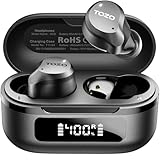
Before we jump into the connection process, let’s get a quick overview of TOZO earbuds. They’re known for their affordability and decent sound quality, making them a popular choice for many. They usually come with a charging case, which is crucial for both storing and charging the earbuds. Most models offer touch controls for managing music playback, answering calls, and adjusting volume.
Key Features to Know
- Bluetooth Version: Most TOZO earbuds use Bluetooth 5.0 or higher for a stable and efficient connection.
- Charging Case: The case provides extra battery life and protects the earbuds.
- Touch Controls: Learn the touch gestures for easy control.
- Water Resistance: Many models are water-resistant (check the specs for IPX ratings).
Connecting to Your Smartphone (android & Ios)
The core process for connecting TOZO earbuds is similar for both Android and iOS devices. The main difference lies in the location of the Bluetooth settings within the device’s interface. Let’s break it down:
Step 1: Charging and Powering On
Make sure your earbuds are charged. Place them in the charging case and ensure the case has power (usually indicated by an LED light). Remove the earbuds from the case; they should automatically power on and enter pairing mode. If they don’t, consult your specific model’s manual for the power-on procedure (often involving holding a button on the earbud or case).
Step 2: Activating Bluetooth on Your Device
Android:
- Go to your device’s Settings.
- Tap on Connections or Bluetooth & device connection (the wording may vary depending on your Android version).
- Toggle the Bluetooth switch to the ON position.
iOS (iPhone/iPad):
- Open the Settings app.
- Tap on Bluetooth.
- Toggle the Bluetooth switch to the ON position.
Step 3: Pairing Your Earbuds
Once Bluetooth is enabled, your device will start scanning for available devices. Your TOZO earbuds should appear in the list of available devices, often with the model name (e.g., “TOZO T10” or similar).
Android & iOS:
- Tap on the name of your TOZO earbuds in the list of available devices.
- You might see a pairing request pop up. If so, tap Pair or Accept.
- Once connected, the earbuds’ status should change to “Connected” or “Paired.” You might also see a battery indicator showing the earbuds’ charge level.
Step 4: Testing the Connection
Play some music, a video, or any other audio on your device. You should now hear the audio through your TOZO earbuds. If you can hear the sound, congratulations! You’ve successfully connected your earbuds.
Troubleshooting Common Connection Issues
Sometimes, things don’t go perfectly the first time. Here are some common problems and how to solve them:
Problem: Earbuds Not Appearing in the Bluetooth List
Solution:
- Ensure the Earbuds are in Pairing Mode: Make sure the earbuds are powered on and in pairing mode. This usually involves removing them from the charging case or pressing a button on the earbuds or the case. Consult your manual if unsure.
- Check the Battery: Make sure both the earbuds and the charging case have enough charge. Low battery can sometimes interfere with the pairing process.
- Restart Bluetooth: Turn Bluetooth off and then back on your device.
- Restart Your Device: Sometimes, a simple restart of your phone or tablet can resolve Bluetooth issues.
- Reset the Earbuds: Many TOZO models have a reset function. Refer to your manual for instructions on how to reset your specific model. This often involves placing the earbuds in the case and pressing a button.
Problem: Connection Drops or Stuttering Audio
Solution:
- Reduce Interference: Bluetooth signals can be affected by other devices or obstacles. Move closer to your device and away from sources of interference like microwaves, Wi-Fi routers, or other Bluetooth devices.
- Check Distance: Bluetooth has a limited range. Stay within a reasonable distance (typically 10-15 meters) of your device.
- Update Firmware: Check if there are any firmware updates available for your earbuds. These updates often improve connection stability. See your model’s user guide or the TOZO website for instructions.
- Clear Bluetooth Cache (Android): Go to Settings > Apps > Bluetooth > Storage > Clear Cache. This can sometimes help resolve connection problems.
Problem: Only One Earbud Is Working
Solution:
- Check Individual Earbud Charge: Make sure both earbuds are charged.
- Reset the Earbuds: Perform a factory reset on your earbuds (refer to your manual).
- Re-pair the Earbuds: Unpair the earbuds from your device and then pair them again, making sure to connect both earbuds during the pairing process.
Problem: Unable to Connect to Multiple Devices
Solution:
- Bluetooth Limitations: Bluetooth devices can usually only connect to one device at a time. Disconnect the earbuds from the first device before attempting to connect to a new one.
- Forget the Device: On the device you previously used, “forget” the earbuds in the Bluetooth settings, and then try pairing them on the new device.
Advanced Tips and Tricks
Touch Control Mastery
TOZO earbuds usually feature touch controls. Understanding these controls enhances your listening experience. Here’s a general guide; your specific model’s controls may vary:
- Play/Pause: Usually a single tap on either earbud.
- Next Track: Double-tap the right earbud.
- Previous Track: Double-tap the left earbud.
- Volume Up: Tap and hold the right earbud.
- Volume Down: Tap and hold the left earbud.
- Answer/End Call: Single tap.
- Reject Call: Tap and hold.
- Voice Assistant: Tap three times (model dependent).
Maximizing Battery Life
- Charge Regularly: Keep the charging case charged to provide power on the go.
- Store Properly: When not in use, place the earbuds back in the charging case.
- Turn Off When Not Using: If you won’t be using them for a while, turn the earbuds off or place them in the charging case.
Cleaning and Maintenance
Keeping your earbuds clean ensures optimal performance and longevity.
- Wipe Down Regularly: Use a soft, dry cloth to wipe the earbuds and the charging case regularly.
- Clean the Mesh: Use a small brush (like a toothbrush) to gently clean the mesh covering the speaker drivers.
- Avoid Moisture: Protect the earbuds from moisture and extreme temperatures.
- Don’t Use Harsh Cleaners: Avoid using harsh chemicals or abrasive cleaners.
Tozo Earbud Models Comparison (simplified Example)
Let’s look at a simplified comparison of a few popular TOZO earbud models. Keep in mind that features and specifications can vary.
| Feature | TOZO T10 | TOZO NC9 | TOZO A1 |
|---|---|---|---|
| Bluetooth Version | 5.3 | 5.3 | 5.3 |
| Water Resistance | IPX8 | IPX6 | IPX5 |
| Noise Cancellation | No | Yes (Active Noise Cancellation) | No |
| Battery Life (Earbuds) | Up to 8 hours | Up to 8 hours | Up to 6 hours |
| Battery Life (with Case) | Up to 40 hours | Up to 32 hours | Up to 30 hours |
| Touch Controls | Yes | Yes | Yes |
Disclaimer: This table provides a simplified comparison. Always check the official TOZO product specifications for the most accurate and up-to-date information.
Connecting to a Laptop or Computer
Connecting your TOZO earbuds to a laptop or desktop computer is similar to connecting to a smartphone, but the steps might vary slightly depending on your operating system (Windows or macOS).
Windows
- Enable Bluetooth: Click the Windows icon (Start menu), then go to Settings > Devices > Bluetooth & other devices. Make sure Bluetooth is turned on.
- Add Bluetooth Device: Click “Add Bluetooth or other device.”
- Select Bluetooth: Choose “Bluetooth” from the options.
- Pair Your Earbuds: Your TOZO earbuds should appear in the list. Click on them to pair. You might be prompted to enter a PIN (usually 0000 or 1234) or confirm the pairing.
- Select Output Device: After pairing, go to your Sound settings (right-click the speaker icon in the system tray and select “Open Sound settings”). Under “Output,” make sure your TOZO earbuds are selected as the default playback device.
Macos
- Enable Bluetooth: Click the Bluetooth icon in the menu bar (if you don’t see it, go to System Preferences > Bluetooth and check “Show Bluetooth in menu bar”). Turn Bluetooth on.
- Pair Your Earbuds: Your TOZO earbuds should appear in the list of devices. Click “Connect” next to your earbuds’ name.
- Select Output Device: Click the Bluetooth icon in the menu bar and select your TOZO earbuds. Alternatively, go to System Preferences > Sound > Output and select your earbuds.
Note: If you’re having trouble connecting to your computer, make sure your computer’s Bluetooth drivers are up to date. You can usually find driver updates on the manufacturer’s website.
When to Contact Support
If you’ve tried all the troubleshooting steps and are still experiencing problems, it’s time to contact TOZO customer support. Here’s when you should reach out:
- Persistent Connection Issues: If the earbuds consistently fail to connect or maintain a stable connection, even after resetting and re-pairing.
- Hardware Malfunction: If you suspect a hardware problem (e.g., one earbud not working, charging case issues).
- Firmware Problems: If you’re unable to update the firmware or encounter errors during the update process.
- Warranty Claims: If your earbuds are still under warranty and experiencing issues.
You can usually find contact information on the TOZO website or in the product packaging. Be ready to provide your model number and a detailed description of the problem.
Conclusion
Connecting your TOZO earbuds is generally a quick and easy process. By following the steps outlined in this guide, you should be able to get your earbuds paired with your device in no time. Remember to charge your earbuds, enable Bluetooth, and select your earbuds from the available devices list. If you encounter any issues, don’t hesitate to refer to the troubleshooting tips or consult the TOZO user manual.
Enjoy your music, podcasts, and calls with your new TOZO earbuds! With a little patience and these simple instructions, you’ll be enjoying your audio wirelessly in minutes. Happy listening!
Recommended Products