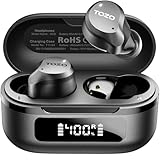
How to Connect Tozo Bluetooth Earbuds: A Simple Guide
So, you’ve got yourself a shiny new pair of TOZO Bluetooth earbuds! Excellent choice. These little wonders pack a punch, offering great sound quality and convenience without the hassle of wires. But, let’s be honest, sometimes the initial setup can feel a little… well, fiddly. Don’t worry, you’re not alone. Many people stumble during the first connection attempt.
That’s where I come in! I’ve spent a good amount of time with various TOZO models, and I’m here to guide you through the process step-by-step. We’ll cover everything from the initial pairing to troubleshooting common issues. We’ll also explore some helpful tips to get the most out of your new earbuds. Ready to get connected and start enjoying your music, podcasts, and calls? Let’s jump in!
Understanding Your Tozo Earbuds
Before we get started, let’s take a quick look at what makes TOZO earbuds tick. They’re designed with simplicity and user-friendliness in mind, but knowing a few basics will make the connection process a breeze.
Key Features to Know
- Bluetooth Version: Most TOZO earbuds use Bluetooth 5.0 or later, ensuring a stable and efficient connection. This means faster pairing and a more reliable connection with your devices.
- Charging Case: The charging case is your best friend. It not only protects your earbuds but also provides extra battery life. Make sure it’s charged!
- Touch Controls: Many TOZO models feature touch controls on the earbuds themselves. These let you play/pause music, answer calls, adjust volume, and more. We’ll cover these in detail later.
- LED Indicators: Your earbuds and charging case have LED lights that indicate charging status, pairing mode, and connection status. Pay attention to these lights – they’re your best visual cues.
Common Tozo Earbud Models
While the connection process is generally the same across all TOZO models, there might be slight variations in button placement or LED behavior. Here are some popular models you might have:
- TOZO T10: A very popular and affordable option, known for its water resistance and good sound quality.
- TOZO T6: Similar to the T10, but often with a slightly different design and features.
- TOZO NC9: These feature active noise cancellation (ANC) for a more immersive listening experience.
- TOZO A1: A more compact and budget-friendly option.
- TOZO T12: Offers a comfortable fit and decent sound.
Regardless of your specific model, the core connection steps remain consistent. Let’s get started!
Step-by-Step Guide: Connecting Your Tozo Earbuds
Here’s a straightforward guide to connecting your TOZO earbuds to your smartphone, tablet, or other Bluetooth-enabled devices. I’ll break it down into easy-to-follow steps.
Step 1: Charging Your Earbuds and Case
Before you do anything else, make sure your earbuds and charging case are charged. This is crucial for a smooth pairing experience. A dead battery will prevent you from connecting.
- Charging the Case: Use the included USB-C cable (or the appropriate cable for your model) to connect the charging case to a power source. The LED indicator on the case will usually show the charging status (e.g., blinking red, solid green).
- Charging the Earbuds: Place the earbuds inside the charging case. The case will automatically start charging them. The LED indicators on the earbuds themselves might light up to show they are charging.
- Fully Charged: Wait until both the case and earbuds are fully charged. The lights will typically indicate when they’re ready to go (e.g., solid green). It’s always a good idea to charge them fully before the first use.
Tip: Check your user manual for specific charging times and LED indicator meanings for your particular TOZO model. This information is readily available in the manual.
Step 2: Entering Pairing Mode
Now, let’s put your earbuds into pairing mode. This is the stage where they become discoverable by your device. The exact method can vary slightly depending on your TOZO model, but here’s the general process:
- Open the Charging Case: Open the charging case. Some models automatically enter pairing mode when the case is opened, while others require a button press.
- Button Press (if required): If your model has a button on the case, press and hold it for a few seconds. You’ll usually see an LED indicator start flashing blue or red, indicating that the earbuds are in pairing mode.
- Earbud LEDs: Look at the LED indicators on the earbuds themselves. They should be flashing, indicating they are ready to pair. This might be a blue and red flashing sequence.
- Consult the Manual: If you’re unsure about the pairing mode activation, consult the user manual that came with your earbuds. It will provide model-specific instructions.
Important Note: Pairing mode typically times out after a few minutes. If you don’t connect within that timeframe, the earbuds will exit pairing mode. You’ll then need to repeat this step to try again.
Step 3: Connecting to Your Device (smartphone, Tablet, Etc.)
With your earbuds in pairing mode, it’s time to connect them to your device. Here’s how:
- Enable Bluetooth: On your smartphone, tablet, or other device, go to the settings menu and enable Bluetooth. The location of Bluetooth settings can vary depending on your device (e.g., in Android, it’s often in the “Connections” or “Bluetooth” section; on iOS, it’s in the “Bluetooth” section of the Settings app).
- Search for Devices: Your device will start scanning for available Bluetooth devices.
- Select Your TOZO Earbuds: Look for your TOZO earbuds in the list of available devices. They might be listed as “TOZO T10,” “TOZO T6,” or a similar model name. Tap on the name to select them.
- Pairing Request (if needed): Your device might ask you to confirm the pairing. Tap “Pair” or “OK” to accept.
- Connected! Once paired, the earbuds should show as “Connected” in your device’s Bluetooth settings. You might also hear a confirmation sound in your earbuds.
Troubleshooting Tip: If you don’t see your TOZO earbuds in the list of available devices, make sure they are in pairing mode and close to your device. Sometimes, restarting your device or the earbuds can help resolve this issue.
Step 4: Using Your Tozo Earbuds
Congratulations! You’ve successfully connected your TOZO earbuds. Now, let’s explore how to use them.
- Playing Music/Audio: Open your favorite music app (Spotify, Apple Music, etc.), podcast app, or any other app that plays audio. Start playing your content, and the audio should now come through your earbuds.
- Adjusting Volume: You can typically adjust the volume using the volume controls on your device or the touch controls on the earbuds themselves (more on that below).
- Answering/Ending Calls: If you receive a call, you can usually answer it by tapping one of the earbuds. To end a call, tap again.
- Charging and Reconnecting: When you’re done using the earbuds, place them back in the charging case to recharge. The next time you take them out, they should automatically reconnect to your device, provided Bluetooth is enabled. If they don’t automatically reconnect, you might need to select them from your device’s Bluetooth settings.
Touch Control Guide (if Applicable)
Many TOZO earbuds feature touch controls on the earbuds themselves. These controls allow you to manage music playback, answer calls, and more. The specific controls can vary slightly depending on the model, but here’s a general overview:
Common Touch Controls
- Play/Pause: Tap one of the earbuds once.
- Next Track: Tap the right earbud twice.
- Previous Track: Tap the left earbud twice.
- Increase Volume: Tap and hold the right earbud.
- Decrease Volume: Tap and hold the left earbud.
- Answer/End Call: Tap one of the earbuds once.
- Reject Call: Tap and hold one of the earbuds for a few seconds.
- Voice Assistant (Siri, Google Assistant): Tap one of the earbuds three times (this can vary; check your manual).
Customization
Some TOZO models allow you to customize the touch controls through a companion app. Check the app store for a TOZO app (if available for your model) to see if you can personalize the controls to your liking.
Important: Refer to your specific TOZO model’s user manual for the exact touch control functions. This document will give you precise instructions tailored to your earbuds.
Troubleshooting Common Connection Issues
Sometimes, things don’t go perfectly smoothly. Here’s how to troubleshoot common connection problems you might encounter:
1. Earbuds Won’t Pair
- Check Battery: Make sure both the earbuds and the charging case are charged. Low battery can often cause pairing issues.
- Pairing Mode: Double-check that the earbuds are in pairing mode. Make sure the LED indicators are flashing correctly.
- Distance: Ensure the earbuds are close to your device during pairing. Bluetooth has a limited range.
- Bluetooth Interference: Avoid areas with significant Bluetooth interference (e.g., near other Bluetooth devices, microwaves).
- Forget and Reconnect: On your device, go to the Bluetooth settings and “forget” or “unpair” the TOZO earbuds. Then, try pairing them again from scratch.
- Restart Devices: Restart both your device (smartphone, tablet, etc.) and the earbuds (put them back in the case and take them out again).
- Factory Reset (as a last resort): Some TOZO models have a factory reset option. Consult your user manual for instructions on how to perform a factory reset. This will erase all pairing information and restore the earbuds to their default settings.
2. One Earbud Isn’t Working
- Charging: Ensure both earbuds are charged and properly seated in the charging case.
- Reset: Try resetting the earbuds (consult your manual for reset instructions).
- Reconnect: Unpair the earbuds from your device and then pair them again.
- Balance Settings: Check the audio balance settings on your device to make sure the sound isn’t being directed to only one earbud.
3. Sound Quality Issues
- Distance: Stay within the Bluetooth range of your device to avoid sound dropouts or distortion.
- Interference: Minimize interference from other wireless devices.
- Volume: Check the volume levels on both your device and the earbuds.
- Equalizer: Experiment with the equalizer settings in your music app or device to find the sound that you prefer.
- Clean the Earbuds: Clean the ear tips of the earbuds to remove any debris that might be affecting sound quality.
4. Earbuds Won’t Reconnect Automatically
- Bluetooth Enabled: Make sure Bluetooth is enabled on your device.
- Earbud Placement: Ensure the earbuds are removed from the charging case.
- Device Recognition: Check the Bluetooth settings on your device. The earbuds should be listed as “Connected.” If not, select them from the list.
- Charging Case: Make sure the charging case has enough charge to power the earbuds.
Maximizing Your Tozo Earbud Experience: Tips and Tricks
Here are some extra tips to get the most out of your TOZO earbuds:
1. Proper Fit Is Key
Choosing the Right Eartips: TOZO earbuds typically come with multiple sizes of silicone ear tips. Experiment with different sizes to find the ones that fit your ears snugly and comfortably. A good fit is essential for optimal sound quality and noise isolation.
2. Keep Them Clean
Cleaning Your Earbuds: Regularly clean your earbuds to remove earwax and debris. Use a soft, dry cloth or a cotton swab. Avoid using liquids or harsh chemicals. Clean the charging case as well.
3. Extend Battery Life
Charging Habits: Avoid overcharging your earbuds. Once they’re fully charged, unplug them from the power source. Consider charging the charging case regularly. Not using the earbuds for extended periods can drain the battery. Store them properly.
4. Explore Features
Noise Cancellation (if applicable): If your TOZO earbuds have active noise cancellation (ANC), experiment with it in different environments to see how it performs. Toggle it on or off as needed. Some models allow you to adjust the level of noise cancellation.
5. Stay Updated
Check for Firmware Updates: Occasionally, TOZO might release firmware updates for your earbuds. These updates can improve performance, add new features, or fix bugs. Check the TOZO website or app (if available) for updates.
6. Using with Multiple Devices
Pairing to Multiple Devices: Some TOZO earbuds can connect to multiple devices, but only one at a time. To switch between devices, you’ll usually need to disconnect from one device and then connect to the other. Refer to your manual for specific instructions on managing multiple connections.
7. Protect Your Investment
Storage: When not in use, store your earbuds in the charging case to protect them from dust, dirt, and damage. Avoid extreme temperatures and humidity.
Troubleshooting Table
Here’s a quick reference table to help you troubleshoot common TOZO earbud issues:
| Problem | Possible Solution |
|---|---|
| Earbuds won’t pair | Charge earbuds and case, ensure in pairing mode, check distance, forget/reconnect, restart devices, factory reset. |
| One earbud not working | Check charging, reset earbuds, reconnect, check audio balance. |
| Sound quality issues | Check distance, minimize interference, adjust volume, experiment with equalizer, clean earbuds. |
| Won’t reconnect automatically | Enable Bluetooth, remove earbuds from case, check device recognition, ensure charging case has power. |
| Touch controls not working | Check the manual for the correct touch controls for your model, try resetting the earbuds. |
Final Verdict
Connecting your TOZO Bluetooth earbuds is a straightforward process, and with this guide, you should be up and running in no time. Remember to charge your earbuds and case, put them in pairing mode, and then connect to your device via Bluetooth. If you run into any issues, don’t panic! Review the troubleshooting tips, and consult your user manual for model-specific instructions.
Once connected, you can enjoy your favorite music, podcasts, and calls with the convenience and freedom of wireless audio. By following these tips and tricks, you can maximize your listening experience and keep your TOZO earbuds in top condition for a long time. Now go forth, connect, and enjoy the sound!
Recommended Products