How to Connect to Shokz Earbuds: A Simple Guide
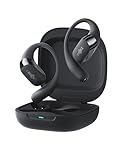
Hey there! If you’re here, chances are you’ve just gotten a pair of Shokz earbuds, or you’re thinking about it. Awesome choice! Shokz are fantastic for anyone who loves staying aware of their surroundings while enjoying their audio. They use bone conduction technology, which means the sound travels through your cheekbones, leaving your ears open to hear everything around you. This makes them perfect for running, cycling, or just chilling at the office.
But before you can experience the magic of open-ear audio, you’ll need to connect your Shokz earbuds to your phone, tablet, or computer. Don’t worry, it’s a piece of cake. This guide will walk you through every step, no matter which Shokz model you have or which device you’re using. I’ll cover the basics of Bluetooth pairing, troubleshooting tips if you run into any snags, and even some extra features you might not know about.
So, grab your Shokz and let’s get connected! We’ll have you enjoying your favorite tunes, podcasts, or audiobooks in no time.
Understanding Shokz Earbuds and Bluetooth
Before we jump into the connection process, let’s quickly recap what makes Shokz special and how Bluetooth works. Shokz earbuds, as mentioned, utilize bone conduction technology. This means they transmit sound through the bones of your skull directly to your inner ear, bypassing your eardrums. This allows you to hear ambient sounds while enjoying your audio, enhancing your safety and situational awareness.
Bluetooth, on the other hand, is a wireless technology standard used for exchanging data over short distances. It’s how your Shokz earbuds communicate with your phone, tablet, or computer. The connection process involves pairing your earbuds with your device, essentially making them recognize each other. Once paired, they’ll automatically connect whenever they’re within range and turned on.
Key Benefits of Shokz Earbuds
- Safety: Open-ear design allows you to hear your surroundings.
- Comfort: Lightweight and comfortable for extended wear.
- Situational Awareness: Ideal for runners, cyclists, and anyone who needs to stay aware.
- Audio Quality: Bone conduction technology delivers surprisingly good sound quality.
- Water Resistance: Many models are water-resistant, making them great for workouts.
How to Connect Shokz Earbuds to Your Phone (ios and Android)
Connecting your Shokz earbuds to your smartphone is the most common use case. The process is similar for both iOS (iPhones and iPads) and Android devices. Here’s how:
Step-by-Step Guide for iOS (iphone/ipad)
- Charge Your Earbuds: Ensure your Shokz earbuds are charged. Low battery can sometimes cause connection issues.
- Put Your Earbuds in Pairing Mode: The specific method varies slightly depending on your Shokz model. Generally, this involves pressing and holding the power/multi-function button for a few seconds until the LED light flashes red and blue. Refer to your specific model’s manual for precise instructions.
- Open Settings: On your iPhone or iPad, go to the Settings app.
- Go to Bluetooth: Tap on “Bluetooth.”
- Enable Bluetooth: If Bluetooth is off, toggle the switch to turn it on.
- Look for Your Earbuds: Your Shokz earbuds should appear in the list of available devices under “Other Devices” or “My Devices.” The name will likely be something like “Shokz OpenRun Pro” or similar, depending on your model.
- Tap to Connect: Tap on the name of your Shokz earbuds in the list.
- Confirmation: Once connected, the status will change to “Connected,” and the LED light on your earbuds will usually turn solid blue (or a similar color, depending on the model).
Step-by-Step Guide for Android
- Charge Your Earbuds: Make sure your Shokz earbuds are fully charged before attempting to connect.
- Put Your Earbuds in Pairing Mode: As with iOS, the process involves pressing and holding the power/multi-function button. The LED light will flash red and blue. Consult your model’s manual.
- Open Settings: Open the Settings app on your Android device.
- Go to Bluetooth: Tap on “Bluetooth” (the location may vary slightly depending on your Android version and device).
- Enable Bluetooth: If Bluetooth is off, turn it on.
- Scan for Devices: Your phone will automatically start searching for available devices. If not, tap the “Scan” or “Refresh” button.
- Select Your Earbuds: Your Shokz earbuds will appear in the list of available devices. Tap on the name of your earbuds (e.g., “Shokz OpenRun Pro”) to connect.
- Pairing Confirmation: Your earbuds will connect, and the status will change to “Connected” or “Paired.” The LED light on your earbuds will indicate a successful connection (usually solid blue).
Connecting to a Computer (windows and Macos)
Connecting your Shokz earbuds to your computer is useful for listening to music, podcasts, or participating in video calls. The process differs slightly depending on your operating system.
Connecting to a Windows Computer
- Charge Your Earbuds: Make sure your Shokz are charged.
- Put Your Earbuds in Pairing Mode: Hold the power button until the LED flashes red and blue.
- Open Settings: Click the Windows icon (Start button) and then click the Settings gear icon.
- Go to Bluetooth & devices: Click on “Bluetooth & devices.”
- Enable Bluetooth: If Bluetooth is off, turn it on.
- Add Device: Click on “Add device.”
- Select Bluetooth: In the “Add a device” window, select “Bluetooth.”
- Choose Your Earbuds: Your Shokz earbuds should appear in the list of available devices. Click on the name of your earbuds (e.g., “Shokz OpenRun Pro”) to connect.
- Complete the Connection: Windows will try to connect. You might see a progress bar. Once connected, the status will change to “Connected” or “Paired.”
Connecting to a Macos Computer (macbook/imac)
- Charge Your Earbuds: Ensure your Shokz earbuds are fully charged.
- Put Your Earbuds in Pairing Mode: Press and hold the power button until the LED flashes red and blue.
- Open System Preferences: Click the Apple menu () in the top-left corner of your screen, then click “System Preferences” (or “System Settings” in newer macOS versions).
- Go to Bluetooth: Click on “Bluetooth.”
- Enable Bluetooth: If Bluetooth is off, turn it on.
- Select Your Earbuds: Your Shokz earbuds should appear in the list of available devices. Click “Connect” next to the name of your earbuds.
- Confirmation: Once connected, the status will change to “Connected.” The LED light on your earbuds will indicate a successful connection.
Troubleshooting Common Connection Issues
Sometimes, things don’t go as planned. Here are some common problems and how to fix them:
Earbuds Not Appearing in the Device List
- Make sure your earbuds are in pairing mode: Double-check that you’ve held the power button long enough for the LED light to flash red and blue.
- Check the battery level: Low battery can sometimes interfere with pairing. Charge your earbuds.
- Move closer to the device: Bluetooth has a limited range. Try moving your earbuds closer to your phone or computer.
- Restart your device and earbuds: Sometimes, a simple restart can resolve connection issues. Turn off both your device and your earbuds, then turn them back on.
- Forget the device and try again: On your phone or computer, go to the Bluetooth settings, find your Shokz earbuds, and select “Forget” or “Remove.” Then, try pairing them again from scratch.
- Check for interference: Other Bluetooth devices or Wi-Fi routers can sometimes interfere with the connection. Try moving away from these sources.
Earbuds Connecting but No Sound
- Check the volume: Make sure the volume on both your earbuds and your device is turned up.
- Select the correct audio output: On your phone or computer, make sure your Shokz earbuds are selected as the audio output device.
- Restart your device and earbuds: Try restarting both your device and your earbuds.
- Check the app settings: Some apps have their own audio settings. Make sure the app is set to use the correct audio output.
- Update your device’s software: Outdated software can sometimes cause audio issues. Make sure your phone or computer has the latest software updates installed.
Earbuds Disconnecting Randomly
- Check the Bluetooth range: Make sure you’re within the Bluetooth range of your device.
- Check for interference: Other Bluetooth devices or Wi-Fi routers can cause interference.
- Charge your earbuds: Low battery can sometimes cause disconnections.
- Reset your earbuds: Some Shokz models have a reset function. Consult your model’s manual for instructions on how to reset your earbuds. This can often resolve connection problems.
- Update your device’s software: Outdated software on your phone or computer can cause connection instability.
Advanced Features and Tips
Beyond the basic connection process, Shokz earbuds offer some cool features you might want to know about:
Multi-Point Pairing
Multi-point pairing allows you to connect your Shokz earbuds to two devices simultaneously. This is super handy if you want to switch seamlessly between your phone and your computer. For example, you can listen to music on your computer and answer a call on your phone without having to disconnect and reconnect.
How to use it: The setup process for multi-point pairing varies depending on your Shokz model. Generally, you’ll pair your earbuds with one device as usual. Then, put your earbuds back into pairing mode and pair them with a second device. Both devices will now be connected. You can usually switch between the two devices by pausing the audio on one device and starting it on the other.
Voice Assistant Integration
Many Shokz models support voice assistants like Siri, Google Assistant, or Alexa. This allows you to control your music, make calls, and get information using voice commands. You can usually activate the voice assistant by pressing and holding the multi-function button on your earbuds.
Customization with the Shokz App
Some Shokz models have a companion app (e.g., the Shokz app). This app lets you customize your listening experience. You can adjust the EQ settings, update the firmware, and access other features.
Water Resistance and Durability
Shokz earbuds are designed for active lifestyles and often come with a water-resistant rating. This means they can withstand sweat and light rain. However, the level of water resistance varies depending on the model. Check the product specifications to determine the water resistance rating (e.g., IP67, IP68).
Proper Care and Maintenance
To keep your Shokz earbuds in tip-top shape, follow these tips:
- Clean your earbuds regularly: Use a soft, damp cloth to wipe them down. Avoid using harsh chemicals or solvents.
- Store them properly: When not in use, store your earbuds in a safe place, such as the included carrying case.
- Charge them regularly: Charge your earbuds regularly, even if you’re not using them, to maintain battery health.
- Avoid extreme temperatures: Don’t expose your earbuds to extreme temperatures or direct sunlight.
- Refer to the user manual: Always refer to your specific model’s user manual for detailed care and maintenance instructions.
Shokz Models Comparison Table
Here’s a quick comparison of some popular Shokz models:
| Feature | OpenRun Pro | OpenRun | OpenMove |
|---|---|---|---|
| Technology | Bone Conduction | Bone Conduction | Bone Conduction |
| Bluetooth Version | 5.1 | 5.1 | 5.0 |
| Water Resistance | IP55 | IP67 | IP55 |
| Battery Life | 10 hours | 8 hours | 6 hours |
| Charging Time | 1 hour | 1.5 hours | 2 hours |
| Quick Charge | Yes (5 mins charge = 1.5 hours play) | No | No |
| Multi-point Pairing | Yes | Yes | No |
| App Support | Yes | Yes | No |
Note: Features and specifications may vary depending on the specific model and any subsequent revisions.
Final Tips for Optimal Shokz Experience
- Positioning: Proper placement of the transducers on your cheekbones is crucial for optimal sound quality. Experiment with the position to find the sweet spot.
- Volume Levels: Be mindful of the volume levels, especially in noisy environments. Bone conduction can sometimes require higher volumes, but avoid excessive loudness to protect your hearing.
- Enjoy the Open-Ear Design: Embrace the benefits of open-ear listening. Stay aware of your surroundings and enjoy the freedom it provides.
- Read the Manual: Always consult your Shokz model’s user manual for specific instructions, troubleshooting tips, and safety information.
Final Thoughts
Connecting your Shokz earbuds is a straightforward process, whether you’re using an iOS or Android phone, a Windows PC, or a macOS computer. Following the steps outlined in this guide, you should be able to get your Shokz earbuds paired and ready to go in minutes. Remember to check your model’s specific instructions, as some features and connection methods may vary slightly.
If you encounter any issues, don’t worry. The troubleshooting tips provided should help you resolve most common problems. And if you’re still having trouble, the Shokz support team is always available to assist. With your Shokz earbuds connected, you’re ready to experience the freedom and safety of open-ear audio technology. Enjoy your music, podcasts, audiobooks, and calls while staying connected to the world around you!
Recommended Products