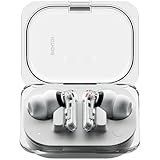
How to Connect Nothing Earbuds: A Simple Guide
So, you’ve got yourself a pair of Nothing earbuds – awesome choice! These sleek, stylish earbuds are designed to deliver a fantastic audio experience, but getting them connected can sometimes feel a little tricky. Don’t worry, though; it’s easier than you might think. This guide will walk you through every step, ensuring you can start enjoying your music, podcasts, and calls in no time.
We’ll cover everything from the initial pairing process to troubleshooting common issues. Whether you’re a tech whiz or a complete beginner, this guide is tailored to make the connection process smooth and straightforward. Let’s get those Nothing earbuds connected and ready to go!
Understanding Your Nothing Earbuds
Before we jump into the connection process, let’s take a quick overview of your Nothing earbuds. Knowing a bit about their features and how they work will make the connection process even easier. Nothing earbuds are designed with simplicity and user-friendliness in mind, but each model might have slight variations. Always refer to your specific model’s manual for precise details, but the general principles remain the same.
Key Features to Note:
- Bluetooth Connectivity: This is the core technology that allows your earbuds to connect wirelessly to your devices.
- Charging Case: The case not only protects your earbuds but also charges them. Make sure it’s charged!
- Touch Controls (or Button Controls): Most Nothing earbuds use touch controls on the earbuds themselves to manage playback, calls, and volume. Some older models might have physical buttons.
- LED Indicators: These lights on the case and earbuds provide information about the charging status and connection status.
Understanding these basics will help you troubleshoot any connection problems you might encounter.
Connecting Your Nothing Earbuds to Your Smartphone (android & Ios)
The process for connecting Nothing earbuds is similar for both Android and iOS devices. Here’s a step-by-step guide:
Step 1: Preparation
Ensure Your Earbuds are Charged: Before you start, make sure both the earbuds and the charging case have sufficient battery life. Open the case to check the LED indicator. A green light usually indicates a full charge, while other colors might indicate a lower charge. If the case isn’t charged, plug it in using the provided USB-C cable.
Step 2: Entering Pairing Mode
For Most Nothing Earbuds:
- Open the charging case. The earbuds should automatically enter pairing mode.
- If they don’t, there might be a button on the case. Press and hold this button (usually located on the back or inside the case) until the LED indicator starts blinking. This indicates that the earbuds are ready to pair.
For Some Older Models:
- Open the charging case.
- The earbuds should automatically enter pairing mode. If not, consult your manual on how to manually activate pairing mode. This might involve pressing and holding a button on the case.
Step 3: Enabling Bluetooth on Your Smartphone
Android:
- Open the Settings app on your Android device.
- Tap on ‘Connections’ or ‘Bluetooth & Device Connection’. The exact wording may vary depending on your Android version and manufacturer.
- Tap on ‘Bluetooth’.
- Toggle the Bluetooth switch to the ‘On’ position.
- Your phone will begin scanning for available devices.
iOS (iPhone/iPad):
- Open the Settings app on your iPhone or iPad.
- Tap on ‘Bluetooth’.
- Toggle the Bluetooth switch to the ‘On’ position.
- Your iPhone will start searching for nearby Bluetooth devices.
Step 4: Pairing with Your Device
On your smartphone:
- Once your phone has scanned for available devices, you should see your Nothing earbuds listed. The name might be something like ‘Nothing Earbuds (Model Number)’ or similar.
- Tap on the name of your Nothing earbuds to initiate the pairing process.
- You might be prompted to confirm the pairing. If so, tap ‘Pair’ or ‘OK’.
- Once the pairing is successful, your earbuds will be connected. You should see a confirmation message on your phone.
Troubleshooting Pairing Issues:
- Check Bluetooth Range: Ensure your phone and the earbuds are within the Bluetooth range (usually around 30 feet or 10 meters).
- Restart Bluetooth: Turn off Bluetooth on your phone, wait a few seconds, and then turn it back on.
- Forget and Re-pair: If the earbuds still don’t connect, go to your phone’s Bluetooth settings, find the earbuds in the list of paired devices, tap the ‘i’ icon (iOS) or the settings cog (Android), and select ‘Forget’ or ‘Unpair’. Then, try pairing them again from scratch.
- Restart Your Phone: Sometimes, a simple restart of your phone can resolve Bluetooth connection problems.
Connecting to a Laptop or Computer (windows & Macos)
Connecting your Nothing earbuds to a laptop or computer is similar to connecting them to a smartphone, but the steps may vary slightly depending on your operating system.
Connecting to a Windows Pc:
- Enable Bluetooth: Click the Windows icon (Start menu) and then click the Settings icon (gear). Select ‘Devices’, then ‘Bluetooth & other devices’. Ensure Bluetooth is turned ‘On’.
- Enter Pairing Mode on Earbuds: Open the Nothing earbuds charging case and put them in pairing mode (as described earlier).
- Add Bluetooth Device: Click ‘Add Bluetooth or other device’. Choose ‘Bluetooth’ from the options.
- Select Your Earbuds: Your Nothing earbuds should appear in the list of available devices. Click on them to start the pairing process.
- Pairing Confirmation: You may be prompted to enter a PIN or confirm the pairing. Follow the on-screen instructions.
- Connection Complete: Once paired, your earbuds will be connected to your PC. You may need to select them as your audio output device.
Connecting to a Macos (macbook/imac):
- Enable Bluetooth: Click the Apple menu (top-left corner of the screen) and select ‘System Preferences’ or ‘System Settings’. Click on ‘Bluetooth’. Ensure Bluetooth is turned ‘On’.
- Enter Pairing Mode on Earbuds: Open the Nothing earbuds charging case and put them in pairing mode.
- Select Your Earbuds: Your Nothing earbuds should appear in the list of available devices. Click ‘Connect’ next to your earbuds.
- Connection Complete: Once paired, your earbuds will be connected. You can adjust the audio output device in the Sound settings.
Tips for Laptop/Computer Connections:
- Driver Updates: Ensure your computer’s Bluetooth drivers are up to date. Outdated drivers can cause connection issues.
- Audio Output: After pairing, make sure your Nothing earbuds are selected as the audio output device in your computer’s sound settings.
- Bluetooth Interference: Avoid placing your computer or the earbuds near devices that might cause Bluetooth interference, such as microwaves or Wi-Fi routers.
Using the Nothing X App (optional but Recommended)
The Nothing X app (available for both Android and iOS) is a powerful tool that enhances your Nothing earbuds experience. While not strictly necessary for connecting your earbuds, it provides a host of useful features. The app allows you to customize the earbuds’ settings, update firmware, and troubleshoot issues.
Key Features of the Nothing X App:
- Customization: Adjust touch controls, EQ settings, and noise cancellation modes.
- Firmware Updates: Keep your earbuds up-to-date with the latest software improvements.
- Earbud Fit Test: Helps you find the best fit for optimal sound quality.
- Find My Earbuds: Helps you locate your earbuds if you misplace them.
- User Manual and Support: Access to the user manual and customer support.
How to Use the Nothing X App:
- Download and Install: Download the Nothing X app from the Google Play Store (Android) or the App Store (iOS).
- Open the App: Launch the Nothing X app on your smartphone.
- Connect Your Earbuds: The app should automatically detect your connected Nothing earbuds. If not, make sure your earbuds are connected to your phone via Bluetooth.
- Explore and Customize: Once connected, you can explore the app’s features and customize your earbuds’ settings to your preferences.
Troubleshooting Common Connection Issues
Even with the best instructions, you might encounter some connection problems. Here’s a troubleshooting guide to help you resolve common issues:
Earbuds Not Connecting:
- Check Bluetooth: Ensure Bluetooth is enabled on your device.
- Earbud Battery: Make sure your earbuds and charging case are charged.
- Pairing Mode: Confirm your earbuds are in pairing mode.
- Device Compatibility: Ensure your device is compatible with Bluetooth 5.0 or later.
- Forget and Re-pair: Unpair the earbuds from your device and try pairing them again.
One Earbud Not Working:
- Charging: Make sure both earbuds are properly seated in the charging case and charging.
- Reset Earbuds: Resetting the earbuds can often fix this. Refer to your user manual for instructions on how to reset your specific model. This typically involves placing the earbuds in the case and pressing a button.
- Firmware: Ensure both earbuds have the latest firmware installed via the Nothing X app.
- Balance in Settings: Check your device’s audio settings to ensure the audio balance is centered.
Sound Quality Issues:
- Earbud Fit: Ensure the earbuds fit snugly in your ears. Poor fit can significantly affect sound quality. Try different ear tip sizes (if applicable).
- EQ Settings: Experiment with the EQ settings in the Nothing X app to find the sound profile that suits your preferences.
- Bluetooth Interference: Move away from potential sources of interference, such as microwaves or Wi-Fi routers.
- Codec Support: Some devices may not support the best audio codecs (e.g., LDAC). Check your device’s codec support and experiment with different codecs in your device’s Bluetooth settings (if available).
Disconnecting or Dropping Connection:
- Bluetooth Range: Stay within the Bluetooth range of your device.
- Interference: Minimize interference from other devices.
- Device Overload: If you have multiple Bluetooth devices connected, try disconnecting some of them.
- Firmware Update: Ensure your earbuds have the latest firmware installed via the Nothing X app.
Resetting Your Nothing Earbuds
If you’re still experiencing problems, resetting your Nothing earbuds can often resolve them. The reset procedure varies depending on the model, so refer to your user manual for specific instructions. Generally, it involves placing the earbuds in the charging case and pressing and holding a button on the case for a certain duration (e.g., 10-15 seconds) until the LED indicator changes color or blinks in a specific pattern. This resets the earbuds to their factory settings.
Maximizing Your Nothing Earbud Experience: Tips and Tricks
Once you’ve successfully connected your Nothing earbuds, here are some tips and tricks to get the most out of them:
Optimize Sound Quality:
- Experiment with Ear Tips: Try different ear tip sizes to find the best fit for your ears. A good fit is crucial for optimal sound quality and noise isolation.
- Use the EQ: Fine-tune the EQ settings in the Nothing X app to customize the sound to your preferences.
- Check Codecs: If your device supports it, use a higher-quality Bluetooth codec (e.g., aptX, LDAC) for better audio quality.
Enhance Noise Cancellation:
- ANC Settings: Adjust the Active Noise Cancellation (ANC) settings in the Nothing X app to suit your environment. Choose between different modes (e.g., high, low, or adaptive).
- Proper Fit: Ensure a tight seal with your ear canals for maximum noise cancellation.
Master Touch Controls:
- Learn the Gestures: Familiarize yourself with the touch controls to easily manage playback, calls, and volume.
- Customize Controls: Use the Nothing X app to customize the touch controls to your liking.
Extend Battery Life:
- ANC Usage: Using ANC consumes more battery. Use it only when needed.
- Volume Levels: Lowering the volume can conserve battery.
- Case Charging: Keep the charging case charged to provide extra power on the go.
Software Updates:
- Keep Updated: Regularly check for firmware updates in the Nothing X app to ensure you have the latest features and improvements.
Cleaning and Maintenance:
- Clean Regularly: Clean your earbuds regularly to remove earwax and debris. Use a soft, dry cloth.
- Avoid Moisture: Protect your earbuds from moisture and extreme temperatures.
- Case Maintenance: Keep the charging case clean and free of dust.
Nothing Earbuds Models Comparison Table
To help you understand the differences between various Nothing Earbuds models, here’s a comparison table:
| Feature | Nothing Ear (1) | Nothing Ear (stick) | Nothing Ear (2) | Nothing Ear (a) |
|---|---|---|---|---|
| Design | Transparent, stem design | Compact, stick design | Transparent, stem design | Transparent, stem design |
| ANC (Active Noise Cancellation) | Yes | No | Yes | Yes |
| Battery Life (Earbuds) | Up to 5.7 hours (with ANC off) | Up to 7 hours | Up to 6.3 hours (with ANC off) | Up to 5.5 hours (with ANC off) |
| Battery Life (with Case) | Up to 34 hours (with ANC off) | Up to 29 hours | Up to 36 hours (with ANC off) | Up to 24 hours (with ANC off) |
| Water Resistance | IPX4 | IP54 | IP54 | IP54 |
| Wireless Charging | Yes | No | Yes | No |
| Bluetooth Version | 5.2 | 5.2 | 5.3 | 5.3 |
| Price (Approximate) | Varies (Discontinued) | Varies | Varies | Varies |
Note: This table provides a general comparison. Specific features and specifications may vary depending on the model and region. Always consult the official Nothing website or product documentation for the most accurate and up-to-date information.
Final Thoughts
Connecting your Nothing earbuds is a straightforward process, whether you’re using an Android device, an iPhone, or a computer. By following these steps and troubleshooting tips, you’ll be enjoying your favorite audio content in no time. Remember to keep your earbuds and the charging case charged, and don’t hesitate to use the Nothing X app to personalize your listening experience. With a little patience, you’ll be able to quickly pair your Nothing earbuds to your devices and enjoy their impressive sound quality and features. Now, go forth and enjoy your music!
Recommended Products