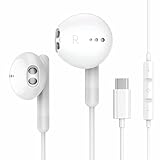
How to Connect Earbuds to an iPad: A Simple Guide
Hey there! If you’re anything like me, you love your iPad. It’s perfect for everything from watching movies and listening to music to taking calls and working on the go. But let’s be honest, those built-in speakers aren’t always ideal, especially when you’re in a crowded space or want to enjoy some personal audio time. That’s where earbuds come in. They offer a fantastic, portable way to enjoy your audio privately.
Connecting earbuds to your iPad is a straightforward process, but it can sometimes feel confusing if you’re new to the technology or if you’ve recently upgraded your iPad or earbuds. Whether you’re using Bluetooth earbuds or a wired connection, I’ll walk you through everything you need to know. We’ll cover the different types of earbuds, the steps for pairing, troubleshooting tips, and even some helpful features you might not know about. So, let’s get started and get those earbuds connected!
Understanding the Types of Earbuds and iPad Compatibility
Before we jump into the connection process, it’s important to understand the different types of earbuds available and how they work with your iPad. This will ensure a smooth and frustration-free experience.
Bluetooth Earbuds
Bluetooth earbuds are the most popular choice for iPad users. They connect wirelessly, offering freedom of movement and eliminating the need for cables. They’re compatible with almost all iPads that support Bluetooth, which is the vast majority of models released in the last decade. Key benefits include:
- Wireless Convenience: No more tangled wires!
- Portability: Easy to carry and use anywhere.
- Wide Compatibility: Works with a variety of iPad models.
- Advanced Features: Often include features like noise cancellation and touch controls.
Pairing Bluetooth earbuds involves enabling Bluetooth on your iPad and putting your earbuds into pairing mode. We’ll go through the exact steps later.
Wired Earbuds
Wired earbuds connect to your iPad via a physical connection, typically through the Lightning port or, in older models, the 3.5mm headphone jack. While they lack the wireless convenience, they offer a reliable connection and don’t require charging. Here’s what you need to know:
- Lightning Connector: Most modern iPads use the Lightning port. If your earbuds have a Lightning connector, you can plug them directly into your iPad.
- 3.5mm Headphone Jack: Older iPads may have a 3.5mm headphone jack. If your earbuds have this type of connector, you can plug them in directly.
- Adapters: If your iPad has a Lightning port but your earbuds have a 3.5mm jack, you’ll need a Lightning to 3.5mm adapter. These are readily available and affordable.
- No Charging Needed: Wired earbuds draw power directly from your iPad, so you don’t need to worry about battery life.
Compatibility Considerations: Always ensure your earbuds’ connector matches your iPad’s port or that you have the necessary adapter. Check your iPad’s model to determine which ports it has.
Earbud Features to Consider
Different earbuds offer various features that can enhance your listening experience. Consider these when choosing or using your earbuds:
- Noise Cancellation: This feature blocks out ambient noise, allowing you to focus on your audio. Great for travel and noisy environments.
- Transparency Mode: Some earbuds allow you to hear your surroundings while still listening to audio.
- Touch Controls: Many earbuds have touch controls for adjusting volume, skipping tracks, and answering calls.
- Water Resistance: If you plan to use your earbuds while exercising or in wet conditions, look for water-resistant models.
- Microphone Quality: If you plan to make calls, consider the microphone quality.
- Battery Life: For wireless earbuds, battery life is a crucial factor. Consider how long you’ll need them to last on a single charge.
How to Connect Bluetooth Earbuds to Your iPad
Connecting Bluetooth earbuds to your iPad is a simple process. Here’s a step-by-step guide:
- Enable Bluetooth on Your iPad:
Swipe down from the top-right corner of your iPad screen to open the Control Center. Tap the Bluetooth icon (it looks like a stylized ‘B’) to turn Bluetooth on. Alternatively, you can go to Settings > Bluetooth and toggle Bluetooth on.
- Put Your Earbuds in Pairing Mode:
Each pair of earbuds has a different method for entering pairing mode. Consult your earbud’s manual or the manufacturer’s website for specific instructions. Generally, this involves:
- AirPods: Open the charging case near your iPad.
- Other Earbuds: Press and hold the power button on the earbuds (or the button designated for pairing) for a few seconds until a light starts blinking, indicating pairing mode.
- Select Your Earbuds on Your iPad:
On your iPad, in Settings > Bluetooth, your earbuds should appear in the ‘Other Devices’ or ‘Available Devices’ list. Tap the name of your earbuds to connect. Your iPad will then connect to your earbuds.
- Test the Connection:
Play some music, a video, or any audio on your iPad to ensure the earbuds are working correctly. Adjust the volume on your iPad or the earbuds themselves.
- Troubleshooting:
If your earbuds don’t appear in the Bluetooth list, make sure they are in pairing mode and close to your iPad. If they still don’t appear, try restarting both your iPad and your earbuds. If issues persist, check the earbud’s battery level.
Detailed Steps for Popular Earbud Brands
Here’s a breakdown for some common earbud brands:
- Apple AirPods:
Simply open the AirPods case near your iPad. A setup animation will appear on your iPad screen. Follow the on-screen prompts to connect. AirPods automatically connect to your iPad when they are in range and powered on.
- Samsung Galaxy Buds:
Open the Galaxy Buds case near your iPad. Open the Galaxy Wearable app (if installed) on your iPad. The app will guide you through the pairing process. If you don’t have the Galaxy Wearable app you can pair through the settings on your iPad.
- Sony Earbuds:
Put the earbuds into pairing mode by pressing and holding the power button. Look for your earbuds in the Bluetooth settings on your iPad and select them to connect.
- Beats Earbuds:
Most Beats earbuds connect similarly to AirPods. Open the charging case near your iPad. Follow the on-screen prompts. For some models, you might need to press the pairing button on the earbuds themselves.
How to Connect Wired Earbuds to Your iPad
Connecting wired earbuds is even more straightforward. Here’s how:
- Identify Your iPad’s Port:
Determine whether your iPad has a Lightning port (most modern iPads) or a 3.5mm headphone jack (older models).
- Plug In Your Earbuds:
Lightning Earbuds: Directly plug the Lightning connector of your earbuds into the Lightning port on your iPad.3.5mm Earbuds: Plug the 3.5mm jack of your earbuds into the headphone jack on your iPad.
- Use an Adapter (If Needed):
If your iPad has a Lightning port and your earbuds have a 3.5mm jack, use a Lightning to 3.5mm adapter. Plug the adapter into the Lightning port on your iPad, and then plug your earbuds into the adapter.
- Test the Connection:
Play some audio on your iPad to ensure the earbuds are working correctly. Adjust the volume using the iPad’s volume buttons or the in-line controls on your earbuds.
iPad Audio Settings and Customization
Once your earbuds are connected, you can customize your audio experience through your iPad’s settings.
Volume Control
Adjusting Volume: Use the volume buttons on the side of your iPad to control the overall volume. You can also adjust the volume directly from your connected earbuds, if they have volume controls. The Control Center, accessed by swiping down from the top-right corner, also provides a volume slider.
Sound Settings
Accessing Sound Settings: Go to Settings > Sounds. Here, you can:
- Change the Ringer and Alert Volume: Adjust the volume of system sounds, such as notifications and alerts.
- Adjust Headphone Safety: Set a maximum volume limit to protect your hearing.
- Enable Mono Audio: If you have hearing loss in one ear, enabling mono audio will combine the left and right audio channels into a single channel, so you hear all audio in both earbuds.
- Balance the Audio: Adjust the balance between the left and right earbuds.
Bluetooth Settings (for Bluetooth Earbuds)
Managing Bluetooth Connections: In Settings > Bluetooth, you can:
- See Connected Devices: View all connected Bluetooth devices.
- Disconnect or Forget Devices: Tap the ‘i’ icon next to your earbuds’ name to disconnect or forget the device. Forgetting the device will remove it from your paired devices list, and you’ll need to re-pair it to use it again.
- Customize Earbud Settings: Some earbuds allow you to customize settings like double-tap actions or noise cancellation modes directly from the Bluetooth settings.
Troubleshooting Common Earbud Connection Issues
Sometimes, you might encounter issues when connecting your earbuds. Here are some common problems and how to solve them:
Bluetooth Connection Problems
- Earbuds Not Appearing:
Solution: Ensure your earbuds are in pairing mode. Make sure Bluetooth is enabled on your iPad and that the earbuds are within range. Restart both your iPad and your earbuds. Check the earbud’s battery level.
- Intermittent Connection:
Solution: Move closer to your iPad. Reduce interference from other Bluetooth devices or Wi-Fi routers. Restart both devices. Ensure the earbuds are fully charged.
- Poor Sound Quality:
Solution: Make sure the earbuds are clean and properly inserted into your ears. Check the audio source for quality issues. Try disconnecting and reconnecting the earbuds.
- Earbuds Connected but No Sound:
Solution: Check the volume on your iPad and earbuds. Make sure the correct audio output is selected (your earbuds). Restart both devices. Try disconnecting and reconnecting.
Wired Earbud Problems
- No Sound:
Solution: Ensure the earbuds are properly plugged into the port or adapter. Check the volume on your iPad. Try a different pair of earbuds or a different port on your iPad.
- Loose Connection:
Solution: Check the connection between the earbuds and the port or adapter. Try cleaning the port on your iPad. Replace the cable or adapter if necessary.
General Troubleshooting Tips
- Restart Your iPad:
A simple restart can often resolve many connectivity issues. Press and hold the power button (and either volume button on some models) until the power-off slider appears. Then, drag the slider to turn off your iPad. Turn it back on after a few seconds.
- Update Your iPad’s Software:
Ensure your iPad is running the latest version of iPadOS. Go to Settings > General > Software Update to check for updates. Software updates often include bug fixes that can improve Bluetooth and audio performance.
- Reset Network Settings:
If you’re still experiencing issues, you can reset your network settings. Go to Settings > General > Transfer or Reset iPad > Reset > Reset Network Settings. Note that this will clear your Wi-Fi passwords and Bluetooth connections, so you’ll need to re-enter them.
- Check Earbud Compatibility:
Ensure your earbuds are compatible with your iPad’s version of iPadOS. Check the manufacturer’s website for compatibility information.
- Factory Reset Earbuds (if applicable):
Some earbuds have a factory reset option. Consult your earbud’s manual for instructions. This can sometimes resolve persistent pairing issues.
Maximizing Your Earbud Experience with Your iPad
Beyond simply connecting your earbuds, there are several ways to enhance your listening experience on your iPad.
Using Earbuds for Calls
Answering and Making Calls: When your earbuds are connected, you can use them to answer and make calls through FaceTime, Skype, or other calling apps. The built-in microphone in your earbuds will pick up your voice.
Microphone Quality: The microphone quality varies depending on the earbuds. High-quality earbuds will provide clearer sound during calls.
Controls During Calls: Many earbuds have controls for answering, ending, and muting calls.
Using Earbuds with iPad Features
Siri Integration: You can use Siri with your connected earbuds. Activate Siri by saying “Hey Siri” or pressing and holding the button on your earbuds (if supported). You can then ask Siri to play music, make calls, adjust the volume, and more.
Spatial Audio (for compatible earbuds and iPad models): Some AirPods and other high-end earbuds support Spatial Audio, which creates a more immersive listening experience by simulating surround sound. This feature is particularly effective when watching movies or listening to music with Dolby Atmos.
Accessibility Features: Your iPad offers various accessibility features to customize your audio experience. You can adjust the balance between the left and right channels, enable mono audio, and customize the audio output to suit your needs.
Apps and Audio Enhancements
Music Streaming Services: Use music streaming services like Apple Music, Spotify, and YouTube Music to listen to your favorite tracks. These services often offer high-quality audio options. Make sure to check the app’s settings for the best sound quality.
Podcasts and Audiobooks: Listen to podcasts and audiobooks through dedicated apps. These apps often allow you to adjust the playback speed and set sleep timers.
Equalizer Settings: Some music apps and the iPad’s general settings allow you to customize the equalizer. Experiment with different equalizer settings to optimize the sound for your preferred genres and listening preferences.
Audiobooks and Podcasts: Use apps like Audible or Apple Podcasts to enjoy audiobooks and podcasts. Many of these apps provide features like variable playback speed and sleep timers.
Tips for Optimal Audio Quality
Choose High-Quality Audio Sources: The quality of your audio source significantly impacts the listening experience. Stream music from services that offer high-fidelity audio or download music files in high-quality formats.
Proper Earbud Fit: Ensure your earbuds fit snugly in your ears. A proper fit will improve sound quality and reduce the loss of audio.
Clean Your Earbuds: Regularly clean your earbuds to remove earwax and debris, which can affect sound quality. Use a soft, dry cloth or a cotton swab.
Adjust the Volume Responsibly: Protect your hearing by avoiding excessively loud volumes. The iPad has a built-in volume limiter to help prevent hearing damage. Consider setting a maximum volume in your iPad’s sound settings.
Maintaining Your Earbuds
Cleaning: Clean your earbuds regularly to remove earwax and debris. Use a soft, dry cloth or a cotton swab.
Storage: Store your earbuds in a case or pouch when not in use to protect them from damage and dust. Store them in a cool, dry place.
Charging: For wireless earbuds, follow the manufacturer’s instructions for charging. Avoid overcharging.
Protecting the Cable (for wired earbuds): For wired earbuds, carefully wind the cable to prevent tangling and damage. Avoid pulling on the cable.
Final Verdict
Connecting earbuds to your iPad is a straightforward process, whether you’re using Bluetooth or a wired connection. By understanding the different types of earbuds, following the simple pairing steps, and utilizing the iPad’s audio settings, you can enjoy a superior listening experience. Remember to troubleshoot any connection issues, and take advantage of the iPad’s features like Siri integration and accessibility options.
With these tips, you can seamlessly connect your earbuds and immerse yourself in your favorite music, podcasts, audiobooks, and more. Enjoy your listening experience!
Recommended Products