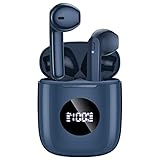
How to Connect Capoxo Wireless Earbuds: A Simple Guide
So, you’ve got yourself a shiny new pair of Capoxo wireless earbuds – fantastic! You’re probably eager to ditch the wires and experience the freedom of Bluetooth audio. But, like with any new tech, sometimes getting started can feel a little tricky. Don’t worry, though; connecting your Capoxo earbuds is usually a breeze.
This guide will walk you through the entire process, step-by-step, ensuring you’re up and running in no time. We’ll cover everything from the initial pairing to troubleshooting common issues. Whether you’re an Android aficionado or an Apple enthusiast, we’ve got you covered. Let’s get those earbuds connected and start enjoying your music!
We’ll explore different connection methods, discuss the importance of charging, and offer tips to maximize your listening experience. Forget complicated manuals – this guide is designed to be clear, concise, and easy to follow. Get ready to enjoy your favorite tunes, podcasts, and audiobooks with your new Capoxo earbuds.
Getting Started: Unboxing and Charging Your Capoxo Earbuds
Before you dive into connecting your Capoxo wireless earbuds, let’s make sure you’re properly prepared. This involves a couple of crucial preliminary steps: unboxing and charging. These steps are fundamental for a smooth and enjoyable experience.
Unboxing Your Capoxo Earbuds
Carefully unpack your new Capoxo earbuds. Inside the box, you should find the following components:
- The Capoxo earbuds themselves (left and right)
- The charging case
- A USB charging cable (usually USB-C or Micro-USB)
- Extra ear tips (in various sizes – small, medium, and large)
- A user manual (though hopefully, you won’t need it!)
Take a moment to familiarize yourself with each component. Identify the charging ports on both the case and the earbuds, if applicable. Also, locate the LED indicators, which provide information on charging status and pairing mode.
Charging Your Earbuds and Case
Charging your Capoxo earbuds and the charging case is absolutely essential before the initial use. This ensures optimal performance and extends the lifespan of the battery. Here’s how to do it:
- Charging the Case: Connect the USB charging cable to the charging case and a power source (e.g., a wall adapter, a laptop USB port, or a power bank). The LED indicator on the case will usually show the charging progress. Typically, a solid light indicates a fully charged case. The charging time varies, but usually takes about 1-2 hours for a full charge.
- Charging the Earbuds: Place the earbuds inside the charging case. Ensure they are correctly seated in their respective slots. The charging case will automatically begin charging the earbuds. The LED indicators on the earbuds or the case will typically reflect the charging status. When fully charged, the earbuds’ lights will often turn off or change color. The earbuds usually take about 1 hour to charge.
- Checking the Charge: Some Capoxo models have a battery indicator on the case or within the earbuds’ charging compartment. Check this indicator to confirm the charging status. Fully charge both the earbuds and the case before the first use.
Important Note: Always use the charging cable that came with your Capoxo earbuds or a cable from a reputable brand. Avoid using generic or damaged cables, as they can potentially harm the battery or the charging circuitry. Also, avoid overcharging. Once the earbuds and the case are fully charged, disconnect them from the power source.
Connecting to Your Device: The Pairing Process
Now that your Capoxo earbuds are fully charged, it’s time to connect them to your device. The pairing process is straightforward and typically involves these steps:
Step 1: Activating Pairing Mode on Your Earbuds
The first step is to put your Capoxo earbuds into pairing mode. This allows your device (smartphone, tablet, laptop, etc.) to detect them. The method for activating pairing mode varies slightly depending on the specific Capoxo model, but the common approaches include:
- Automatic Pairing (Most Common): Many Capoxo earbuds automatically enter pairing mode when you open the charging case for the first time or when you take the earbuds out of the case. The LED indicators on the earbuds or the case will typically blink rapidly, indicating they are in pairing mode.
- Manual Pairing (If Automatic Fails): If your earbuds don’t automatically enter pairing mode, you may need to manually activate it. This usually involves pressing and holding a button on the earbuds themselves (often the multi-function button) or on the charging case for a few seconds. Refer to the user manual for your specific model for the exact method. The LED indicators will start flashing.
- Resetting the Earbuds (If Necessary): In rare cases, you might need to reset your earbuds to factory settings to clear any previous pairings and enter pairing mode. The reset process varies by model, but it often involves pressing and holding buttons on the earbuds or the case for an extended period.
Step 2: Enabling Bluetooth on Your Device
On your smartphone, tablet, or other device, you’ll need to enable Bluetooth. Here’s how to do it on the most common operating systems:
- Android:
- Go to your device’s Settings app.
- Tap on “Connections” or “Bluetooth & device connection.”
- Toggle the Bluetooth switch to the “On” position.
- iOS (iPhone/iPad):
- Open the Settings app.
- Tap on “Bluetooth.”
- Toggle the Bluetooth switch to the “On” position.
- Windows:
- Click on the Start menu.
- Go to Settings (gear icon).
- Click on “Devices.”
- Select “Bluetooth & other devices.”
- Toggle the Bluetooth switch to the “On” position.
- macOS:
- Click on the Apple menu (top-left corner of the screen).
- Select “System Preferences” or “System Settings.”
- Click on “Bluetooth.”
- Toggle the Bluetooth switch to the “On” position.
Step 3: Searching for Available Devices and Pairing
With Bluetooth enabled on your device and your Capoxo earbuds in pairing mode, it’s time to search for available devices and pair them. The process is similar across different operating systems:
- Android: Your device should automatically start searching for Bluetooth devices. If not, tap on “Pair new device” or “Scan for devices.” Your Capoxo earbuds should appear in the list of available devices (e.g., “Capoxo Earbuds” or a similar name). Tap on the earbuds’ name to initiate the pairing process. You may be prompted to confirm the pairing or enter a PIN (usually “0000” or “1234”).
- iOS: Your device should automatically search for Bluetooth devices. Your Capoxo earbuds should appear in the list of available devices. Tap on the earbuds’ name to connect. You might be asked to confirm the pairing.
- Windows: Click on “Add Bluetooth or other device.” Select “Bluetooth.” Your Capoxo earbuds should appear in the list of available devices. Click on the earbuds’ name to connect. You may be prompted to enter a PIN or confirm the pairing.
- macOS: Your device should automatically search for Bluetooth devices. Your Capoxo earbuds should appear in the list of available devices. Click on “Connect” next to the earbuds’ name to pair.
Once the pairing is successful, your device will indicate that the earbuds are connected. You should now be able to hear audio through your Capoxo earbuds. The LED indicators on the earbuds will usually change to a solid color, indicating a successful connection.
Troubleshooting Common Connection Issues
Sometimes, you might encounter issues when connecting your Capoxo earbuds. Here are some common problems and their solutions:
Earbuds Not Appearing in the Bluetooth List
If your Capoxo earbuds aren’t showing up in the Bluetooth list on your device, try these troubleshooting steps:
- Ensure Pairing Mode is Active: Double-check that your earbuds are actually in pairing mode. The LED indicators should be blinking. Try re-entering pairing mode by opening and closing the charging case or pressing the pairing button.
- Check Bluetooth is Enabled: Verify that Bluetooth is enabled on your device.
- Proximity: Make sure your earbuds are within range of your device (usually about 10 meters or 33 feet).
- Restart Bluetooth: Turn off Bluetooth on your device, wait a few seconds, and then turn it back on.
- Restart Your Device: Sometimes, a simple restart of your smartphone or tablet can resolve connectivity issues.
- Check for Interference: Move away from other Bluetooth devices, Wi-Fi routers, or microwave ovens, as they can interfere with the Bluetooth signal.
- Reset Your Earbuds: If all else fails, try resetting your Capoxo earbuds to factory settings. Refer to the user manual for the specific reset instructions.
One Earbud Not Working
If only one of your Capoxo earbuds is producing sound, try these solutions:
- Check the Balance: In your device’s audio settings, make sure the audio balance isn’t skewed to one side.
- Reconnect the Earbuds: Disconnect the earbuds from your device and then reconnect them. This can sometimes resolve synchronization issues.
- Check Earbud Placement in the Case: Ensure both earbuds are correctly seated in the charging case. Sometimes, an improper placement can cause one earbud not to charge or connect properly.
- Clean the Earbuds: Clean the earbud contacts in the charging case and on the earbuds themselves. Dust or debris can sometimes disrupt the connection.
- Reset the Earbuds: If the problem persists, try resetting your earbuds to factory settings.
- Check for Firmware Updates: Some Capoxo models have firmware updates available. Check the manufacturer’s website or app for updates.
Audio Cutting Out or Poor Sound Quality
If you experience audio dropouts or poor sound quality, consider these troubleshooting steps:
- Proximity: Ensure you are within the Bluetooth range of your device.
- Interference: Move away from potential sources of interference (other Bluetooth devices, Wi-Fi routers, etc.).
- Device Overload: Close any unnecessary apps on your device, as they can consume processing power and affect Bluetooth performance.
- Check the Bluetooth Codec: Some devices allow you to select the Bluetooth codec (e.g., SBC, AAC, aptX). Try switching between codecs in your device’s Bluetooth settings to see if it improves the audio quality.
- Update Firmware: Check for firmware updates for your earbuds and your device.
- Clean the Earbuds: Clean the earbud tips and the speaker grilles to remove any obstructions that may be affecting sound quality.
- Restart: Restart your device and your earbuds.
Earbuds Won’t Reconnect Automatically
If your Capoxo earbuds aren’t automatically reconnecting to your device, try these solutions:
- Ensure Bluetooth is Enabled: Make sure Bluetooth is enabled on your device.
- Check Earbud Proximity: Ensure that your earbuds are within range of your device.
- Check the Charging Case: Make sure the earbuds are properly seated in the charging case and have enough charge. Sometimes, if the earbuds are low on battery, they won’t automatically reconnect.
- Forget and Reconnect: On your device, “forget” the Capoxo earbuds from the Bluetooth settings, then re-pair them.
- Clear Bluetooth Cache: In some cases, clearing the Bluetooth cache on your device can resolve reconnection issues. Refer to your device’s user manual for instructions on how to clear the Bluetooth cache.
- Check for Firmware Updates: Ensure that both your earbuds and your device have the latest firmware updates.
Advanced Tips and Tricks for Capoxo Earbud Users
Once you’ve successfully connected your Capoxo earbuds, here are some advanced tips and tricks to maximize your listening experience:
1. Optimize Ear Tip Selection
Finding the Right Fit: Your Capoxo earbuds likely come with multiple sizes of ear tips. Choosing the correct size is critical for both comfort and sound quality. Experiment with different sizes (small, medium, and large) to find the best fit for your ears. A proper fit will create a good seal, enhancing bass response and noise isolation.
Testing the Seal: After inserting the earbuds, gently twist and adjust them until you feel a comfortable and secure fit. You should feel a slight seal in your ear canal. If the earbuds feel loose or fall out easily, try a larger ear tip size. If they feel uncomfortable or put pressure on your ears, try a smaller size.
2. Mastering Touch Controls (if Applicable)
Learning the Gestures: Many Capoxo earbuds feature touch controls on the earbuds themselves. Familiarize yourself with the various touch gestures, such as single taps, double taps, triple taps, and long presses. These gestures typically control functions like play/pause, next track, previous track, volume adjustment, answering/ending calls, and activating voice assistants.
Customization: Some Capoxo models allow you to customize the touch controls through a companion app. Check the app (if available) for options to remap gestures or adjust their sensitivity.
3. Using the Charging Case Effectively
Charging on the Go: The charging case is not just for storing your earbuds; it also provides extra battery life. Keep the case charged so you can recharge your earbuds throughout the day.
LED Indicators: Pay attention to the LED indicators on the charging case. They provide information about the case’s battery level and the charging status of the earbuds.
Cleaning the Case: Regularly clean the charging case to remove dust and debris. Use a soft, dry cloth to wipe the case’s exterior and the charging contacts.
4. Understanding Bluetooth Codecs
What are Codecs?: Bluetooth codecs are algorithms that compress and decompress audio data for transmission over Bluetooth. Different codecs offer varying levels of audio quality and efficiency.
Common Codecs: Common Bluetooth codecs include SBC (Standard Bluetooth Codec), AAC (Advanced Audio Coding), and aptX (a higher-quality codec). The codec supported by both your earbuds and your device determines the audio quality you’ll experience.
Codec Selection: While you usually don’t need to manually select a codec, some devices allow you to choose between available options in the Bluetooth settings. If possible, prioritize using AAC or aptX for better audio quality. However, the available codecs depend on the capabilities of both your earbuds and your device.
5. Using a Companion App (if Available)
App Features: Some Capoxo earbuds come with a companion app that offers additional features, such as:
- Customizing touch controls
- Adjusting EQ (equalizer) settings
- Checking battery levels
- Updating firmware
- Finding your earbuds (if they have a location feature)
Downloading and Installing: If a companion app is available, download and install it from your device’s app store (Google Play Store for Android or App Store for iOS). Follow the on-screen instructions to connect your earbuds to the app.
6. Protecting Your Earbuds
Cleaning and Maintenance: Regularly clean your Capoxo earbuds with a soft, dry cloth to remove earwax, dust, and other debris. Avoid using excessive moisture or harsh chemicals.
Storage: When not in use, store your earbuds in the charging case to protect them from damage and dust.
Water Resistance (If Applicable): If your Capoxo earbuds are water-resistant (check the product specifications), be mindful of their limitations. Avoid exposing them to excessive water or submerging them completely.
7. Battery Care
Charging Habits: Avoid letting the earbuds completely drain their battery before recharging. Regularly topping them up will help maintain battery health.
Temperature Extremes: Avoid exposing your earbuds to extreme temperatures, as this can affect battery performance and lifespan.
Pairing with Multiple Devices
Some Capoxo earbuds support multi-point pairing, allowing you to connect to multiple devices simultaneously. This can be very convenient, allowing you to seamlessly switch between your phone and your laptop, for instance. However, not all Capoxo models offer this feature.
Checking for Multi-Point Support: Refer to your Capoxo earbuds’ user manual or the manufacturer’s website to determine if they support multi-point pairing. The product specifications will clearly indicate this feature.
Pairing with Multiple Devices:
- Pair your Capoxo earbuds with your first device (e.g., your smartphone) using the standard pairing process outlined above.
- Put your earbuds back into pairing mode (usually by opening the charging case or pressing and holding a button).
- Pair your earbuds with your second device (e.g., your laptop) using the standard pairing process.
- Once both devices are paired, your earbuds should be able to connect to both simultaneously.
Switching Between Devices: When you want to switch audio playback from one device to another, you typically only need to start playing audio on the desired device. The earbuds should automatically switch to the active audio source. If the switch doesn’t occur automatically, you may need to manually select the earbuds as the audio output device on the device you wish to use.
Limitations: Keep in mind that multi-point pairing usually allows you to receive audio from only one device at a time. If you receive a phone call on your smartphone while listening to music on your laptop, the earbuds will likely switch to the phone call. After the call, they should automatically switch back to the laptop audio (depending on the specific model and settings).
Resetting Your Capoxo Earbuds
If you’re experiencing persistent connection issues or other problems with your Capoxo earbuds, resetting them to factory settings can often resolve the issue. The reset process clears all previous pairings and restores the earbuds to their original configuration. The exact steps for resetting your earbuds vary depending on the model, so always refer to the user manual for specific instructions.
Common Reset Methods:
- Button Press: Many Capoxo earbuds have a reset button located on the charging case or on the earbuds themselves. You typically need to press and hold this button for a certain number of seconds (e.g., 10-15 seconds) until the LED indicators flash or change color, indicating that the reset is in progress.
- Button Combination: Some models require you to press and hold a combination of buttons on the earbuds or the charging case. Consult the user manual for the correct button combination.
- Charging Case Method: In some cases, you may need to place the earbuds in the charging case, close the lid, and then press and hold a button on the case for a certain duration to initiate the reset.
After Resetting: After resetting your Capoxo earbuds, you will need to re-pair them with your devices. Delete the earbuds from the Bluetooth settings on your devices, and then go through the pairing process again (as described earlier in this guide).
When to Contact Capoxo Support
If you’ve tried all the troubleshooting steps outlined in this guide and are still experiencing problems with your Capoxo earbuds, it may be time to contact Capoxo support. Here are some situations when seeking assistance from the manufacturer is recommended:
- Hardware Issues: If you suspect a hardware defect, such as a faulty earbud or a malfunctioning charging case, contact Capoxo support for warranty information and potential repair or replacement options.
- Persistent Connection Problems: If you consistently encounter issues with connecting your earbuds, even after trying various troubleshooting steps, the problem may be related to the firmware or the earbuds’ internal components.
- Sound Quality Issues: If you experience persistent sound quality problems, such as distorted audio or imbalanced sound, despite cleaning the earbuds and adjusting the audio settings, contact Capoxo support.
- App-Related Issues: If you encounter problems with the companion app (if available), such as connection errors or incorrect functionality, reach out to Capoxo support for troubleshooting assistance.
- Unusual Behavior: If your earbuds exhibit any unusual behavior, such as rapidly draining battery, overheating, or unexpected LED indicator patterns, contact Capoxo support immediately.
How to Contact Capoxo Support:
- Check the User Manual: The user manual that came with your Capoxo earbuds should contain contact information for Capoxo support, such as a website address, email address, or phone number.
- Visit the Capoxo Website: Go to the official Capoxo website and look for a “Support” or “Contact Us” section. You should find information on how to contact customer service, including FAQs, troubleshooting guides, and contact forms.
- Check the Retailer’s Website: If you purchased your Capoxo earbuds from a retailer (e.g., Amazon, Best Buy), check the retailer’s website for customer support options.
- Prepare Information: When contacting Capoxo support, be prepared to provide details about your earbuds, such as the model number, the purchase date, and a description of the problem you’re experiencing.
Warranty Information: Be aware of the warranty terms that cover your Capoxo earbuds. Most earbuds come with a limited warranty that covers manufacturing defects. Capoxo support can provide information on how to make a warranty claim.
Comparing Capoxo Earbud Models
Capoxo offers a range of wireless earbuds, and the features and specifications can vary between different models. Here’s a table that compares some key features to help you choose the right Capoxo earbuds for your needs:
| Feature | Model A | Model B | Model C |
|---|---|---|---|
| Bluetooth Version | 5.0 | 5.2 | 5.3 |
| Water Resistance | IPX4 | IPX7 | IPX5 |
| Battery Life (Earbuds) | 5 hours | 7 hours | 6 hours |
| Battery Life (with Case) | 20 hours | 28 hours | 24 hours |
| Active Noise Cancellation | No | Yes | Yes |
| Touch Controls | Yes | Yes | Yes |
| Wireless Charging | No | Yes | Yes |
| Price (Approximate) | $30 | $60 | $80 |
Note: The features listed above are examples. Actual specifications may vary depending on the exact Capoxo earbud model.
Verdict
Connecting your Capoxo wireless earbuds is a straightforward process, and with this guide, you should now be able to connect to your devices with ease. Remember to charge your earbuds and case fully before the first use. Pay attention to the LED indicators, and don’t hesitate to refer to the user manual if you have any questions. Experiment with ear tip sizes to get the best possible fit and sound quality.
If you encounter any issues, review the troubleshooting tips provided. Most problems can be resolved with a few simple steps. And if all else fails, don’t hesitate to contact Capoxo support for assistance. Now that you’ve got your Capoxo earbuds connected, enjoy the freedom and convenience of wireless audio! Enjoy your music, podcasts, and calls without the hassle of wires.
Recommended Products