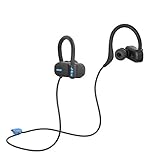
How to Connect Both Jam Ultra Earbuds: A Simple Guide
So, you’ve got your hands on a pair of Jam Ultra earbuds, and you’re eager to get those tunes pumping, right? Great choice! These earbuds are known for their portability and ease of use. But sometimes, getting both earbuds connected to your device can feel a bit… well, mysterious. Don’t worry, it’s simpler than you might think.
This guide will walk you through the process, step by step, ensuring you can enjoy stereo sound without any frustrating hiccups. We’ll cover everything from the initial pairing to troubleshooting common issues. Whether you’re a tech novice or a seasoned pro, I’m confident that you’ll be jamming in no time. Let’s get started!
Before we begin, make sure your Jam Ultra earbuds are fully charged. A low battery can sometimes cause connection problems. Also, ensure Bluetooth is enabled on your phone, tablet, or other device. Ready? Let’s go!
Understanding Your Jam Ultra Earbuds
Before diving into the connection process, it’s helpful to understand a few basics about your Jam Ultra earbuds. They operate using Bluetooth technology, allowing them to wirelessly communicate with your devices. Each earbud contains a small battery, a speaker, and a receiver to pick up the Bluetooth signal. The Jam Ultra earbuds typically connect to your device as a single unit, meaning both earbuds function as a pair.
The key to a successful connection is understanding how the earbuds interact with each other and your device. The primary earbud (usually the one that initially pairs) acts as the ‘master,’ while the other ‘slave’ earbud syncs with it. This means that if one earbud loses connection, the other may also disconnect, or audio may only play from one earbud. Therefore, following the correct pairing process is essential.
What’s in the Box?
Your Jam Ultra earbuds package should include the following:
- Two Jam Ultra Earbuds: Obviously!
- Charging Case: This case is essential for charging and storing your earbuds.
- USB Charging Cable: Used to charge the charging case.
- User Manual: Although we’re covering it here, the manual can provide additional troubleshooting tips.
- Eartips (various sizes): To ensure a comfortable fit.
Make sure you have all these components before you begin. If anything is missing, contact the retailer or Jam Audio customer service.
Button Functions
Knowing the functions of the buttons on your earbuds is crucial for controlling playback and answering calls.
- Power On/Off: Press and hold the multi-function button (usually located on the earbud’s surface) for a few seconds.
- Pairing Mode: Press and hold the multi-function button (often the same one) to initiate pairing.
- Play/Pause: Single press on the multi-function button.
- Answer/End Call: Single press on the multi-function button.
- Reject Call: Press and hold the multi-function button.
- Volume Control: Some models may have volume controls on the earbuds themselves. If not, you’ll need to adjust the volume on your connected device.
- Skip Track: Double-tap (or sometimes triple-tap) the multi-function button on the right earbud to skip to the next track.
- Previous Track: Double-tap (or sometimes triple-tap) the multi-function button on the left earbud to go back to the previous track.
Refer to your user manual for specific button functions, as these can vary slightly between models.
How to Connect Both Jam Ultra Earbuds: Step-by-Step Guide
Here’s a step-by-step guide to connect both of your Jam Ultra earbuds to your device. Follow these instructions carefully, and you should be listening to your favorite music in no time. We’ll cover the initial pairing process and then address some common issues.
Step 1: Charging the Earbuds and Case
Before you begin, ensure both your earbuds and the charging case are adequately charged. A low battery can cause connection problems. Place the earbuds in the charging case and close the lid. Connect the charging case to a power source using the provided USB charging cable. Allow the earbuds to charge fully. The charging indicator lights on the case and earbuds will provide information on the charging status. Typically, a solid light indicates a full charge.
Why this is important: A full charge ensures the earbuds have enough power to maintain a stable Bluetooth connection throughout your listening session.
Step 2: Entering Pairing Mode
Open the charging case. Take the earbuds out of the charging case. Typically, the earbuds will automatically enter pairing mode when taken out of the case. You’ll usually see a flashing light on one or both of the earbuds, indicating they’re ready to pair. If they don’t automatically enter pairing mode, you may need to manually activate it by pressing and holding the multi-function button on one or both earbuds for a few seconds. Refer to your user manual for the exact button press duration.
Why this is important: Pairing mode allows your earbuds to be discovered by your device.
Step 3: Enabling Bluetooth on Your Device
On your smartphone, tablet, or other device, navigate to the Bluetooth settings. This is usually found in the settings menu. Make sure Bluetooth is turned on. Your device will begin scanning for available Bluetooth devices.
Why this is important: Enabling Bluetooth allows your device to search for and connect to nearby Bluetooth devices, including your Jam Ultra earbuds.
Step 4: Selecting Your Earbuds From the List
In the list of available Bluetooth devices, you should see your Jam Ultra earbuds listed. The name might be something like ‘Jam Ultra’ or a similar identifier. Tap on the name of your earbuds to initiate the pairing process. You might be prompted to enter a pairing code; if so, enter ‘0000’ (four zeros) or refer to your user manual for the correct code.
Why this is important: Selecting your earbuds from the list tells your device to connect to them.
Step 5: Confirming the Connection
Once the pairing is successful, your device will indicate that the earbuds are connected. You might see a small Bluetooth symbol next to the earbuds’ name in the Bluetooth settings. Additionally, you should hear a confirmation sound from the earbuds themselves, indicating a successful connection. Both earbuds should now be connected and playing audio.
Why this is important: Confirmation ensures that your device and earbuds are communicating correctly.
Step 6: Testing the Audio
Play some music or a video to test the connection. Audio should be playing through both earbuds. If you only hear audio from one earbud, proceed to the troubleshooting section below.
Why this is important: Testing the audio confirms that both earbuds are functioning correctly and that the stereo sound is working as expected.
Troubleshooting Common Connection Issues
Sometimes, things don’t go as planned. Here are some common issues you might encounter and how to fix them:
Issue: Only One Earbud Is Playing Audio
This is the most frequent issue. It often occurs during the initial pairing process. Here’s how to resolve it:
- Solution 1: Reset the Earbuds: Place both earbuds back in the charging case and close the lid. Open the case and remove the earbuds. This often resets the connection and allows them to re-pair correctly.
- Solution 2: Forget and Re-pair: On your device, go to the Bluetooth settings and ‘forget’ or ‘unpair’ the Jam Ultra earbuds. Then, repeat the pairing process from step 2.
- Solution 3: Check Earbud Roles: Occasionally, one earbud might take on the role of the ‘master’ and the other might not connect properly. Try resetting the earbuds or re-pairing them.
- Solution 4: Restart Your Device: Sometimes, a simple restart of your phone or tablet can resolve Bluetooth connection issues.
Why it happens: This can occur because the earbuds haven’t properly synchronized with each other or with your device. Resetting or re-pairing often resolves this.
Issue: Earbuds Won’t Pair at All
If your earbuds won’t pair with your device, try these solutions:
- Solution 1: Make Sure Earbuds are in Pairing Mode: Confirm that the earbuds are in pairing mode (flashing light).
- Solution 2: Check Bluetooth is Enabled: Double-check that Bluetooth is enabled on your device.
- Solution 3: Proximity Issues: Ensure the earbuds are close to your device during pairing (within a few inches).
- Solution 4: Interference: Move away from potential sources of interference, such as microwaves or other Bluetooth devices.
- Solution 5: Reset Earbuds: Place the earbuds in the charging case, close the lid, wait a few seconds, and then open the case and try pairing again.
- Solution 6: Charge the Earbuds: Low battery can sometimes prevent pairing.
Why it happens: This could be due to a variety of factors, including the earbuds not being in pairing mode, interference, or a problem with your device’s Bluetooth settings.
Issue: Intermittent Connection or Audio Dropout
If the audio cuts out or the connection is unstable, try these solutions:
- Solution 1: Proximity: Ensure you are within the recommended range of the Bluetooth connection. Bluetooth connections have a limited range; moving too far from your device can cause dropouts.
- Solution 2: Interference: Move away from potential sources of interference, such as Wi-Fi routers, other Bluetooth devices, or physical obstructions like walls.
- Solution 3: Reset Earbuds: Resetting the earbuds can often stabilize the connection.
- Solution 4: Device Restart: Restarting your device can sometimes resolve Bluetooth issues.
- Solution 5: Check for Software Updates: Ensure your device’s operating system is up-to-date.
Why it happens: This can be due to interference, distance issues, or problems with the earbuds themselves.
Issue: One Earbud Not Charging
If one earbud isn’t charging, consider these steps:
- Solution 1: Check the Charging Case: Ensure the charging case is charged.
- Solution 2: Clean the Contacts: Clean the charging contacts on both the earbuds and the charging case with a dry cloth or a cotton swab. Sometimes, dust or debris can prevent proper charging.
- Solution 3: Proper Placement: Make sure the earbud is properly seated in the charging case.
- Solution 4: Different Cable and Power Source: Try a different charging cable and power source to rule out a faulty cable or power adapter.
- Solution 5: Contact Support: If the earbud still won’t charge, there might be a hardware issue, and you should contact Jam Audio support.
Why it happens: This could be due to a dirty contact, improper placement, or a problem with the charging case or the earbud itself.
Issue: Earbuds Not Turning On
If your earbuds refuse to power on, try these troubleshooting steps:
- Solution 1: Charge the Earbuds: Make sure the earbuds are fully charged.
- Solution 2: Check the Power Button: Ensure you’re pressing and holding the power button for the correct duration (usually a few seconds).
- Solution 3: Reset Earbuds: Place the earbuds in the charging case, close the lid, wait a few seconds, and then try turning them on again.
- Solution 4: Contact Support: If the earbuds still won’t turn on, there may be a hardware issue. Contact Jam Audio support.
Why it happens: This can be caused by a depleted battery, a faulty power button, or a hardware problem.
Advanced Troubleshooting
If the basic troubleshooting steps don’t work, here are some more advanced techniques to try:
Factory Resetting the Earbuds
Some Jam Ultra models have a factory reset function. This will reset the earbuds to their original settings, which can sometimes resolve persistent connection issues. Consult your user manual for instructions on how to perform a factory reset, as the process varies depending on the specific model. Typically, it involves pressing and holding a combination of buttons on the earbuds or the charging case.
Why it helps: A factory reset clears any corrupted settings that might be causing connection problems.
Updating Firmware
Check if there are any firmware updates available for your Jam Ultra earbuds. Firmware updates often include bug fixes and performance improvements that can address connection issues. Visit the Jam Audio website or contact their support to find out if there are any available updates for your specific model. The process for updating the firmware may vary and could require a computer and a USB connection.
Why it helps: Firmware updates can resolve known issues and improve the overall performance of your earbuds.
Checking Compatibility
Ensure that your device is compatible with your Jam Ultra earbuds. While Bluetooth is a widely adopted standard, there can sometimes be compatibility issues between different devices and Bluetooth versions. Check the Jam Audio website or contact their support to verify compatibility between your earbuds and your device.
Why it helps: Compatibility issues can cause connection problems.
Tips for Maintaining a Good Connection
Here are some tips to help you maintain a good connection with your Jam Ultra earbuds:
- Keep Your Device Close: Keep your device within the recommended Bluetooth range (usually around 30 feet).
- Minimize Obstructions: Avoid placing physical obstructions, such as walls or metal objects, between your device and the earbuds.
- Avoid Interference: Stay away from potential sources of interference, such as microwaves and Wi-Fi routers.
- Keep the Earbuds and Case Clean: Regularly clean the earbuds and charging case to prevent dust and debris from interfering with the charging and connection process.
- Store Properly: When not in use, store your earbuds in the charging case to protect them and keep them charged.
- Update Firmware: Keep your earbuds’ firmware up-to-date.
By following these tips, you can help ensure a stable and reliable Bluetooth connection with your Jam Ultra earbuds.
When to Contact Support
If you’ve tried all the troubleshooting steps and are still experiencing problems, it’s time to contact Jam Audio customer support. They can provide further assistance and potentially offer a repair or replacement if your earbuds are defective. Be sure to have your proof of purchase and the model number of your earbuds ready when contacting support. You can usually find the contact information on the Jam Audio website or in the user manual.
Reasons to contact support:
- Persistent connection issues that you can’t resolve through troubleshooting.
- Hardware problems, such as one earbud not charging or not turning on.
- Defective earbuds that are still under warranty.
Jam Audio support can often help resolve issues that you can’t fix on your own.
Comparing Jam Ultra Earbuds to Other Earbud Options
While the Jam Ultra earbuds are a solid choice, it’s helpful to consider how they stack up against other options in the market. Here’s a brief comparison table:
| Feature | Jam Ultra Earbuds | Other Brands (e.g., Apple AirPods, Samsung Galaxy Buds) |
|---|---|---|
| Price | Typically budget-friendly | Often more expensive |
| Sound Quality | Good for the price point; may lack some detail compared to higher-end models | Generally better sound quality, with more features like active noise cancellation |
| Battery Life | Moderate battery life; may vary depending on usage | Varies; some offer longer battery life |
| Features | Basic features, such as play/pause, answer/end calls | More advanced features, such as active noise cancellation, transparency mode, and wireless charging |
| Fit and Comfort | Varies; may depend on the ear tip size | Generally comfortable, with various ear tip options |
| Water Resistance | Often water-resistant, but check the specific model | Varies; some offer higher levels of water resistance |
Why compare? Comparing different earbuds allows you to assess the value and determine if the features and price meet your needs.
Conclusion
Connecting both Jam Ultra earbuds is usually a straightforward process, but sometimes, you might encounter a few hiccups. By following the steps outlined in this guide, you should be able to get both earbuds paired and enjoying your music. Remember to charge your earbuds fully, enable Bluetooth on your device, and select your earbuds from the available devices list. If you run into any issues, don’t hesitate to troubleshoot using the tips provided. With a little patience and persistence, you’ll be able to enjoy the full stereo sound experience that your Jam Ultra earbuds offer. Happy listening!
Recommended Products