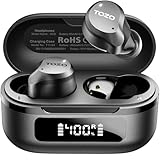
How to Connect Bluetooth Tozo Earbuds: A Simple Guide
So, you’ve got yourself a shiny new pair of TOZO earbuds, and you’re eager to get those tunes flowing, right? Connecting them to your phone or other devices is usually a breeze, but sometimes things don’t go exactly as planned. Don’t worry, it’s a common experience, and I’m here to guide you through it. We’ll cover everything from the initial pairing process to troubleshooting common issues.
Whether you’re an Android aficionado, an Apple enthusiast, or somewhere in between, the process is generally similar. I’ll walk you through the steps, break down potential problems, and offer some handy tips to ensure a seamless connection every time. Let’s get those earbuds connected and start enjoying your favorite audio!
Understanding Your Tozo Earbuds
Before we dive into connecting, let’s briefly look at what makes TOZO earbuds tick. They’re known for their affordability and decent sound quality, making them a popular choice for many. Most models offer features like touch controls, noise cancellation, and a comfortable fit. Knowing a bit about your specific model will help you with the connection process.
Key Features and Considerations
- Bluetooth Version: TOZO earbuds use Bluetooth to connect. Check your specific model’s Bluetooth version (e.g., 5.0, 5.2, or newer) as this can influence the connection stability and range.
- Charging Case: The charging case is crucial; it not only charges your earbuds but also plays a role in the pairing process. Make sure it’s charged!
- Touch Controls: Most TOZO earbuds have touch controls for play/pause, volume adjustment, and answering calls. Familiarize yourself with these controls for a better user experience.
- Model-Specific Instructions: Always refer to the user manual for your specific TOZO earbud model. While the general process is similar, there might be slight variations.
Step-by-Step Guide to Connecting Tozo Earbuds
Now, let’s get down to the nitty-gritty of connecting your TOZO earbuds. I’ll provide a general guide that applies to most models, but remember to consult your manual for any model-specific instructions.
Step 1: Charging Your Earbuds and Case
This is a crucial first step. Ensure both your earbuds and the charging case have enough power. Open the case and check the LED indicators to see the charging status. If the case is low on battery, charge it using the provided USB-C cable (or whatever charging method your model uses).
Why it matters: A low battery can interrupt the pairing process or cause connection issues later on. Fully charging ensures optimal performance.
How to do it:
- Plug the charging case into a power source using the provided charging cable.
- Place the earbuds inside the charging case.
- Check the LED indicators on the case to monitor the charging progress.
Step 2: Entering Pairing Mode
This is where the magic happens. The earbuds need to be in pairing mode so your device can find them. The exact method varies slightly depending on the model, but here’s the general process:
Why it matters: Pairing mode makes your earbuds discoverable by your device. Without this, your device won’t be able to find them.
How to do it (General Method):
- Open the Charging Case: Open the charging case. Some models automatically enter pairing mode when the case is opened.
- Press and Hold the Button: Many models have a button on the charging case. Press and hold this button for a few seconds (usually 3-5 seconds) until the LED indicator on the case or earbuds starts flashing, indicating pairing mode. Refer to your manual for the exact button location and duration.
- Earbud LEDs: You may also notice the LEDs on the earbuds themselves flashing. This is another sign that they are in pairing mode.
Step 3: Connecting to Your Device (smartphone, Tablet, Etc.)
Now, let’s connect your earbuds to your device. Here’s how to do it on both Android and iOS devices:
For Android Devices:
- Go to Settings: Open the Settings app on your Android device.
- Select Bluetooth: Tap on ‘Bluetooth’ or ‘Connected devices’ (the wording may vary depending on your Android version).
- Turn on Bluetooth: Make sure Bluetooth is turned on.
- Scan for Devices: Your device will automatically start scanning for available Bluetooth devices.
- Select Your Earbuds: Look for your TOZO earbuds in the list of available devices. They might appear as ‘TOZO T10’, ‘TOZO T6’, or a similar name depending on your model. Tap on the name to connect.
- Pair if Prompted: If prompted, tap ‘Pair’ to confirm the connection.
- Connected! Once connected, you should see the earbuds listed as ‘Connected’ or ‘Paired’. You’re ready to start listening!
For iOS Devices (iphone, Ipad):
- Go to Settings: Open the Settings app on your iOS device.
- Select Bluetooth: Tap on ‘Bluetooth’.
- Turn on Bluetooth: Make sure Bluetooth is turned on.
- Scan for Devices: Your device will automatically start scanning for available Bluetooth devices.
- Select Your Earbuds: Look for your TOZO earbuds in the list of available devices. Tap on the name to connect.
- Connected! Once connected, the earbuds will show as ‘Connected’ in the Bluetooth settings.
Step 4: Testing the Connection
Once connected, test the connection by playing some audio. Open your music app, YouTube, or any other app that plays sound. If you hear audio through your earbuds, congratulations! You’ve successfully connected them.
Troubleshooting Tip: If the audio is choppy or cuts out, try moving closer to your device or ensuring there are no obstructions between your earbuds and the device. Also, check for interference from other Bluetooth devices.
Troubleshooting Common Connection Issues
Sometimes, things don’t go smoothly. Here’s how to troubleshoot common issues you might encounter:
Earbuds Not Appearing in the Bluetooth List
If your earbuds don’t appear in the Bluetooth list, try these steps:
- Ensure Pairing Mode is Active: Double-check that your earbuds are in pairing mode. Close the charging case, then open it again (or press and hold the pairing button on the case).
- Move Closer to Your Device: Sometimes, the device needs to be closer to the earbuds to detect them.
- Restart Bluetooth: Turn off Bluetooth on your device, wait a few seconds, and then turn it back on.
- Restart Your Device: A simple restart can often resolve minor software glitches.
- Check for Interference: Other Bluetooth devices or Wi-Fi routers can sometimes interfere with the connection. Try moving away from potential sources of interference.
- Check the Earbud’s Charge: Make sure both earbuds have enough battery charge.
One Earbud Not Working
If only one earbud is working, try these steps:
- Put Both Earbuds Back in the Case: Place both earbuds back in the charging case and close it. Open it again to re-pair.
- Check Individual Earbud Charge: Make sure both earbuds are charged.
- Reset the Earbuds (if applicable): Some TOZO models have a reset function. Consult your manual for the specific reset procedure. This often involves pressing and holding a button on the case or the earbuds themselves.
- Forget and Re-pair: Go to your device’s Bluetooth settings, forget the earbuds, and then re-pair them.
Connection Drops or Cuts Out
If the connection drops or cuts out frequently, try these steps:
- Move Closer to Your Device: Bluetooth has a limited range. Move closer to your device.
- Remove Obstructions: Walls, furniture, and other objects can interfere with the Bluetooth signal.
- Check for Interference: Other Bluetooth devices or Wi-Fi routers can cause interference. Try moving away from potential sources of interference.
- Update Device Software: Make sure your device’s operating system is up to date.
- Reset the Earbuds: Resetting the earbuds to factory settings can sometimes resolve connection issues. Consult your manual for instructions.
- Check Earbud Firmware (If Applicable): Some models allow for firmware updates. Check the TOZO website or app for updates.
Earbuds Won’t Connect After Initial Pairing
If your earbuds were previously paired but won’t connect now, try these steps:
- Make Sure Bluetooth is On: This seems obvious, but double-check that Bluetooth is enabled on your device.
- Check the Earbuds’ Charge: Ensure both the earbuds and the charging case have sufficient charge.
- Forget and Re-pair: In your device’s Bluetooth settings, forget the earbuds and then re-pair them.
- Restart Your Device: A simple restart can often resolve connection problems.
- Reset the Earbuds: Reset the earbuds to factory settings (consult your manual).
Advanced Tips and Tricks
Here are some advanced tips to enhance your TOZO earbud experience:
Maximizing Battery Life
- Charge Regularly: Charge your earbuds and charging case regularly to prevent battery drain.
- Turn Off When Not in Use: When you’re not listening, put the earbuds back in the charging case to conserve battery.
- Adjust Volume: Higher volumes drain the battery faster.
Optimizing Sound Quality
- Experiment with Eartips: TOZO earbuds typically come with different sized eartips. Try different sizes to find the best fit for your ears. A good fit provides better sound isolation and bass response.
- Equalizer Settings: Experiment with the equalizer settings on your device or in your music app to customize the sound to your liking.
Using Touch Controls Effectively
- Learn the Commands: Familiarize yourself with the touch controls for play/pause, volume adjustment, answering calls, and skipping tracks. Consult your manual for the specific commands for your model.
- Practice the Taps: Touch controls can take a little getting used to. Practice the taps to avoid accidental commands.
Updating Firmware (if Applicable)
Some TOZO models support firmware updates. Check the TOZO website or app for updates to ensure you have the latest features and bug fixes. Firmware updates often improve connection stability and overall performance.
How to Check for Firmware Updates:
- Visit the TOZO Website: Check the official TOZO website for your specific earbud model. Look for a ‘Support’ or ‘Downloads’ section.
- Use the TOZO App (If Available): Some models have a companion app that allows you to manage your earbuds and update the firmware.
- Follow the Instructions: Follow the on-screen instructions to download and install the firmware update. Make sure your earbuds are connected to your device and have sufficient battery power during the update.
Cleaning and Maintenance
Regular cleaning and maintenance can extend the life of your earbuds and improve sound quality.
- Clean Regularly: Wipe the earbuds and charging case with a soft, dry cloth.
- Remove Earwax: Use a soft brush or toothpick to gently remove earwax from the earbud nozzles.
- Avoid Moisture: Protect your earbuds from moisture and extreme temperatures.
Pairing with Multiple Devices
Many people own multiple devices, such as a phone, tablet, and laptop. While TOZO earbuds typically can’t connect to multiple devices simultaneously, they can usually remember multiple devices and easily switch between them.
How to Pair with Multiple Devices:
- Pair with Each Device: Pair your earbuds with each device you want to use them with, following the steps outlined earlier.
- Switching Devices: When you want to switch to a different device, go to the Bluetooth settings on that device and select your TOZO earbuds from the list of paired devices.
- Consider Disconnecting: If you’re having trouble switching, try disconnecting the earbuds from the device you’re currently using before connecting to the new device.
Understanding Bluetooth Profiles
Bluetooth profiles define how a device can interact with other Bluetooth devices. Understanding these profiles can help you troubleshoot connection issues and optimize your audio experience.
- A2DP (Advanced Audio Distribution Profile): This profile is essential for streaming high-quality audio from your device to your earbuds.
- HFP (Hands-Free Profile) and HSP (Headset Profile): These profiles are used for making and receiving phone calls.
- AVRCP (Audio/Video Remote Control Profile): This profile allows you to control the playback of audio and video from your earbuds (e.g., play/pause, skip tracks, volume control).
Why it matters: If a device doesn’t support the necessary Bluetooth profiles, you might experience limitations in audio quality or functionality. Ensure your device supports the relevant profiles for the best experience.
Tozo App and Features (if Applicable)
Some TOZO earbud models come with a companion app that offers additional features and customization options.
Features you might find in the TOZO app:
- Equalizer Settings: Customize the sound profile to your preferences.
- Touch Control Customization: Remap the touch controls to perform different actions.
- Firmware Updates: Update the firmware of your earbuds.
- Battery Level Display: View the battery level of your earbuds and charging case.
- Find My Earbuds: Some apps have a ‘Find My Earbuds’ feature to help locate lost earbuds.
How to Use the TOZO App:
- Download the App: Download the TOZO app from the App Store (iOS) or Google Play Store (Android).
- Connect Your Earbuds: Open the app and connect your earbuds. The app should automatically detect your earbuds once they are connected to your device via Bluetooth.
- Explore the Features: Explore the different features and settings available in the app to customize your audio experience.
Ensuring a Secure Connection
For a reliable connection, it’s essential to keep your device’s Bluetooth software up to date.
How to Update Bluetooth Software:
- Update Your Device’s Operating System: The latest operating system updates often include Bluetooth improvements.
- Check for Bluetooth Driver Updates (for computers): If you’re connecting to a computer, check for Bluetooth driver updates in your device manager.
Final Verdict
Connecting your TOZO earbuds is generally a straightforward process. By following the steps outlined in this guide, you should be able to get your earbuds paired with your device quickly and easily. Remember to charge your earbuds and case, put them in pairing mode, and select them from your device’s Bluetooth settings. If you encounter any issues, refer to the troubleshooting tips provided. Don’t forget to consult your specific model’s user manual for detailed instructions and any model-specific features. With a little patience and these helpful tips, you’ll be enjoying your music in no time.
Enjoy the freedom and convenience of wireless audio with your TOZO earbuds! If you continue to experience problems, consider contacting TOZO customer support for further assistance.
Recommended Products