How to Connect Beats Earbuds to Ps5: A Simple Guide
So, you’ve got your shiny new PlayStation 5, and you’re ready to dive into some epic gaming sessions. You also have a pair of Beats earbuds, perfect for immersive audio and chatting with friends. But how do you get those two to play nice together? Don’t worry, it’s easier than you might think. This guide will walk you through all the steps, ensuring you can enjoy your favorite games with crystal-clear sound and minimal fuss.
We’ll cover different connection methods, from the tried-and-true Bluetooth (though with some caveats) to alternative solutions that might offer a better experience. We’ll also troubleshoot common issues and provide tips for optimizing your audio setup. Get ready to level up your gaming experience!
Whether you’re a seasoned gamer or new to the PlayStation world, this guide will provide you with the knowledge you need to connect your Beats earbuds to your PS5 and enjoy your games to the fullest. Let’s get started!
Understanding the Connection Challenges
Before we jump into the how-to, it’s important to understand why connecting Bluetooth earbuds, like Beats, to a PS5 isn’t always as straightforward as it seems. The PS5 has built-in Bluetooth, which you might think would make it a breeze. However, Sony’s implementation of Bluetooth for audio devices has some limitations. Specifically, the PS5 primarily supports Bluetooth headsets for voice chat and audio output, but the range of supported codecs is limited to SBC, which is a basic codec and may not provide the best audio quality.
Furthermore, the PS5 is designed to prioritize the use of its own proprietary wireless technologies, such as the PlayStation Link, or wired connections, making it more challenging to get optimal performance from third-party Bluetooth devices. While you can connect your Beats earbuds, the connection process and audio quality may not be as seamless compared to using a dedicated gaming headset designed for the PS5.
Bluetooth Limitations and Alternatives
The main issue with Bluetooth is latency, which is the delay between the sound being produced and when you actually hear it. This can be noticeable in games, especially fast-paced ones where split-second reactions are crucial. While Bluetooth has improved over the years, it still might not be the best choice for competitive gaming. Additionally, the limited codec support might result in reduced audio quality compared to other connection methods.
Alternatives to Bluetooth include:
- Using a USB Bluetooth Adapter: This can sometimes bypass the PS5’s built-in limitations.
- Connecting via the 3.5mm Headphone Jack (if your Beats have one): This provides a direct, wired connection.
- Using a USB Dongle: Some Beats models come with a USB dongle, which can provide a more stable and higher-quality connection.
Method 1: Connecting via Bluetooth (the Standard Approach)
This is the most common method, but as we mentioned, it’s not always the best. However, it’s worth trying first.
- Power on Your PS5: Make sure your PlayStation 5 is turned on and ready to go.
- Put Your Beats Earbuds in Pairing Mode: This usually involves holding down the power button on your Beats earbuds until the indicator light starts flashing. The exact process varies depending on the Beats model, so consult your user manual if you’re unsure.
- Navigate to the PS5’s Settings: On your PS5’s home screen, go to the ‘Settings’ menu. It’s the gear icon in the top right corner.
- Select ‘Accessories’: Scroll down and select the ‘Accessories’ option.
- Choose ‘Audio Devices’: Within the ‘Accessories’ menu, select ‘Audio Devices’.
- Select ‘Output Device’: In the ‘Audio Devices’ menu, choose ‘Output Device’.
- Select Your Beats Earbuds: If your Beats earbuds are in pairing mode, they should appear in the list of available devices. Select them.
- Adjust the Output Device Settings: After connecting, you’ll want to configure the output settings. In the ‘Output Device’ menu, you can adjust the output volume, choose whether to output audio to the headphones or the TV, and select the audio output format.
- Adjust Volume Levels: You can adjust the volume of the headphones separately from the TV or other audio output.
- Test the Connection: Play a game or listen to some music to ensure the audio is working correctly.
Troubleshooting Bluetooth Connection Issues
Sometimes, the Bluetooth connection might not work perfectly. Here are some common issues and how to resolve them:
- Earbuds Not Appearing: Make sure your Beats earbuds are in pairing mode and close to the PS5. If they still don’t appear, try restarting both the earbuds and the PS5.
- Poor Audio Quality: Bluetooth audio quality can be affected by interference. Try moving closer to the PS5 or reducing the number of devices using Bluetooth in the area.
- Audio Delay (Latency): This is a common issue with Bluetooth. Unfortunately, there’s not much you can do to completely eliminate latency with Bluetooth.
- Connection Drops: Bluetooth connections can sometimes drop. Ensure there are no obstacles between your earbuds and the PS5.
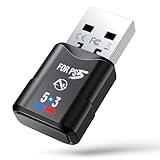
Method 2: Using a USB Bluetooth Adapter (potential Improvement)
This method involves using a third-party USB Bluetooth adapter, which can sometimes provide a more stable and higher-quality connection than the PS5’s built-in Bluetooth. This method bypasses the internal Bluetooth module and can sometimes offer better compatibility and audio performance. Note that the success of this method depends on the specific adapter you choose and the compatibility with the PS5.
- Purchase a Compatible USB Bluetooth Adapter: Not all adapters will work, so research and choose one specifically designed for use with gaming consoles. Look for adapters that support the aptX codec, which can provide better audio quality.
- Insert the Adapter into the PS5: Plug the USB Bluetooth adapter into one of the USB ports on your PS5.
- Put Your Beats Earbuds in Pairing Mode: Follow the instructions for your Beats earbuds to put them in pairing mode.
- Pair Your Earbuds with the Adapter: Some adapters have a pairing button. Press this button to initiate the pairing process. The adapter will search for available Bluetooth devices.
- Select Your Beats Earbuds: Your Beats earbuds should appear in the list of available devices. Select them to connect.
- Configure Audio Settings: Navigate to the PS5’s settings menu, then ‘Accessories’ > ‘Audio Devices’. From there, you should be able to select the USB Bluetooth adapter as your output device and configure the audio settings.
- Test the Connection: Play a game or listen to music to ensure the audio is working correctly. Check for any improvement in audio quality or reduced latency compared to the built-in Bluetooth.
Choosing the Right USB Bluetooth Adapter
When selecting a USB Bluetooth adapter, consider the following factors:
- Codec Support: Look for adapters that support aptX or aptX HD for better audio quality.
- Compatibility: Ensure the adapter is compatible with the PS5. Check online reviews and forums for user experiences.
- Latency: The adapter should minimize latency as much as possible.
- Range: The adapter should have a sufficient range for your gaming setup.
Method 3: Using a 3.5mm Headphone Jack (if Available)
Some Beats models have a 3.5mm headphone jack. If your model does, this is often the simplest and most reliable way to connect to your PS5’s controller. This method bypasses the wireless connection altogether, eliminating latency issues and potentially offering better audio quality.
- Locate the 3.5mm Headphone Jack: If your Beats earbuds have a 3.5mm headphone jack, find the port on the earbud itself.
- Plug the Earbuds into the PS5 Controller: Plug the 3.5mm cable from your Beats earbuds directly into the 3.5mm headphone jack on your PS5 controller.
- Configure Audio Settings: Go to the PS5’s settings menu, then ‘Accessories’ > ‘Audio Devices’. Select ‘Output Device’ and make sure the output is set to ‘Headset Connected to Controller’. You may also need to adjust the output volume in the same menu.
- Test the Connection: Play a game or listen to music to ensure the audio is working correctly.
Advantages of the 3.5mm Connection
- Low Latency: The direct wired connection eliminates latency issues.
- High Audio Quality: Provides a clear and reliable audio signal.
- Simple Setup: Easy to connect and configure.
Method 4: Using a USB Dongle (if Your Beats Have One)
Some Beats models, particularly those designed for gaming, come with a dedicated USB dongle. This dongle creates a direct, wireless connection between the earbuds and the PS5, often providing a more stable and higher-quality audio experience than standard Bluetooth. This method is often the preferred choice if your Beats earbuds have a dongle because it’s specifically designed for gaming.
- Insert the USB Dongle: Plug the USB dongle that came with your Beats earbuds into one of the USB ports on your PS5.
- Power on Your Beats Earbuds: Turn on your Beats earbuds.
- Pair the Earbuds with the Dongle: The pairing process varies depending on the model of Beats earbuds and dongle. Usually, you’ll need to press a pairing button on the dongle and then put your earbuds into pairing mode. Consult your Beats earbuds’ manual for specific instructions.
- Configure Audio Settings: Navigate to the PS5’s settings menu, then ‘Accessories’ > ‘Audio Devices’. Select ‘Output Device’ and choose the USB dongle as your output device. Adjust the output volume as needed.
- Test the Connection: Play a game or listen to music to ensure the audio is working correctly. The audio quality and latency should be superior to a standard Bluetooth connection.
Benefits of Using a USB Dongle
- Optimized for Gaming: Designed for low latency and high-quality audio.
- Stable Connection: Provides a more reliable wireless connection.
- Easy to Use: Simple setup and configuration.
Optimizing Your Audio Experience
Regardless of which connection method you choose, there are a few things you can do to optimize your audio experience:
- Adjust Audio Settings on the PS5: In the ‘Audio’ settings menu, you can adjust the equalizer settings, select the audio output format (e.g., Linear PCM), and enable 3D audio for supported games. Experiment with these settings to find what sounds best to you.
- Update Your Beats Earbuds’ Firmware: Make sure your Beats earbuds have the latest firmware updates. You can usually do this through the Beats app on your smartphone or tablet.
- Ensure a Clear Line of Sight: If you’re using a wireless connection, try to maintain a clear line of sight between your earbuds and the PS5 to minimize interference.
- Reduce Wireless Interference: Avoid using other devices that might interfere with the wireless signal, such as microwaves or other Bluetooth devices.
- Clean Your Earbuds: Regularly clean your earbuds to ensure optimal sound quality and hygiene. Follow the manufacturer’s instructions for cleaning.
Comparing Connection Methods
| Feature | Bluetooth | USB Adapter | 3.5mm Jack | USB Dongle |
|---|---|---|---|---|
| Latency | High | Moderate (depends on adapter) | Low | Low |
| Audio Quality | Moderate | Moderate to High (depends on adapter) | High | High |
| Ease of Setup | Easy | Moderate | Very Easy | Easy |
| Reliability | Moderate | Moderate to High | High | High |
| Compatibility | Variable | Variable | High | High (if supported) |
| Best For | Casual Gaming, Voice Chat | Gaming (with a good adapter) | Competitive Gaming, General Use | Gaming (if supported) |
This table helps you quickly compare the different connection methods and decide which one best suits your needs.
Tips for Using Beats with Your Ps5
- Charge Your Earbuds: Ensure your Beats earbuds are fully charged before each gaming session.
- Check the Volume Levels: Adjust the volume levels on both your PS5 and your Beats earbuds to find the optimal balance.
- Experiment with Audio Presets: Try different audio presets in your PS5’s settings to find the sound that you prefer.
- Consult the Manuals: Refer to the manuals for both your PS5 and your Beats earbuds for specific instructions and troubleshooting tips.
- Consider a Dedicated Gaming Headset: If you’re serious about gaming, consider investing in a dedicated gaming headset designed for the PS5. These headsets often offer superior audio quality, lower latency, and more features.
By following these steps and tips, you should be able to connect your Beats earbuds to your PS5 and enjoy a great gaming experience. Remember to experiment with different settings and connection methods to find what works best for you. Happy gaming!
Final Thoughts
Connecting your Beats earbuds to your PS5 can be a straightforward process, although the experience may vary depending on the model of your Beats and the method you choose. While Bluetooth is the simplest approach, consider alternatives like a USB adapter, 3.5mm connection, or a USB dongle (if available) for potentially better audio quality and lower latency.
Ultimately, the best connection method depends on your priorities and the features of your Beats earbuds. By understanding the different options and troubleshooting common issues, you can ensure a seamless and enjoyable gaming experience. Experiment with different settings and find what works best for you. Now, get ready to immerse yourself in the world of gaming with your favorite audio gear!
Recommended Products