How to Connect Apple Earbuds to Laptop: A Simple Guide
Hey there! Got a shiny new pair of Apple earbuds and itching to use them with your laptop? You’re in the right place. Connecting your AirPods or other Apple earbuds to a laptop can seem a bit tricky at first, especially if you’re used to the seamless experience with iPhones or iPads.
Don’t worry, it’s not rocket science. Whether you’re a seasoned techie or just starting out, I’ll walk you through every step of the process. We’ll cover everything, from the initial pairing to troubleshooting common issues. Get ready to enjoy your favorite tunes, podcasts, or video calls with crystal-clear audio on your laptop!
Let’s get started and make sure you’re hearing everything just the way it’s meant to be. I’ll provide you with detailed instructions and some helpful tips to ensure a smooth and enjoyable experience.
Understanding Compatibility: Airpods, Airpods Pro, Airpods Max, and Your Laptop
Before we dive into the connection process, let’s clarify compatibility. Apple’s earbuds, including AirPods, AirPods Pro, and AirPods Max, are designed to work seamlessly with Apple devices. However, they also play nice with other devices like laptops, as long as your laptop has Bluetooth capabilities. The good news is, most modern laptops, whether Windows or macOS, have Bluetooth built-in. If your laptop is older, you might need a Bluetooth adapter, but we’ll cover that later.
Here’s a quick rundown of what you need to know:
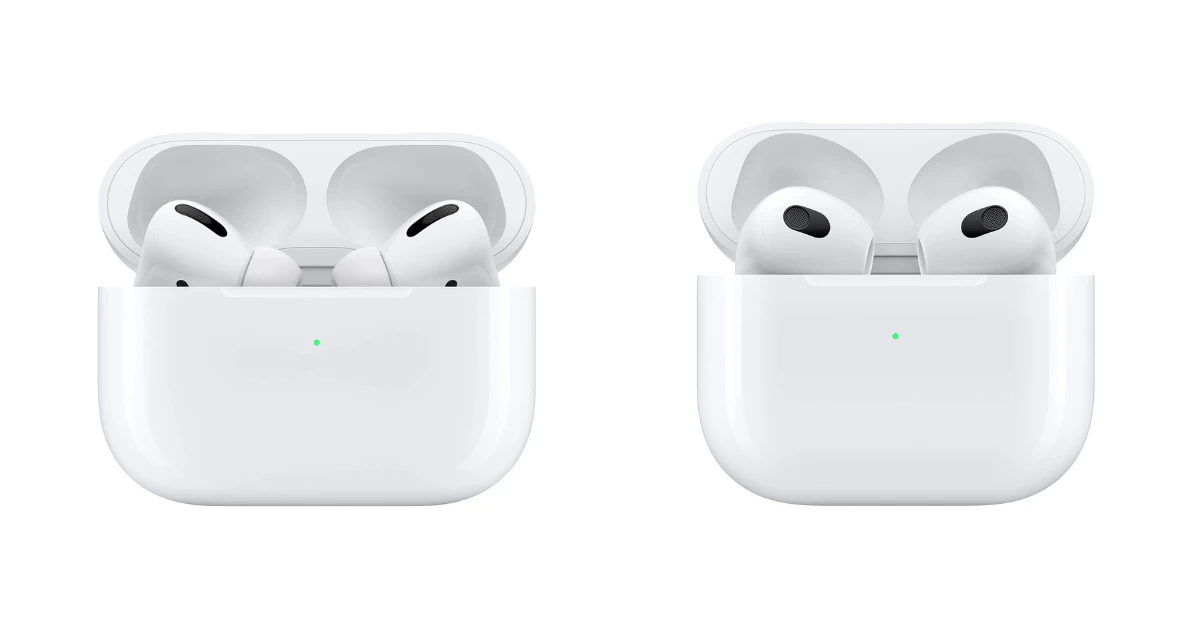
- AirPods (1st, 2nd, and 3rd generation): These are the classic earbuds and work with any Bluetooth-enabled laptop.
- AirPods Pro (1st and 2nd generation): Offer enhanced features like active noise cancellation and transparency mode, and are also fully compatible with laptops.
- AirPods Max: These over-ear headphones deliver premium audio quality and also connect via Bluetooth.
Laptop Operating Systems:
The instructions I’m providing will work for both Windows and macOS laptops. The general steps are similar, but the specific menus and settings might look slightly different.
Connecting Airpods to a Windows Laptop
Connecting your AirPods to a Windows laptop is a straightforward process. Follow these steps, and you’ll be listening to your audio in no time.
- Enable Bluetooth: First, make sure Bluetooth is turned on. You can usually find the Bluetooth settings in the Action Center. Click the speech bubble icon in the bottom right corner of your screen (next to the clock). If you don’t see a Bluetooth tile, click “Expand” to show more options. If Bluetooth is off, click the tile to turn it on.
- Open Bluetooth Settings: Right-click the Bluetooth icon in the system tray (the small icons in the bottom right of your screen) and select “Go to Settings” or simply search for “Bluetooth settings” in the Windows search bar.
- Put Your AirPods in Pairing Mode:
- For AirPods (1st, 2nd, and 3rd generation): Open the charging case lid while the AirPods are inside. Press and hold the button on the back of the case until the status light flashes white.
- For AirPods Pro (1st and 2nd generation): Open the charging case lid while the AirPods are inside. Press and hold the button on the back of the case until the status light flashes white.
- For AirPods Max: Press and hold the noise control button on the right ear cup until the status light flashes white.
Troubleshooting Tips for Windows:
- AirPods Not Showing Up: Make sure your AirPods are in pairing mode (white flashing light). Try restarting both your AirPods and your laptop.
- Connection Problems: Disconnect and reconnect your AirPods from the Bluetooth settings. Make sure there are no other devices interfering with the Bluetooth signal.
- Poor Audio Quality: Ensure your AirPods are fully charged. Update your Bluetooth drivers in the Device Manager (search for “Device Manager” in the Windows search bar).
Connecting Airpods to a Macos Laptop (macbook, iMac, Mac Mini)
Connecting AirPods to a macOS laptop is even easier, thanks to the seamless integration within the Apple ecosystem. Here’s how to do it:
- Make Sure Bluetooth is On: Click the Bluetooth icon in the menu bar (usually in the top right corner of your screen). If Bluetooth is off, click “Turn Bluetooth On.” If you don’t see the Bluetooth icon, go to System Preferences (click the Apple icon in the top left corner of your screen, then click “System Preferences”) and select “Bluetooth.” Make sure Bluetooth is turned on.
- Put Your AirPods in Pairing Mode:
- For AirPods (1st, 2nd, and 3rd generation): Open the charging case lid while the AirPods are inside. Press and hold the button on the back of the case until the status light flashes white.
- For AirPods Pro (1st and 2nd generation): Open the charging case lid while the AirPods are inside. Press and hold the button on the back of the case until the status light flashes white.
- For AirPods Max: Press and hold the noise control button on the right ear cup until the status light flashes white.
Troubleshooting Tips for macOS:
- AirPods Not Connecting: Make sure your AirPods are charged and in pairing mode. Restart your MacBook and try again.
- Audio Issues: Check the volume levels on both your AirPods and your MacBook. Ensure your AirPods are selected as the audio output device.
- Automatic Switching Problems: If your AirPods are frequently switching between devices, disable automatic switching in your Bluetooth settings.
Using Airpods Features on Your Laptop
Once your AirPods are connected, you can enjoy all the features they offer, even on your laptop. While some features are exclusive to Apple devices, you can still access essential functions.
- Audio Playback Controls: You can control music playback directly from your AirPods. Double-tap (or use the custom settings in your AirPods) to play/pause, skip tracks, or answer calls.
- Microphone: Your AirPods’ built-in microphones work seamlessly with your laptop for calls, video conferences, and voice recordings.
- Noise Cancellation (AirPods Pro and AirPods Max): If you have AirPods Pro or AirPods Max, you can activate noise cancellation or transparency mode directly from your AirPods.
- Siri (Limited Functionality): While you can’t use “Hey Siri” on your laptop as you do on an iPhone, you can still use Siri if you have a compatible macOS version. You can activate Siri by clicking the Siri icon in the menu bar or by using a keyboard shortcut (usually holding down the Command key and Space bar).
Troubleshooting Common Issues
Sometimes, things don’t go as planned. Here are solutions to common problems you might encounter:
- AirPods Not Pairing:
- Check the Pairing Mode: Make sure your AirPods are in pairing mode (white flashing light).
- Restart Devices: Restart both your AirPods and your laptop.
- Forget and Reconnect: In your Bluetooth settings, “forget” your AirPods and then try pairing them again.
- Charge Your AirPods: Ensure your AirPods have enough battery.
- AirPods Not Connecting:
- Check Bluetooth: Ensure Bluetooth is turned on on your laptop.
- Proximity: Make sure your AirPods are within range of your laptop.
- Interference: Move away from other Bluetooth devices that might be causing interference.
- Poor Audio Quality:
- Check Battery: Ensure both your AirPods and your laptop have sufficient battery power.
- Volume Levels: Adjust the volume levels on both your AirPods and your laptop.
- Check for Interference: Move away from any potential sources of interference, such as microwaves or other electronic devices.
- Update Drivers: Update your Bluetooth drivers on your laptop (Windows).
- Microphone Issues:
- Select the Correct Microphone: In your laptop’s audio settings, make sure your AirPods are selected as the input device (microphone).
- Check Microphone Access: Ensure that the app you’re using (e.g., Zoom, Teams) has permission to access your microphone.
Using a Bluetooth Adapter (if Your Laptop Lacks Bluetooth)
If your laptop doesn’t have built-in Bluetooth, don’t worry! You can easily add Bluetooth functionality using a Bluetooth adapter. These adapters plug into your laptop’s USB port and provide Bluetooth connectivity. Here’s how to use one:
- Purchase a Bluetooth Adapter: Look for a Bluetooth adapter that is compatible with your operating system (Windows or macOS).
- Insert the Adapter: Plug the Bluetooth adapter into a USB port on your laptop.
- Install Drivers: Your laptop should automatically detect the adapter and install the necessary drivers. If not, you may need to install the drivers from the adapter’s manufacturer’s website.
- Pair Your AirPods: Once the drivers are installed, follow the same steps as described earlier to pair your AirPods with your laptop. The Bluetooth adapter will act as the Bluetooth source.
Recommendations for Bluetooth Adapters:
When choosing a Bluetooth adapter, consider the following:
- Bluetooth Version: Look for an adapter that supports Bluetooth 5.0 or higher for better range and faster speeds.
- Compatibility: Ensure the adapter is compatible with your laptop’s operating system (Windows or macOS).
- Reviews: Read reviews to see what other users have to say about the adapter’s performance and reliability.
Maximizing Your Airpods Experience on Your Laptop
Here are a few tips to get the most out of your AirPods experience on your laptop:
- Keep Your AirPods Charged: Always charge your AirPods before use to avoid unexpected battery drain.
- Update Firmware: Keep your AirPods firmware updated to ensure optimal performance and access to the latest features. Updates are typically managed through your iPhone or iPad when the AirPods are connected.
- Customize Settings: Explore the settings in your Bluetooth menu to customize your AirPods’ functions, such as double-tap actions and noise cancellation modes.
- Clean Your AirPods: Regularly clean your AirPods to remove earwax and debris, which can affect sound quality. Use a soft, dry cloth.
Comparing Airpods Generations and Features
To help you understand the differences between the various AirPods models, here’s a table comparing their key features:
| Feature | AirPods (2nd Gen) | AirPods (3rd Gen) | AirPods Pro (1st Gen) | AirPods Pro (2nd Gen) | AirPods Max |
|---|---|---|---|---|---|
| Price (Approx.) | $129 | $179 | $249 | $249 | $549 |
| Chip | H1 | H1 | H1 | H2 | H1 |
| Noise Cancellation | No | No | Yes | Yes | Yes |
| Transparency Mode | No | No | Yes | Yes | Yes |
| Spatial Audio | No | Yes | Yes | Yes | Yes |
| Water Resistance | No | IPX4 | IPX4 | IPX4 | No |
| Battery Life (Earbuds) | 5 hours | 6 hours | 4.5 hours | 6 hours | 20 hours |
| Battery Life (with Case) | 24 hours | 30 hours | 24 hours | 30 hours | 20 hours |
| Charging | Lightning, Wireless | Lightning, MagSafe | Lightning, Wireless | Lightning, MagSafe, Wireless | Lightning |
Advanced Tips and Tricks
For those who want to take their AirPods experience to the next level, here are some advanced tips and tricks:
- Automatic Switching: If you use multiple Apple devices, your AirPods can automatically switch between them. This feature is enabled by default.
- Find My: If you misplace your AirPods, you can use the Find My app on your iPhone, iPad, or Mac to locate them.
- Spatial Audio with Head Tracking: AirPods Pro (2nd generation) and AirPods Max support spatial audio with head tracking, which creates a more immersive listening experience.
- Audio Sharing: You can share audio with another pair of AirPods or compatible headphones connected to the same device.
Final Verdict
So, there you have it! Connecting your Apple earbuds to your laptop is a breeze, whether you’re using AirPods, AirPods Pro, or AirPods Max. By following these simple steps, you can enjoy high-quality audio for work, entertainment, or communication. Remember to troubleshoot any issues and explore the advanced features to get the most out of your listening experience. Now, go ahead and enjoy your favorite tunes or podcasts!
Recommended Products