How to Connect Aftershokz Earbuds: A Simple Guide
Hey there! If you’re here, you’ve probably just gotten yourself a pair of AfterShokz (now Shokz) bone conduction headphones, or you’re thinking about it. Awesome choice! These headphones are a game-changer for anyone who loves staying aware of their surroundings while enjoying their music or podcasts. But, like any new tech, figuring out how to connect them can sometimes be a little confusing.
Don’t worry, though! It’s actually pretty straightforward. I’ve used AfterShokz for years, from running marathons to just chilling at home, and I’m here to walk you through the entire process. We’ll cover everything from the initial pairing to troubleshooting any connection issues you might run into. By the end of this guide, you’ll be enjoying your tunes in no time.
Let’s get started and make sure you’re getting the most out of your new headphones!
Understanding Your Aftershokz Headphones
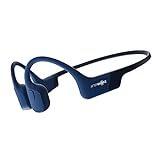
Before we jump into the connection process, let’s quickly go over what makes AfterShokz special. These headphones use bone conduction technology. They sit in front of your ears, sending sound waves through your cheekbones directly to your inner ear. This means your ear canals stay open, allowing you to hear ambient sounds like traffic or conversations while you listen to your audio.
There are several models of AfterShokz/Shokz headphones, each with slightly different features. However, the basic connection process is similar across all of them. The most popular models include:
- OpenRun (formerly Aeropex): Known for its lightweight design and excellent sound quality. This is a very common model.
- OpenMove: A more budget-friendly option, great for everyday use.
- OpenComm: Designed for communication, often used by cyclists or in professional settings.
- OpenRun Pro: An upgraded version of OpenRun, with enhanced bass and longer battery life.
While the buttons and features may vary slightly depending on the model, the core connection steps are pretty consistent.
Step-by-Step Guide: How to Connect Aftershokz to Your Device
Connecting your AfterShokz headphones to your smartphone, tablet, or computer is a simple process. Let’s break it down step-by-step.
Step 1: Charging Your Headphones
Before you do anything, make sure your AfterShokz headphones are charged. Most models use a proprietary charging cable, often magnetic. You’ll find this cable in the box when you purchase your headphones.
- Locate the Charging Port: The charging port is usually located on the right side of the headphones, near the power button.
- Connect the Cable: Attach the magnetic charging cable to the port. The cable should snap into place easily.
- Check the LED Indicator: The LED indicator on the headphones will light up to show the charging status. It usually glows red while charging and turns blue or green when fully charged.
- Charging Time: A full charge typically takes around 1.5 to 2 hours, depending on the model.
Why it matters: A fully charged battery ensures you can enjoy your music without interruption. It’s frustrating to run out of juice mid-workout!
Step 2: Entering Pairing Mode
Pairing mode is the state where your headphones are discoverable by your device. Here’s how to enter pairing mode:
- Power Off: If your headphones are on, turn them off by pressing and holding the power button (usually located on the right side) until the LED indicator turns off.
- Enter Pairing Mode: Press and hold the power button again for about 5-7 seconds. You’ll know you’ve entered pairing mode when the LED indicator starts flashing red and blue. Some models will also have a voice prompt that says “Pairing.”
Important Tip: Make sure you’re close to the device you want to connect to during the pairing process. Bluetooth signals can sometimes be weak over long distances.
Step 3: Enabling Bluetooth on Your Device
Now, let’s get your device ready to connect to your AfterShokz headphones.
- On Your Smartphone or Tablet (iOS/Android):
- Go to your device’s settings menu.
- Tap on “Bluetooth.”
- Make sure Bluetooth is turned ON.
- On Your Computer (Windows/Mac):
- Windows: Click the Start menu, then go to Settings > Devices > Bluetooth & other devices. Make sure Bluetooth is turned on.
- Mac: Click the Apple menu (top left corner) > System Preferences > Bluetooth. Make sure Bluetooth is turned on.
Why it matters: Your device needs to be actively searching for Bluetooth devices to find your AfterShokz headphones.
Step 4: Pairing Your Aftershokz Headphones
With your headphones in pairing mode and Bluetooth enabled on your device, it’s time to connect!
- Scan for Devices: On your device’s Bluetooth settings page, look for a list of available devices. You may need to tap a button like “Scan,” “Refresh,” or “Search for devices.”
- Select Your Headphones: Your AfterShokz headphones should appear in the list, usually listed as “AfterShokz OpenRun” or a similar name, depending on the model. Tap on the name to select them.
- Pairing Confirmation: Your device may show a pairing request. Accept it if prompted. Some devices might also ask for a PIN (usually “0000” or “1234”), but this is rare.
- Connection Confirmed: Once the pairing is successful, your headphones will connect to your device. The LED indicator on your headphones will usually turn solid blue (or green). You might also hear a voice prompt saying “Connected.”
Troubleshooting Tip: If your headphones don’t appear in the list, make sure they are still in pairing mode (red and blue flashing) and that they are close to your device.
Connecting to Multiple Devices
AfterShokz headphones can often remember multiple devices but typically can only connect to one at a time. Here’s how to switch between devices:
- Disconnect from the Current Device: On the device you’re currently using, go to the Bluetooth settings and disconnect or unpair the headphones.
- Connect to the New Device: Then, go to the Bluetooth settings on the new device and select your AfterShokz headphones from the list of paired devices.
- Automatic Reconnection: If your headphones are already paired with a device, they should automatically reconnect when you turn them on, as long as Bluetooth is enabled on that device and it’s within range.
Important Note: If you are connecting to a new device, ensure the headphones are not connected to another device first. This can cause connection issues.
Troubleshooting Common Connection Problems
Sometimes, things don’t go as planned. Here are some solutions to common connection problems:
Problem 1: Headphones Not Showing Up in the Bluetooth List
- Solution:
- Make Sure They’re in Pairing Mode: Double-check that the LED indicator is flashing red and blue.
- Restart Pairing Mode: Turn the headphones off, then back on in pairing mode.
- Check Bluetooth on Your Device: Ensure Bluetooth is turned on and that your device is actively scanning for devices.
- Move Closer: Bring your headphones closer to your device.
- Reboot Your Device: Sometimes, a simple restart of your phone or computer can resolve Bluetooth issues.
Problem 2: Headphones Connecting but Not Playing Audio
- Solution:
- Check Volume Levels: Make sure the volume is turned up on both your headphones and your device.
- Select the Correct Output: On your device, make sure your AfterShokz headphones are selected as the audio output device. This is usually in the sound settings.
- Restart the Audio App: Close and reopen the app you’re using to play music or podcasts.
- Test with Another App: Try playing audio from a different app to see if the problem is specific to one app.
Problem 3: Connection Drops or Intermittent Audio
- Solution:
- Check for Interference: Bluetooth signals can be affected by other devices, like Wi-Fi routers or other Bluetooth devices. Try moving away from potential sources of interference.
- Reduce Distance: Keep your headphones and device within a reasonable distance of each other (typically within 33 feet).
- Reset the Headphones: Some models have a reset function. Consult your user manual for specific instructions. This often involves pressing and holding multiple buttons simultaneously.
- Unpair and Re-Pair: Unpair the headphones from your device in the Bluetooth settings, then go through the pairing process again.
Problem 4: One Earbud Not Working
- Solution:
- Check the Balance Settings: Make sure the audio balance isn’t skewed to one side in your device’s sound settings.
- Restart the Headphones: Turn the headphones off and then back on.
- Factory Reset: Perform a factory reset (if available on your model). Consult your user manual for instructions.
- Contact Support: If these steps don’t work, there might be a hardware issue. Contact Shokz support for assistance.
Tips for Optimal Performance
Here are some tips to get the best experience with your AfterShokz headphones:
- Proper Fit: Ensure the headphones are positioned correctly on your head. The transducers should sit comfortably in front of your ears, resting on your cheekbones.
- Volume Levels: Adjust the volume to a comfortable level. Avoid turning the volume up too high, as this can affect sound quality and reduce your awareness of your surroundings.
- Clean Regularly: Clean your headphones regularly with a soft, dry cloth to remove any sweat or debris.
- Software Updates: Check for firmware updates for your headphones through the Shokz app (if available for your model). Updates can improve performance and fix bugs.
- Storage: Store your headphones in a safe place when not in use, preferably in a case, to protect them from damage.
Advanced Features and Settings
Depending on the model, your AfterShokz headphones might have additional features. Let’s look at some of them:
Multi-Point Pairing
Some models support multi-point pairing, which allows you to connect to two devices simultaneously. This is handy if you want to switch between your phone and your computer without manually disconnecting and reconnecting.
- How it Works: Pair your headphones with both devices. The headphones will then be connected to both devices at the same time.
- Limitations: You can only listen to audio from one device at a time. If audio starts playing on the second device, it will automatically pause the audio on the first device.
- Switching Devices: To switch between devices, simply start playing audio on the device you want to use.
Button Controls
AfterShokz headphones have buttons for various functions. These can vary slightly by model, but here’s a general overview:
- Power Button: Used to turn the headphones on/off and enter pairing mode.
- Volume Buttons: Used to adjust the volume.
- Multi-Function Button: This button is usually used for:
- Playing/Pausing music
- Answering/Ending phone calls
- Skipping tracks (double-tap)
- Activating voice assistants (Siri, Google Assistant)
Consult your user manual for the exact button functions for your specific model.
Shokz App
The Shokz app (available for some models) provides additional control and customization options.
- Features:
- Firmware Updates: Update your headphones’ software.
- EQ Settings: Adjust the sound profile (e.g., standard, vocal, bass boost).
- Customization: Customize button functions (where available).
- User Manuals and Support: Access user manuals and contact support.
- How to Use: Download the Shokz app from your device’s app store. Pair your headphones with your device, and then open the app. The app will automatically detect your headphones and allow you to access the available features.
Comparing Aftershokz Models
Choosing the right AfterShokz model can depend on your needs and budget. Here’s a quick comparison of some popular models:
| Feature | OpenRun | OpenMove | OpenComm | OpenRun Pro |
|---|---|---|---|---|
| Price | Mid-Range | Budget-Friendly | Mid-Range | Premium |
| Sound Quality | Excellent | Good | Good | Superior (Enhanced Bass) |
| Battery Life | 8 Hours | 6 Hours | 16 Hours (Talk Time) | 10 Hours |
| Water Resistance | IP67 (Waterproof) | IP55 (Water Resistant) | IP55 (Water Resistant) | IP55 (Water Resistant) |
| Ideal For | Running, General Use | Everyday Use, Budget-Conscious | Communication, Cycling | Running, Premium Experience |
| Charging | Magnetic | USB-C | Magnetic | Magnetic |
Frequently Asked Questions (faq)
Let’s address some common questions about connecting and using AfterShokz headphones:
Q: Can I Connect My Aftershokz to Multiple Devices Simultaneously?
A: Some models support multi-point pairing, allowing you to connect to two devices at the same time. However, you can only listen to audio from one device at a time.
Q: My Headphones Won’t Pair. What Should I Do?
A: Double-check that your headphones are in pairing mode (red and blue flashing LED). Make sure Bluetooth is enabled on your device. Try restarting both your headphones and your device. If that doesn’t work, unpair and re-pair the headphones.
Q: How Do I Reset My Aftershokz Headphones?
A: The reset process varies by model. Consult your user manual for specific instructions. Generally, it involves pressing and holding multiple buttons simultaneously.
Q: What Is the Range of Aftershokz Headphones?
A: The typical range is about 33 feet (10 meters) in an open space. Obstacles like walls can reduce the range.
Q: Are Aftershokz Headphones Waterproof?
A: Some models are waterproof (e.g., OpenRun, OpenRun Pro), while others are water-resistant. Check the specifications for your specific model.
Q: How Do I Charge My Aftershokz Headphones?
A: Use the charging cable that came with your headphones. Connect the magnetic end to the charging port on the headphones and plug the other end into a USB power source.
Q: Can I Use Aftershokz Headphones for Phone Calls?
A: Yes, most models have a built-in microphone and can be used for phone calls.
Verdict
So, there you have it! Connecting your AfterShokz headphones is a simple process, and with a little patience, you’ll be enjoying your music or podcasts in no time. Remember to charge your headphones fully, put them in pairing mode, enable Bluetooth on your device, and select your headphones from the available devices list.
If you run into any trouble, don’t hesitate to refer back to this guide or consult your user manual. Troubleshooting is usually straightforward. And most importantly, enjoy the freedom and awareness that comes with bone conduction technology. Happy listening!
Recommended Products