How to Charge F9 Earbuds: A Comprehensive Guide
So, you’ve got yourself a pair of F9 earbuds, and you’re ready to enjoy some tunes, podcasts, or take calls. But before you get lost in the audio bliss, there’s one crucial step: charging them. Charging your earbuds correctly is essential for maintaining their battery health and ensuring you get the most out of your listening experience. Don’t worry, it’s a straightforward process, but there are a few things to keep in mind.
This guide will walk you through everything you need to know about how to charge F9 earbuds. We’ll cover the basics, troubleshoot common issues, and provide some helpful tips to maximize your earbuds’ lifespan. From understanding the charging case to identifying potential problems, we’ll equip you with the knowledge to keep your F9s powered up and ready to go.
Let’s get started and make sure your music never stops! We’ll look at the different methods you can use, the indicators that tell you when they’re charging and charged, and some common problems that might arise.
Understanding Your F9 Earbuds and Charging Case
Before diving into the charging process, it’s important to understand the components involved. The F9 earbuds typically come with a charging case, which serves a dual purpose: it protects your earbuds and provides additional battery life. The case itself needs to be charged, and then it can be used to charge the earbuds.
The Earbuds: Your Audio Companions
The F9 earbuds themselves are the stars of the show. They house the drivers, batteries, and all the electronics that bring your audio to life. They connect wirelessly to your device via Bluetooth. They are designed to fit comfortably in your ears, offering a portable and convenient listening experience. The earbuds contain small batteries that require charging.
The Charging Case: Your Portable Power Bank
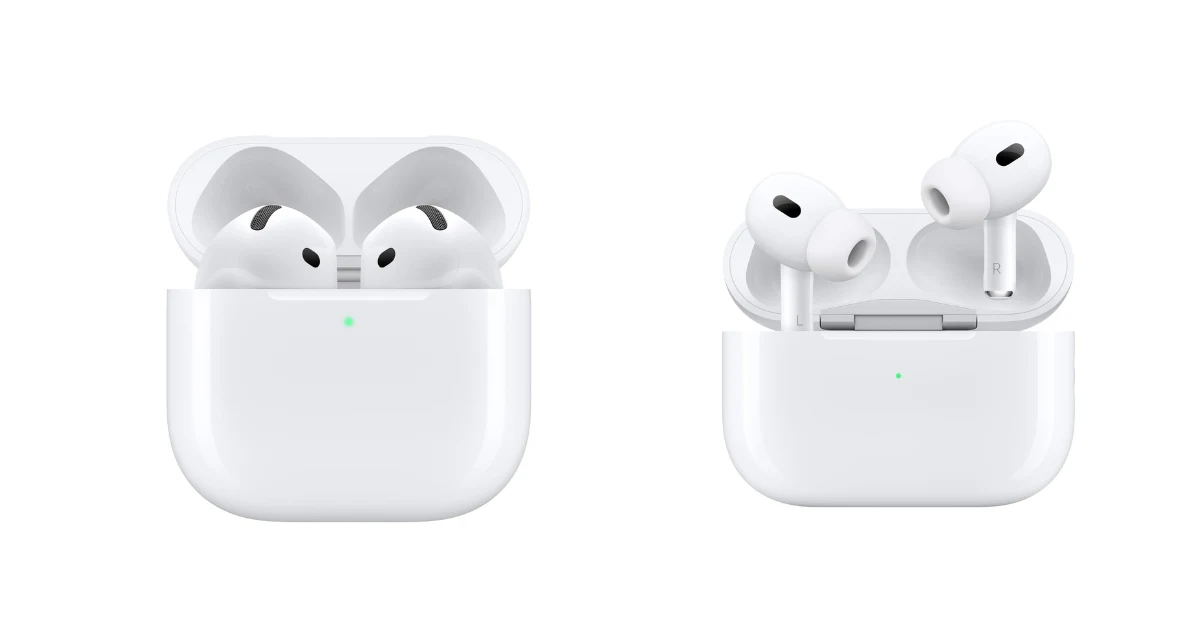
The charging case is a critical component of the F9 earbud package. It’s a compact box designed to store, protect, and recharge your earbuds. Inside the case, you’ll usually find a built-in battery that can recharge the earbuds multiple times before the case itself needs to be plugged in. The case also often features LED indicators that show the charging status of both the case and the earbuds.
Key Features to Observe
Charging Port: The charging port on the case is typically a USB-C or Micro-USB port. Make sure you have the correct charging cable for your case.
LED Indicators: These lights provide crucial information about the charging status. They show when the case is charging, when the earbuds are charging, and when both are fully charged.
Earbud Slots: These are the cradles inside the case where you place the earbuds for charging. They often have magnetic contacts to ensure a secure connection.
How to Charge F9 Earbuds: Step-by-Step Guide
Charging your F9 earbuds is a simple process, but here’s a detailed, step-by-step guide to ensure you do it correctly:
Step 1: Charge the Charging Case
Before you charge your earbuds, you need to make sure the charging case has power. Here’s how:
- Locate the Charging Port: Find the USB-C or Micro-USB port on the charging case. It’s usually located on the bottom or back of the case.
- Connect the Charging Cable: Plug one end of the charging cable (usually a USB-C or Micro-USB cable) into the charging port on the case.
- Connect to a Power Source: Plug the other end of the cable into a power source. This could be a USB port on your computer, a wall adapter, or a power bank.
- Observe the LED Indicator: The LED indicator on the case will usually light up to show that it’s charging. The specific behavior of the LED (e.g., blinking, solid color) will depend on the model.
- Wait for Full Charge: Allow the charging case to charge fully. This can take anywhere from 1 to 2 hours, depending on the case’s battery capacity. The LED indicator will usually change to indicate a full charge (e.g., solid green light).
Step 2: Charge the Earbuds Inside the Case
Once the charging case is charged, you can charge the earbuds:
- Place the Earbuds in the Case: Open the charging case and carefully place each earbud into its designated slot. Make sure the earbuds are seated properly and making contact with the charging pins.
- Observe the LED Indicators: The LED indicators on the case should light up to show that the earbuds are charging. The color and behavior of the LEDs will vary depending on the model, but you’ll usually see a red or blue light while charging.
- Close the Case: Close the charging case to allow the earbuds to charge.
- Wait for Full Charge: The earbuds typically take about 1 to 2 hours to fully charge from empty. The LED indicators will usually change to indicate a full charge (e.g., solid blue or green light).
- Remove the Earbuds: Once the earbuds are fully charged, you can remove them from the case and use them.
Step 3: Alternative Charging Methods (if Applicable)
Some F9 earbud models might support alternative charging methods. It’s always a good idea to consult the user manual that came with your earbuds. Here are some possibilities:
Wireless Charging: Some charging cases support wireless charging. If your case has this feature, you can place it on a wireless charging pad. Make sure the case is positioned correctly on the pad, and the LED indicator will show the charging status.
Direct Charging (Rare): Some older or more basic models might allow you to charge the earbuds directly using a charging cable. However, this is less common with modern F9 earbuds.
Understanding the LED Indicators: What the Lights Mean
The LED indicators are your best friend when it comes to understanding the charging status of your F9 earbuds and their case. Here’s a general guide to what the different light patterns usually mean. However, the specific behavior of the LEDs can vary between different models, so always refer to your user manual for precise information.
Charging Case LED Indicators
The charging case LEDs usually indicate the following:
- Charging: The LED may blink or display a solid color (e.g., red, blue) while the case is charging. The color and blinking pattern can vary.
- Fully Charged: The LED will typically turn a solid color (e.g., green, blue) when the case is fully charged.
- Low Battery: The LED might blink red or display a different color to indicate a low battery level in the case.
Earbud LED Indicators (inside the Case)
The LEDs on the earbuds themselves (or the case indicators related to the earbuds) usually indicate:
- Charging: When the earbuds are placed in the case and charging, the LEDs on the earbuds or the case (near the earbud slots) will usually display a red or blue light.
- Fully Charged: Once the earbuds are fully charged, the LEDs will usually change to a solid color (e.g., green, blue).
Example LED Behavior (general Guide)
Here’s a table summarizing common LED behaviors (remember to check your user manual for specifics):
| LED State | Charging Case | Earbuds (Inside Case) | Meaning |
|---|---|---|---|
| Blinking Red | Charging | Charging | Case or earbuds are charging. |
| Solid Red | Low Battery | N/A | Case needs to be charged. |
| Solid Green/Blue | Fully Charged | Fully Charged | Case and/or earbuds are fully charged. |
| Off | N/A | N/A | Case or earbuds are not charging or are off. |
Troubleshooting Common Charging Issues
Sometimes, you might encounter issues when charging your F9 earbuds. Here are some common problems and how to troubleshoot them:
Earbuds Not Charging in the Case
Problem: You place the earbuds in the case, but they don’t seem to be charging.
Solutions:
- Check the Connection: Make sure the earbuds are properly seated in their slots and making contact with the charging pins. Try removing and re-inserting the earbuds.
- Clean the Contacts: Use a dry, soft cloth or a cotton swab to clean the charging contacts on both the earbuds and the case. Sometimes, dirt or debris can prevent a good connection.
- Check the Case’s Battery: Make sure the charging case itself has enough charge. If the case’s battery is depleted, it won’t be able to charge the earbuds.
- Try a Different Cable/Adapter: The charging cable or power adapter might be faulty. Try using a different cable and power adapter to see if that resolves the issue.
- Factory Reset (If Applicable): Some earbuds have a reset function. Consult your user manual to see if a reset is available and how to perform it.
Charging Case Not Charging
Problem: The charging case isn’t charging when you plug it in.
Solutions:
- Check the Cable and Adapter: Make sure the charging cable is securely connected to the case and the power adapter. Try using a different cable and/or power adapter to rule out a faulty component.
- Check the Power Outlet: Ensure the power outlet is working correctly. Try plugging the charger into a different outlet.
- Clean the Charging Port: Sometimes, dust or debris can block the charging port. Use a soft brush or compressed air to clean the port.
- Inspect the Charging Port: Check the charging port for any visible damage. If the port is damaged, you might need to replace the case.
- Check for Overheating: If the case is extremely hot while charging, it might have an internal issue. Unplug it and let it cool down before trying again.
Earbuds Draining Quickly
Problem: The earbuds seem to be losing their charge very quickly.
Solutions:
- Check Volume Levels: Playing audio at high volumes can drain the battery faster. Try lowering the volume.
- Bluetooth Connection: Ensure a stable Bluetooth connection. A weak or unstable connection can sometimes drain the battery more quickly.
- Usage Patterns: The more you use the earbuds, the faster they will drain. Consider your usage patterns and whether you’re using features like noise cancellation (which consumes more power).
- Battery Health: Over time, the battery in your earbuds will degrade. If the earbuds are old, the battery capacity might have diminished.
- Firmware Updates: Check if there are any firmware updates available for your earbuds. Updates can sometimes improve battery efficiency.
One Earbud Not Charging
Problem: One of the earbuds is not charging, but the other one is fine.
Solutions:
- Check the Earbud Placement: Make sure the earbud is properly seated in the charging case. Try removing and re-inserting the earbud.
- Clean the Contacts: Clean the charging contacts on both the earbud and the case, as described above.
- Swap Earbuds: Try swapping the earbuds in the case to see if the issue follows the earbud or stays with the slot in the case. This helps determine if the problem is with the earbud or the case.
- Contact Support: If the problem persists, the earbud might have a hardware issue, and you might need to contact the manufacturer’s support for assistance.
Tips for Maximizing Battery Life and Earbud Longevity
Proper charging habits and care can significantly extend the lifespan of your F9 earbuds and their batteries. Here are some tips to keep in mind:
Charge Regularly
Don’t wait until the battery is completely drained: It’s generally better to charge your earbuds when they’re at around 20-30% battery life. Frequent, shallow charging cycles are often better for battery health than letting the battery drain completely.
Avoid Extreme Temperatures
Keep them away from heat and cold: Extreme temperatures can damage the battery. Avoid leaving your earbuds in direct sunlight, in a hot car, or in freezing conditions.
Use the Correct Charging Accessories
Use the provided cable and adapter: Always use the charging cable and power adapter that came with your F9 earbuds, or a high-quality replacement. Using a low-quality charger can damage the battery.
Avoid Overcharging
Don’t leave them charging for extended periods: Once the earbuds and the case are fully charged, unplug them. Leaving them plugged in for extended periods (e.g., overnight) isn’t necessarily harmful, but it’s not ideal for battery health.
Store Properly
Store in a cool, dry place: When you’re not using your earbuds, store them in their charging case in a cool, dry place. Avoid storing them in areas with high humidity or extreme temperatures.
Clean Regularly
Keep the contacts clean: Regularly clean the charging contacts on the earbuds and the case to ensure a good connection and optimal charging.
Update Firmware
Check for firmware updates: Keep your earbuds’ firmware updated. Firmware updates can often improve battery performance and fix other issues.
Handle with Care
Protect from drops and impacts: Treat your earbuds with care to prevent physical damage. Dropping or bumping them can damage the internal components.
Final Thoughts
Charging your F9 earbuds is a simple process that ensures you can enjoy your music, podcasts, and calls without interruption. By following the steps outlined in this guide and understanding the LED indicators, you can easily keep your earbuds powered up. Remember to charge the charging case first, then place the earbuds in the case to charge. Pay attention to the LED lights, as they provide valuable information about the charging status. If you encounter any issues, refer to the troubleshooting tips provided. Following these guidelines and practicing good charging habits, you can extend the battery life and overall lifespan of your F9 earbuds, ensuring they remain a reliable companion for your audio needs.
We’ve covered everything from the basics of charging to troubleshooting common issues. By understanding the charging process, you can keep your F9 earbuds ready to go whenever you are. Remember to charge the case, then the earbuds, and pay attention to the LED indicators. Regular maintenance and proper charging habits are key to maximizing your earbuds’ lifespan and ensuring you enjoy your audio experience for a long time.
If you’re still having trouble, consult the user manual that came with your earbuds or contact the manufacturer’s customer support. They can provide specific guidance for your model. With proper care and charging techniques, your F9 earbuds will provide many hours of listening pleasure. Enjoy your music!
Recommended Products