How to Adjust Volume on Earbuds: A Complete Guide
Ever find yourself fumbling with your phone while trying to adjust the volume on your earbuds? It’s a common frustration, isn’t it? Whether you’re trying to crank up your favorite tunes on your commute, or subtly lower the volume during a video call, knowing how to quickly and easily control the sound levels is essential for a smooth audio experience.
This guide will walk you through everything you need to know about adjusting the volume on your earbuds. We’ll cover the basics, delve into the different methods available depending on your device, and even troubleshoot some common issues. From wired to wireless, Android to iOS, we’ve got you covered. Get ready to take complete control of your audio!
So, let’s dive in and make sure you’re always hearing your audio just the way you want it.
Understanding Earbud Volume Control: The Basics
Before we get into the specifics, let’s establish a foundational understanding of how volume control works with earbuds. The core concept is simple: your earbuds receive an audio signal from your device (phone, tablet, computer, etc.), and that signal’s strength determines the volume you hear. However, how you actually adjust that signal’s strength varies depending on your earbud type and the device you’re using.
Wired vs. Wireless Earbuds: A Quick Comparison
The primary distinction lies between wired and wireless earbuds. Wired earbuds, connected directly to your device via a 3.5mm jack or a USB-C/Lightning connector, often offer a more straightforward volume control method. Wireless earbuds, on the other hand, communicate with your device via Bluetooth and have more features. The key differences impact the controls:
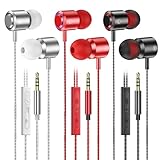
- Wired Earbuds: Typically rely on in-line volume controls (buttons on the cable) or the device’s volume controls.
- Wireless Earbuds: Often feature touch controls, physical buttons, or voice assistants for volume adjustment. They always rely on the device’s volume control, too.
The Role of Your Device
Your device (smartphone, tablet, computer) plays a critical role in volume control, regardless of your earbud type. It’s the central hub for audio output, and the device’s volume setting always affects the maximum volume your earbuds can produce. Even if your earbuds have their own volume controls, they’re typically adjusting the audio signal *before* it reaches your ears, based on the output level set by your device.
Think of it like a faucet. The device’s volume setting is the main valve controlling how much water (audio) can flow. Your earbud’s volume controls are like a secondary valve, fine-tuning the flow within the limits set by the main valve. If your device’s volume is set to low, your earbuds, no matter how high they’re set, won’t be able to produce a very loud sound.
Important Terminology
Before we move on, let’s clarify some crucial terms:
- Volume: The perceived loudness of the audio.
- Decibel (dB): The unit used to measure sound intensity (volume).
- Volume Control: The mechanism (buttons, touch controls, etc.) used to adjust the volume.
How to Adjust Volume on Wired Earbuds
Wired earbuds offer a direct and generally simple approach to volume adjustment. Here’s how to control the volume on your wired earbuds, covering the most common scenarios.
Using in-Line Volume Controls
Many wired earbuds come with an in-line remote, a small module on the cable that houses the microphone and volume controls. These controls are usually in the form of buttons. These in-line controls are your primary method of volume adjustment.
- Volume Up Button: Press this button to increase the volume.
- Volume Down Button: Press this button to decrease the volume.
- Multi-Function Button: This button often handles play/pause, answering/ending calls, and sometimes skipping tracks.
Troubleshooting In-Line Controls:
- Buttons Not Working: Ensure the earbuds are properly connected to your device. Try unplugging and replugging them. Check for any debris or damage on the buttons.
- Incompatible Controls: Some in-line controls might have limited functionality depending on your device. For instance, the play/pause button might work, but volume controls might not.
Using Your Device’s Volume Controls
Even with in-line controls, your device’s volume settings are crucial. You can adjust the volume using the following methods:
- Physical Volume Buttons: Most smartphones and tablets have physical volume buttons on the side. Press these to increase or decrease the overall volume.
- On-Screen Volume Slider: On most devices, adjusting the volume with the physical buttons will trigger an on-screen volume slider. You can also manually adjust the slider by dragging it left or right.
- Operating System Settings: You can often find volume controls within your device’s settings menu (e.g., in the ‘Sound’ or ‘Audio’ settings).
Using the Volume Controls on Your Computer
If you’re using wired earbuds with a computer, the methods of volume control are similar to those on mobile devices:
- Keyboard Controls: Many keyboards have dedicated volume up, volume down, and mute keys.
- Operating System Settings: Access the volume controls from the system tray (usually in the bottom-right corner of the screen) or through the sound settings in the control panel or system preferences.
- Application Volume Controls: Some applications (e.g., media players, video conferencing software) also have their own volume controls that affect the audio output from that specific application. These controls are independent of the overall system volume.
Important Considerations for Wired Earbuds:
- Earbud Compatibility: Ensure your wired earbuds are compatible with your device’s port (3.5mm jack, USB-C, or Lightning).
- Cable Quality: A damaged or faulty cable can affect audio quality and volume control.
- Device Volume Limits: Be mindful of the maximum volume settings on your device to prevent potential hearing damage.
How to Adjust Volume on Wireless Earbuds
Wireless earbuds, relying on Bluetooth connectivity, offer a wider range of volume control options. Here’s a comprehensive guide to adjusting the volume on your wireless earbuds.
Touch Controls
Many wireless earbuds feature touch-sensitive controls on the earbuds themselves. These controls usually involve tapping or swiping on the earbud’s surface to adjust the volume.
- Volume Up: Typically, you’ll tap or swipe upwards on one of the earbuds to increase the volume. The exact gesture may vary depending on the manufacturer.
- Volume Down: Similarly, tap or swipe downwards on an earbud to decrease the volume.
- Customization: Some earbuds allow you to customize touch controls through their companion app.
Troubleshooting Touch Controls:
- Sensitivity Issues: If the touch controls aren’t responding, ensure your fingers are clean and dry. Experiment with different tap or swipe speeds.
- App Settings: Check the earbud’s companion app for any sensitivity settings or customization options. You might need to adjust these settings to fine-tune the touch controls.
- Firmware Updates: Sometimes, a firmware update for your earbuds can resolve touch control issues. Check for updates in the companion app.
Physical Button Controls
Some wireless earbuds have physical buttons instead of touch controls. These buttons perform the same functions as the touch controls, allowing you to increase or decrease the volume.
- Volume Up Button: Press this button to increase the volume.
- Volume Down Button: Press this button to decrease the volume.
- Multi-Function Button: This button is frequently used for play/pause, answering/ending calls, and sometimes for skipping tracks.
Troubleshooting Button Controls:
- Button Not Responding: Ensure the buttons are clean and free of debris. Press the buttons firmly and check if there’s any physical damage.
- Button Functionality: Some buttons might have multiple functions (e.g., a single press for play/pause, a double press for skipping a track). Familiarize yourself with your earbud’s specific button configuration.
Using Your Device’s Volume Controls (essential)
Regardless of whether your wireless earbuds use touch or button controls, your device’s volume settings are always crucial. The device’s volume control sets the overall output level, and your earbud’s controls adjust the volume within that range. You adjust the volume on your device using the same methods as with wired earbuds:
- Physical Volume Buttons: Use the physical volume buttons on your smartphone, tablet, or computer.
- On-Screen Volume Slider: The on-screen volume slider will appear when you change the volume using the physical buttons. You can also adjust it directly.
- Operating System Settings: Access the volume controls within your device’s sound or audio settings.
Voice Assistant Integration
Many wireless earbuds integrate with voice assistants (Siri, Google Assistant, etc.). You can often use voice commands to adjust the volume.
- Voice Commands: Say commands like, “Hey Siri, turn up the volume,” or “Okay Google, lower the volume.”
- Earbud Activation: Some earbuds have a built-in assistant activation feature, which may require a long press or specific tap.
- Assistant Settings: Configure your voice assistant settings on your device (e.g., enable “Hey Siri” or “Okay Google” detection).
Troubleshooting Voice Assistant Control:
- Assistant Not Responding: Ensure your voice assistant is enabled and properly configured. Check your device’s microphone settings.
- Voice Recognition Issues: Speak clearly and in a quiet environment. Try retraining your voice assistant to recognize your voice.
Using Earbud Companion Apps
Many wireless earbuds come with a companion app (e.g., the Bose Music app, the Jabra Sound+ app, etc.). These apps provide a range of advanced settings, including:
- Volume Control Customization: You can often customize the touch or button controls, assigning different functions to specific gestures or button presses.
- Equalizer Settings: Adjust the sound profile to your preferences (e.g., bass boost, treble boost).
- Firmware Updates: Keep your earbuds up-to-date with the latest firmware to improve performance and fix bugs.
- Volume Limits: Some apps allow you to set a maximum volume limit to protect your hearing.
Troubleshooting Companion Apps:
- App Not Connecting: Ensure your earbuds are paired and connected to your device. Check your Bluetooth settings.
- App Features Not Working: Update the app to the latest version. Consult the app’s help documentation or contact the manufacturer’s support team.
Bluetooth Connectivity Issues
Bluetooth connectivity issues can sometimes affect volume control. If you’re experiencing problems, try the following:
- Pairing Issues: Ensure your earbuds are properly paired with your device. Unpair and re-pair them if necessary.
- Interference: Minimize interference from other Bluetooth devices or Wi-Fi routers.
- Device Compatibility: Check if your device is compatible with your earbuds’ Bluetooth version.
- Distance: Keep your earbuds within the recommended range of your device.
Troubleshooting Common Volume Issues
Here’s how to troubleshoot some common volume-related problems you might encounter with your earbuds.
Low Volume
If your earbuds are too quiet, even when the volume is turned up, try these steps:
- Check Device Volume: Make sure the device volume is turned up to a suitable level.
- Check Earbud Volume: Increase the volume on your earbuds using the touch controls, buttons, or companion app.
- Check for Mute: Ensure that neither your device nor your earbuds are muted.
- Clean Earbuds: Clean the ear tips and any mesh filters on the earbuds. Debris can block the sound.
- Check Audio Source: Verify that the audio source (e.g., the music app, video player) isn’t set to a low volume.
- Bluetooth Connection: Ensure a stable Bluetooth connection.
Distorted Sound
Distortion can occur at high volumes or due to other issues. If you hear distorted audio, try these steps:
- Reduce Volume: Lower the volume on both your device and your earbuds.
- Check Audio Source: The audio source itself might be distorted. Try playing a different audio file or streaming from a different source.
- Check Earbud Drivers: If the distortion persists, there might be a problem with the earbud drivers.
- Equalizer Settings: Experiment with equalizer settings in your companion app or device settings.
- Firmware Updates: Update the firmware of your earbuds.
One Earbud Louder Than the Other
Imbalance in volume between the earbuds can be annoying. If this happens, try these fixes:
- Balance Settings: Check your device’s audio balance settings (usually found in accessibility settings) to ensure the sound isn’t skewed to one side.
- Clean Earbuds: Clean the ear tips and any mesh filters on the earbuds. Debris can block the sound in one ear.
- Earbud Fit: Ensure the earbuds are properly seated in your ears. A poor fit can affect sound balance.
- Pairing: Try unpairing and re-pairing your earbuds.
- Firmware: Update the firmware on your earbuds.
- Hardware Issue: If the problem persists, there might be a hardware issue with one of the earbuds.
Volume Suddenly Changing
If the volume changes unexpectedly, it can be frustrating. Try these solutions:
- Accidental Touches: If using touch controls, ensure you’re not accidentally touching the earbud surfaces.
- Button Issues: If you have button controls, check for any stuck or malfunctioning buttons.
- App Settings: Check for any app settings that might automatically adjust the volume.
- Voice Assistant: If using a voice assistant, check if it’s unintentionally responding to ambient noises.
- Interference: Reduce interference from other Bluetooth devices.
Battery Life Impact
High volumes can drain your earbud battery faster. Here’s how to manage battery life:
- Reduce Volume: Lower the volume to conserve battery.
- Disable Features: Disable features you’re not using (e.g., noise cancellation) to extend battery life.
- Use the Charging Case: Store your earbuds in their charging case when not in use.
- Update Firmware: Keep your earbuds’ firmware updated, as updates can improve battery efficiency.
Hearing Protection
Protecting your hearing is crucial. Always be mindful of the volume levels, and follow these safety tips:
- Limit Listening Time: Avoid listening at high volumes for extended periods.
- Use the 60/60 Rule: Listen at no more than 60% volume for no more than 60 minutes at a time.
- Listen for Warning Signs: Be aware of any signs of hearing damage, such as ringing in your ears or difficulty hearing.
- Use Volume Limits: Set a maximum volume limit on your device or in your earbud’s companion app.
- Take Breaks: Give your ears breaks from listening to loud audio.
Advanced Tips and Tricks
Here are some advanced tips to optimize your earbud experience.
Customizing Audio Settings
Equalizer Settings: Most devices and companion apps offer equalizer settings. Experiment with these settings to customize the sound profile to your preferences.
Spatial Audio: Some earbuds support spatial audio, which creates a more immersive listening experience. Enable spatial audio if your earbuds and device support it.
Noise Cancellation: If your earbuds have noise cancellation, enable it to block out ambient noise. Adjust the noise cancellation level to your preference.
Transparency Mode: Transparency mode lets you hear your surroundings while listening to audio. This is useful for safety and convenience.
Optimizing for Different Activities
Working Out: Choose earbuds designed for sports, with a secure fit and sweat resistance. Consider using the volume controls on the earbuds to avoid fiddling with your phone during your workout.
Commuting: Use noise cancellation to block out the sounds of traffic and public transportation. Adjust the volume to a comfortable level.
Phone Calls: Use the built-in microphone on your earbuds for clear calls. Adjust the volume as needed.
Maintaining Your Earbuds
Cleaning: Clean your earbuds regularly to remove wax, debris, and other contaminants. Use a soft, dry cloth or a cotton swab. Avoid using excessive moisture.
Storage: Store your earbuds in their charging case or a protective case when not in use. This protects them from damage and keeps them clean.
Firmware Updates: Regularly update your earbuds’ firmware to ensure they have the latest features, bug fixes, and performance improvements.
Replacement: If your earbuds are damaged or malfunctioning, consider replacing them. Earbuds don’t last forever.
Protecting Your Investment: Consider purchasing a warranty or extended protection plan for your earbuds to protect them against damage or defects.
| Feature | Wired Earbuds | Wireless Earbuds |
|---|---|---|
| Volume Control Methods | In-line remote, Device controls | Touch controls, Button controls, Device controls, Voice Assistant, Companion App |
| Connectivity | Wired (3.5mm jack, USB-C, Lightning) | Bluetooth |
| Battery Life | No battery needed | Battery dependent |
| Customization | Limited | High (via companion apps) |
| Noise Cancellation | Generally no built-in noise cancellation | Often includes noise cancellation |
| Portability | Generally good, but cable can get tangled | Excellent, wireless |
| Additional Features | Simple, reliable | More features (e.g., noise cancellation, spatial audio, voice assistant integration) |
Final Thoughts
Adjusting the volume on your earbuds is a fundamental skill for any audio enthusiast. Whether you prefer the simplicity of wired earbuds or the advanced features of wireless models, understanding the various control methods ensures you can tailor your listening experience to your exact needs. From using in-line remotes and physical buttons to leveraging touch controls and voice assistants, you have multiple options. Remember to always prioritize your hearing health by being mindful of the volume levels. Now you’re well-equipped to enjoy your music, podcasts, and calls at the perfect volume, wherever you go.
Recommended Products