How to Adjust the Volume on Earbuds: A Comprehensive Guide
Ever find yourself constantly fiddling with the volume on your earbuds, either cranking it up to hear over the world or desperately trying to lower it before your eardrums explode? It’s a common experience, and thankfully, there’s a straightforward solution. Adjusting the volume on your earbuds is a fundamental skill, but the method varies depending on the type of earbuds you have and the devices you connect them to. This article will guide you through all the different ways to adjust the volume, ensuring you get the perfect listening experience every time.
We’ll explore the various control options available, from the physical buttons on your earbuds to the software controls on your phone, computer, or other devices. I’ll also cover troubleshooting common issues, like earbuds being too quiet or the volume not responding. Get ready to take control of your audio and enjoy your music, podcasts, and calls at the perfect volume level!
Understanding Earbud Volume Controls
Before we dive into the specifics, let’s understand the different ways you can control the volume on your earbuds. The volume control methods depend on the type of earbuds and the device they’re connected to. Here’s a breakdown:
Physical Buttons on the Earbuds
Many earbuds, especially true wireless earbuds (TWS), come equipped with physical buttons or touch controls directly on the earpieces. These controls are usually dedicated to adjusting the volume, skipping tracks, answering calls, and sometimes activating voice assistants. The placement and functionality of these buttons can vary depending on the manufacturer and model.
Device-Level Volume Controls
Your smartphone, tablet, computer, or any other device connected to your earbuds also has its own volume controls. These are the primary controls for managing the overall audio output. Adjusting the volume on your device will affect the volume of your earbuds.
Volume Control Synchronization
In many cases, the volume controls on your earbuds and your device are synchronized. This means that adjusting the volume on either your earbuds or your device will change the volume on both. However, this isn’t always the case, and some devices may have independent volume controls.
Bluetooth Profiles and Volume
Bluetooth uses different profiles to transmit audio. The Advanced Audio Distribution Profile (A2DP) is the primary profile for high-quality audio streaming. The volume control behavior can sometimes be affected by the Bluetooth profile used by your device and earbuds. Ensure both devices support the latest Bluetooth profiles for optimal volume control.
Adjusting Volume on Different Earbud Types
The method for adjusting the volume varies based on the type of earbuds you’re using. Let’s explore the common types and their respective volume control methods:
True Wireless Earbuds (tws)
True wireless earbuds are the most popular type of earbuds, offering complete freedom from wires. They typically have touch controls or physical buttons on each earpiece. The specific functions of these controls vary, but they almost always include volume adjustment.
- Touch Controls: Many TWS earbuds use touch-sensitive surfaces. Tapping or swiping on the earbuds allows you to adjust the volume. For example, a single tap might pause/play, a double tap could skip a track, and a long press might adjust the volume.
- Physical Buttons: Some earbuds have physical buttons. Pressing a button on one earbud might increase the volume, while pressing a button on the other earbud would decrease it.
- Device Control: You can also control the volume using the device your earbuds are connected to (smartphone, tablet, etc.).
Wired Earbuds
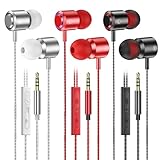
Wired earbuds are connected to your device via a cable. They often have an inline remote control on the cable.
- Inline Remote: The inline remote usually has buttons for volume up, volume down, and often a center button for play/pause and answering calls.
- Device Control: Similar to TWS earbuds, you can adjust the volume using your device’s controls.
Neckband Earbuds
Neckband earbuds have a cable connecting the earbuds, which rests around your neck. The controls are often located on the neckband itself.
- Neckband Controls: The neckband usually has buttons for volume up, volume down, and other functions like play/pause and track navigation.
- Device Control: As with other types, you can also use your device’s volume controls.
Step-by-Step Guides for Adjusting Volume
Here’s a step-by-step guide for adjusting the volume on your earbuds, broken down by device type:
Adjusting Volume on Smartphones (android & Ios)
- Using Physical Buttons: Most smartphones have volume buttons on the side of the device. Press the volume up button to increase the volume and the volume down button to decrease it.
- Using On-Screen Controls: Swipe down from the top of your screen (Android) or swipe up from the bottom (iOS) to access the control center. You’ll see a volume slider. Drag the slider to adjust the volume.
- During Calls: While on a call, use the physical volume buttons or the on-screen volume controls to adjust the call volume.
- Bluetooth Settings: Go to your phone’s Bluetooth settings and ensure your earbuds are connected. You may find additional volume control options within the Bluetooth settings.
Adjusting Volume on Computers (windows & Macos)
- Using Keyboard Shortcuts: Many keyboards have dedicated volume keys. Press the volume up key to increase the volume and the volume down key to decrease it.
- Using System Tray Icons: In the system tray (bottom right corner of Windows) or the menu bar (top right corner of macOS), you’ll find a speaker icon. Click on the icon to adjust the volume using a slider.
- Using the Sound Settings: Go to the sound settings in your operating system’s control panel or system preferences. You can adjust the volume for your earbuds from there.
- Application-Specific Volume: Some applications have their own volume controls. Make sure the volume is turned up within the application itself.
Adjusting Volume on Tablets
- Using Physical Buttons: Tablets typically have volume buttons on the side. Use these to adjust the volume up or down.
- Using On-Screen Controls: Swipe down from the top (Android) or up from the bottom (iOS) to access the control center and use the volume slider.
- Bluetooth Settings: Ensure your earbuds are connected via Bluetooth and adjust the volume in the Bluetooth settings if necessary.
Adjusting Volume on Other Devices (e.G., Mp3 Players, Gaming Consoles)
- Device-Specific Controls: These devices have their own volume controls, which might be physical buttons, on-screen sliders, or a combination of both.
- Check Device Manual: Refer to the device’s manual for specific instructions on adjusting the volume.
- Headphone Jack: If your device has a headphone jack, make sure the volume is turned up on the device itself.
Troubleshooting Common Volume Issues
Sometimes, you might encounter volume-related issues with your earbuds. Here are some common problems and how to fix them:
Earbuds Are Too Quiet
- Check Device Volume: Make sure the volume on your device is turned up.
- Check Earbud Volume: Ensure the volume on your earbuds (if they have controls) is turned up.
- Check Application Volume: Some applications have their own volume settings. Ensure the volume is turned up within the application.
- Bluetooth Connection: Make sure your earbuds are properly connected via Bluetooth.
- Clean Earbuds: Sometimes, earwax or debris can block the sound. Clean your earbuds gently.
- Try a Different Device: Test your earbuds with another device to see if the issue persists. This can help determine if the problem is with the earbuds or the original device.
- Update Firmware: Check for firmware updates for your earbuds. Updates can sometimes improve volume and audio quality.
Volume Doesn’t Respond to Adjustments
- Check Connectivity: Ensure your earbuds are properly connected to your device via Bluetooth or a wired connection.
- Restart Devices: Restart both your earbuds and the connected device. This can often resolve minor software glitches.
- Check for Interference: Avoid sources of interference, such as other Bluetooth devices or Wi-Fi routers, that could be interfering with the signal.
- Reset Earbuds: Many earbuds have a reset function. Consult your earbud’s manual for instructions on how to reset them to their factory settings.
- Check for Software Conflicts: If you’re using a computer, ensure no software conflicts are preventing volume control. Check your audio settings.
- Check Earbud Controls: If your earbuds have physical buttons or touch controls, make sure they are functioning correctly. If possible, test them on another device to identify if the issue is with the earbuds.
One Earbud Is Louder Than the Other
- Balance Settings: Check the balance settings in your device’s audio settings. Sometimes, the balance can be shifted unintentionally.
- Clean Earbuds: Earwax or debris can build up in one earbud, affecting the sound. Clean the earbuds gently.
- Try Different Audio Sources: Test different audio sources (music, podcasts, calls) to see if the imbalance persists.
- Check Earbud Placement: Ensure both earbuds are properly seated in your ears. A poor fit can sometimes affect the perceived volume balance.
- Hardware Issues: If the problem persists, there might be a hardware issue with one of the earbuds. Contact the manufacturer for support.
Bluetooth Connection Issues Affecting Volume
- Pairing Issues: Ensure your earbuds are properly paired with your device. Unpair and re-pair them if necessary.
- Distance: Keep your earbuds and device within the recommended Bluetooth range to avoid signal dropouts.
- Interference: Minimize interference from other Bluetooth devices or Wi-Fi routers.
- Update Drivers: Update the Bluetooth drivers on your device.
- Check Bluetooth Profile: Ensure your device supports the latest Bluetooth profiles for optimal audio streaming.
Advanced Volume Control Tips and Tricks
Beyond the basics, here are some advanced tips and tricks for optimizing your earbud volume experience:
Equalizer Settings
Many devices and music apps have equalizer (EQ) settings. Adjusting the EQ can significantly affect the perceived volume and sound quality. Experiment with different EQ presets or customize the settings to find what sounds best to you. For instance, boosting the higher frequencies can make the audio sound louder.
Volume Limiter
Some devices have a volume limiter feature. This prevents the volume from exceeding a certain level. This is useful for protecting your hearing. Check your device’s settings to ensure the volume limiter is set appropriately for your needs.
Adaptive Volume
Some earbuds and devices have adaptive volume features that automatically adjust the volume based on your surroundings. This can be helpful in noisy environments. Check your device’s settings to enable or disable this feature.
Use Volume Booster Apps (caution)
There are volume booster apps available for some devices. These apps can increase the volume beyond the default limits. However, use these with caution, as excessive volume can damage your hearing. Be careful when using these apps.
Optimize Sound Settings
Explore the sound settings on your device. There might be options to enhance the audio quality or optimize the sound for different types of content (music, podcasts, movies). Experiment with these settings to find what sounds best.
Check for Software Updates
Regularly check for software updates for both your earbuds and your device. Updates often include bug fixes and performance improvements that can affect the volume and audio quality. Ensure you have the latest software installed.
Comparing Volume Control Methods
Here’s a table comparing the different volume control methods:
| Method | Pros | Cons |
|---|---|---|
| Earbud Controls (Touch/Buttons) | Convenient, Hands-free, Quick access | Requires learning controls, Can be accidental, Limited functionality |
| Device Volume Buttons | Simple, Accessible, Intuitive | Requires reaching for the device, Can be obstructed |
| On-Screen Controls | Visual feedback, Precise control, Often includes additional features | Requires accessing the control panel, Can be distracting |
| Inline Remote (Wired Earbuds) | Simple, Direct control, Often includes call controls | Requires being wired to the device, Limited functionality |
Maximizing Your Listening Experience
To get the most out of your earbud experience, consider these additional tips:
- Choose the Right Ear Tips: Make sure you use the right size ear tips for your ears. A proper fit is crucial for good sound quality and noise isolation.
- Proper Fit: Ensure the earbuds are properly seated in your ears. This helps to maximize the sound quality and volume.
- Experiment with Placement: Adjust the position of your earbuds in your ears to find the sweet spot for optimal sound.
- Consider Noise Isolation: If you listen in noisy environments, consider earbuds with good noise isolation features.
- Be Mindful of Volume Levels: Avoid listening at excessively high volumes for extended periods to protect your hearing.
- Take Breaks: Give your ears a break periodically to prevent listening fatigue.
- Use High-Quality Audio Sources: Listen to music and podcasts from high-quality sources, such as streaming services that offer lossless audio.
- Clean Your Ears: Keep your ears clean to prevent earwax buildup, which can affect the sound quality of your earbuds.
Final Thoughts
Adjusting the volume on your earbuds is a simple process, but the specific steps depend on the type of earbuds and the device you’re using. By understanding the different control options, troubleshooting common issues, and following the tips outlined in this guide, you can ensure a perfect listening experience every time. Whether you’re commuting, working out, or relaxing at home, taking control of your earbud volume will enhance your enjoyment of your favorite audio content.
Remember to prioritize your hearing health by listening at safe volume levels and taking breaks when necessary. With the knowledge you’ve gained, you can now confidently adjust the volume on your earbuds, ensuring you get the perfect sound every single time.
Recommended Products