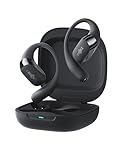
How Do You Pair Shokz Earbuds? A Simple Guide
Hey there! If you’re anything like me, you love the freedom of wireless headphones, especially when you’re hitting the trails or just want to enjoy some tunes while working. Shokz earbuds are fantastic for this, offering a unique bone conduction experience. But let’s be honest, sometimes the pairing process can feel a bit… mysterious.
Don’t worry, I’ve been there. I fumbled around with buttons and Bluetooth settings more times than I care to admit! That’s why I’ve put together this comprehensive guide. We’ll walk through every step, from the initial setup to troubleshooting, so you can get those Shokz earbuds connected and get back to enjoying your music or podcasts quickly.
Whether you’re new to Shokz or just need a refresher, this guide will help you pair your earbuds with your phone, computer, or any other Bluetooth-enabled device. Let’s get started!
Understanding Shokz Earbuds and Bluetooth
Before we jump into pairing, it’s helpful to understand the basics of how Shokz earbuds work and what Bluetooth is all about. Shokz uses bone conduction technology, which means the sound travels through your cheekbones to your inner ear, leaving your ear canals open. This is a huge safety benefit, especially when you’re running or cycling, as you can still hear ambient sounds like traffic.
Bluetooth is the wireless technology that allows your Shokz earbuds to communicate with your devices. Think of it as a radio signal that transmits audio between your earbuds and your phone, computer, or other gadgets. The pairing process establishes a secure connection between the two devices.
Key Components
- Shokz Earbuds: The star of the show! These are the devices you’ll be pairing.
- Bluetooth-enabled Device: This could be your smartphone (Android or iPhone), tablet, computer, smartwatch, or any other device that supports Bluetooth.
- Bluetooth Connection: This is the wireless link that allows the devices to communicate.
- Pairing Mode: A special mode on your Shokz earbuds that allows them to be discovered by other devices.
Step-by-Step Guide: Pairing Your Shokz Earbuds
The pairing process is generally straightforward, but the exact steps can vary slightly depending on the Shokz model you own. The general process remains consistent. Here’s a breakdown:
Step 1: Charge Your Shokz Earbuds
Make sure your Shokz earbuds have enough power. A low battery can interrupt the pairing process. The charging process varies depending on the Shokz model. Typically, you’ll find a charging cable (usually USB-C or a proprietary connector) in the box. Plug one end of the cable into your earbuds and the other end into a power source, like a wall adapter or your computer. Check the LED indicator on your earbuds. It will typically show a solid color (e.g., red) while charging and change to another color (e.g., blue or green) when fully charged.
Pro Tip: Fully charging your earbuds before you start is always a good idea, just to avoid any unexpected interruptions. Check your specific model’s manual for charging times.
Step 2: Enter Pairing Mode on Your Shokz Earbuds
This is the crucial step where you tell your Shokz earbuds to start looking for a device to connect to. The way you enter pairing mode differs slightly depending on your Shokz model. Here’s how it usually works:
- OpenRun/OpenRun Pro/OpenRun Mini: Press and hold the multi-function button (usually located on the side of the earbud) for about 5-7 seconds. You should hear a voice prompt saying “Pairing” or see the LED indicator flashing red and blue.
- OpenMove: Press and hold the volume+ button until the LED indicator flashes red and blue, indicating pairing mode. You’ll likely hear a voice prompt too.
- OpenComm/OpenComm UC: Press and hold the power button for about 5-7 seconds until the LED indicator flashes red and blue.
- OpenFit: Open the charging case, and with the earbuds inside, press and hold the multi-function button on the case for about 3 seconds until the LED flashes.
Important Note: Refer to your Shokz earbuds’ user manual if the steps above don’t work. The button locations and pairing procedures can vary.
Step 3: Enable Bluetooth on Your Device
Now, you need to make sure that your phone, tablet, or computer’s Bluetooth is turned on. Here’s how to do it on some common devices:
- Smartphones (Android): Go to Settings > Connections > Bluetooth, and toggle Bluetooth on.
- Smartphones (iPhone): Go to Settings > Bluetooth, and toggle Bluetooth on.
- Computers (Windows): Click the Windows Start button, then go to Settings > Devices > Bluetooth & other devices, and toggle Bluetooth on.
- Computers (Mac): Click the Apple menu > System Preferences > Bluetooth, and turn Bluetooth on.
Step 4: Find Your Shokz Earbuds in the Bluetooth Settings
Once Bluetooth is enabled on your device, it will start scanning for available devices. Your Shokz earbuds should appear in the list of available devices, usually with the model name (e.g., “Shokz OpenRun Pro”).
- On Your Phone: In your Bluetooth settings, look for your Shokz model name under “Available devices” or “Other devices.”
- On Your Computer: Your Shokz earbuds should appear in the list of devices.
Step 5: Select Your Shokz Earbuds and Connect
Tap or click on the name of your Shokz earbuds in the list. Your device will then attempt to connect to them. You might see a pairing request pop up on your screen. If prompted, confirm the pairing.
- Pairing Confirmation: On some devices, you may need to confirm the pairing by clicking “Pair” or “Connect.”
- PIN Code (Rare): In rare cases, you might be asked to enter a PIN code. If so, try entering “0000” or “1234.” If this doesn’t work, consult your Shokz manual.
Step 6: Test the Connection
Once your Shokz earbuds are connected, you should hear a confirmation sound or voice prompt. Try playing some music, a podcast, or a video to make sure the audio is coming through your earbuds. If you can hear audio, congratulations – you’ve successfully paired your Shokz earbuds!
Pairing with Multiple Devices
Many Shokz models can remember multiple devices, making it easy to switch between your phone and your computer, for example. However, they can usually only connect to one device at a time. Here’s how it usually works:
- Pairing Multiple Devices: Pair your Shokz earbuds with each device you want to use. You only need to do this once for each device.
- Switching Between Devices: To switch to a different device, disconnect from the currently connected device and then select your Shokz earbuds from the Bluetooth settings of the new device.
- Automatic Reconnection: Your Shokz earbuds will usually automatically reconnect to the last device they were connected to when you turn them on, as long as Bluetooth is enabled on that device.
Important Note: Some Shokz models might have specific instructions for switching between devices or connecting to multiple devices simultaneously. Check your user manual for model-specific details.
Troubleshooting Common Pairing Issues
Sometimes, the pairing process doesn’t go smoothly. Here’s a troubleshooting guide to help you resolve common issues:
1. Earbuds Not Appearing in the Bluetooth List
- Make sure your earbuds are in pairing mode: Double-check that you’ve correctly entered pairing mode by holding the correct button for the right amount of time. The LED indicator should be flashing red and blue.
- Check the distance: Ensure your earbuds are close to your device. Bluetooth has a limited range (usually around 30 feet or 10 meters).
- Restart your earbuds and device: Sometimes, a simple restart can solve the problem. Turn off your earbuds and your device, then turn them back on.
- Clear the Bluetooth cache (Android): Go to Settings > Apps > See all apps > Bluetooth > Storage & cache. Tap “Clear cache” and then “Clear storage.” This resets the Bluetooth settings.
- Forget and re-pair the device: On your device, go to your Bluetooth settings, find your Shokz earbuds, and tap “Forget” or “Unpair.” Then, try pairing them again from scratch.
- Check for interference: Other electronic devices (microwaves, Wi-Fi routers) can sometimes interfere with Bluetooth signals. Try moving to a different location.
2. Unable to Connect After Pairing
- Make sure Bluetooth is enabled: Double-check that Bluetooth is turned on in your device’s settings.
- Check the battery level: Ensure your Shokz earbuds have enough charge.
- Restart your earbuds and device: Restarting both devices can often resolve connection issues.
- Check for interference: Move away from potential sources of interference.
- Check for firmware updates: Some Shokz models have firmware updates that can improve connectivity. Check the Shokz website for updates for your specific model.
3. Poor Sound Quality or Intermittent Audio
- Check the distance: Bluetooth range can affect audio quality. Make sure you’re within range of your device.
- Check for interference: Interference from other devices can impact audio quality.
- Adjust the volume: Make sure the volume is turned up on both your earbuds and your device.
- Try a different audio source: See if the problem occurs with all audio sources (music, podcasts, calls) or just one. This helps determine if the issue is with the earbuds or the source.
- Reset your earbuds: Some Shokz models have a reset function. Consult your manual for instructions. This can restore the earbuds to their factory settings.
4. Pairing to a Computer
Pairing to a computer can sometimes be a bit trickier than pairing to a phone. Here are some tips:
- Make sure your computer has Bluetooth: Most modern laptops have Bluetooth built-in. If you have a desktop computer, you might need a Bluetooth adapter.
- Update your Bluetooth drivers: Outdated drivers can cause pairing issues. Go to your computer manufacturer’s website and download the latest Bluetooth drivers for your operating system.
- Troubleshoot Bluetooth in Windows: Windows has a built-in Bluetooth troubleshooter that can often fix pairing problems. Go to Settings > System > Troubleshoot > Other troubleshooters and run the Bluetooth troubleshooter.
- Check the audio output settings: After pairing, make sure your Shokz earbuds are selected as the audio output device in your computer’s sound settings.
Tips for Optimal Shokz Earbuds Performance
Once you’ve successfully paired your Shokz earbuds, here are some tips to get the most out of them:
- Proper Fit: Ensure the earbuds are positioned correctly on your cheekbones for the best sound quality. Experiment with the placement for optimal comfort and sound.
- Volume Levels: Find the right volume level for your environment. Bone conduction headphones don’t need to be as loud as traditional earbuds, and it’s important to be able to hear ambient sounds for safety.
- Cleaning: Clean your Shokz earbuds regularly to remove any sweat or debris. Use a slightly damp cloth to wipe them down. Avoid using harsh chemicals.
- Storage: Store your earbuds in a safe place when not in use, preferably in their carrying case, to prevent damage.
- Firmware Updates: Keep your earbuds’ firmware updated to ensure optimal performance and to fix any potential bugs. Check the Shokz website for updates.
- Experiment with EQ Settings: Some devices have equalizer (EQ) settings that can adjust the sound output. Experiment with the EQ settings on your device to find the sound profile that you prefer.
Understanding Shokz Model-Specific Features
Different Shokz models come with various features and functionalities. Familiarize yourself with the specific features of your model to get the most out of your earbuds.
- Multi-function Button: This button is usually used for play/pause, answering/ending calls, and sometimes for activating voice assistants.
- Volume Controls: Use the volume up and down buttons to adjust the audio level.
- Voice Assistant Integration: Some models have voice assistant integration (Siri, Google Assistant). Refer to your manual for how to activate it.
- Multipoint Pairing: Some models support multipoint pairing, allowing you to connect to two devices simultaneously.
- Water Resistance: Most Shokz models are water-resistant (IP ratings). Check the specifications for your model to understand its water resistance level. This is great for workouts or outdoor activities.
- Battery Life: Pay attention to the battery life of your earbuds. Make sure they are charged before long workouts or trips.
Advanced Pairing Techniques and Scenarios
While the basic pairing process is usually straightforward, you may encounter specific situations that require some advanced techniques:
- Factory Reset: If you’re experiencing persistent pairing issues, a factory reset can sometimes resolve them. Consult your user manual for the reset procedure.
- Pairing to a New Device While Connected: If your earbuds are already connected to a device and you want to pair them with a new one, you might need to disconnect from the first device before putting the earbuds into pairing mode again.
- Troubleshooting Bluetooth Profiles: Occasionally, there might be issues with Bluetooth profiles (e.g., A2DP for audio). Make sure your device supports the necessary Bluetooth profiles for your Shokz earbuds.
- Dealing with Multiple Paired Devices: If you have multiple devices paired, make sure you’re disconnecting from the device you don’t want to use before attempting to connect to a different one.
- Using a Bluetooth Transmitter: If you want to use your Shokz earbuds with a device that doesn’t have Bluetooth, you can use a Bluetooth transmitter. This device plugs into the audio output of your device and transmits the audio signal to your earbuds.
The Importance of the User Manual
Your Shokz earbuds’ user manual is your best friend when it comes to pairing and troubleshooting. It contains detailed instructions specific to your model, including button functions, pairing procedures, and troubleshooting tips. Keep your manual handy and refer to it whenever you encounter any issues. You can usually find the manual on the Shokz website if you’ve misplaced the physical copy.
Conclusion
Pairing your Shokz earbuds is a simple process once you understand the steps involved. Whether you’re connecting to your phone, computer, or another device, following the instructions outlined in this guide will help you get those earbuds connected quickly and easily.
Remember to check your Shokz model’s user manual for specific instructions, especially if you encounter any difficulties. With a little patience and these tips, you’ll be enjoying the freedom and safety of bone conduction audio in no time.
Recommended Products