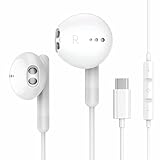
How Do You Connect Earbuds to iPad? A Simple Guide
So, you’ve got a shiny new iPad and a pair of earbuds, and you’re ready to immerse yourself in music, podcasts, or maybe even a thrilling audiobook. But wait! How exactly do you get those little sound-makers to play nicely with your tablet? It’s a common question, and thankfully, the answer is usually pretty straightforward.
Whether you’re rocking the latest AirPods, a pair of Bluetooth headphones, or even some wired earbuds, the process is generally similar. I’ll walk you through the steps, covering everything from initial setup to troubleshooting common issues. We’ll explore the different connection methods, ensuring you can enjoy your audio content without any frustrating hiccups. Let’s get started!
This guide is designed for everyone, from tech novices to seasoned iPad users. I’ll break down the process step-by-step, making it easy to follow along. By the end, you’ll be confidently connecting your earbuds and enjoying your favorite sounds in no time. Let’s make sure you get the most out of your listening experience!
Understanding the Basics: Bluetooth and Wired Connections
Before we dive into the connection process, let’s quickly review the two main ways you’ll likely connect your earbuds to your iPad: Bluetooth and wired. Understanding the differences is crucial for a smooth experience.
Bluetooth: The Wireless Wonder
Bluetooth is a wireless technology that allows your earbuds and iPad to communicate without any physical cables. This is the most common method, especially if you have AirPods, other wireless earbuds, or Bluetooth headphones. The advantages are clear: freedom of movement, no messy wires, and easy pairing. However, it does require that your earbuds are Bluetooth-enabled and charged.
Here’s what you need to know about Bluetooth:
- Pairing: The initial connection between your earbuds and iPad is called pairing. You usually do this by putting your earbuds into pairing mode (often by holding a button) and then selecting them in your iPad’s Bluetooth settings.
- Range: Bluetooth has a limited range, typically around 30-50 feet. Staying within this range is essential for a stable connection.
- Battery Life: Bluetooth earbuds run on batteries, so you’ll need to keep them charged. The iPad will display the battery level of connected Bluetooth devices.
Wired: The Classic Connection
Wired connections involve plugging your earbuds directly into your iPad. This method offers simplicity and reliability, and it doesn’t require charging. However, it means you’ll be tethered to your iPad by a cable.
Here’s what you need to know about wired connections:
- Compatibility: Older iPads may have a headphone jack. Newer iPads typically use the Lightning port or USB-C port, requiring an adapter if your earbuds have a 3.5mm jack.
- No Charging Required: Wired earbuds draw power directly from your iPad, so there’s no need to worry about battery life.
- Audio Quality: Wired connections often provide slightly better audio quality than Bluetooth, although the difference is usually negligible for most users.
Connecting Bluetooth Earbuds to Your iPad: Step-by-Step
Connecting Bluetooth earbuds to your iPad is a breeze. Here’s a detailed, step-by-step guide to get you started:
- Charge Your Earbuds: Ensure your earbuds are charged. Bluetooth earbuds won’t connect if they are dead.
- Put Your Earbuds in Pairing Mode: This step varies depending on your earbuds. Generally, you’ll need to press and hold a button on the earbuds’ charging case or on the earbuds themselves. Consult your earbuds’ manual if you’re unsure. Usually, a light will flash to indicate pairing mode.
- Open the Settings App on Your iPad: Locate the Settings app on your iPad’s home screen. It looks like a gear icon.
- Tap on Bluetooth: In the Settings menu, tap on “Bluetooth.” This will take you to the Bluetooth settings page.
- Turn on Bluetooth: If Bluetooth is off, toggle the switch to the “on” position (it will turn green).
- Find Your Earbuds in the Device List: Your iPad will start searching for nearby Bluetooth devices. Look for your earbuds’ name in the list of available devices. The name will depend on the brand and model of your earbuds (e.g., “AirPods,” “Sony WH-1000XM4”).
- Tap on Your Earbuds to Connect: Tap on the name of your earbuds in the list. Your iPad will attempt to connect to them.
- Wait for the Connection: Once connected, the name of your earbuds should show as “Connected” or “Paired” under the device name. You may also see the battery level of your earbuds displayed.
- Test the Connection: Play some audio (music, a video, etc.) to confirm the connection. You should hear the sound coming from your earbuds.
Troubleshooting Bluetooth Connection Issues
Sometimes, things don’t go as planned. Here are some common Bluetooth connection issues and how to fix them:
- Earbuds Not Showing Up:
- Make sure your earbuds are in pairing mode (check the manual).
- Ensure Bluetooth is enabled on your iPad.
- Move your earbuds closer to your iPad.
- Restart both your earbuds and your iPad.
- Connection Keeps Dropping:
- Make sure you’re within the Bluetooth range (about 30-50 feet).
- Minimize interference from other devices (microwaves, Wi-Fi routers).
- Fully charge your earbuds.
- Forget the device in your iPad’s Bluetooth settings and re-pair.
- Sound Issues (Crackling, Stuttering):
- Move closer to your iPad.
- Reduce interference from other devices.
- Check the battery level of your earbuds.
- Restart both your earbuds and your iPad.
- Earbuds Connect, but No Sound:
- Make sure the volume is turned up on both your iPad and your earbuds.
- Select your earbuds as the audio output device in the Control Center (swipe down from the top-right corner to access the Control Center).
- Restart your iPad.
Connecting Wired Earbuds to Your iPad
Connecting wired earbuds is even simpler. Here’s how:
- Identify Your iPad’s Port: Newer iPads use either a Lightning port (for older models) or a USB-C port (for newer models).
- Check Your Earbuds’ Connector: Determine the type of connector on your earbuds. They might have a 3.5mm headphone jack, a Lightning connector, or a USB-C connector.
- Connect Directly (If Compatible): If your earbuds have a Lightning or USB-C connector and your iPad has the corresponding port, simply plug them in.
- Use an Adapter (If Necessary): If your earbuds have a 3.5mm headphone jack and your iPad uses Lightning or USB-C, you’ll need an adapter. Apple sells official adapters, and there are many third-party options available. Plug the adapter into your iPad, then plug your earbuds into the adapter.
- Test the Connection: Play some audio to ensure the sound is coming through your earbuds.
Troubleshooting Wired Connection Issues
While wired connections are generally more reliable, you might encounter these issues:
- No Sound:
- Make sure your earbuds are plugged in securely.
- Check the volume on your iPad and your earbuds (if they have volume controls).
- Try a different pair of earbuds to rule out a faulty earbud.
- Make sure the adapter (if you’re using one) is properly connected.
- One Earbud Not Working:
- Check the balance settings in your iPad’s Accessibility settings (Settings > Accessibility > Audio/Visual).
- Try a different pair of earbuds.
- Clean the earbud connector and the iPad port (or adapter).
Using Earbuds with Different iPad Models
The connection process is largely the same across different iPad models, but there are a few nuances to consider.
iPad Pro
iPad Pro models typically feature USB-C ports, so you’ll connect wired earbuds with a USB-C connector or use a USB-C to 3.5mm adapter. Bluetooth connections work the same way as on other iPads. iPad Pro models often have excellent audio quality, so pairing them with high-quality earbuds can provide a fantastic listening experience.
iPad Air
iPad Air models also use either Lightning or USB-C ports, depending on the generation. The connection methods are identical to the iPad Pro and standard iPad models. The iPad Air is a great choice for those who want a balance of performance and portability.
iPad (standard)
The standard iPad models have evolved over the years, with some using Lightning and others using USB-C. Follow the appropriate connection steps based on your iPad’s port type. The standard iPad is an excellent, affordable option for everyday use.
iPad Mini
iPad Mini models follow the same port configurations as the standard iPad and iPad Air, so the connection process remains consistent. The iPad Mini is perfect for on-the-go listening and portability.
Tips and Tricks for a Better Earbud Experience
Here are some tips to enhance your earbud experience:
- Clean Your Earbuds: Regularly clean your earbuds to remove earwax and debris. This will improve sound quality and prevent potential hygiene issues.
- Adjust the Fit: Ensure your earbuds fit snugly in your ears. A proper fit will improve sound isolation and bass response. Try different ear tip sizes if available.
- Use Equalizer Settings: Experiment with the equalizer (EQ) settings in your iPad’s Settings app (Settings > Music > EQ) or in your music app to customize the sound to your preferences.
- Manage Volume Levels: Be mindful of your volume levels to protect your hearing. Avoid listening at excessively loud volumes for extended periods.
- Update Your iPad and Earbuds’ Firmware: Keep your iPad’s operating system and your earbuds’ firmware up to date to ensure optimal performance and compatibility.
- Explore Accessibility Features: The iPad offers various accessibility features that can enhance your listening experience. Check out the Audio/Visual settings (Settings > Accessibility > Audio/Visual) for options like Mono Audio and Headphone Accommodations.
- Consider Noise Cancellation: If you frequently listen in noisy environments, consider investing in earbuds with noise cancellation. This feature will block out external sounds, allowing you to focus on your audio.
- Learn Your Earbuds’ Controls: Familiarize yourself with the controls on your earbuds (e.g., play/pause, volume up/down, track skipping).
Choosing the Right Earbuds for Your iPad
The best earbuds for your iPad depend on your individual needs and preferences. Here’s a breakdown to help you make the right choice:
For Airpods Users
If you’re already invested in the Apple ecosystem, AirPods are a natural choice. They offer seamless integration with your iPad, easy pairing, and excellent sound quality. The AirPods Pro models provide noise cancellation and a more customizable fit.
For General Use
Consider a variety of factors. Think about the following:
- Sound Quality: Research reviews to find earbuds with excellent sound quality, including clear highs, balanced mids, and rich bass.
- Fit and Comfort: Choose earbuds that fit comfortably in your ears, especially if you plan to wear them for extended periods. Consider different ear tip sizes.
- Features: Consider features such as noise cancellation, water resistance, and built-in microphones for calls.
- Battery Life: If you prefer a longer listening time, check the battery life.
- Price: Set a budget and compare options within your price range.
For Budget-Conscious Users
There are many affordable earbuds that offer good sound quality and features. Look for options with decent battery life and comfortable fit. Read reviews to find the best value.
For Audiophiles
If you prioritize audio quality, explore high-fidelity earbuds with premium drivers and materials. These earbuds often deliver exceptional sound clarity and detail. Consider earbuds with a wired connection, as they can sometimes offer better audio quality.
For Fitness Enthusiasts
Choose earbuds that are sweat-resistant or waterproof, with a secure fit. Look for features like wingtips or ear hooks to keep them in place during workouts. Consider earbuds with noise cancellation if you need to block out the noise of the gym or surroundings.
For Travelers
Noise-canceling earbuds are ideal for travel, as they can block out airplane engine noise and other distractions. Consider earbuds with a long battery life and a compact charging case.
Adapters and Accessories
To maximize your earbud experience with your iPad, consider these accessories:
- Lightning to 3.5 mm Headphone Jack Adapter: Essential for connecting earbuds with a 3.5mm jack to iPads with a Lightning port.
- USB-C to 3.5 mm Headphone Jack Adapter: Necessary for connecting 3.5mm jack earbuds to iPads with a USB-C port.
- Earbud Cleaning Kit: Includes tools to remove earwax and debris from your earbuds.
- Earbud Case: Protects your earbuds from damage and keeps them organized.
- Charging Case (for wireless earbuds): Keeps your earbuds charged on the go.
Verdict
Connecting earbuds to your iPad is a straightforward process, whether you’re using Bluetooth or a wired connection. By following the steps outlined in this guide, you can easily pair your earbuds, troubleshoot common issues, and start enjoying your favorite audio content. Remember to keep your earbuds charged, ensure a proper fit, and experiment with audio settings to customize your listening experience. With a little practice, you’ll be a pro at connecting your earbuds in no time. Happy listening!
Recommended Products