How Do You Adjust Volume on Earbuds? A Complete Guide
Ever found yourself fumbling with your phone or device, desperately trying to turn up the volume on your earbuds while you’re on a run, commuting, or just relaxing at home? It’s a common experience! Adjusting the volume on earbuds might seem simple, but the process can vary greatly depending on the type of earbuds you have and the device you’re using. Whether you’re rocking the latest wireless earbuds, a classic pair of wired ones, or something in between, knowing the ins and outs of volume control is essential for a good listening experience.
This guide is designed to walk you through every method possible, ensuring you can quickly and easily adjust the volume on your earbuds, no matter the situation. We’ll cover everything from the physical buttons on your earbuds to the software settings on your phone or computer. I’ll provide you with troubleshooting tips and some handy tricks to make sure you get the sound just right. Let’s get started and make sure you’re always in control of your audio!
Understanding Different Earbud Types and Volume Control Methods
Before we dive in, it’s important to understand that the way you adjust volume depends heavily on the type of earbuds you own. Different designs and features mean different control methods. Let’s break down the common types and how their volume controls typically work.
Wired Earbuds
Wired earbuds are the traditional choice, connecting to your device via a 3.5mm audio jack or, increasingly, a Lightning or USB-C connector. The volume control options often include:
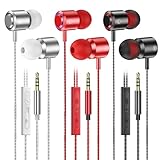
- Inline Remote: Many wired earbuds have a small remote control built into the cable. This remote typically features buttons for volume up, volume down, and sometimes a play/pause button.
- Device-Based Control: You can always control the volume using the volume buttons on your phone, tablet, or computer.
Wireless Earbuds
Wireless earbuds, also known as Bluetooth earbuds, connect to your device via Bluetooth. These offer greater freedom of movement and often come with more sophisticated volume control options.
- Touch Controls: Many wireless earbuds feature touch-sensitive surfaces on the earbuds themselves. You can usually increase or decrease the volume by tapping or swiping on these surfaces. The specific gestures vary by manufacturer.
- Physical Buttons: Some wireless earbuds have physical buttons on the earbuds for volume control.
- Device-Based Control: Just like with wired earbuds, you can use the volume buttons on your connected device.
- Voice Assistants: Wireless earbuds often support voice assistants like Siri, Google Assistant, or Alexa, allowing you to control the volume with voice commands.
True Wireless Earbuds
True wireless earbuds are a subset of wireless earbuds, with no wires connecting the two earbuds to each other. They come with a charging case and offer similar volume control methods to other wireless earbuds, often with an emphasis on touch controls.
Over-Ear Headphones (for Context and Comparison)
While this guide focuses on earbuds, it’s worth noting that over-ear headphones often have similar volume control methods, including physical buttons, touch controls, and device-based controls. Some also include a volume wheel.
Detailed Guide: How to Adjust Volume on Earbuds
Now, let’s get into the specifics of adjusting the volume on your earbuds using different methods. I’ll cover each method in detail, including tips and troubleshooting advice.
Using the Inline Remote (wired Earbuds)
If you have wired earbuds with an inline remote, this is often the simplest and most direct method. Here’s how to use it:
- Locate the Remote: The remote is typically a small, rectangular or oval-shaped device located on the earbud cable, usually near your chin.
- Identify the Buttons: The remote will usually have at least three buttons: a volume up button (+), a volume down button (-), and a multifunction button (often used for play/pause and answering calls).
- Adjust the Volume: Press the volume up (+) button to increase the volume and the volume down (-) button to decrease it.
- Troubleshooting: If the volume buttons aren’t working, make sure your earbuds are properly connected to your device. Check that your device’s volume isn’t already set to the maximum or minimum. If the remote still doesn’t work, there might be an issue with the earbuds themselves, or the remote may not be compatible with your device.
Using the Volume Buttons on Your Device (all Earbud Types)
This is a universal method that works with all types of earbuds, wired or wireless. Here’s how to use the volume buttons on your phone, tablet, or computer:
- On Smartphones and Tablets: Locate the volume up and volume down buttons on the side of your device. These are usually on the right side (when looking at the screen) for iPhones and Android devices. Press the volume up button to increase the volume and the volume down button to decrease it.
- On Computers: The volume controls are typically located on the keyboard or in the system tray (the area in the lower right corner of the screen, near the clock). You can use the volume up and down keys on your keyboard, or click the speaker icon in the system tray and adjust the slider.
- Troubleshooting: If the volume buttons on your device aren’t working, make sure your device isn’t muted. Check your device’s audio output settings to ensure your earbuds are selected as the audio output device. Restarting your device can often resolve software glitches.
Using Touch Controls (wireless and True Wireless Earbuds)
Many wireless and true wireless earbuds use touch controls. Here’s how they typically work, although specific gestures can vary between brands:
- Locate the Touch Area: The touch-sensitive area is usually on the outside of the earbud, where the brand logo is often placed.
- Volume Up: Often, you increase the volume by tapping or swiping upwards on the touch surface.
- Volume Down: You typically decrease the volume by tapping or swiping downwards.
- Consult the Manual: The exact gestures for volume control vary between brands. Refer to your earbud’s user manual or the manufacturer’s website for specific instructions.
- Troubleshooting: If the touch controls aren’t working, make sure your earbuds are properly connected to your device. Ensure the touch controls are enabled in the earbud’s settings (often within the companion app). Try cleaning the touch surface with a soft, dry cloth.
Using Physical Buttons (wireless Earbuds)
Some wireless earbuds have physical buttons on the earbud itself. This method is usually straightforward:
- Locate the Buttons: The buttons are usually located on the earbud’s housing.
- Volume Up: Press the volume up button to increase the volume.
- Volume Down: Press the volume down button to decrease the volume.
- Consult the Manual: As with touch controls, refer to your earbud’s user manual for the exact button layout and functions.
- Troubleshooting: If the buttons aren’t working, ensure the earbuds are powered on and connected to your device. Check the earbud settings in your device’s Bluetooth menu or the companion app to see if button customization is available.
Using Voice Assistants (wireless Earbuds)
Many wireless earbuds support voice assistants like Siri, Google Assistant, or Alexa, which allows you to control the volume with voice commands:
- Activate the Assistant: You typically activate the voice assistant by saying a wake word (e.g., “Hey Siri,” “OK Google,” or “Alexa”) or by pressing and holding a button on the earbuds.
- Volume Commands: Once the assistant is active, you can use commands like “Turn up the volume,” “Turn down the volume,” “Increase the volume by 20%,” or “Set the volume to 75%.”
- Troubleshooting: Make sure your earbuds are connected to your device and that your voice assistant is enabled. Ensure your device has an active internet connection for the voice assistant to function properly. Check the earbud settings in your device’s Bluetooth menu or the companion app to ensure voice assistant integration is enabled.
Advanced Tips and Tricks for Optimizing Earbud Volume
Beyond the basic methods, here are some advanced tips and tricks to optimize your earbud volume and overall listening experience:
1. Check Device Volume Limits
Many devices have volume limit settings to protect your hearing. Make sure these limits aren’t interfering with your desired volume level.
- iOS Devices: Go to Settings > Sounds & Haptics > Headphone Safety. Ensure “Reduce Loud Sounds” is turned off or set to a higher decibel level than you need.
- Android Devices: Go to Settings > Sounds and Vibration > Volume. Check for volume limit settings. Some Android devices have a separate volume limit specifically for Bluetooth audio.
2. Adjust Equalizer Settings
Equalizer (EQ) settings can significantly affect the perceived volume and sound quality of your audio. Experiment with different EQ presets or create custom settings.
- Device-Level EQ: Most smartphones and computers have built-in EQ settings. Find these settings in your device’s audio settings or in your music player app.
- App-Specific EQ: Many music streaming apps (Spotify, Apple Music, etc.) offer their own EQ settings.
- Earbud Companion App: Some premium earbuds come with a companion app that allows for advanced EQ customization.
3. Consider Your Environment
Your listening environment plays a huge role in how loud you need your earbuds to be. In noisy environments, you’ll naturally need to increase the volume to overcome background noise, but be mindful of your hearing health. In quiet environments, you can often listen at lower volumes.
4. Clean Your Earbuds and Ears
Wax buildup in your ears or on your earbuds can affect sound quality and perceived volume. Regularly clean your ears and earbuds to maintain optimal sound.
- Cleaning Your Ears: Use a soft cloth or cotton swab to gently clean the outer ear. Avoid inserting anything into the ear canal.
- Cleaning Your Earbuds: Use a soft, dry cloth to wipe down your earbuds. For more thorough cleaning, use a cotton swab dampened with a small amount of isopropyl alcohol. Be sure to let the earbuds dry completely before using them.
5. Update Your Earbud Firmware
Manufacturers often release firmware updates for wireless earbuds to improve sound quality, fix bugs, and add new features. Check for updates in your earbud’s companion app or in your device’s Bluetooth settings.
6. Understand Volume Units and Decibels
Understanding volume units and decibels (dB) can help you make more informed decisions about your listening volume. Decibels measure sound intensity. A small increase in decibels can result in a significant perceived increase in volume. Prolonged exposure to high decibel levels can damage your hearing. Be aware of safe listening levels and take breaks if you’re listening at high volumes.
7. Check for Compatibility Issues
In rare cases, compatibility issues between your earbuds and your device might affect volume control. Try pairing your earbuds with a different device to see if the issue persists. If the problem is specific to one device, there might be a software conflict or a need to update the device’s operating system.
8. Consider the Source Material
The volume of the audio source (e.g., music, podcasts, videos) can vary. Some audio files are recorded at lower volumes than others. If you find yourself constantly adjusting the volume, it might be the source material, not your earbuds, that is the problem. Try listening to different audio sources to see if the issue persists.
9. Use a Third-Party Volume Booster (use with Caution)
Some apps and software offer volume-boosting capabilities. However, these can distort the sound and potentially damage your hearing. Use these features with extreme caution and only if absolutely necessary. Always start with the lowest possible volume setting and gradually increase it.
10. Reset Your Earbuds
If you’re still having trouble, try resetting your earbuds to their factory settings. This can often resolve software glitches or other issues. The reset process varies between brands, so consult your earbud’s user manual for specific instructions.
Troubleshooting Common Volume Issues
Here are some common volume issues and how to troubleshoot them:
- Low Volume:
- Check Volume Levels: Ensure the volume is not set too low on your device, in your music app, and on your earbuds (if applicable).
- Clean Earbuds/Ears: Wax buildup can reduce perceived volume.
- EQ Settings: Experiment with EQ settings to boost the perceived volume.
- Firmware Update: Make sure your earbuds have the latest firmware.
- Volume Fluctuations:
- Check Connection: Ensure a stable connection between your earbuds and your device (especially for Bluetooth earbuds).
- Source Material: The volume of the source audio might be inconsistent.
- Software Glitches: Restart your device or reset your earbuds.
- No Sound:
- Connection: Ensure your earbuds are properly connected to your device.
- Volume Muted: Make sure your device and earbuds aren’t muted.
- Audio Output: Verify that your earbuds are selected as the audio output device in your device’s settings.
- One Earbud Louder Than the Other:
- Balance Settings: Check the balance settings in your device’s audio settings.
- Clean Earbuds: Ensure both earbuds are clean and free of debris.
- Hardware Issue: If the problem persists, there might be a hardware issue with one of the earbuds.
Tips for Safe Listening
Protecting your hearing is paramount. Here are some tips for safe listening:
- Use the 60/60 Rule: Listen at no more than 60% of the maximum volume for no more than 60 minutes at a time.
- Monitor Your Listening Environment: If you’re in a noisy environment, you might be tempted to turn up the volume. Be mindful of this and try to choose quieter listening environments.
- Take Breaks: Give your ears a rest by taking breaks from listening to audio.
- Use Hearing Protection: If you work in a noisy environment, use hearing protection.
- Get Regular Hearing Checks: Have your hearing checked regularly by a healthcare professional.
Conclusion
Adjusting the volume on your earbuds is a fundamental skill for any audio enthusiast. By understanding the different methods available – from the inline remote on wired earbuds to the touch controls and voice assistants on wireless models – you can always find the perfect listening level. Remember to consider your specific earbud type, the device you’re using, and your environment.
Explore the advanced tips provided, such as checking volume limits, adjusting EQ settings, and keeping your earbuds clean. Troubleshooting common issues, like low volume or sound imbalances, becomes easier when you’re equipped with this knowledge.
Prioritize your hearing health by listening at safe volume levels and taking breaks. With a bit of practice and these guidelines, you’ll be well on your way to enjoying your favorite music, podcasts, and audiobooks in comfort and with confidence. Now go forth and fine-tune your audio experience!
Recommended Products