How Do I Sync My Wireless Earbuds to My Phone?
So, you’ve got yourself a shiny new pair of wireless earbuds, and you’re eager to ditch the tangled wires and embrace the freedom of Bluetooth. But, maybe you’re scratching your head, wondering how to actually get those little buds connected to your phone. Don’t worry; it’s a super common question, and the process is usually pretty straightforward.
We’re going to break down the steps, making sure you know everything you need to know, regardless of whether you’re using an iPhone or an Android phone. I’ll walk you through the initial pairing, troubleshooting common issues, and even some helpful tips to maximize your listening experience. Forget fumbling with manuals; let’s get those earbuds synced up and ready to go! Get ready to enjoy your music, podcasts, and calls in a whole new, wire-free way.
This guide will cover everything from the basic pairing process to more advanced troubleshooting. We’ll explore the nuances of different operating systems and offer solutions to common problems. By the end of this article, you’ll be a wireless earbud syncing expert! So, let’s get started.
Understanding Wireless Earbuds and Bluetooth
Before we jump into the syncing process, let’s quickly cover the basics of wireless earbuds and Bluetooth technology. This will give you a better understanding of how everything works and help you troubleshoot any issues that might arise.
What Are Wireless Earbuds?
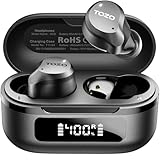
Wireless earbuds, also known as true wireless earbuds, are small, portable audio devices that connect to your phone or other devices wirelessly. They typically come in a pair and fit directly into your ear canals. Unlike traditional wired earbuds, they don’t have any wires connecting them to your phone or each other, offering maximum freedom of movement.
How Bluetooth Works
Bluetooth is a short-range wireless communication technology that allows devices to exchange data over a secure connection. It uses radio waves to transmit audio and other data between devices. When you sync your wireless earbuds to your phone, they’re essentially establishing a Bluetooth connection.
Key things to know about Bluetooth:
- Range: Bluetooth has a limited range, usually around 30-50 feet.
- Pairing: Before two Bluetooth devices can communicate, they need to be paired. This process establishes a secure connection.
- Profiles: Bluetooth devices use profiles to define how they communicate. For audio, the A2DP (Advanced Audio Distribution Profile) is commonly used.
- Versions: Bluetooth technology has evolved over the years, with newer versions offering improved speed, range, and energy efficiency.
How to Sync Wireless Earbuds to Your Phone: Step-by-Step Guide
The process of syncing wireless earbuds to your phone is generally the same across different brands and operating systems. However, there might be slight variations depending on your specific device and the brand of your earbuds. Here’s a comprehensive step-by-step guide:
Step 1: Charge Your Earbuds
Make sure your wireless earbuds are charged before you begin. Most earbuds come with a charging case that also serves as a storage container. Place the earbuds in the case and connect the case to a power source using the provided charging cable. Check the case or the earbuds themselves for an indicator light that shows the charging status.
Why charging is important:
- Avoid frustration: Low battery can interrupt the pairing process.
- Ensure functionality: Fully charged earbuds will provide a better listening experience.
Step 2: Put Your Earbuds in Pairing Mode
Most wireless earbuds automatically enter pairing mode when you open their charging case for the first time or when you press and hold a button on the earbuds or the charging case. Refer to your earbuds’ manual for specific instructions, as the method can vary. Look for an indicator light on the earbuds or the case that flashes or changes color to indicate pairing mode.
Common methods to enter pairing mode:
- Opening the charging case: Some earbuds automatically enter pairing mode when you open the case.
- Pressing a button: Many earbuds have a button on the earbud itself or the charging case that you need to press and hold.
- Holding a touch control: Some earbuds utilize touch controls; you might need to tap and hold a specific area.
Important notes:
- Time limit: Pairing mode often has a time limit. If your earbuds don’t pair within a minute or two, they might exit pairing mode. Close the case, then open it again, or restart the pairing process.
- Multiple devices: If your earbuds are already paired with another device, you might need to disconnect them from that device first or put them in pairing mode again.
Step 3: Enable Bluetooth on Your Phone
On your phone, you need to enable Bluetooth. The steps vary slightly depending on whether you have an iPhone or an Android phone.
For iPhone:
- Open Settings: Tap the Settings app on your home screen.
- Select Bluetooth: Scroll down and tap on “Bluetooth.”
- Toggle Bluetooth on: If Bluetooth is off, toggle the switch to the right to turn it on.
For Android:
- Open Settings: Tap the Settings app on your home screen.
- Select Connections or Bluetooth & Device Connection: The exact wording can vary depending on your phone’s manufacturer and Android version.
- Select Bluetooth: Tap on “Bluetooth.”
- Toggle Bluetooth on: If Bluetooth is off, toggle the switch to the right to turn it on.
Troubleshooting tip: If you can’t find the Bluetooth settings, use the search bar within the Settings app and search for “Bluetooth.”
Step 4: Scan for Available Devices
Once Bluetooth is enabled on your phone, your phone will automatically start scanning for available Bluetooth devices. Your wireless earbuds should appear in the list of available devices.
Important notes:
- Ensure earbuds are in pairing mode: If your earbuds aren’t showing up, double-check that they are in pairing mode.
- Refresh the list: If your earbuds still don’t appear, try refreshing the list by tapping the refresh icon or by turning Bluetooth off and on again.
Step 5: Select Your Earbuds
Tap on the name of your wireless earbuds in the list of available devices on your phone. The name of your earbuds will typically be the brand and model name (e.g., “Sony WF-1000XM4” or “Apple AirPods”).
Important notes:
- Connecting: Your phone will attempt to connect to your earbuds. This may take a few seconds.
- Confirmation: You might see a pairing request pop up on your screen. Tap “Pair” or “Accept” to confirm the connection.
- Multiple devices: If you see multiple entries with similar names, try pairing each one until you find the correct pair.
Step 6: Enjoy Your Music!
Once your earbuds are connected, you should be able to hear audio through them. Play some music, a podcast, or make a phone call to test the connection. You can now control the audio playback using the controls on your earbuds or your phone.
Troubleshooting Common Syncing Issues
Even though the syncing process is usually straightforward, you might encounter some issues. Here are some common problems and how to solve them:
Earbuds Not Showing Up in the Bluetooth List
If your earbuds aren’t appearing in the list of available devices, try these solutions:
- Ensure earbuds are in pairing mode: This is the most common reason for this issue. Double-check that your earbuds are in pairing mode. Refer to your earbuds’ manual for specific instructions.
- Make sure Bluetooth is enabled: Verify that Bluetooth is turned on in your phone’s settings.
- Charge your earbuds: Low battery can sometimes interfere with the pairing process. Make sure your earbuds are adequately charged.
- Move closer to your phone: Bluetooth has a limited range. Move your earbuds and phone closer together.
- Restart your earbuds and phone: Sometimes, a simple restart can resolve connectivity issues. Turn off your earbuds, turn off Bluetooth on your phone, restart your phone, and then try the pairing process again.
- Forget the device (if previously paired): If your earbuds were previously paired with your phone, go to your Bluetooth settings, find your earbuds, and tap “Forget” or “Unpair.” Then, try pairing them again.
- Check for interference: Bluetooth signals can be affected by interference from other devices, such as Wi-Fi routers or other Bluetooth devices. Try moving away from these sources of interference.
- Reset your earbuds: Some earbuds have a reset function. Consult your earbuds’ manual for instructions on how to reset them to their factory settings. This can resolve persistent pairing problems.
One Earbud Not Working
If only one earbud is producing sound, try these troubleshooting steps:
- Check the earbud’s charge: Make sure both earbuds are charged.
- Check the balance settings: Go to your phone’s audio settings and ensure the audio balance is centered.
- Reset your earbuds: Resetting the earbuds to factory settings can often resolve this issue.
- Check for firmware updates: Some earbud models have companion apps that allow you to update the firmware. Check if there’s a firmware update available.
- Clean the earbuds: Make sure the earbuds are clean and that there’s no debris blocking the sound output.
- Re-pair the earbuds: Try unpairing and then re-pairing the earbuds to your phone.
Sound Quality Issues
If you experience poor sound quality, try these solutions:
- Check the audio source: Ensure the audio source (e.g., music app, podcast app) is playing high-quality audio.
- Adjust the volume: Make sure the volume is turned up on both your earbuds and your phone.
- Check the Bluetooth codec: Some earbuds support different Bluetooth codecs (e.g., SBC, AAC, aptX). The codec used can affect sound quality. Check your earbuds’ specifications and your phone’s settings to see which codecs are supported and used.
- Reduce interference: Move away from potential sources of interference, such as Wi-Fi routers or other Bluetooth devices.
- Clean the earbuds: Make sure the earbuds are clean and that there’s no debris blocking the sound output.
- Update firmware: Check for any available firmware updates for your earbuds.
Earbuds Disconnecting Frequently
If your earbuds keep disconnecting, try these solutions:
- Check the distance: Make sure you’re within the Bluetooth range of your phone (usually around 30-50 feet).
- Reduce interference: Move away from potential sources of interference, such as Wi-Fi routers or other Bluetooth devices.
- Check the battery: Ensure your earbuds are charged.
- Forget and re-pair: Unpair the earbuds from your phone and then re-pair them.
- Update firmware: Check for any available firmware updates for your earbuds.
- Reset your earbuds: Resetting the earbuds to factory settings can often resolve connectivity issues.
Tips for Optimizing Your Wireless Earbud Experience
Now that you’ve successfully synced your wireless earbuds, here are some tips to get the most out of them:
1. Customize Your Earbud Controls
Many wireless earbuds allow you to customize the controls, such as the actions performed by tapping or pressing the earbuds. Experiment with these settings to find what works best for you. For example, you might be able to change the action for double-tapping to skip a track or answer a call.
How to Customize:
- Companion App: Many brands offer a companion app for their earbuds. Download the app from your phone’s app store. These apps often allow you to customize controls, adjust the equalizer, and update firmware.
- Settings Menu: Some earbuds allow you to customize controls within your phone’s Bluetooth settings.
2. Adjust the Equalizer
Most music apps and some earbud companion apps have an equalizer (EQ) that allows you to adjust the sound frequencies. Experiment with different EQ settings to find the sound profile that you prefer. You might want to boost the bass for more impactful music or reduce the treble for a more balanced sound.
Tips for EQ adjustments:
- Experiment: Try out different preset EQ settings (e.g., Pop, Rock, Jazz).
- Customize: If you want more control, adjust the sliders to customize the sound frequencies.
- Consider the genre: Different music genres might benefit from different EQ settings.
3. Use Noise Cancellation (if Available)
If your wireless earbuds have active noise cancellation (ANC), enable it to reduce background noise and improve your listening experience, especially in noisy environments. ANC uses microphones to detect and cancel out ambient noise, allowing you to focus on your audio.
How to use ANC:
- Button or Touch Control: Most earbuds with ANC have a dedicated button or touch control to enable or disable it.
- Companion App: Some companion apps allow you to adjust the level of noise cancellation.
4. Manage Battery Life
Wireless earbuds have a limited battery life. To maximize battery life, consider these tips:
- Charge regularly: Keep your earbuds charged by placing them in the charging case when not in use.
- Turn off ANC: Using ANC can drain the battery faster. Turn it off when you don’t need it.
- Adjust the volume: Listening at a lower volume can help conserve battery life.
- Disable unused features: If your earbuds have other features, like voice assistant integration, disable them if you’re not using them.
5. Keep Your Earbuds Clean
Regularly clean your earbuds to maintain sound quality and hygiene. Use a soft, dry cloth to wipe the earbuds and charging case. Avoid using water or harsh chemicals. You can also use a cotton swab to clean the ear tips and remove any earwax or debris.
Cleaning tips:
- Soft cloth: Use a soft, dry cloth to wipe the earbuds and charging case.
- Cotton swab: Use a cotton swab to clean the ear tips and remove any debris.
- Avoid liquids: Do not use water or harsh chemicals.
- Regular cleaning: Clean your earbuds regularly to maintain sound quality and hygiene.
6. Explore Additional Features
Many wireless earbuds come with additional features that can enhance your listening experience. Some of these features include:
- Transparency Mode: Allows you to hear the outside world without removing your earbuds.
- Multipoint Pairing: Allows you to connect your earbuds to multiple devices simultaneously.
- Voice Assistant Integration: Allows you to use voice commands to control your music, make calls, and access other features.
- Wireless Charging: Some charging cases support wireless charging.
Pairing with Different Devices
While the general process for syncing wireless earbuds is consistent, there are slight differences when pairing with specific devices, such as laptops, computers, and TVs.
Pairing with a Laptop or Computer
The process for pairing wireless earbuds with a laptop or computer is similar to pairing with a phone. However, the steps may vary slightly depending on the operating system.
Windows:
- Enable Bluetooth: Click the Bluetooth icon in the system tray (usually located in the bottom right corner of your screen). If the icon is not visible, search for “Bluetooth” in the Windows search bar and open “Bluetooth & other devices settings.”
- Add a Bluetooth device: Click “Add Bluetooth or other device.”
- Select Bluetooth: Choose “Bluetooth” from the options.
- Put your earbuds in pairing mode: Follow the instructions in your earbuds’ manual.
- Select your earbuds: Your earbuds should appear in the list of available devices. Click on them to connect.
Macos:
- Enable Bluetooth: Click the Bluetooth icon in the menu bar. If the icon is not visible, go to System Preferences > Bluetooth and turn Bluetooth on.
- Put your earbuds in pairing mode: Follow the instructions in your earbuds’ manual.
- Select your earbuds: Your earbuds should appear in the list of available devices. Click “Connect” to pair.
Troubleshooting Tips:
- Drivers: Ensure your computer’s Bluetooth drivers are up to date. You can usually update drivers through the Device Manager (Windows) or System Information (macOS).
- Audio output: After pairing, make sure your computer’s audio output is set to your wireless earbuds. You can usually change this in the Sound settings.
Pairing with a Smart TV
Pairing wireless earbuds with a smart TV allows you to enjoy your favorite shows and movies without disturbing others. The steps vary depending on the TV’s brand and operating system.
General Steps:
- Access the Bluetooth settings: Navigate to your TV’s settings menu and look for “Bluetooth” or “Audio Output” settings. The location of these settings varies depending on the TV’s manufacturer and model.
- Enable Bluetooth: Turn on Bluetooth if it’s not already enabled.
- Put your earbuds in pairing mode: Follow the instructions in your earbuds’ manual.
- Scan for devices: Your TV should start scanning for available Bluetooth devices.
- Select your earbuds: Choose your earbuds from the list of available devices.
- Pair and connect: Your TV will attempt to connect to your earbuds. You might need to confirm the pairing.
Troubleshooting Tips:
- TV compatibility: Make sure your TV supports Bluetooth audio output. Check your TV’s specifications.
- Firmware updates: Ensure your TV’s firmware is up to date.
- Interference: Reduce potential interference by moving your earbuds and TV closer together.
Pairing with Other Devices
Wireless earbuds can also be paired with other devices that support Bluetooth, such as:
- Tablets: The process is similar to pairing with a phone. Enable Bluetooth on your tablet and follow the pairing steps.
- Gaming consoles: Some gaming consoles, like the PlayStation and Xbox, support Bluetooth audio. Check your console’s settings to see if it supports this feature.
- MP3 players: Some MP3 players have Bluetooth capabilities. Enable Bluetooth on the MP3 player and pair your earbuds.
The general process is the same – enable Bluetooth on the device, put your earbuds in pairing mode, and select your earbuds from the device’s Bluetooth list.
Final Thoughts
Syncing your wireless earbuds to your phone is a quick and easy process, allowing you to enjoy your audio content without the hassle of wires. By following the steps outlined in this guide, you should be able to connect your earbuds to your phone, whether you’re using an iPhone or an Android device.
Remember to keep your earbuds charged, and consult your earbuds’ manual for specific instructions on putting them into pairing mode. Troubleshooting any issues is usually simple; double-check the Bluetooth settings and ensure your earbuds are in pairing mode. With a little patience, you’ll be enjoying your favorite tunes, podcasts, and calls in no time.
Recommended Products