How Do I Connect My Tozo Earbuds? A Simple Guide
So, you’ve got yourself a shiny new pair of TOZO earbuds? Excellent choice! These little wonders pack a lot of punch for their price, offering great sound quality and a comfortable fit. But before you can enjoy your favorite tunes, podcasts, or audiobooks, you need to connect them to your device. Don’t worry, the process is usually pretty straightforward, but sometimes a little guidance can be helpful.
This guide will walk you through everything you need to know about connecting your TOZO earbuds, step-by-step. We’ll cover the basics of Bluetooth pairing, troubleshooting common issues, and even some helpful tips to get the most out of your new earbuds. Whether you’re using an iPhone, Android phone, tablet, or even a computer, we’ve got you covered. Let’s get started and get those earbuds connected!
Understanding Bluetooth and Your Tozo Earbuds
Before we jump into the connection process, let’s briefly talk about Bluetooth. Bluetooth is a wireless technology that allows devices to communicate with each other over short distances. Your TOZO earbuds use Bluetooth to connect to your smartphone, tablet, or other audio sources.
Bluetooth works by pairing devices. This is a one-time process where your device and your earbuds establish a connection. Once paired, they should automatically connect whenever they’re within range and powered on. Bluetooth uses radio waves to transmit audio data. This means that you don’t need a physical cable to enjoy your music. The range of Bluetooth devices varies, but typically, you can expect a range of around 30-50 feet. Be aware that walls and other obstacles can reduce this range.
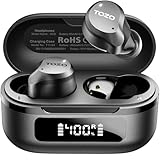
TOZO earbuds come in various models, each with slightly different features and designs. However, the core connection process remains largely the same across all models. The earbuds will typically have a charging case, which also serves as the primary power source. When you take the earbuds out of the case, they usually enter pairing mode automatically, making the connection process seamless.
Connecting Your Tozo Earbuds: Step-by-Step Instructions
Here’s a detailed guide on how to connect your TOZO earbuds to your device. We’ll cover both Android and iOS devices, as well as some general tips that apply to other devices.
Connecting to an Android Device
Connecting your TOZO earbuds to an Android device is simple. Follow these steps:
- Charge Your Earbuds: Ensure your TOZO earbuds are charged. Place them in the charging case, close the lid, and let them charge for at least 30 minutes. A fully charged case is essential for the initial pairing process. If your earbuds are new, they may come with a small charge, but it’s best to start with a full charge. Check the charging case’s LED indicator to know the charging status.
- Enable Bluetooth: On your Android device, go to the Settings app. Find the ‘Bluetooth’ option, usually under ‘Connections’ or ‘Connected devices’. Tap on it to enter the Bluetooth settings. Make sure Bluetooth is turned ‘ON’. You should see a toggle switch; if it’s grayed out, tap it to enable Bluetooth.
- Put Your Earbuds in Pairing Mode: Take your TOZO earbuds out of their charging case. Some models will automatically enter pairing mode when removed from the case. If they don’t, you may need to press and hold a button on the earbuds (check your user manual for specific instructions on your model). The earbuds will usually flash a light to indicate they are in pairing mode.
- Scan for Devices: On your Android device’s Bluetooth settings screen, you should see a list of available devices. If your TOZO earbuds are in pairing mode, they should appear in the list. Tap the ‘Refresh’ or ‘Scan’ button if you don’t see them immediately. The device name will often be ‘TOZO’ followed by a model number, such as ‘TOZO T10’ or ‘TOZO NC9’.
- Select Your Earbuds: Once your TOZO earbuds appear in the list, tap on their name to select them. Your Android device will attempt to connect to the earbuds. You might see a pairing request pop up on your screen.
- Pair and Connect: If prompted, tap ‘Pair’ or ‘OK’ to confirm the pairing request. Your device will now connect to your TOZO earbuds. You should see the earbuds’ status change from ‘Available’ to ‘Connected’. You may also hear a confirmation sound in your earbuds.
- Test the Connection: Open a music app, YouTube, or any other app that plays audio. Play some music or a video to test the connection. If you hear audio through your earbuds, the connection was successful!
Important Note: If you have previously paired your TOZO earbuds with another device, make sure that device’s Bluetooth is turned OFF or that the earbuds are disconnected from it. This prevents interference during the pairing process.
Connecting to an iOS Device (iphone/ipad)
The process of connecting your TOZO earbuds to an iPhone or iPad is very similar to connecting to an Android device. Here are the steps:
- Charge Your Earbuds: Ensure your TOZO earbuds are charged. Place them in the charging case and let them charge for at least 30 minutes. Always start with a full charge for the best experience.
- Enable Bluetooth: On your iPhone or iPad, open the Settings app. Tap on ‘Bluetooth’. Make sure the Bluetooth toggle is turned ‘ON’ (it will be green when enabled).
- Put Your Earbuds in Pairing Mode: Take your TOZO earbuds out of the charging case. They should automatically enter pairing mode. If not, consult your user manual for model-specific instructions.
- Find Your Earbuds: In the Bluetooth settings, your iPhone/iPad will start searching for available devices. Your TOZO earbuds should appear in the list of available devices. They will likely be listed as ‘TOZO’ followed by the model number.
- Select Your Earbuds: Tap on the name of your TOZO earbuds in the list. Your iPhone or iPad will attempt to connect to the earbuds.
- Pair and Connect: Once the connection is established, your earbuds will be listed under ‘My Devices’ and the status will show ‘Connected’. You should also hear a confirmation sound in your earbuds.
- Test the Connection: Open any music app, such as Apple Music, Spotify, or YouTube, and play some audio to test the connection. If you hear sound through your earbuds, the connection is successful!
Quick Tip: If you’ve previously connected your TOZO earbuds to another Apple device (like a Mac), they might automatically connect to the last device they were used with. Make sure your earbuds are not connected to another device before attempting to pair them with your iPhone or iPad.
Connecting to a Computer (windows/mac)
Connecting your TOZO earbuds to a computer is also possible. The steps vary slightly depending on your operating system (Windows or macOS).
Connecting to Windows
- Charge Your Earbuds: Ensure your earbuds are charged.
- Enable Bluetooth: Click on the ‘Start’ button, then click on ‘Settings’. Select ‘Devices’, then click on ‘Bluetooth & other devices’. Make sure Bluetooth is turned ‘ON’.
- Put Your Earbuds in Pairing Mode: Take your earbuds out of the charging case.
- Add a Bluetooth Device: Click on ‘Add Bluetooth or other device’. Choose ‘Bluetooth’ from the options.
- Select Your Earbuds: Your computer will scan for available Bluetooth devices. Select your TOZO earbuds from the list.
- Pair and Connect: Follow any on-screen prompts to complete the pairing process. You might need to enter a PIN (usually ‘0000’ or ‘1234’ if prompted) or simply confirm the pairing.
- Configure Audio Output: After successful pairing, your earbuds may not automatically be selected as the audio output device. Click on the speaker icon in the system tray (bottom right corner of your screen). Select your TOZO earbuds as the audio output device.
- Test the Connection: Play some audio to test the connection.
Connecting to Macos
- Charge Your Earbuds: Ensure your earbuds are charged.
- Enable Bluetooth: Click on the Apple menu (top left corner of the screen) and select ‘System Preferences’. Click on ‘Bluetooth’. Make sure Bluetooth is turned ‘ON’.
- Put Your Earbuds in Pairing Mode: Take your earbuds out of the charging case.
- Select Your Earbuds: Your Mac will scan for available Bluetooth devices. Select your TOZO earbuds from the list.
- Pair and Connect: Click ‘Connect’ next to your TOZO earbuds.
- Configure Audio Output: If the sound is not coming through your earbuds, click on the speaker icon in the menu bar and select your TOZO earbuds. Alternatively, go to ‘System Preferences’ -> ‘Sound’ -> ‘Output’ and select your TOZO earbuds as the output device.
- Test the Connection: Play some audio to test the connection.
Connecting to Other Devices
The connection process for other devices, such as tablets, smart TVs, and gaming consoles, is similar to the Android and iOS processes. The key is to enable Bluetooth on the device, put your TOZO earbuds in pairing mode, and then select them from the list of available Bluetooth devices. Refer to your device’s user manual for specific instructions if you encounter difficulties.
Troubleshooting Common Connection Issues
Sometimes, you might encounter issues when connecting your TOZO earbuds. Here are some common problems and their solutions:
- Earbuds Not Showing Up in the List:
- Ensure Earbuds Are in Pairing Mode: Double-check that your earbuds are actually in pairing mode. Try putting them back in the case and taking them out again. Refer to your user manual for specific instructions on how to enter pairing mode for your model.
- Check Bluetooth Range: Make sure your device is within Bluetooth range (typically around 30-50 feet) of the earbuds. Move closer to the earbuds.
- Restart Bluetooth: Turn off Bluetooth on your device, wait a few seconds, and then turn it back on.
- Restart Your Device: Sometimes, a simple restart of your phone, tablet, or computer can resolve Bluetooth issues.
- Unable to Pair:
- Check Battery Level: Ensure both your earbuds and your device have sufficient battery power. Low battery can sometimes interfere with the pairing process.
- Clear Previous Connections: On your device, go to the Bluetooth settings and ‘forget’ or ‘unpair’ any previous connections to your TOZO earbuds. Then, try pairing them again from scratch.
- Reset Your Earbuds: Some TOZO models have a reset function. Consult your user manual for instructions on how to reset your specific earbuds. This can often resolve pairing problems.
- One Earbud Not Working:
- Check Individual Earbud Charge: Place both earbuds back in the charging case to ensure they are both charging.
- Re-pair the Earbuds: Try unpairing and then re-pairing the earbuds with your device. Sometimes, this can resolve the issue of one earbud not connecting.
- Check for Firmware Updates: Some TOZO models have companion apps that allow you to update the firmware of your earbuds. Check the app store for a TOZO app and see if there are any available updates.
- Audio Stuttering or Dropping Out:
- Reduce Interference: Bluetooth signals can be affected by interference from other devices, such as Wi-Fi routers, microwave ovens, and other Bluetooth devices. Try moving away from these sources of interference.
- Check Bluetooth Range: Make sure you are within the optimal Bluetooth range of your device.
- Check for Firmware Updates: Ensure your earbuds’ firmware is up-to-date.
- Restart Your Device and Earbuds: A simple restart of both your device and your earbuds can sometimes resolve audio issues.
- Earbuds Connected but No Sound:
- Check Volume Levels: Make sure the volume is turned up on both your device and your earbuds.
- Select Correct Output Device: Ensure that your TOZO earbuds are selected as the audio output device in your device’s settings (e.g., in the Bluetooth settings or sound settings).
- Test with a Different App: Try playing audio from a different app to rule out any app-specific issues.
Tips for Optimizing Your Tozo Earbud Experience
Here are some additional tips to help you get the most out of your TOZO earbuds:
- Charge Regularly: Make it a habit to charge your earbuds and charging case regularly. This will ensure you always have power when you need it.
- Clean Your Earbuds: Regularly clean your earbuds with a soft, dry cloth to remove any earwax or debris. This helps maintain sound quality and hygiene. Avoid using water or harsh chemicals.
- Experiment with Eartips: TOZO earbuds usually come with different sizes of ear tips. Experiment with the different sizes to find the ones that fit your ears comfortably and provide the best sound isolation. A good fit is essential for optimal sound quality and noise cancellation (if applicable).
- Use the Touch Controls (if applicable): Many TOZO earbuds feature touch controls on the earbuds themselves. Learn how to use these controls to easily play/pause music, skip tracks, answer calls, and adjust the volume. Consult your user manual for specific control functions.
- Explore the Companion App (if applicable): Some TOZO earbuds have a companion app that allows you to customize the sound settings, update the firmware, and access other features. Download the app from your device’s app store and explore its features.
- Be Mindful of Volume Levels: Avoid listening to music at excessively high volumes, as this can damage your hearing.
- Store Properly: When not in use, store your earbuds in the charging case to protect them and keep them charged.
Frequently Asked Questions (faq)
Here are some frequently asked questions about connecting TOZO earbuds:
- How do I reset my TOZO earbuds? The method for resetting your TOZO earbuds varies depending on the model. Consult your user manual for specific instructions. Generally, it involves placing the earbuds in the charging case, pressing and holding a button on the case, or pressing and holding the touch controls on the earbuds themselves.
- Why won’t my TOZO earbuds connect to my phone? There are several potential reasons, including: the earbuds aren’t in pairing mode, Bluetooth is turned off on your device, the earbuds aren’t charged, there’s interference from other devices, or there’s a problem with the pairing process. Refer to the troubleshooting tips above for solutions.
- Can I connect my TOZO earbuds to multiple devices? Most TOZO earbuds can only connect to one device at a time. However, you can easily switch between devices by disconnecting from one device and then connecting to another.
- Do TOZO earbuds have noise cancellation? Some TOZO models have active noise cancellation (ANC), while others do not. Check the specifications of your specific model to determine if it has ANC.
- Where can I find the user manual for my TOZO earbuds? The user manual is usually included in the box with your earbuds. You can also often find a PDF version on the TOZO website or by searching online for your specific model number.
Final Thoughts
Connecting your TOZO earbuds is a straightforward process, typically taking only a few minutes. By following the steps outlined in this guide, you should be able to easily pair your earbuds with your device and start enjoying your audio content. Remember to charge your earbuds, enable Bluetooth, and put them in pairing mode. If you encounter any issues, consult the troubleshooting tips provided. With a little patience and these instructions, you’ll be enjoying your music, podcasts, and calls in no time. Happy listening!
Remember to always refer to your specific TOZO earbuds’ user manual for model-specific instructions and features. Enjoy the freedom and convenience of wireless audio with your new TOZO earbuds!
Recommended Products