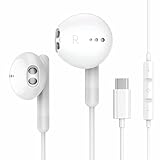
How Do I Connect My Earbuds to My iPad? Simple Guide
Hey there! Ever been frustrated trying to get your earbuds connected to your iPad? You’re not alone! It’s a common tech hiccup, but thankfully, it’s usually a super quick fix. I’m here to walk you through the entire process, step-by-step, making it as easy as possible. Whether you’ve got AirPods, a pair of Bluetooth earbuds, or even some wired ones with a specific adapter, I’ll cover all the bases.
We’ll tackle everything from the initial pairing process to troubleshooting common connection issues. I’ll also explain some handy tips and tricks to make your audio experience seamless. So, grab your iPad, your earbuds, and let’s get started. Get ready to enjoy your music, podcasts, or videos without any audio hassles. Let’s make sure you’re getting the best sound possible!
This guide is designed for everyone, from tech novices to seasoned iPad users. I’ll break down each step in plain language, so you can follow along with confidence. By the end of this article, you’ll be a pro at connecting your earbuds to your iPad, ensuring you’re always ready to enjoy your favorite audio content.
Understanding iPad Audio Connections
Before we jump into connecting your earbuds, let’s understand the different ways your iPad can handle audio. This will help you choose the right method and troubleshoot any problems that might come up.
Bluetooth: The Wireless Standard
Bluetooth is the most common and convenient way to connect earbuds to your iPad. It’s a wireless technology that allows devices to communicate over short distances. Most modern earbuds use Bluetooth, including AirPods, and other wireless earbuds. The advantage? No wires! You can move around freely without being tethered to your iPad.
Pros of Bluetooth:
- Wireless freedom.
- Easy pairing process.
- Widely compatible with various earbud models.
Cons of Bluetooth:
- Requires charging your earbuds.
- Potential for occasional interference in crowded areas.
- Slight delay (latency) can occur in audio.
Wired Connections: The Classic Approach
While wireless is popular, wired connections still have their place. Some older or more budget-friendly earbuds use a physical connection to your iPad. This typically involves a Lightning connector or a headphone adapter, depending on your iPad model.
Pros of Wired Connections:
- No need to charge.
- Generally lower latency than Bluetooth.
- Often more affordable.
Cons of Wired Connections:
- Requires a physical connection (cable).
- Can be less convenient for movement.
- May require an adapter if your iPad doesn’t have a headphone jack.
Understanding iPad Models and Ports
The type of port on your iPad matters. The latest iPads primarily use the Lightning connector (older models) or the USB-C port (newer models). Older iPads often have a 3.5mm headphone jack. Understanding your iPad’s ports is crucial for selecting the right connection method.
Lightning Connector: Found on many older iPad models, the Lightning port is primarily used for charging and data transfer, but it can also be used for audio. You may need a Lightning to 3.5mm headphone jack adapter for wired earbuds.
USB-C Port: Newer iPad models, like the iPad Air and iPad Pro, feature a USB-C port. This port can handle charging, data transfer, and audio. You can use USB-C earbuds directly or use a USB-C to 3.5mm adapter.
3.5mm Headphone Jack: Some older iPad models still have a 3.5mm headphone jack. If your earbuds have a 3.5mm jack, you can simply plug them in.
Connecting Bluetooth Earbuds to Your iPad: Step-by-Step Guide
Connecting Bluetooth earbuds to your iPad is a straightforward process. Here’s a step-by-step guide:
- Charge Your Earbuds: Before you start, make sure your earbuds are charged. This ensures they have enough power to pair and stay connected.
- Put Your Earbuds in Pairing Mode: This step varies depending on your earbud model. Typically, you’ll need to press and hold a button on the earbuds or their charging case until a light starts blinking. Refer to your earbud’s manual for specific instructions. AirPods automatically enter pairing mode when you open their case near your iPad.
- Open the Settings App on Your iPad: Locate and tap the “Settings” app icon on your iPad’s home screen.
- Go to Bluetooth: In the Settings app, tap on “Bluetooth.”
- Turn on Bluetooth: If Bluetooth is not already enabled, toggle the switch to the “on” position (it will turn green).
- Look for Your Earbuds: Your iPad will start searching for nearby Bluetooth devices. Your earbuds should appear in the list of available devices.
- Tap on Your Earbuds: Once your earbuds appear in the list, tap on their name.
- Pair the Devices: Your iPad will attempt to connect to your earbuds. You might be prompted to confirm the pairing. Follow any on-screen instructions.
- Check the Connection: Once paired, your earbuds’ name will appear as “Connected” in the Bluetooth settings. You can now start playing audio, and it will be routed through your earbuds.
Troubleshooting Bluetooth Connection Issues
Sometimes, you might encounter issues when connecting Bluetooth earbuds. Here are some common problems and how to fix them:
- Earbuds Not Appearing:
- Make sure your earbuds are in pairing mode (check the earbud’s manual).
- Ensure the earbuds are close to your iPad.
- Restart both your iPad and your earbuds.
- Unable to Pair:
- Make sure Bluetooth is enabled on your iPad.
- Try forgetting the earbuds in your iPad’s Bluetooth settings and then re-pair them.
- Check if your earbuds are connected to another device. Disconnect them from other devices first.
- Poor Sound Quality:
- Make sure your earbuds are fully charged.
- Move closer to your iPad to reduce interference.
- Check for any obstructions between your iPad and the earbuds.
- Earbuds Disconnecting:
- Make sure your earbuds are charged.
- Check for interference from other Bluetooth devices.
- Restart both your iPad and the earbuds.
Connecting Wired Earbuds to Your iPad
Connecting wired earbuds is usually even easier than Bluetooth. The process depends on the type of port your iPad has. Here’s how to connect wired earbuds:
iPad with a 3.5mm Headphone Jack
If your iPad has a 3.5mm headphone jack, simply plug your earbuds into the jack. Your iPad will automatically detect the earbuds, and audio will be routed through them.
iPad with a Lightning Port
If your iPad has a Lightning port, you’ll need a Lightning to 3.5mm headphone jack adapter. Plug the adapter into your iPad’s Lightning port, then plug your earbuds into the adapter.
iPad with a USB-C Port
If your iPad has a USB-C port, you can use either USB-C earbuds directly or a USB-C to 3.5mm headphone jack adapter. Plug the USB-C earbuds or adapter into the USB-C port, and your iPad will automatically recognize them.
Troubleshooting Wired Connection Issues
Wired connections are generally more reliable, but you might still encounter problems. Here’s how to troubleshoot:
- No Sound:
- Make sure your earbuds are properly plugged in.
- Check the volume level on your iPad.
- Try different earbuds or headphones to see if the problem is with the earbuds.
- Make sure the adapter (if used) is securely connected.
- Sound Only Coming from One Earbud:
- Check the earbud cable for any damage.
- Try adjusting the balance settings in your iPad’s accessibility settings.
- Try different earbuds.
Using Earbuds with iPad Accessories
Sometimes you might want to use your earbuds while also using other accessories with your iPad. Here’s how to handle a few common scenarios:
Using Earbuds with a Keyboard Case
Many iPad keyboard cases connect via Bluetooth, so you can use Bluetooth earbuds simultaneously. Simply connect your earbuds as described above. If your keyboard case connects via the Smart Connector or a physical connection, it shouldn’t interfere with your earbud connection.
Using Earbuds with a USB-C Hub
If you’re using a USB-C hub with your iPad, you can connect your wired earbuds to the hub’s 3.5mm headphone jack or use Bluetooth earbuds. If the hub has a USB-C port, you might connect USB-C earbuds or use a USB-C to 3.5mm adapter. Make sure the hub is compatible with audio output.
Using Earbuds with a Gaming Controller
If you’re gaming on your iPad, you can use Bluetooth earbuds with a Bluetooth gaming controller. Connect your earbuds via Bluetooth, and then connect your gaming controller. The audio will play through your earbuds.
Tips and Tricks for Optimizing Your Earbud Experience
Here are some tips to enhance your earbud experience on your iPad:
- Adjust Volume: Use the volume buttons on your iPad or the volume controls on your earbuds to adjust the sound level.
- Manage Bluetooth Devices: Go to Settings > Bluetooth to see a list of connected devices. You can disconnect or forget devices from this menu.
- Customize Audio Settings: Go to Settings > Accessibility > Audio/Visual to adjust balance, mono audio, and other audio settings.
- Use Earbud Controls: Many earbuds have built-in controls for playing/pausing music, skipping tracks, and answering calls. Refer to your earbud’s manual for specific instructions.
- Keep Your Earbuds Clean: Regularly clean your earbuds to maintain sound quality and hygiene.
- Update Your iPad: Ensure your iPad is running the latest version of iPadOS. Software updates often include bug fixes and improvements that can affect audio performance.
- Consider Noise Cancellation: If your earbuds have noise cancellation, enable it to block out background noise for a more immersive experience.
- Choose the Right Ear Tips: For in-ear earbuds, use the ear tips that fit your ears comfortably to ensure a good seal and optimal sound quality.
- Manage Battery Life: For Bluetooth earbuds, keep an eye on the battery level. You can usually see the battery percentage in the Bluetooth settings.
- Optimize Audio Quality: Consider using music streaming services that offer high-quality audio, such as Apple Music or Spotify, for a better listening experience.
Comparing Earbud Connection Methods
Here’s a table comparing the different earbud connection methods for your iPad:
| Feature | Bluetooth | Wired (3.5mm Jack) | Wired (Lightning/USB-C) |
|---|---|---|---|
| Connection Type | Wireless | Wired | Wired |
| Port Requirement | None | 3.5mm headphone jack | Lightning or USB-C port |
| Pros | Wireless freedom, Easy pairing | No charging required, Low latency | No charging required, Low latency |
| Cons | Requires charging, Potential interference | Requires 3.5mm jack or adapter | Requires adapter or compatible earbuds |
| Best For | General use, portability | Reliable, consistent audio | Reliable, consistent audio |
Common Questions and Answers
Here are some frequently asked questions about connecting earbuds to an iPad:
- Can I connect multiple Bluetooth devices to my iPad at the same time?
- No, your iPad can typically only connect to one Bluetooth audio device at a time.
- Why can’t my iPad find my earbuds?
- Make sure your earbuds are in pairing mode, are charged, and are close to your iPad. Also, check that Bluetooth is enabled on your iPad.
- How do I disconnect my earbuds from my iPad?
- Go to Settings > Bluetooth and tap the “i” next to your earbuds’ name. Then, tap “Disconnect” or “Forget This Device.”
- My wired earbuds aren’t working. What should I do?
- Make sure they are fully plugged in and that the volume isn’t muted. Test with another pair of earbuds to see if the problem is with the iPad or the earbuds.
- Do I need any special adapters to connect my earbuds?
- It depends on your iPad model. Newer iPads with USB-C ports may not require adapters. Older iPads with Lightning ports might need a Lightning to 3.5mm adapter for wired earbuds.
- How do I reset my Bluetooth settings on my iPad?
- You can try forgetting all Bluetooth devices and then re-pairing them. To do this, go to Settings > Bluetooth, tap the “i” next to each device, and select “Forget This Device.” Then, re-pair your earbuds.
Final Verdict
Connecting your earbuds to your iPad doesn’t have to be a headache. Whether you’re opting for the convenience of Bluetooth or the simplicity of a wired connection, you now have a clear understanding of the steps involved. Remember to check your iPad’s ports, ensure your earbuds are in pairing mode, and troubleshoot any issues methodically. With the information and tips provided, you should be able to enjoy your favorite audio content seamlessly.
By following these simple guidelines, you can ensure a smooth connection every time. Enjoy your music, podcasts, and videos!
Recommended Products