How Do I Connect Earbuds to My iPad? A Simple Guide
So, you’ve got a shiny new iPad and a pair of earbuds, and you’re ready to dive into some tunes, podcasts, or maybe even a movie marathon. But wait – how do you actually get those earbuds connected? It’s a common question, and thankfully, the process is straightforward. Whether you’re using AirPods, a pair of Bluetooth earbuds, or even some wired ones, connecting them to your iPad is usually a breeze. I’m here to guide you through it, step-by-step.
This guide will cover everything you need to know, from the initial pairing of Bluetooth devices to troubleshooting common connection issues. We’ll also look at how to use wired earbuds and explore some helpful tips to ensure a seamless audio experience. Get ready to enjoy your favorite content with your earbuds connected to your iPad!
Understanding iPad Audio Connections
Before we jump into the connection process, let’s briefly look at the types of audio connections your iPad supports. This knowledge will help you understand the steps involved and troubleshoot any problems that might arise.
Bluetooth: The Wireless Standard
Bluetooth is the primary way to connect most earbuds to your iPad. It’s a wireless technology that allows devices to communicate with each other over short distances. Bluetooth earbuds are incredibly popular due to their convenience and freedom of movement. Your iPad’s Bluetooth functionality allows it to pair with various devices, including earbuds, speakers, and keyboards.
Wired Connections: The Classic Option
While wireless earbuds dominate the market, wired earbuds still have their place. Many iPads, especially older models, have a headphone jack. If your iPad has one, you can simply plug in your wired earbuds and start listening. If your iPad doesn’t have a headphone jack (like many newer models), you’ll need an adapter.
Adapters: Bridging the Gap
For iPads without a headphone jack, you’ll need an adapter to connect wired earbuds. Apple sells a Lightning to 3.5 mm Headphone Jack Adapter that plugs into your iPad’s Lightning port and allows you to connect standard wired earbuds. There are also third-party adapters available, often at lower prices.
Connecting Bluetooth Earbuds to Your iPad: Step-by-Step Guide
Connecting Bluetooth earbuds to your iPad is a simple process. Here’s a step-by-step guide to get you started:
Step 1: Charge Your Earbuds
Ensure your earbuds are charged. Most Bluetooth earbuds come with a charging case. Place your earbuds in the case and charge the case. A fully charged case ensures you won’t be interrupted mid-listening session.
Step 2: Put Your Earbuds in Pairing Mode
Put your earbuds into pairing mode. The exact method varies depending on your earbud model. Typically, you’ll need to press and hold a button on the earbuds or their charging case. Look for a flashing light on the earbuds, which indicates they’re in pairing mode. Consult your earbuds’ manual if you’re unsure how to do this. For AirPods, simply opening the charging case near your iPad usually initiates pairing mode.
Step 3: Access Bluetooth Settings on Your iPad
Open the Settings app on your iPad. Find the “Bluetooth” option and tap on it. This will take you to the Bluetooth settings screen.
Step 4: Enable Bluetooth on Your iPad
Toggle the Bluetooth switch to the ‘on’ position. If Bluetooth is already enabled, skip this step.
Step 5: Select Your Earbuds
Your iPad will start scanning for available Bluetooth devices. Once your earbuds appear in the list of available devices, tap on their name to connect. You may be prompted to confirm the connection or enter a passcode (usually “0000” or “1234”).
Step 6: Test the Connection
Play some audio to test the connection. Open your music app, a video streaming service, or any app that plays sound. If you hear audio through your earbuds, the connection is successful!
Troubleshooting Bluetooth Connection Issues
Sometimes, connecting Bluetooth earbuds isn’t as seamless as it seems. Here are some common issues and how to resolve them:
Earbuds Not Appearing in the List
Make sure your earbuds are in pairing mode. Double-check the instructions for your specific earbuds. Ensure the earbuds are close to your iPad during the pairing process. If they still don’t appear, try restarting both your iPad and your earbuds. Sometimes, a simple reboot can solve the problem.
Connection Dropping or Audio Cutting Out
Bluetooth signals can be affected by interference. Move closer to your iPad. Avoid obstructions, such as walls or other electronic devices, between your iPad and your earbuds. Check the battery levels of both your iPad and your earbuds. Low battery can sometimes cause connection issues. Try disconnecting and reconnecting your earbuds in the Bluetooth settings.
Poor Sound Quality
Ensure your earbuds are clean. Check for any debris blocking the speakers. Adjust the volume on both your iPad and your earbuds. Try resetting your earbuds to their factory settings; consult your earbuds’ manual for instructions. Update your iPad’s software to the latest version.
Earbuds Connected but No Sound
Check the volume levels on your iPad and earbuds. Ensure the earbuds are selected as the audio output device in your iPad’s settings. Go to Settings > Bluetooth and tap the “i” icon next to your earbuds’ name. Make sure “Connect” is enabled. Try disconnecting and reconnecting the earbuds.
Connecting Wired Earbuds to Your iPad
Connecting wired earbuds is even simpler, provided your iPad has a headphone jack or you have an adapter:
If Your iPad Has a Headphone Jack
Plug your earbuds directly into the headphone jack. No pairing or setup is required. The audio will automatically route through your earbuds.
If Your iPad Does Not Have a Headphone Jack (lightning or USB-C)
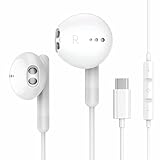
Plug the Lightning to 3.5 mm Headphone Jack Adapter (or USB-C to 3.5mm adapter) into your iPad’s charging port. Then, plug your wired earbuds into the adapter. The audio will automatically route through your earbuds.
Tips for Optimal Earbud Usage with Your iPad
Here are some tips to enhance your earbud experience with your iPad:
Adjust Audio Settings
Explore your iPad’s audio settings. Go to Settings > Sounds. Here, you can adjust the volume, enable or disable sound effects, and customize other audio-related settings.
Use Earbud Controls
Familiarize yourself with your earbuds’ controls. Most earbuds have buttons or touch controls for adjusting the volume, skipping tracks, answering calls, and activating voice assistants like Siri.
Manage Battery Life
Keep an eye on your earbud’s battery life. Your iPad usually displays the battery level of connected Bluetooth devices. Charge your earbuds regularly to avoid unexpected interruptions.
Clean Your Earbuds
Keep your earbuds clean. Regularly wipe them down with a soft, dry cloth to remove earwax and debris. This will help maintain sound quality and prevent potential issues.
Consider Noise Cancellation
If you want to reduce background noise, consider earbuds with noise cancellation. These earbuds use built-in microphones to detect and cancel out ambient sounds, providing a more immersive listening experience.
Comparing Earbud Features
Choosing the right earbuds can significantly impact your listening experience. Here’s a comparison of some key features to help you make an informed decision:
| Feature | Bluetooth Earbuds | Wired Earbuds |
|---|---|---|
| Connectivity | Wireless, Bluetooth | Wired, 3.5 mm jack or adapter |
| Freedom of Movement | Excellent, no wires | Limited by wire length |
| Portability | Excellent, compact | Compact, but wire can tangle |
| Battery Life | Requires charging | No battery required |
| Sound Quality | Can be excellent, varies by model | Generally good, consistent |
| Noise Cancellation | Available in some models | Typically no noise cancellation |
| Price | Varies widely | Generally more affordable |
Choosing the Right Earbuds for Your iPad
When selecting earbuds for your iPad, consider your personal preferences and needs:
For Convenience and Portability:
Bluetooth earbuds are an excellent choice. They offer wireless freedom and are ideal for commuting, exercising, or simply enjoying music at home. Look for earbuds with a comfortable fit and good battery life.
For Budget-Conscious Users:
Wired earbuds are a more affordable option. They provide reliable sound quality and don’t require charging. If your iPad lacks a headphone jack, factor in the cost of an adapter.
For Active Lifestyles:
Look for earbuds that are sweat-resistant and have a secure fit. Consider sport-specific earbuds with features like wingtips or ear hooks to prevent them from falling out during workouts.
For Immersive Audio:
Consider earbuds with noise cancellation for a more immersive experience. These are particularly useful in noisy environments, such as on public transport or in a busy office.
For Apple Ecosystem Users:
If you’re already invested in the Apple ecosystem, AirPods are a seamless choice. They offer easy pairing, integration with Siri, and other convenient features.
Frequently Asked Questions (faq)
Can I Connect Multiple Bluetooth Devices to My iPad Simultaneously?
No, your iPad can typically only connect to one Bluetooth audio device (like earbuds or a speaker) at a time. However, you can switch between different paired devices easily through the Bluetooth settings.
What If My Earbuds Won’t Connect After I’ve Already Paired Them?
Try turning Bluetooth off and on again on your iPad. Make sure your earbuds are turned on and in pairing mode. If that doesn’t work, try forgetting the earbuds in your iPad’s Bluetooth settings and then re-pairing them.
Do I Need a Special App to Use My Earbuds with My iPad?
No, you typically don’t need a separate app to use your earbuds. The iPad’s built-in Bluetooth settings and audio controls are sufficient for most users. However, some earbud manufacturers may offer companion apps for advanced features or customization.
Can I Use Any Bluetooth Earbuds with My iPad?
Yes, any Bluetooth earbuds that comply with the Bluetooth standards should be compatible with your iPad. However, the features and performance may vary depending on the earbud model.
How Do I Disconnect My Earbuds From My iPad?
You can disconnect your earbuds by turning off Bluetooth in your iPad’s settings, or by selecting “Disconnect” next to your earbuds’ name in the Bluetooth settings. You can also simply place your earbuds back in their charging case (for Bluetooth earbuds) or unplug the wired earbuds.
Final Verdict
Connecting earbuds to your iPad is a straightforward process, whether you’re using Bluetooth or wired options. By following the steps outlined in this guide, you should be able to enjoy your favorite audio content with ease. Remember to charge your earbuds, put them in pairing mode (for Bluetooth), and ensure your iPad’s Bluetooth is enabled. If you encounter any issues, refer to the troubleshooting tips provided. With a little patience, you’ll be listening to music, podcasts, and more through your earbuds in no time. Enjoy your listening experience!
Ultimately, the best way to connect your earbuds is the one that works best for you and your listening needs. Whether you prioritize wireless convenience or the simplicity of a wired connection, your iPad offers flexible options to enhance your audio enjoyment. Now you’re ready to start listening!
Recommended Products