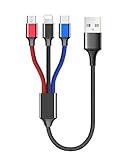
How Do I Charge Beats Earbuds? A Complete Guide
So, you’ve got yourself a pair of Beats earbuds – fantastic! Whether you’re hitting the gym, commuting, or just chilling at home, those little buds are your gateway to on-demand audio. But, a dead battery can quickly kill the vibe. Knowing how to keep your Beats juiced up is essential for uninterrupted listening pleasure. Don’t worry; it’s a straightforward process, but there are a few nuances to keep in mind to ensure you’re getting the best performance and lifespan from your investment.
This guide will walk you through everything you need to know about charging your Beats earbuds, from the basics to some helpful tips and troubleshooting advice. We’ll cover different models, charging indicators, and how to maximize your battery life. Get ready to power up your audio experience and keep those beats flowing!
Understanding Your Beats Earbuds and Their Charging Cases
Before we jump into the charging process, let’s get acquainted with your specific Beats model and its charging case. Different Beats models have slightly different designs and charging methods, so knowing your model is the first step.
Identifying Your Beats Model
Beats currently offers a variety of earbuds, including:
- Beats Studio Buds: These are compact, true wireless earbuds known for their noise cancellation and sleek design.
- Beats Studio Buds +: An upgraded version of the Studio Buds with improved features.
- Beats Fit Pro: These earbuds feature wingtips for a secure fit, making them ideal for workouts.
- Beats Flex: These are neckband-style earbuds, providing a different design approach.
- Powerbeats Pro: Designed for athletes, these earbuds have earhooks for a secure fit during intense activities.
- Beats Solo Buds: The smallest and most affordable Beats earbuds yet.
You can usually identify your model by looking at the packaging, the product itself, or by checking the settings on your connected device. Knowing your model will help you understand the specific charging features and indicators.
The Charging Case: Your Earbuds’ Best Friend
Most Beats earbuds come with a charging case. This case serves multiple purposes:
- Charging: The case houses a built-in battery that charges your earbuds when they’re placed inside.
- Protection: The case protects your earbuds from dust, scratches, and other damage.
- Portability: The case is compact and easy to carry, allowing you to charge your earbuds on the go.
The charging case itself needs to be charged, and the method for doing so varies slightly depending on the model. We’ll cover the charging case details in the next sections.
Charging Methods: Step-by-Step Instructions
Now, let’s get into the specifics of how to charge your Beats earbuds. The process is generally simple, but here’s a detailed breakdown for different scenarios.
Charging Your Earbuds in the Case
This is the most common way to charge your Beats. Here’s how:
- Place the Earbuds in the Case: Open the charging case and carefully insert your Beats earbuds into their designated slots. Make sure they are seated properly. You should feel them click into place.
- Close the Case: Close the charging case lid. This initiates the charging process.
- Check the Charging Indicator: Most Beats cases have an LED indicator light that shows the charging status. The color of the light will vary depending on the model, but it usually indicates the following:
- Green: Fully charged.
- Yellow/Amber: Charging.
- Red: Low battery (case or earbuds).
- Flashing: Indicates an issue. Refer to the troubleshooting section.
Important Note: Always ensure that your earbuds are dry before placing them in the charging case. Moisture can damage the earbuds and the case.
Charging the Charging Case
The charging case also needs to be charged periodically. Here’s how:
- Locate the Charging Port: Most Beats charging cases use a USB-C or Lightning port for charging. The port is usually located on the bottom of the case.
- Connect the Charging Cable: Use the charging cable that came with your Beats or a compatible cable. Connect one end to the charging port on the case and the other end to a power source, such as a wall adapter, computer, or power bank.
- Check the Charging Indicator: The LED indicator on the case will show the charging status. The color and behavior of the light will vary depending on the model.
- Wait for the Case to Charge: Charging time for the case varies, but it usually takes around 1-2 hours to fully charge the case.
- Disconnect the Cable: Once the case is fully charged, disconnect the charging cable.
Pro Tip: Use a wall adapter with the appropriate voltage and amperage for faster charging. Avoid using a damaged or frayed charging cable.
Charging Without the Case (if Applicable)
Some older or specific Beats models might allow direct charging of the earbuds via a cable. However, this is less common with newer models. If your model supports this, the process is similar to charging the case:
- Locate the Charging Port on the Earbud: If your earbuds have a charging port, it will likely be on the bottom or side of the earbud.
- Connect the Charging Cable: Use a compatible cable (usually USB-C or Lightning) and connect it to the earbud’s charging port and a power source.
- Check the Charging Indicator: The earbud may have an LED indicator to show the charging status.
- Wait for the Earbud to Charge: Charging time will vary.
- Disconnect the Cable: Once charged, disconnect the cable.
Note: Always refer to your specific Beats model’s manual for precise charging instructions and port locations.
Understanding the Charging Indicators
The LED indicator lights on your Beats earbuds and charging case are your primary tools for understanding the charging status. Here’s a breakdown of common indicator light behaviors:
Charging Case Indicator Lights
The charging case indicator lights provide information about both the case’s battery level and the earbuds’ charging status. The exact colors and meanings may vary slightly depending on your Beats model, but the following are common:
- Green: Fully charged (case and/or earbuds).
- Yellow/Amber: Charging (case and/or earbuds).
- Red: Low battery (case and/or earbuds).
- Flashing White: Indicates the earbuds are ready to pair or are in pairing mode.
- Flashing Red: Indicates an error, such as a charging problem or a hardware issue.
Tip: If the case is charging, the indicator light will often pulse or breathe. Once fully charged, the light will usually stay solid.
Earbud Indicator Lights (if Applicable)
Some Beats models have indicator lights on the earbuds themselves. These lights usually provide a quick status check:
- Solid White or Green: Fully charged.
- Flashing White or Green: Charging.
- Red: Low battery.
Note: Not all Beats models have indicator lights on the earbuds. Refer to your model’s manual for details.
Maximizing Battery Life and Charging Best Practices
To get the most out of your Beats earbuds and their batteries, follow these best practices:
Charging Habits
- Charge Regularly: Don’t let your earbuds or case drain completely before charging. Charging them regularly helps maintain battery health.
- Avoid Overcharging: Once the earbuds and case are fully charged, disconnect them from the power source. Leaving them plugged in for extended periods can potentially degrade the battery over time. Most modern devices, including Beats, have built-in protection to prevent overcharging, but it’s still good practice.
- Use the Correct Charger: Always use the charging cable and adapter that came with your Beats, or a compatible alternative. Using the wrong charger can damage the battery.
- Charge in a Cool Environment: Avoid charging your Beats in extreme temperatures. Heat can negatively impact battery performance and lifespan.
Battery Saving Tips
- Lower the Volume: Listening at high volumes drains the battery faster.
- Disable Features When Not in Use: Turn off features like noise cancellation or transparency mode when you don’t need them.
- Store Properly: If you’re not using your Beats for an extended period, store them in a cool, dry place with a charge level of around 50%. This helps maintain battery health.
- Update Firmware: Keep your Beats firmware updated. Updates often include battery optimization improvements.
- Clean the Charging Contacts: Regularly clean the charging contacts on the earbuds and in the case to ensure a good connection. Use a soft, dry cloth.
Understanding Battery Degradation
All batteries degrade over time, including those in your Beats earbuds. You’ll likely notice a gradual decrease in battery life as you use them. This is normal. Factors that can accelerate battery degradation include:
- Heat: Excessive heat.
- Extreme Cold: Although less damaging than heat.
- Deep Discharges: Regularly draining the battery completely.
- Overcharging: Leaving the earbuds and case plugged in continuously.
By following the best practices mentioned above, you can slow down battery degradation and extend the lifespan of your Beats earbuds.
Troubleshooting Charging Issues
Sometimes, you might encounter charging issues with your Beats earbuds. Here are some common problems and how to address them:
Earbuds Not Charging
- Check the Case: Make sure the charging case has power. If the case is dead, charge it first.
- Clean the Charging Contacts: Use a soft, dry cloth to clean the charging contacts on the earbuds and in the case. Dust and debris can prevent a good connection.
- Try a Different Cable and Adapter: The charging cable or adapter might be faulty. Try a different cable and adapter to see if that resolves the issue.
- Reset the Earbuds: Resetting the earbuds can sometimes fix charging problems. The reset process varies depending on the model, so refer to your Beats manual.
- Contact Apple Support: If the issue persists, contact Apple Support for assistance. There might be a hardware problem.
Case Not Charging
- Check the Power Source: Ensure the power outlet is working. Try plugging the charger into a different outlet.
- Try a Different Cable and Adapter: The charging cable or adapter might be faulty. Test with a different cable and adapter.
- Inspect the Charging Port: Check the charging port on the case for any damage or debris. Use a soft brush or compressed air to clean the port if necessary.
- Reset the Case: Some Beats cases have a reset button. Refer to your Beats manual for instructions on how to reset the case.
- Contact Apple Support: If the case still won’t charge, contact Apple Support for help.
Charging Case Not Closing Properly
- Check for Obstructions: Make sure nothing is blocking the case from closing, such as debris or a misplaced earbud.
- Check the Earbud Placement: Ensure the earbuds are correctly seated in the case.
- Clean the Case: Clean the case and earbuds to remove any buildup that might be interfering.
- Inspect for Damage: Examine the case for any physical damage that could be preventing it from closing.
- Contact Apple Support: If the case is damaged, you may need to contact Apple Support for a repair or replacement.
Earbuds Not Pairing After Charging
- Restart the Earbuds and Device: Turn off the earbuds and the device you’re trying to pair them with. Then, turn both back on.
- Put the Earbuds in Pairing Mode: Refer to your Beats manual for how to put your specific model into pairing mode.
- Forget and Re-Pair: On your device, forget the Beats and then try pairing them again.
- Check for Interference: Move away from other Bluetooth devices that might be interfering.
- Update Firmware: Ensure your earbuds and device have the latest firmware updates.
- Contact Apple Support: If you’re still having trouble, contact Apple Support.
Comparing Beats Models: Charging Features
Different Beats models offer varying charging features. Here’s a quick comparison:
| Feature | Beats Studio Buds | Beats Fit Pro | Powerbeats Pro | Beats Flex |
|---|---|---|---|---|
| Charging Case | Yes | Yes | Yes | No |
| Wireless Charging | No | No | No | N/A |
| Charging Port | USB-C | USB-C | Lightning | N/A |
| Fast Charging | Yes | Yes | Yes | Yes |
| Battery Life (Earbuds) | Up to 8 hours | Up to 6 hours | Up to 9 hours | Up to 12 hours |
| Battery Life (with Case) | Up to 24 hours | Up to 24 hours | Up to 24 hours | N/A |
Note: Battery life is approximate and varies depending on usage and settings. Always refer to your model’s specifications for the most accurate information.
Verdict
Charging your Beats earbuds is a straightforward process, but understanding the specifics of your model and following best practices can significantly impact your listening experience. By knowing how to correctly charge your earbuds, recognizing the charging indicators, and implementing the tips we’ve discussed, you can keep your music flowing and avoid frustrating interruptions. Remember to regularly charge your earbuds and charging case, use the correct chargers, and store your earbuds properly to maintain their battery health. With a little care, your Beats earbuds will provide you with hours of premium audio enjoyment.
We’ve covered everything you need to know about charging your Beats earbuds, from the basic steps to troubleshooting common issues. By following these guidelines, you can ensure your earbuds are always ready to go. Remember to check your specific model’s manual for precise instructions, and don’t hesitate to reach out to Apple Support if you encounter any problems. Enjoy your music!
Recommended Products