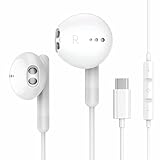
Do Google Pixel Earbuds Work with iPhone? Compatibility Guide
So, you’re an iPhone user, and you’ve been eyeing those sleek Google Pixel Earbuds? Maybe you’re attracted to their seamless integration with Android, their promise of great sound, or perhaps you’re just curious about how they stack up against Apple’s own AirPods. I get it! The world of wireless earbuds can be confusing, especially when you mix ecosystems. The big question is: can you actually use Google Pixel Earbuds with an iPhone?
The short answer is: yes, absolutely! But, as with many things tech-related, there are nuances to consider. You won’t get the *exact* same experience as you would with a Pixel phone, but the core functionality is still there. In this guide, we’ll break down everything you need to know about using Pixel Earbuds with your iPhone, from pairing to features and potential limitations. We’ll cover the compatibility, the features you’ll get (and miss), and how to maximize your listening experience. Let’s get started!
Compatibility: The Basics
The good news is that Google Pixel Earbuds are designed to be broadly compatible. They use Bluetooth, which is a universal standard for wireless audio. This means they can connect to any device that supports Bluetooth, including iPhones, iPads, and even your old iPod. The specific models we’re talking about here include:
- Google Pixel Buds A-Series: These are the entry-level Pixel Buds, offering a great value proposition.
- Google Pixel Buds Pro: The premium option with active noise cancellation (ANC) and more advanced features.
Both models will work with your iPhone. The pairing process is straightforward, similar to connecting any other Bluetooth device. You don’t need a Pixel phone or an Android device to get them up and running.
Pairing Your Pixel Buds with Your iPhone
Here’s how to pair your Google Pixel Buds with your iPhone:
- Put your Pixel Buds into pairing mode: Open the charging case (with the earbuds inside). If they’re not already in pairing mode, press and hold the button on the back of the case until the status light starts blinking white.
- Go to your iPhone’s Bluetooth settings: Open the Settings app on your iPhone, tap on ‘Bluetooth,’ and make sure Bluetooth is turned on.
- Select your Pixel Buds: Your iPhone should start scanning for nearby Bluetooth devices. Look for your Pixel Buds in the list of available devices and tap on them to connect. They might appear as ‘Pixel Buds A-Series’ or ‘Pixel Buds Pro’, depending on the model.
- Confirm the connection: Once connected, your Pixel Buds should appear as ‘Connected’ in your Bluetooth settings. You should also hear a confirmation sound in your earbuds.
That’s it! You’re now ready to listen to music, podcasts, or take calls with your Pixel Buds.
Features and Functionality on iPhone
While the Pixel Buds will work with your iPhone, the experience isn’t *exactly* the same as using them with a Pixel phone. Some features are deeply integrated into the Android ecosystem. Let’s explore what you can expect:
Core Functionality (what Works)
You’ll still get the essential features that make wireless earbuds so convenient:
- Audio Playback: You can listen to music, podcasts, audiobooks, and other audio content from any app on your iPhone, including Apple Music, Spotify, YouTube Music, and more.
- Call Handling: You can answer, end, and reject calls directly from your Pixel Buds. The built-in microphones will allow you to make and receive calls with decent clarity.
- Volume Control: You can adjust the volume using the touch controls on the earbuds themselves.
- Pause/Play and Skip Tracks: Most Pixel Buds models allow you to pause/play music and skip tracks using touch gestures. This is usually done by tapping or swiping on the earbuds.
- Bluetooth Connectivity: The fundamental ability to connect via Bluetooth is the cornerstone of their functionality with the iPhone.
Here’s where things get a little tricky. You’ll miss out on some features designed to work best with Android:
- Google Assistant Integration: This is the biggest drawback. Pixel Buds are designed to work seamlessly with the Google Assistant. You can access the Assistant by voice commands or touch controls on the earbuds when paired with an Android device. With an iPhone, you won’t be able to use the Google Assistant directly. You’ll need to use Siri instead.
- Fast Pair: This feature, which allows for quick and easy pairing with Android devices, isn’t available on iPhones. You’ll have to go through the standard Bluetooth pairing process.
- Customization Options: The Pixel Buds app, which allows you to customize settings like touch controls, EQ, and more, is available on Android only. You won’t be able to adjust these settings on your iPhone unless you borrow an Android device to configure them.
- Real-time Translation: This cool feature, which provides real-time translation in conversations via Google Translate, is exclusive to Android and Pixel Buds integration.
- Find My Device (Limited): While you can use the ‘Find My Device’ feature in the Google Pixel Buds app (on Android) to locate your earbuds, this functionality isn’t available on iOS. You may need to rely on the iPhone’s Bluetooth connection history to find the last known location of the earbuds.
- Automatic Ear Detection (Variable): This feature, which automatically pauses music when you take an earbud out and resumes when you put it back in, may be slightly less reliable on an iPhone than on an Android device.
Maximizing Your Pixel Buds Experience on iPhone
Even with the limitations, you can still have a great experience using Pixel Buds with your iPhone. Here are some tips to get the most out of them:
Leverage Siri
Since you can’t use the Google Assistant, embrace Siri. You can still use Siri to control music playback, make calls, set reminders, and more. Just say, “Hey Siri” or use the button on your iPhone to activate Siri and issue your commands.
Use Third-Party Apps for Customization (partially)
While you can’t use the official Pixel Buds app, some third-party apps might offer some limited control over your earbuds. Check the App Store for apps that claim to provide EQ adjustments or other customization options for Bluetooth audio devices. However, be aware that the functionality might be limited and not as comprehensive as the official app.
Understand Touch Controls
Familiarize yourself with the touch controls on your Pixel Buds. They’re usually used for:
- Tapping: Play/Pause music, Answer/End calls
- Double-tapping: Skip to the next track
- Triple-tapping: Skip to the previous track
- Swiping: Adjust volume (depending on the model)
Refer to the Pixel Buds’ user manual for the exact touch controls for your specific model.
Consider an Android Device for Occasional Customization
If you have access to an Android device (maybe a friend’s phone or a tablet), you can temporarily connect your Pixel Buds to it to adjust the settings in the Pixel Buds app. You can change the EQ, remap the touch controls, and update the firmware. These settings will generally be retained when you reconnect the earbuds to your iPhone.
Manage Bluetooth Connections
If you’re switching between your iPhone and other devices (like a laptop), you might need to manually disconnect and reconnect your Pixel Buds to each device. Your iPhone may not always automatically switch back to the earbuds if they’re connected to another device. Check your iPhone’s Bluetooth settings to ensure the Pixel Buds are connected when you want to use them.
Update Firmware (if Possible)
Keep an eye out for firmware updates for your Pixel Buds. These updates often include performance improvements and bug fixes. You might need to temporarily connect your earbuds to an Android device to install firmware updates.
Pixel Buds a-Series vs. Pixel Buds Pro on iPhone
Both the Pixel Buds A-Series and Pixel Buds Pro will work with your iPhone, but they offer different features and experiences. Here’s a quick comparison:
| Feature | Pixel Buds A-Series | Pixel Buds Pro |
|---|---|---|
| Active Noise Cancellation (ANC) | No | Yes |
| Transparency Mode | No | Yes |
| Wireless Charging | No | Yes |
| Battery Life (with ANC) | Up to 5 hours (earbuds) / 24 hours (with case) | Up to 5 hours (earbuds) / 20 hours (with case) |
| Water Resistance | IPX4 (earbuds) | IPX4 (earbuds), IPX2 (case) |
| Price | Lower | Higher |
| Sound Quality | Good | Excellent |
| Voice Assistant | Google Assistant (Android), Siri (iPhone) | Google Assistant (Android), Siri (iPhone) |
Key Differences: The Pixel Buds Pro offer superior sound quality, active noise cancellation, and wireless charging. They also have a transparency mode, which lets you hear your surroundings. The A-Series are more affordable but lack these premium features. The core functionality on iPhone (audio playback, calls, etc.) is similar for both models.
Alternatives to Consider
If you’re heavily invested in the Apple ecosystem, you might want to consider alternatives that are designed specifically for iPhones:
- Apple AirPods (2nd or 3rd Gen): These offer seamless integration with iPhones, including easy pairing, automatic device switching, and access to Siri.
- Apple AirPods Pro (1st or 2nd Gen): These offer active noise cancellation, transparency mode, and a more comfortable fit.
- Other Bluetooth Earbuds: Many other brands offer excellent Bluetooth earbuds that are compatible with both iPhones and Android devices. Consider brands like Jabra, Sony, Bose, and Sennheiser.
The best choice depends on your priorities and budget. If you want the most seamless experience with your iPhone, AirPods are the obvious choice. However, if you prefer the design or features of the Pixel Buds, or if you want to use them with both an iPhone and an Android device, they’re still a viable option.
Troubleshooting Common Issues
Here are some common issues you might encounter and how to troubleshoot them:
- Connection Problems: If your Pixel Buds aren’t connecting, make sure Bluetooth is enabled on your iPhone and that the earbuds are in pairing mode. Try forgetting the earbuds in your Bluetooth settings and then re-pairing them. Restarting your iPhone and the Pixel Buds can also help.
- Audio Dropouts: If you experience audio dropouts or stuttering, try moving closer to your iPhone and ensuring there are no obstructions between the earbuds and your phone. Interference from other Bluetooth devices or Wi-Fi routers can also cause problems.
- Volume Issues: If the volume seems too low, check the volume levels on both your iPhone and the Pixel Buds. Make sure the earbuds are properly seated in your ears.
- Microphone Problems: If people can’t hear you during calls, make sure the microphones on the earbuds aren’t blocked. Try cleaning the microphones with a soft, dry cloth.
- Touch Control Issues: If the touch controls aren’t working, make sure you’re tapping or swiping correctly. Refer to the Pixel Buds’ user manual for the correct gestures. You might need to reset the earbuds to their factory settings.
Verdict
So, do Google Pixel Earbuds work with iPhone? Yes, absolutely! You can connect them to your iPhone and enjoy all the core functionalities like listening to music, taking calls, and controlling the volume. You’ll still get a great audio experience. However, there are some limitations due to the deeper integration with the Android ecosystem. You won’t have access to the Google Assistant, and you’ll miss out on some customization options available through the Pixel Buds app.
Ultimately, the choice comes down to your priorities. If you value seamless integration with your iPhone and want to use Siri extensively, Apple’s AirPods might be a better fit. But if you appreciate the design, sound quality, or features of the Pixel Buds and don’t mind the minor drawbacks, they’re still an excellent choice for iPhone users. Just remember to leverage Siri, understand the touch controls, and consider borrowing an Android device for occasional customization. Enjoy your music!
Recommended Products