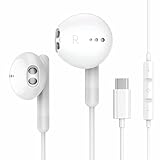
Do Google Earbuds Work with iPhone? Compatibility Explained
So, you’re an iPhone user, and you’ve been eyeing those sleek Google earbuds? Maybe it’s the promise of seamless audio, the integration with Google Assistant, or just a stylish design that’s caught your attention. But a crucial question lingers: do Google earbuds work with iPhone? The answer isn’t a simple yes or no, and understanding the nuances is key before you invest.
We’re going to break down the compatibility of various Google earbuds with your iPhone, explore the features you’ll get (and which you might miss out on), and provide some practical tips to ensure you get the best possible experience. Whether you’re considering the Pixel Buds A-Series, Pixel Buds Pro, or other Google-branded headphones, we’ll cover everything you need to know. Let’s get started!
Understanding Google Earbuds and iPhone Compatibility
The core functionality of Google earbuds, like any Bluetooth headphones, revolves around the Bluetooth protocol. iPhones also support Bluetooth, so at a fundamental level, Google earbuds are compatible with iPhones. You can connect them, listen to music, podcasts, and audiobooks, and even take calls.
However, the user experience isn’t always identical to using the earbuds with an Android phone or a device that’s deeply integrated with the Google ecosystem. Let’s dig deeper into the specifics:
Bluetooth Connection: The Foundation
The primary way Google earbuds connect to your iPhone is via Bluetooth. Here’s a step-by-step guide to connect your Google earbuds to your iPhone:
- Put your Google earbuds into pairing mode. This usually involves opening the charging case with the earbuds inside or pressing and holding a button on the earbuds or the case. Refer to the specific instructions for your model, as this varies.
- On your iPhone, go to Settings.
- Tap on Bluetooth.
- Make sure Bluetooth is turned on.
- Look for your Google earbuds in the list of available devices. They should appear as something like ‘Pixel Buds’ or ‘Google Pixel Buds Pro’.
- Tap on the name of your earbuds to connect.
- You might be prompted to accept a pairing request. Confirm the pairing.
- Once connected, you should see ‘Connected’ next to your earbuds’ name in the Bluetooth settings.
Once connected, you can start using your Google earbuds to listen to audio from any app on your iPhone. This includes music streaming services like Spotify and Apple Music, podcasts, audiobooks, and even video content.
Features That Work Seamlessly
Even when paired with an iPhone, you can expect a range of features to function without issues:
- Audio Playback: You can play, pause, skip tracks, and adjust the volume directly from your earbuds.
- Call Functionality: You can answer, end, and make calls using the built-in microphone and controls on the earbuds.
- Basic Touch Controls: Most models offer touch controls for music playback, call management, and sometimes volume adjustments.
- Battery Life: The battery life performance should be consistent with the manufacturer’s specifications, regardless of whether you’re using an Android phone or an iPhone. You’ll still see the battery status in your iPhone’s Bluetooth settings.
While the core functionality works, some features designed specifically for Android or Google’s ecosystem might have limitations or be entirely unavailable when used with an iPhone.
- Google Assistant: This is the most significant limitation. You won’t be able to access Google Assistant directly via your earbuds on an iPhone. The Assistant features, like voice commands, notifications, and real-time translation, are exclusive to Android devices.
- Fast Pair: Android’s Fast Pair feature, which simplifies the initial pairing process, won’t be available on your iPhone. You’ll need to manually pair the earbuds through the iPhone’s Bluetooth settings.
- Customization App: Google provides an app (Google Pixel Buds app) for Android devices that allows you to customize the earbuds’ settings, update firmware, and access advanced features. This app is not available on iOS. You’ll miss out on features like custom EQ settings and other advanced configurations.
- Seamless Switching: Google earbuds often offer seamless switching between devices within the Google ecosystem. This feature isn’t available on iOS.
- Spatial Audio: Some newer Pixel Buds models support spatial audio on Android devices. This feature will likely not work on iOS devices.
Specific Google Earbud Models and iPhone Compatibility
Let’s look at the compatibility of some popular Google earbud models with iPhones:
Pixel Buds a-Series
The Pixel Buds A-Series are a more affordable option, but they still deliver good sound quality and a comfortable fit. With an iPhone, you’ll get:
- Basic Bluetooth functionality: Music playback, calls, and basic touch controls.
- No Google Assistant integration.
- No access to the Pixel Buds app for customization.
Pixel Buds Pro
The Pixel Buds Pro offer active noise cancellation (ANC), a more premium sound experience, and advanced features. When paired with an iPhone:
- Basic Bluetooth functionality: Music playback, calls, and basic touch controls.
- Active Noise Cancellation (ANC) will function.
- Transparency mode will function.
- No Google Assistant integration.
- No access to the Pixel Buds app for customization.
Other Google Earbuds
The general principles outlined above apply to any Google earbuds you might consider. Always check the product specifications, but expect similar limitations in terms of Google Assistant and customization app availability.
Workarounds and Alternatives
While some features are limited, there are workarounds to still get a great experience. Also, consider alternatives if certain features are crucial to you.
Using Siri
Since you can’t access Google Assistant, you can use Siri, Apple’s virtual assistant. You can activate Siri by long-pressing the earbud’s touch control (if supported) or by using the ‘Hey Siri’ voice command if it’s enabled on your iPhone. Siri can handle many of the same tasks as Google Assistant, such as making calls, sending texts, setting reminders, and controlling music playback. However, it won’t have access to your Google Calendar or other Google services.
Third-Party Apps
Some third-party apps may offer limited integration with Google earbuds. For example, music streaming apps like Spotify might allow you to control playback using the earbuds’ touch controls.
Consider Apple Airpods
If you’re deeply invested in the Apple ecosystem, Apple AirPods might be a better choice. They offer seamless integration with iPhones, iPads, and Macs, including:
- Automatic pairing and device switching.
- Siri integration.
- Customization options within the iOS settings.
- Spatial audio (with compatible models).
However, AirPods are generally more expensive than Google earbuds, and you’re locked into the Apple ecosystem.
Explore Other Bluetooth Headphones
Other Bluetooth headphones from brands like Jabra, Sony, and Bose offer excellent compatibility with both iOS and Android devices. These often come with dedicated apps for customization and offer features like active noise cancellation.
Troubleshooting Common Issues
Here’s how to troubleshoot some common problems you might encounter:
- Connection Problems: If your earbuds won’t connect, make sure they are in pairing mode and that Bluetooth is enabled on your iPhone. Try forgetting the earbuds in your Bluetooth settings and re-pairing them. Restart both your iPhone and the earbuds.
- Sound Quality Issues: Ensure the earbuds are properly seated in your ears. Try adjusting the volume on both your iPhone and the earbuds. Make sure there is no dirt or debris blocking the speaker.
- Touch Control Issues: Check the earbud’s touch control settings in your iPhone’s Bluetooth settings (if available). The controls can sometimes be a bit sensitive, so experiment with the touch gestures to find the right amount of pressure.
- Battery Drain: Make sure your earbuds are fully charged before use. Close any unnecessary apps running in the background on your iPhone. Check the battery status of your earbuds in your iPhone’s Bluetooth settings.
Comparing Google Earbuds to Other Headphones
Here’s a table comparing Google Earbuds to other popular headphone options:
| Feature | Google Earbuds (with iPhone) | Apple AirPods | Other Bluetooth Headphones (e.g., Sony, Bose, Jabra) |
|---|---|---|---|
| Compatibility | Basic Bluetooth, limited Google features | Seamless with Apple devices | Excellent, often with dedicated apps |
| Google Assistant | Not available | Siri | Voice assistant varies |
| Customization | Limited | Extensive through iOS settings | Often has dedicated app for customization |
| Noise Cancellation | Varies by model | Varies by model | Varies by model |
| Price | Varies by model, generally affordable | Mid-range to expensive | Mid-range to expensive |
| Ecosystem Lock-in | None | High | Varies |
Making the Right Choice
Before purchasing Google earbuds for use with your iPhone, consider these points:
- Prioritize Features: What features are most important to you? If Google Assistant integration is a must-have, Google earbuds might not be the best choice.
- Consider the Price: Google earbuds are often more affordable than AirPods.
- Think About Sound Quality: Research the sound quality of the specific Google earbud model you’re interested in. Read reviews to understand its strengths and weaknesses.
- Read Reviews: Read reviews from other iPhone users to get a sense of their experience.
- Check Return Policies: Make sure you can return the earbuds if they don’t meet your expectations.
By carefully weighing these factors, you can make an informed decision and choose the best earbuds to suit your needs.
Verdict
Do Google earbuds work with iPhone? Yes, they do, offering essential functionality like music playback and call handling. However, the experience isn’t fully optimized. You’ll miss out on Google Assistant integration and the customization options available on Android.
If you’re an iPhone user, Google earbuds can still be a good choice, especially if you prioritize affordability and sound quality over seamless ecosystem integration. Just be aware of the limitations before you buy. Alternatively, consider exploring other Bluetooth headphones or Apple AirPods if you value full compatibility and exclusive features within the Apple ecosystem.
Ultimately, the best choice depends on your individual needs and preferences. Weigh the pros and cons, and choose the earbuds that best fit your lifestyle and listening habits.
Recommended Products