How to Connect Both Tozo Earbuds: A Simple Guide
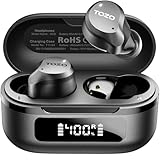
So, you’ve got yourself a shiny new pair of TOZO earbuds? Excellent choice! These little audio powerhouses pack a lot of punch for their price. However, the initial pairing process can sometimes be a bit… finicky. Don’t worry, though; it’s usually a straightforward process once you know the ropes. I’ve helped countless friends and family get their TOZO earbuds up and running, and I’m here to guide you through it too.
Whether you’re new to wireless earbuds or just switching to TOZO, the goal is the same: to get both earbuds connected to your device and enjoying your favorite music, podcasts, or calls. We’ll cover everything from the initial pairing to troubleshooting common issues. We’ll look at the different models and the most common solutions. This guide is designed to be easy to follow, even if you’re not a tech whiz. Let’s get started!
Understanding Tozo Earbuds: A Quick Overview
Before we jump into the connection process, let’s briefly touch upon what makes TOZO earbuds tick. They’re known for their affordability, decent sound quality, and ease of use. TOZO offers a wide range of models, from the budget-friendly T10 to more advanced options with features like active noise cancellation (ANC). Each model might have slightly different connection steps, but the core principles remain the same.
Key Features to Know
- Bluetooth Connectivity: All TOZO earbuds use Bluetooth to connect to your devices.
- Charging Case: The charging case is crucial for storing, charging, and sometimes resetting your earbuds.
- Touch Controls: Most TOZO earbuds have touch controls on the earbuds themselves for controlling music playback, answering calls, and adjusting volume.
Familiarizing yourself with these basics will help you understand the connection process better.
Preparation: What You’ll Need
Before you begin, gather the following:
- Your TOZO Earbuds: Obviously! Make sure they’re fully charged or have enough battery life.
- Your Device: This could be a smartphone, tablet, laptop, or any other device with Bluetooth capabilities.
- Your Charging Case: This is essential for pairing and resetting the earbuds.
- Patience: Sometimes, the connection process might take a couple of tries. Don’t get discouraged!
With these items ready, we can proceed to the connection steps.
Step-by-Step Guide: Connecting Your Tozo Earbuds
The connection process is generally the same across most TOZO models. However, there might be slight variations depending on the specific model you own. Always refer to your user manual if you encounter any difficulties, but the following steps should work for most situations.
Step 1: Charging and Powering On
First, ensure your earbuds are charged. Place them in their charging case and close the lid. The charging case usually has an indicator light that shows the charging status (e.g., solid red, blinking blue, etc.). Once the earbuds are fully charged, take them out of the case. They should automatically power on.
If they don’t power on automatically, some models have a button on the earbud that you can press and hold to manually turn them on. Refer to your specific model’s manual for details.
Step 2: Entering Pairing Mode
Once the earbuds are on, they should automatically enter pairing mode. This means they’re broadcasting a Bluetooth signal, ready to connect to your device. Some models have an LED indicator on the earbuds that will blink to show they are in pairing mode (e.g., alternating red and blue). If the earbuds don’t enter pairing mode automatically, you might need to manually initiate it. This often involves:
- Placing the earbuds back in the charging case and then taking them out again.
- Pressing and holding the touch controls on both earbuds simultaneously for a few seconds. Check your user manual for specifics.
Step 3: Bluetooth Connection on Your Device
Now, grab your device (smartphone, tablet, etc.) and go to its Bluetooth settings. The location of these settings varies depending on your device’s operating system:
- Android: Open Settings > Connections > Bluetooth (or similar).
- iOS (iPhone/iPad): Open Settings > Bluetooth.
- Windows: Open Settings > Devices > Bluetooth & other devices.
- macOS: Open System Preferences > Bluetooth.
Make sure Bluetooth is turned on. Your device will then start scanning for available Bluetooth devices. You should see your TOZO earbuds listed (e.g., “TOZO T10,” “TOZO NC9,” or similar). Tap on the name of your earbuds to initiate the pairing process. You might be prompted to confirm the pairing or enter a passcode (usually “0000” or “1234”).
Step 4: Confirming the Connection
Once paired, your device should show that the TOZO earbuds are connected. You should also see an indicator on your device showing the battery level of the earbuds. At this point, you should be able to hear audio through both earbuds. Test this by playing music or a video.
Step 5: Troubleshooting (if Only One Earbud Connects)
If only one earbud connects, don’t worry! This is a common issue, and there are several solutions:
- Place both earbuds back in the charging case and close the lid for a few seconds. Then, take them out again and try pairing again. This often resets the connection.
- Forget the TOZO earbuds from your device’s Bluetooth settings and then try pairing again from scratch.
- Reset the earbuds. This usually involves pressing and holding a button on the charging case or the earbuds themselves. Consult your user manual for the specific reset procedure for your model.
- Check for Interference: Make sure there are no other Bluetooth devices nearby that might be interfering with the connection.
Advanced Troubleshooting: Common Issues and Solutions
Even after following the basic steps, you might encounter some issues. Here’s a breakdown of common problems and how to fix them:
Issue 1: Only One Earbud Is Working
This is the most frequent issue. Here’s a more detailed look at how to fix it:
- Reset the Earbuds: This is usually the first thing to try. Put both earbuds back into the charging case, close the lid, wait for a few seconds, and then take them out again. This often forces them to re-pair with each other.
- Forget and Re-Pair: Go to your device’s Bluetooth settings, find your TOZO earbuds, and “forget” or “unpair” them. Then, go through the pairing process again from the beginning.
- Check for Independent Connection: Some earbuds can connect independently. Make sure neither earbud is accidentally connected to another device.
- Update Firmware: Some models allow firmware updates via an app. Check if an update is available for your earbuds.
Issue 2: Earbuds Won’t Connect to Your Device
If your earbuds won’t connect at all, try these solutions:
- Ensure Bluetooth is Enabled: Double-check that Bluetooth is turned on in your device’s settings.
- Check Battery Level: Make sure both the earbuds and the charging case have sufficient battery life.
- Restart Your Device: Sometimes, a simple restart of your phone or tablet can resolve Bluetooth connection issues.
- Clear Bluetooth Cache: On Android devices, you can try clearing the Bluetooth cache. Go to Settings > Apps > See all apps > Bluetooth > Storage & cache > Clear cache.
Issue 3: Sound Quality Issues (static, Dropouts)
Poor sound quality can be frustrating. Here’s how to improve it:
- Check Bluetooth Distance: Bluetooth has a limited range. Make sure you’re within the recommended distance of your device.
- Reduce Interference: Avoid areas with a lot of wireless devices, as they can interfere with the Bluetooth signal.
- Clean the Earbuds: Clean the earbud tips to ensure a good seal in your ears.
- Check the Audio Source: Ensure the audio source (e.g., music app, podcast app) is not the problem. Try playing audio from a different source.
Issue 4: Earbuds Won’t Charge
If your earbuds aren’t charging, consider these steps:
- Check the Charging Case: Make sure the charging case itself is charged.
- Inspect the Contacts: Ensure the charging contacts on both the earbuds and the charging case are clean and making proper contact. Use a dry cotton swab to gently clean them.
- Try a Different Cable: Use a different charging cable to rule out a faulty cable.
- Check the Power Source: Try plugging the charging case into a different power outlet or USB port.
Specific Model Considerations
While the general connection steps are similar across TOZO models, there might be slight variations. Here’s a quick look at some popular TOZO models and any specific considerations:
Tozo T10
The T10 is one of the most popular TOZO models. Its connection process is generally straightforward. Make sure to fully charge the earbuds and the case before pairing. If you encounter issues, try resetting the earbuds by putting them back in the case and taking them out again. Ensure that you select “TOZO T10” from your Bluetooth device list.
Tozo Nc9
The NC9 features active noise cancellation. The pairing process is similar to the T10. Pay attention to the LED indicators on the earbuds to confirm they are in pairing mode. If you experience connection problems, try forgetting the device in your Bluetooth settings, then re-pair it.
Tozo T6
The T6 offers a good balance of features and affordability. The connection process is similar to the T10. If you have trouble connecting, ensure both earbuds are fully charged, and try resetting them by placing them in the charging case and taking them out again. Check for firmware updates via the TOZO app (if applicable).
Tozo A1
The A1 model is often designed for ease of use. Ensure that you have removed both earbuds from the case. If the earbuds do not connect, try to reset them via the charging case. Also, check to make sure you have the correct device selected from your Bluetooth list.
Tozo T12
The T12 is another popular model. As with other models, make sure the earbuds and case are charged. If you only get audio from one earbud, or if the earbuds won’t connect, try resetting them by putting them back in the case and removing them. Check your device’s Bluetooth settings for any interference.
Tips for a Smooth Connection Experience
Here are some additional tips to help you connect your TOZO earbuds successfully and maintain a stable connection:
- Keep Your Device Close: During the pairing process, keep your device and the earbuds close to each other.
- Avoid Interference: Stay away from areas with a lot of wireless devices, such as Wi-Fi routers, microwaves, and other Bluetooth devices.
- Update Your Device’s Software: Make sure your smartphone or tablet has the latest software updates.
- Read the User Manual: Always refer to your TOZO earbuds’ user manual for specific instructions and troubleshooting tips.
- Charge Regularly: Keep your earbuds and charging case charged to prevent connection issues caused by low battery.
- Clean Your Earbuds: Regularly clean the earbud tips to ensure a good fit and optimal sound quality.
Pairing with Multiple Devices
TOZO earbuds typically can only be connected to one device at a time. However, you can easily switch between devices. To connect to a new device:
- Disconnect from the Current Device: Go to the Bluetooth settings on the device currently connected and disconnect or forget the TOZO earbuds.
- Pair with the New Device: Follow the same pairing steps as before on the new device (entering pairing mode, selecting the earbuds from the Bluetooth list).
Some advanced models might have features that allow for easier switching between devices, but this usually involves disconnecting from the current device first.
Troubleshooting Summary: A Quick Checklist
If you’re still having trouble, here’s a quick checklist to go through:
- Are the earbuds charged?
- Is Bluetooth enabled on your device?
- Are the earbuds in pairing mode? (blinking light or similar)
- Are you selecting the correct earbuds from the Bluetooth list?
- Have you tried resetting the earbuds (putting them back in the case)?
- Have you tried forgetting and re-pairing the earbuds?
- Are there any sources of interference nearby?
- Did you consult your user manual?
By systematically working through this checklist, you should be able to resolve most connection issues.
Maintaining Your Tozo Earbuds
Proper maintenance will help ensure your TOZO earbuds last longer and perform optimally:
- Cleaning: Regularly clean the earbuds with a soft, dry cloth. Avoid using water or harsh chemicals. Clean the charging case as well.
- Storage: When not in use, store the earbuds in their charging case.
- Charging: Avoid overcharging the earbuds. Once they’re fully charged, unplug them.
- Avoid Extreme Temperatures: Don’t expose the earbuds to extreme temperatures or humidity.
Following these simple steps will help you get the most out of your TOZO earbuds.
Verdict
Connecting your TOZO earbuds might seem daunting at first, but it’s usually a straightforward process. By following the steps outlined in this guide and troubleshooting common issues, you should be able to get both earbuds connected and enjoying your audio. Remember to be patient, refer to your user manual if needed, and don’t hesitate to try the suggested troubleshooting steps. With a little bit of effort, you’ll be enjoying your music, podcasts, and calls in no time.
If you’re still facing problems, consider reaching out to TOZO’s customer support. They can provide specific assistance based on your model and the issues you’re experiencing. With the right approach, you can easily enjoy the convenience and sound quality that TOZO earbuds offer.
Recommended Products