How to Charge My Beats Earbuds: A Complete Guide
So, you’ve got yourself a shiny new pair of Beats earbuds, and you’re ready to immerse yourself in your favorite tunes. But then, the dreaded low battery notification pops up! Don’t worry, it happens to the best of us. Charging your Beats earbuds is a straightforward process, but it’s helpful to know the specifics to ensure you get the most out of your listening experience and, more importantly, avoid those frustrating moments when your music cuts out mid-song.
This guide will walk you through everything you need to know about charging your Beats earbuds, from the initial setup to troubleshooting common issues. We’ll cover different models, charging methods, and tips to maximize your battery life. Let’s get started and keep those beats flowing!
Understanding Your Beats Earbud Model
Before we dive into charging, it’s crucial to know which Beats model you have. Different models have slightly different charging methods and battery life expectations. Knowing your model will help you troubleshoot any issues and understand the specific features available to you.
Identifying Your Beats Model
The easiest way to identify your Beats model is to check the packaging or the product itself. You’ll typically find the model name printed on the box, the charging case, or the earbuds themselves. Common models include:
- Beats Studio Buds: These are truly wireless earbuds with a compact charging case.
- Beats Fit Pro: Similar to the Studio Buds, but with secure-fit wingtips for workouts.
- Powerbeats Pro: Sport-focused earbuds with ear hooks for a secure fit.
- Beats Flex: Wireless earbuds with a neckband design.
- Beats Solo Pro: Over-ear headphones with a foldable design (though not earbuds, it’s good to know).
If you’re unsure, you can also check your device’s Bluetooth settings. Once your Beats earbuds are connected to your phone or tablet, the device name often includes the model (e.g., “Beats Studio Buds”).
Charging Methods: A Comprehensive Guide
The charging method for your Beats earbuds depends on the model. Generally, most true wireless Beats earbuds come with a charging case that doubles as a portable power bank. Neckband-style Beats, like the Beats Flex, typically charge directly via a USB cable.
Charging the True Wireless Beats (studio Buds, Fit Pro, Powerbeats Pro)
Here’s how to charge your true wireless Beats earbuds:
- Place the Earbuds in the Charging Case: Open the charging case and carefully insert your earbuds into their designated slots. Make sure they click into place; this ensures a proper connection for charging.
- Close the Case: Close the charging case lid. The earbuds will begin charging automatically when the case is closed and connected to a power source.
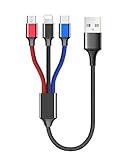
- Connect the Case to a Power Source: Use the provided charging cable (usually USB-C or Lightning, depending on the model) to connect the charging case to a power source. You can use a wall adapter, a computer’s USB port, or a portable power bank.
- Check the Charging Indicator: The charging case has an LED indicator that shows the charging status. The color and behavior of the LED vary slightly depending on the model, but here’s a general guide:
- Charging: The LED usually pulses or glows steadily.
- Fully Charged: The LED typically glows solid green or white.
- Low Battery: The LED might flash red or amber.
Charging the Beats Flex
The Beats Flex have a different charging method:
- Locate the Charging Port: The charging port is usually located on the neckband, often covered by a small flap.
- Connect the Charging Cable: Use a USB-C charging cable (usually included) to connect the Beats Flex to a power source (wall adapter, computer, etc.).
- Check the Charging Indicator: A small LED indicator on the neckband shows the charging status.
- Charging: The LED usually pulses or glows steadily.
- Fully Charged: The LED typically glows solid green or white.
- Low Battery: The LED might flash red or amber.
Charging the Beats Solo Pro (over-Ear Headphones)
While not earbuds, the Solo Pro charging process is important to know for users of these headphones:
- Locate the Charging Port: The charging port is located on the right earcup.
- Connect the Charging Cable: Use a Lightning cable to connect the Solo Pro to a power source.
- Check the Charging Indicator: The LED indicator is also located on the right earcup.
- Charging: The LED usually pulses or glows steadily.
- Fully Charged: The LED typically glows solid green or white.
- Low Battery: The LED might flash red or amber.
Understanding Battery Life and Charging Indicators
Knowing your Beats’ battery life and how to interpret the charging indicators is essential for a seamless listening experience. Let’s break down these aspects:
Battery Life Expectations
The battery life of your Beats earbuds varies depending on the model and usage. Here’s a general overview:
| Model | Typical Battery Life (Earbuds) | Typical Battery Life (with Case) |
|---|---|---|
| Beats Studio Buds | Up to 5 hours | Up to 15 hours |
| Beats Fit Pro | Up to 6 hours | Up to 24 hours |
| Powerbeats Pro | Up to 9 hours | Up to 24 hours |
| Beats Flex | Up to 12 hours | N/A (no case) |
| Beats Solo Pro | Up to 22 hours (with noise cancelling) / 40 hours (without) | N/A (no case) |
Note: These are typical figures. Actual battery life can vary based on factors like volume levels, active noise cancellation (if equipped), and the age of the battery.
Interpreting Charging Indicators
The charging indicators on your Beats earbuds and charging case provide valuable information about the battery status. Knowing what these indicators mean helps you anticipate when to charge and avoid unexpected power-offs.
- LED Colors:
- Green/White: Indicates the earbuds or case are fully charged.
- Amber/Yellow: Indicates a medium battery level.
- Red: Indicates a low battery level; charge soon!
- Flashing: Often indicates charging in progress or a potential issue (see troubleshooting).
- Charging Case Indicators: The charging case LED usually shows the case’s battery status when the lid is open or when the earbuds are placed inside. Some cases also have a separate LED that indicates the status of the earbuds themselves.
- Earbud Indicators (if applicable): Some models have LEDs on the earbuds that show their individual charging status.
- Device Notifications: Your connected device (phone, tablet, etc.) will often display the battery level of your Beats earbuds in the Bluetooth settings or in a pop-up notification.
Maximizing Your Beats Earbuds’ Battery Life
Want to get the most out of each charge? Here are some tips to extend the battery life of your Beats earbuds:
- Adjust Volume Levels: Higher volumes drain the battery faster. Try listening at a moderate volume level.
- Use Active Noise Cancellation (ANC) Wisely: ANC is a battery-intensive feature. Use it only when needed. If you’re in a quiet environment, consider turning it off to conserve power.
- Turn Off Transparency Mode: Similar to ANC, Transparency mode also uses power. Disable it when you don’t need to hear your surroundings.
- Store Earbuds Properly: When not in use, store your earbuds in the charging case. This prevents them from draining the battery unnecessarily.
- Avoid Extreme Temperatures: Extreme heat or cold can negatively impact battery performance. Avoid leaving your earbuds in direct sunlight or freezing conditions.
- Update Firmware: Keep your earbuds’ firmware updated. Updates often include battery optimization improvements. Check for updates through the Beats app or your device’s settings.
- Charge Regularly: Don’t wait until the battery is completely depleted before charging. Charging more frequently can help maintain battery health over time.
- Clean the Charging Contacts: Occasionally, clean the charging contacts on the earbuds and the charging case with a soft, dry cloth. This ensures a good connection and efficient charging.
Troubleshooting Common Charging Issues
Sometimes, you might encounter issues when charging your Beats earbuds. Here’s how to troubleshoot common problems:
Earbuds Not Charging in the Case
- Check the Connection: Ensure the earbuds are properly seated in the charging case and that the case lid is closed securely.
- Clean the Charging Contacts: Use a soft, dry cloth to clean the charging contacts on the earbuds and the case.
- Check the Case’s Battery: Make sure the charging case itself has sufficient battery power.
- Try a Different Cable and Adapter: The charging cable or wall adapter might be faulty. Try using a different cable and adapter to see if that resolves the issue.
- Reset Your Beats: Resetting your Beats earbuds can sometimes fix charging problems. The reset process varies depending on the model; refer to the Beats support documentation for instructions.
- Contact Support: If none of these steps work, your earbuds or charging case may have a hardware issue. Contact Apple Support or your local authorized service provider for assistance.
Charging Case Not Charging
- Check the Power Source: Ensure the wall outlet is working and that the charging cable is properly connected to both the case and the power source.
- Try a Different Cable and Adapter: The charging cable or wall adapter might be faulty. Try using a different cable and adapter.
- Inspect the Charging Port: Check the charging port on the case for any debris or damage.
- Reset Your Beats: Resetting your Beats earbuds can sometimes fix charging problems.
- Contact Support: If the charging case still won’t charge, it may have a hardware issue. Contact Apple Support.
Earbuds Not Pairing After Charging
- Ensure Bluetooth is Enabled: Make sure Bluetooth is enabled on your device.
- Place Earbuds in Pairing Mode: Refer to your Beats model’s instructions on how to enter pairing mode (usually by holding a button on the case or earbuds).
- Forget and Re-pair: On your device, forget the Beats earbuds in the Bluetooth settings and then try pairing them again.
- Restart Your Device: Restarting your phone or tablet can sometimes resolve pairing issues.
- Update Firmware: Ensure your device’s operating system and the Beats firmware are up to date.
- Contact Support: If pairing problems persist, contact Apple Support.
Safety Precautions and Best Practices
To ensure your safety and prolong the life of your Beats earbuds, follow these precautions and best practices:
- Use the Correct Charging Equipment: Always use the charging cable and adapter that came with your Beats earbuds. Using incompatible equipment can damage the battery or the earbuds.
- Avoid Overcharging: While modern batteries are designed to prevent overcharging, it’s still best to avoid leaving your earbuds plugged in for extended periods after they’re fully charged.
- Protect from Moisture: Keep your Beats earbuds and charging case away from moisture. Water damage can ruin the electronics.
- Do Not Disassemble: Never attempt to disassemble or repair your Beats earbuds or charging case yourself. This can void the warranty and pose a safety risk.
- Dispose of Batteries Properly: When it’s time to dispose of your Beats earbuds, follow local regulations for battery disposal. Do not throw them in the regular trash.
- Monitor for Unusual Behavior: If you notice any unusual behavior, such as excessive heat, swelling, or unusual smells, discontinue use immediately and contact Apple Support.
Conclusion
Charging your Beats earbuds is a fundamental part of enjoying your music on the go. By understanding the different charging methods, battery life expectations, and troubleshooting tips, you can keep your earbuds powered up and ready to go. Remember to check your model’s specific instructions, follow the safety precautions, and take care of your earbuds to maximize their lifespan and your listening enjoyment.
With the information in this guide, you’re well-equipped to keep your Beats earbuds charged and your tunes playing. Enjoy your music!
Recommended Products