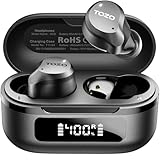
How to Answer Phone with Tozo Earbuds: A Complete Guide
Hey there! Ever found yourself in a situation where you need to take a call but your hands are full? Or maybe you just prefer the convenience of hands-free communication? If you’re a proud owner of TOZO earbuds, you’re in luck! Taking calls with these sleek little devices is a breeze, but sometimes the controls can seem a bit cryptic at first.
Don’t worry, I’m here to walk you through everything you need to know about answering calls, rejecting calls, and adjusting your audio settings when using your TOZO earbuds. We’ll cover different models, common troubleshooting tips, and even some advanced techniques to get the most out of your listening experience. So, grab your earbuds, and let’s get started!
This guide will make you a TOZO earbud calling pro in no time, ensuring you never miss an important conversation again.
Understanding Your Tozo Earbuds
Before we jump into answering calls, let’s get acquainted with your TOZO earbuds. Different TOZO models have slightly different controls, but the core functionality remains the same. Most TOZO earbuds use a combination of touch controls or physical buttons to manage calls, music playback, and voice assistants. Familiarizing yourself with these controls is the first step to seamless phone calls.
Identifying Your Earbud Model
TOZO offers a wide range of earbuds, each with its own unique features and design. Knowing your specific model is helpful, as the controls might vary slightly. You can usually find the model number printed on the charging case or the earbuds themselves. Here’s a quick overview of some popular TOZO models and their typical control schemes:
- TOZO T10: A popular budget-friendly option, often featuring touch controls.
- TOZO T6: Known for their comfortable fit and touch controls.
- TOZO NC9: Features active noise cancellation and touch controls.
- TOZO T12: Another model with touch controls and a focus on sound quality.
If you’re unsure of your model, check the packaging or the user manual that came with your earbuds. You can also search online for your specific model to find detailed information about its features and controls.
Common Controls for Answering Calls
While the exact controls may differ slightly between models, here are the most common ways to answer a phone call using TOZO earbuds:
- Single Tap: In many TOZO models, a single tap on either the left or right earbud will answer an incoming call. This is often the default setting.
- Double Tap: Some models might use a double-tap on either earbud to answer a call.
- Long Press: Occasionally, a long press (holding your finger on the touch control for a second or two) is used to answer or reject a call.
- Physical Button (if applicable): Some older or more basic models might have physical buttons. Pressing the button on either earbud usually answers the call.
Important Note: The specific controls for your earbuds are detailed in the user manual. Refer to the manual for accurate information.
How to Answer a Phone Call with Tozo Earbuds
Now, let’s get down to the nitty-gritty of answering calls. Here’s a step-by-step guide to help you answer a phone call with your TOZO earbuds:
- Pair Your Earbuds: Ensure your TOZO earbuds are properly paired with your smartphone. Go to your phone’s Bluetooth settings and select your TOZO earbuds from the list of available devices. Make sure Bluetooth is turned on.
- Receive a Call: When you receive an incoming call, you’ll hear the ringtone through your TOZO earbuds. Your phone screen will also display the caller’s information.
- Locate the Answer Control: Identify the correct control to answer the call based on your earbud model. This is usually a single tap, double tap, or a long press on either the left or right earbud. Refer to your user manual if you’re unsure.
- Tap/Press the Control: Once you’ve identified the correct control, tap or press the corresponding earbud to answer the call. You should immediately hear the caller’s voice in your earbuds.
- Start Talking: Speak into the microphone on your TOZO earbuds. The microphone is usually located near the bottom of the earbud stem (if your model has stems) or on the body of the earbud.
- Adjust Volume (if needed): Use the volume controls on your earbuds or your phone to adjust the call volume to your preferred level.
Troubleshooting Answering Issues
Sometimes, things don’t go as planned. Here are some common issues and how to resolve them:
- Earbuds Not Paired: Double-check that your earbuds are paired with your phone. If not, go to your phone’s Bluetooth settings and reconnect.
- Controls Not Working: Ensure you’re tapping or pressing the correct earbud and control (single tap, double tap, etc.). If the controls still aren’t working, try resetting your earbuds (see instructions below).
- No Sound: Make sure the volume on both your earbuds and your phone is turned up. Also, check that the earbuds are properly inserted in your ears.
- Microphone Issues: If the caller can’t hear you, make sure the microphone isn’t blocked. Try speaking directly into the microphone.
- Call Not Routing to Earbuds: Go to your phone’s settings and make sure the audio output is set to your TOZO earbuds.
Rejecting a Phone Call with Tozo Earbuds
Sometimes, you might not be able to take a call. Here’s how you can reject an incoming call with your TOZO earbuds:
- Identify the Reject Control: The control for rejecting a call is usually a long press (holding your finger on the touch control for a second or two) on either the left or right earbud. Some models might use a double-tap. Again, check your user manual for the exact instructions.
- Long Press/Double Tap the Control: When you receive an incoming call, long press or double tap the designated earbud to reject the call. The call will be sent to voicemail (if you have voicemail set up) or the caller will hear a busy signal.
Ending a Phone Call with Tozo Earbuds
Ending a call is just as easy as answering it. Here’s how to end a call using your TOZO earbuds:
- Locate the End Call Control: The end call control is typically the same as the answer call control, usually a single tap on either earbud.
- Tap the Earbud: During a call, tap the designated earbud to end the call. The call will disconnect, and you’ll return to your phone’s home screen or the app you were using.
Advanced Features and Tips
Once you’ve mastered the basics, you can explore some advanced features to enhance your calling experience:
Using Voice Assistants
Many TOZO earbuds support voice assistants like Siri or Google Assistant. This allows you to control your phone with voice commands, even during calls. Here’s how to use voice assistants:
- Activate the Voice Assistant: Usually, you activate the voice assistant by a long press on either earbud. Check your user manual for the specific activation method.
- Give Commands: Once the voice assistant is activated, you can give commands like “Call Mom,” “What’s the weather?”, or “Set a timer.”
Adjusting Volume
Controlling the volume is essential for a comfortable listening experience. Here’s how to adjust the volume using your TOZO earbuds:
- Touch Controls: Many TOZO models use touch controls for volume adjustment. Typically, a single tap on the left earbud lowers the volume, while a single tap on the right earbud increases the volume.
- Phone Controls: You can also use the volume buttons on your phone to adjust the volume.
Managing Call Audio
You can manage the audio during a call by switching between your earbuds and your phone’s speaker. Here’s how:
- During a Call: While on a call, you can usually switch the audio output from your earbuds to your phone’s speaker or vice versa through the phone’s call interface.
- Settings: You can also adjust the call audio settings in your phone’s settings menu.
Resetting Your Tozo Earbuds
If you’re experiencing issues with your TOZO earbuds, such as unresponsive controls or pairing problems, resetting them can often resolve the issue. Here’s how to reset your TOZO earbuds:
- Place Earbuds in the Charging Case: Put both earbuds into their charging case.
- Press and Hold the Reset Button: Locate the reset button on the charging case. It’s usually a small button on the back or bottom of the case. Press and hold this button for about 10 seconds, or until the LED lights on the case flash.
- Reconnect: After resetting, remove the earbuds from the case and try pairing them with your phone again. The earbuds should now be restored to their factory settings.
Important Note: The exact reset procedure may vary depending on your TOZO earbud model. Refer to your user manual for specific instructions.
Maximizing Sound Quality During Calls
The sound quality of your calls is crucial for clear communication. Here are some tips to maximize the sound quality of your TOZO earbuds during calls:
- Proper Fit: Ensure the earbuds fit snugly in your ears. A good fit helps block out external noise and improves sound transmission. Try different ear tips to find the best fit.
- Microphone Placement: Make sure the microphone on your earbuds is not blocked by clothing or other objects. Speak directly towards the microphone.
- Reduce Background Noise: Find a quiet environment when making or receiving calls to minimize background noise interference.
- Bluetooth Interference: Avoid areas with potential Bluetooth interference, such as areas with many Wi-Fi routers or other Bluetooth devices.
- Update Firmware: Keep your earbuds’ firmware updated. Manufacturers often release updates to improve sound quality and fix bugs. Check the TOZO app (if available for your model) for firmware updates.
Comparing Tozo Earbud Models for Calling
Here’s a comparison table highlighting some key features to consider when choosing TOZO earbuds for calling:
| Feature | TOZO T10 | TOZO T6 | TOZO NC9 | TOZO T12 |
|---|---|---|---|---|
| Noise Cancellation | No | No | Yes (Active Noise Cancellation) | No |
| Microphone Quality | Good | Good | Excellent | Good |
| Touch Controls | Yes | Yes | Yes | Yes |
| Water Resistance | IPX8 | IPX7 | IPX5 | IPX8 |
| Battery Life (Earbuds/Case) | 6 hours/30 hours | 6 hours/30 hours | 8 hours/24 hours | 8 hours/32 hours |
| Voice Assistant Support | Yes | Yes | Yes | Yes |
This table is a general guide. Always check the specific specifications for your chosen model.
Frequently Asked Questions (faq)
Here are some frequently asked questions about using TOZO earbuds for phone calls:
- Can I use my TOZO earbuds with any phone? Yes, TOZO earbuds are compatible with any smartphone that supports Bluetooth, including iPhones and Android phones.
- How do I adjust the volume during a call? You can adjust the volume using the touch controls on your earbuds or the volume buttons on your phone.
- How do I mute the microphone during a call? Most TOZO earbuds do not have a dedicated mute function. You would need to mute the call from your phone’s interface.
- What if the caller can’t hear me? Make sure the microphone is not blocked and that you’re speaking directly into the microphone. Check the volume on both your earbuds and your phone.
- Can I use TOZO earbuds for video calls? Yes, you can use TOZO earbuds for video calls on platforms like Zoom, Google Meet, and Skype.
- How do I know when my earbuds are fully charged? The charging case usually has LED lights that indicate the charging status. Refer to your user manual for the specific indicators for your model.
- What do I do if my earbuds aren’t pairing? Make sure Bluetooth is enabled on your phone and the earbuds are in pairing mode (usually by placing them in the charging case and removing them again). Try resetting the earbuds if necessary.
Conclusion
So there you have it! Answering phone calls with your TOZO earbuds is a straightforward process, and with a little practice, you’ll be a pro in no time. Remember to familiarize yourself with the controls specific to your model, and don’t hesitate to consult your user manual if you have any questions. Enjoy the convenience and freedom of hands-free calling!
By following these steps and troubleshooting tips, you can ensure a smooth and enjoyable calling experience with your TOZO earbuds. Whether you’re at home, at work, or on the go, these earbuds are designed to keep you connected. Happy calling!
Recommended Products