How to Adjust the Volume of Earbuds: A Complete Guide
Ever found yourself fumbling with your phone or device while trying to quickly adjust the volume of your earbuds? It’s a common frustration, isn’t it? Whether you’re listening to your favorite podcast on the train, taking a crucial work call, or enjoying some music during a workout, getting the audio just right is essential for a good experience. But with so many different types of earbuds and devices out there, the methods to control the volume can seem a bit confusing.
Don’t worry, you’re not alone! This comprehensive guide will walk you through everything you need to know about how to adjust the volume of your earbuds, from the simplest methods to more advanced techniques. We’ll cover everything from the basic controls found on most earbuds to the settings you can tweak on your phone, tablet, or computer. By the end, you’ll be a volume-adjusting pro, able to fine-tune your audio experience with ease and confidence.
So, let’s get started and make sure you’re always hearing things the way you want to!
Understanding Earbud Volume Controls
Before we jump into the specifics, it’s helpful to understand the different ways you can control the volume of your earbuds. This knowledge will help you troubleshoot any issues and ensure you’re getting the best possible audio experience.
The Basics: Physical Controls
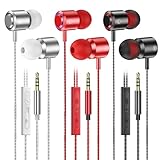
Many earbuds, especially those with a cable, come with built-in physical controls. These are usually located on the cable itself or on the earbud housing. These controls typically include:
- Volume Up Button: Increases the volume.
- Volume Down Button: Decreases the volume.
- Multi-Function Button: Often used for play/pause, answering calls, and sometimes for skipping tracks.
How to Use Physical Controls:
- Locate the buttons. They might be small and require a bit of practice to find by feel.
- Press the volume up button to increase the volume.
- Press the volume down button to decrease the volume.
- Test the volume to ensure it’s at a comfortable level.
Pros:
- Simple and direct.
- No need to unlock your phone or device.
- Works even if your device’s screen is off.
Cons:
- Can be difficult to find the buttons quickly.
- May not be available on all earbud models.
- Button functionality may vary.
Touch Controls
Many modern earbuds, particularly wireless models, feature touch controls. These controls are usually located on the outside of the earbud housing. Instead of physical buttons, you interact with the earbuds by tapping or swiping.
Common Touch Control Gestures:
- Single Tap: Often used for play/pause or answering calls.
- Double Tap: Frequently used for skipping tracks (next song) or answering/ending calls.
- Triple Tap: Often used for skipping back a track (previous song).
- Tap and Hold: May be used for activating voice assistants, adjusting volume, or rejecting calls.
- Swiping (Horizontal): Some earbuds allow you to swipe to control the volume. This is less common but can be very convenient.
How to Use Touch Controls:
- Identify the touch-sensitive area. This is usually a flat area on the earbud housing.
- Learn the gestures. Consult the earbud’s manual or the manufacturer’s website to understand the specific gestures for volume control.
- Practice the gestures. It may take a few tries to get the hang of it.
- Test the volume to ensure it’s at a comfortable level.
Pros:
- Sleek and modern design.
- Often customizable through the earbud’s companion app.
- Can offer more functionality than physical buttons.
Cons:
- Can be prone to accidental touches.
- Requires learning the specific gestures.
- May not work as reliably in cold or wet conditions.
Volume Controls on Your Device
Your phone, tablet, computer, or other device is the primary source of volume control for your earbuds. This is usually the easiest way to make large adjustments to the volume.
Volume Controls on Smartphones and Tablets:
- Physical Volume Buttons: Most smartphones and tablets have physical volume buttons on the side. Pressing these buttons will adjust the overall volume level.
- On-Screen Volume Slider: You can usually access an on-screen volume slider by swiping down from the top of the screen (Android) or swiping up from the bottom (iPhone/iPad). You can then drag the slider to adjust the volume.
- Control Center/Quick Settings: Both Android and iOS devices have a Control Center or Quick Settings panel where you can quickly adjust the volume.
- Within Apps: Some apps, like music streaming services or video players, also have their own volume controls.
Volume Controls on Computers:
- System Tray/Menu Bar: Most operating systems have a volume icon in the system tray (Windows) or menu bar (macOS). Clicking on this icon will allow you to adjust the volume.
- Keyboard Shortcuts: Many keyboards have dedicated volume up, volume down, and mute keys.
- Within Apps: Similar to mobile devices, applications on your computer often have their own volume controls.
How to Use Device Volume Controls:
- Locate the volume controls on your device.
- Use the physical buttons, on-screen slider, or system tray icon to adjust the volume.
- Test the volume with your earbuds to ensure it’s at a comfortable level.
Pros:
- Convenient and easy to use.
- Offers a wide range of volume adjustments.
- Works consistently across all apps and media.
Cons:
- Requires you to unlock your device or navigate to the volume controls.
- May not be as quick as physical controls.
Bluetooth Earbuds: Pairing and Volume Considerations
Bluetooth earbuds introduce a few additional considerations when it comes to volume control. Understanding these nuances can help you troubleshoot any issues and optimize your audio experience.
Pairing Your Bluetooth Earbuds:
- Enable Bluetooth on your device (phone, tablet, computer).
- Put your earbuds into pairing mode. This usually involves pressing and holding a button on the earbuds or opening the charging case. Refer to your earbud’s manual for specific instructions.
- Select your earbuds from the list of available devices on your device.
- Confirm the pairing if prompted.
Volume Synchronization:
Most Bluetooth earbuds synchronize their volume with your device’s volume. This means that when you adjust the volume on your device, the volume of the earbuds also changes, and vice versa. However, there are some exceptions:
- Independent Volume Control: Some earbuds may have their own internal volume control that is independent of your device’s volume. In this case, you may need to adjust the volume on both the earbuds and your device to achieve the desired level.
- Volume Limits: Some devices or apps may have volume limits in place to protect your hearing. This can prevent you from increasing the volume beyond a certain level.
Troubleshooting Bluetooth Volume Issues:
- Check the volume on both your device and your earbuds. Make sure neither is muted or set to a very low level.
- Unpair and repair your earbuds. This can often resolve connectivity or volume synchronization issues.
- Update your device’s Bluetooth drivers. Outdated drivers can sometimes cause problems with Bluetooth devices.
- Check for firmware updates for your earbuds. The manufacturer may have released updates that address volume or other issues.
- Try a different device. If the problem persists, try connecting your earbuds to a different device to see if the issue is with the earbuds or your original device.
Specific Device and App Considerations
Different devices and apps may have their own unique volume settings or behaviors. Here’s a look at some common scenarios:
iOS Devices (iPhone, iPad):
- Headphone Safety: iOS has a headphone safety feature that can limit the maximum volume to protect your hearing. You can adjust this setting in the Settings app under Sounds & Haptics > Headphone Safety.
- Volume Limit in Apps: Some apps, like YouTube Music, may have their own volume limits or equalization settings that can affect the overall volume.
Android Devices:
- Separate Media Volume: Android separates the media volume from the ringer volume and other system sounds. Make sure you’re adjusting the media volume when listening to music or videos.
- Equalizer Settings: Many Android devices have built-in equalizer settings that allow you to customize the sound output. These settings can affect the perceived volume.
Windows Computers:
- Sound Mixer: The Windows Sound Mixer allows you to adjust the volume of individual applications. You can access this by right-clicking on the volume icon in the system tray and selecting “Open Volume Mixer.”
- Enhancements Tab: In the Sound settings, you can go to the “Enhancements” tab for your playback device and adjust settings like loudness equalization.
macOS Computers:
- Sound Preferences: In the System Preferences, you can adjust the output volume and balance.
- Audio MIDI Setup: The Audio MIDI Setup utility allows you to configure audio devices, including setting the output volume.
Music Streaming Apps:
- Volume Normalization: Many music streaming apps, like Spotify and Apple Music, offer volume normalization features. This automatically adjusts the volume of tracks to a consistent level.
- Equalizer Settings: Most music streaming apps have equalizer settings that allow you to customize the sound output. These settings can affect the perceived volume.
Video Streaming Apps:
- Volume Control within the Player: Video streaming apps, like Netflix and YouTube, typically have their own volume controls within the video player.
- Volume Levels Vary: The volume levels of different videos can vary. You may need to adjust the volume on your device or within the app to compensate.
Troubleshooting Common Volume Issues
If you’re experiencing problems with your earbud volume, here are some troubleshooting steps to try:
- Check the obvious: Make sure your earbuds are turned on, connected to your device, and not muted.
- Adjust the volume on both your earbuds and your device. Sometimes, the volume on one device might be set too low, even if the other is set high.
- Clean your earbuds. Earwax and debris can block the sound output, making it seem like the volume is too low. Gently clean the earbud tips with a soft, dry cloth.
- Restart your device and your earbuds. This can often resolve temporary software glitches.
- Check for interference. Wireless interference from other devices can sometimes affect the volume. Try moving away from other electronic devices.
- Update your device’s software and your earbud’s firmware. Outdated software or firmware can sometimes cause volume issues.
- Test with different audio sources. Try playing music, videos, and making calls to see if the problem is specific to a particular audio source.
- Try different earbuds. If possible, test your device with a different pair of earbuds to see if the problem is with your earbuds or your device.
- Contact the manufacturer. If you’ve tried all the troubleshooting steps and the problem persists, contact the manufacturer of your earbuds for assistance.
Maximizing Your Earbud Listening Experience
Beyond simply adjusting the volume, there are a few other things you can do to optimize your earbud listening experience.
Choosing the Right Earbud Tips:
The earbud tips play a crucial role in sound quality and volume. Ensure you’re using the correct size and type of tips for your ears. A good fit will:
- Provide a better seal: This will improve bass response and reduce sound leakage.
- Enhance noise isolation: This will help you hear your audio more clearly in noisy environments.
- Improve comfort: Properly fitting tips will be more comfortable to wear for extended periods.
Experimenting with Equalizer Settings:
Most devices and apps offer equalizer settings that allow you to customize the sound output. Experimenting with these settings can help you fine-tune the audio to your liking. For example:
- Boosting the bass: Can make the audio sound fuller and richer.
- Reducing the treble: Can make the audio sound less harsh.
- Creating a custom profile: Can tailor the sound to your specific preferences.
Considering Environmental Noise:
Be mindful of your surroundings. If you’re in a noisy environment, you may need to increase the volume to hear your audio clearly. However, be careful not to increase the volume too much, as this can damage your hearing. Consider using noise-canceling earbuds to reduce the need for high volumes. Also, it’s wise to be aware of your surroundings, especially when walking, cycling, or driving.
Taking Breaks:
Give your ears a break. Prolonged exposure to loud volumes can damage your hearing. Take breaks from listening to audio, especially at high volumes, to give your ears a chance to recover. Follow the 60/60 rule: listen at 60% of the maximum volume for no more than 60 minutes at a time.
Protecting Your Hearing:
Protecting your hearing is paramount. The following are important considerations:
- Avoid excessively high volumes.
- Use noise-canceling earbuds to reduce the need to increase the volume.
- Be aware of your surroundings.
- Get regular hearing checkups.
Advanced Techniques: Customizing Your Audio
For those who want to take their audio experience to the next level, here are some advanced techniques:
Using Audio Enhancement Apps:
There are many audio enhancement apps available that can further customize your listening experience. These apps often offer features such as:
- Virtual surround sound: To create a more immersive soundstage.
- Bass boost: To enhance the low frequencies.
- Customizable EQ profiles: To fine-tune the sound to your liking.
Calibrating Your Earbuds:
Some high-end earbuds offer calibration features that can personalize the sound based on your ear shape and hearing profile. This can lead to a more accurate and enjoyable listening experience.
Exploring Advanced Settings:
Many devices and apps have advanced settings that can affect the audio output. These settings may include:
- Mono audio: To combine the left and right audio channels.
- Balance adjustments: To adjust the sound balance between the left and right channels.
- Crossfade settings: To smoothly transition between tracks.
Conclusion
Adjusting the volume of your earbuds is a simple but important skill that can significantly enhance your listening experience. By understanding the different volume control methods, troubleshooting common issues, and following some best practices, you can ensure that you’re always enjoying your audio at a comfortable and safe level.
From the physical controls on wired earbuds to the touch controls on wireless models and the volume settings on your devices, there are plenty of ways to fine-tune your audio. Remember to consider your environment, the type of audio you’re listening to, and your personal preferences when adjusting the volume. Protecting your hearing is crucial, so always be mindful of the volume levels you’re using. With a little practice and attention, you’ll be able to easily adjust the volume of your earbuds and enjoy your favorite music, podcasts, and calls to the fullest.
Recommended Products