How to Add Earbuds to iPad: A Simple Guide
Hey there! Have you ever wanted to enjoy your favorite tunes, podcasts, or audiobooks on your iPad without disturbing anyone around you? Or maybe you’re gearing up for a video call and need clear audio? That’s where earbuds come in handy. Adding earbuds to your iPad is a straightforward process, but if you’re new to the world of Bluetooth or just need a refresher, this guide is for you.
We’ll walk you through the various methods of connecting earbuds to your iPad, from the classic wired options to the wireless wonders that use Bluetooth. Whether you’re using a brand-new iPad or an older model, we’ll cover the steps you need to take. We’ll also troubleshoot common issues, so you can quickly get back to enjoying your audio. Let’s get started and make sure you’re set up for crystal-clear sound!
Understanding Your Ipad’s Audio Capabilities
Before we jump into the connection process, let’s get familiar with your iPad’s audio capabilities. iPads, like most modern devices, offer a few ways to connect audio accessories. The method you use will depend on your iPad model and the type of earbuds you have.
Wired vs. Wireless: A Quick Overview
- Wired Earbuds: These are the traditional earbuds that connect directly to your iPad via a physical cable. They’re simple to use and don’t require charging.
- Wireless Earbuds: These earbuds connect to your iPad using Bluetooth technology. They offer greater freedom of movement and often include features like noise cancellation.
Knowing the difference is key to a smooth setup.
iPad Compatibility: A Quick Look
Most iPads support both wired and wireless earbuds. However, the connection port for wired earbuds can vary depending on your iPad model.
- iPads with a Headphone Jack: Older iPad models (and some newer ones) have a standard 3.5mm headphone jack. You can plug in any wired earbuds with a 3.5mm connector.
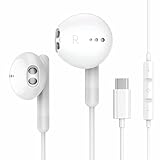
- iPads with a Lightning Port or USB-C Port: Newer iPad models have either a Lightning port or a USB-C port. If your wired earbuds have a Lightning connector or USB-C connector, you can plug them directly into your iPad. If your wired earbuds have a 3.5mm connector, you’ll need an adapter.
Always check your iPad model to determine the correct port type.
Connecting Wired Earbuds to Your iPad
Connecting wired earbuds is usually the easiest and most straightforward process. Here’s how to do it:
For Ipads with a Headphone Jack
- Locate the Headphone Jack: The headphone jack is a small, circular port located on the top or bottom edge of your iPad.
- Plug in Your Earbuds: Insert the 3.5mm plug of your earbuds into the headphone jack. You should feel a slight click as the plug goes in.
- Test the Connection: Play some audio on your iPad. If you hear sound through your earbuds, the connection is successful.
For Ipads with a Lightning or USB-C Port
If your iPad uses a Lightning or USB-C port, the process is slightly different:
- Determine Your Earbud Connector: Check the connector on your wired earbuds. If it’s Lightning or USB-C, you can plug them directly into your iPad.
- Plug in Your Earbuds: Insert the Lightning or USB-C connector of your earbuds into the corresponding port on your iPad.
- If Using 3.5mm Earbuds, Use an Adapter: If your earbuds have a 3.5mm connector, you’ll need an adapter. Connect the adapter to your iPad’s Lightning or USB-C port, and then plug your earbuds into the adapter.
- Test the Connection: Play some audio to confirm the connection is working.
Important Note: If you’re using an adapter, make sure it’s compatible with your iPad model. Apple sells official adapters, but there are also third-party options available.
Connecting Wireless (bluetooth) Earbuds to Your iPad
Connecting Bluetooth earbuds involves a few extra steps, but the freedom from wires is worth it. Here’s how to connect your Bluetooth earbuds:
Step-by-Step Guide
- Put Your Earbuds in Pairing Mode: Each pair of earbuds has a different way to enter pairing mode. Usually, you’ll need to press and hold a button on the earbuds or their charging case. Consult your earbuds’ manual for specific instructions. Often, a small light on the earbuds or the case will flash to indicate pairing mode.
- Go to Settings on Your iPad: Open the Settings app on your iPad.
- Tap Bluetooth: In the Settings menu, tap on “Bluetooth.”
- Turn on Bluetooth: If Bluetooth is off, toggle the switch to turn it on. Your iPad will start searching for nearby Bluetooth devices.
- Select Your Earbuds: Your earbuds should appear in the list of available devices. Tap on the name of your earbuds to connect.
- Pair Your Earbuds (If Necessary): Some earbuds may require you to confirm the pairing by tapping “Pair” on your iPad’s screen.
- Test the Connection: Play some audio on your iPad to ensure the connection is successful.
Troubleshooting Bluetooth Connection Issues
Sometimes, you might encounter issues when connecting Bluetooth earbuds. Here are some common problems and their solutions:
- Earbuds Not Appearing in the List:
- Make sure your earbuds are in pairing mode.
- Ensure your earbuds are charged.
- Move your earbuds closer to your iPad.
- Turn Bluetooth off and on again on your iPad.
- Restart both your iPad and your earbuds.
- Connection Keeps Dropping:
- Move closer to your iPad. Bluetooth has a limited range.
- Minimize interference from other devices that use Bluetooth or Wi-Fi.
- Make sure your earbuds are fully charged.
- Forget the device in your iPad’s Bluetooth settings and re-pair the earbuds.
- Poor Sound Quality:
- Make sure your earbuds are clean (no debris blocking the speakers).
- Check the volume on both your iPad and your earbuds.
- Try disconnecting and reconnecting the earbuds.
Advanced Features and Settings
Once your earbuds are connected, you can explore some advanced features and settings.
Customizing Sound Settings
Your iPad offers various sound settings that can enhance your listening experience. These settings can often be found in the “Settings” app under “Sounds” or “Accessibility.”
- Volume Levels: Adjust the volume using the volume buttons on your iPad or through the control center.
- Equalizer (EQ): Many music apps and audio players offer EQ settings to customize the sound based on the music genre or your preferences.
- Headphone Accommodations (Accessibility): These settings can be adjusted to customize the audio output for different types of headphones, especially if you have hearing difficulties. You can find this under Accessibility > Audio/Visual in the Settings app.
Using Earbud Controls
Most modern earbuds have built-in controls. These controls allow you to manage your audio without touching your iPad.
- Play/Pause: Often, a single tap on one of the earbuds will play or pause the audio.
- Next Track/Previous Track: Double-tap or triple-tap on an earbud to skip to the next track or go back to the previous track.
- Volume Control: Some earbuds allow you to adjust the volume by tapping or swiping on the earbud.
- Answer/End Calls: You can usually answer or end phone calls by tapping an earbud.
- Activate Voice Assistant: Many earbuds allow you to activate Siri or another voice assistant by pressing and holding a button.
Refer to your earbud’s manual for specific control instructions. Controls vary by brand and model.
Managing Multiple Bluetooth Devices
Your iPad can remember multiple Bluetooth devices. This means you can easily switch between different sets of earbuds or other Bluetooth accessories. To switch between devices:
- Open the Settings App.
- Tap Bluetooth.
- Select the device you want to connect to from the list of “My Devices.”
Your iPad will automatically connect to the last used device. You can easily switch between them.
Choosing the Right Earbuds for Your iPad
When selecting earbuds for your iPad, consider these factors:
Type of Earbuds
- In-Ear Earbuds: These earbuds fit directly inside your ear canal. They often provide good noise isolation and a secure fit.
- On-Ear Earbuds: These earbuds rest on your outer ear. They’re often more comfortable for extended use but may not offer as much noise isolation.
- Over-Ear Headphones: While not technically “earbuds,” over-ear headphones can also be connected to your iPad. They typically offer the best sound quality and noise cancellation but are bulkier.
Sound Quality
Consider the sound quality that you are looking for. Do you prioritize deep bass, clear highs, or a balanced sound profile?
- Frequency Response: This specifies the range of frequencies the earbuds can reproduce. A wider frequency response generally means better sound quality.
- Driver Size: Larger drivers often produce richer sound, especially in the bass frequencies.
- Codec Support: Some earbuds support advanced audio codecs like AAC or aptX, which can improve sound quality over Bluetooth. Ensure your iPad and earbuds both support the same codecs.
Features
Think about the features that are important to you.
- Noise Cancellation: This feature actively blocks out ambient noise, making it ideal for noisy environments.
- Water Resistance: If you plan to use your earbuds during workouts or in wet conditions, look for a water-resistant rating.
- Battery Life: Consider how long the earbuds can play on a single charge and how long the charging case can extend the battery life.
- Microphone Quality: If you plan to make calls or use voice assistants, check the microphone quality.
- Comfort: Look for earbuds that fit comfortably in your ears, especially if you plan to wear them for extended periods.
Budget
Earbud prices vary widely. Set a budget before you start shopping to narrow down your options.
- Entry-Level Earbuds: These are typically the most affordable option, offering basic features and decent sound quality.
- Mid-Range Earbuds: These often offer a good balance of features, sound quality, and price.
- Premium Earbuds: These offer the best sound quality, advanced features like noise cancellation, and high-quality materials, but they come at a higher price.
Read reviews and compare different models to find the best value for your needs.
Maintaining Your Earbuds
Proper maintenance will keep your earbuds working well for longer.
- Cleaning: Clean your earbuds regularly to remove wax and debris. Use a soft, dry cloth or a cotton swab. Avoid using liquids.
- Storage: Store your earbuds in a case when not in use to protect them from damage and dust.
- Charging: Charge your earbuds regularly according to the manufacturer’s instructions.
- Avoid Extreme Temperatures and Moisture: Protect your earbuds from extreme temperatures and moisture, as these can damage the components.
- Handle with Care: Avoid dropping or damaging your earbuds.
Adapters and Accessories
Several accessories can improve your experience with earbuds on your iPad.
- Lightning to 3.5mm Headphone Jack Adapter: As mentioned earlier, this adapter allows you to use wired earbuds with a 3.5mm connector on iPads with a Lightning port.
- USB-C to 3.5mm Headphone Jack Adapter: For iPads with a USB-C port, this adapter allows you to use wired earbuds with a 3.5mm connector.
- Charging Cases: Many wireless earbuds come with a charging case that extends their battery life.
- Earbud Tips: Replaceable earbud tips can improve the fit and comfort of your earbuds.
- Protective Cases: Consider a protective case for your earbuds’ charging case to prevent scratches and damage.
Advanced Tips and Tricks
Here are some advanced tips and tricks to enhance your experience:
- Use Siri with Your Earbuds: If your earbuds have a microphone, you can use Siri to control your iPad hands-free. Simply activate Siri by pressing and holding the button on your earbuds (if supported) or saying “Hey Siri.”
- Use Spatial Audio: Some AirPods and other compatible headphones support spatial audio, which creates a more immersive listening experience. Go to Settings > Bluetooth > [Your Earbuds] and enable Spatial Audio.
- Customize Control Center: You can add a “Hearing” control to your iPad’s Control Center to quickly access hearing accommodations and volume controls.
- Optimize Battery Life: To conserve battery life on your Bluetooth earbuds, disable Bluetooth when you’re not using them, and close apps that are playing audio in the background.
- Update Your iPad and Earbuds’ Firmware: Keep your iPad and earbuds updated with the latest software and firmware updates to ensure compatibility and access to new features.
Troubleshooting Common Issues
Even with these tips, you might encounter some issues. Here are some common problems and solutions:
- No Sound:
- Check the volume on your iPad and earbuds.
- Make sure the earbuds are properly connected.
- Try restarting your iPad and earbuds.
- One Earbud Not Working:
- Check the balance settings in your iPad’s Accessibility settings.
- Clean the earbud and ensure there’s no blockage.
- Forget and re-pair the earbuds.
- Earbuds Not Charging:
- Check the charging case and cable.
- Clean the charging contacts on the earbuds and case.
- Try a different charging cable or power outlet.
- Bluetooth Connection Problems:
- Ensure Bluetooth is turned on.
- Move your earbuds closer to your iPad.
- Restart your iPad and earbuds.
- Forget and re-pair the earbuds.
If you’ve tried these solutions and are still having problems, consult the manufacturer’s website or contact their customer support.
Conclusion
Adding earbuds to your iPad is a simple process that opens up a world of audio possibilities. Whether you choose wired or wireless, the steps are generally straightforward. By understanding your iPad’s capabilities, following the connection instructions, and troubleshooting any issues, you can enjoy your favorite audio content with ease. Remember to consider factors like sound quality, features, and comfort when choosing the right earbuds for you. With the right setup, you can enjoy crystal-clear audio wherever you go.
You can now enjoy your favorite music, podcasts, audiobooks, and more with your iPad and your chosen earbuds. We hope this comprehensive guide has helped you connect your earbuds and make the most of your iPad’s audio features. If you have any further questions, don’t hesitate to consult the manufacturer’s documentation or contact their customer support.
Recommended Products