How Do You Sync Wireless Earbuds? A Comprehensive Guide
So, you’ve got yourself a shiny new pair of wireless earbuds – fantastic! You’re probably eager to ditch the tangled wires and enjoy the freedom of truly wireless audio. But before you can immerse yourself in your favorite tunes or podcasts, there’s one crucial step: syncing those earbuds to your devices. Don’t worry, it’s usually a straightforward process, but it can sometimes feel a bit confusing, especially if you’re new to the world of Bluetooth technology.
This guide will walk you through everything you need to know about how do you sync wireless earbuds, from the initial pairing process to troubleshooting common issues. We’ll cover different types of earbuds, the devices they connect to, and the steps you need to take to get them working seamlessly. Whether you’re an Android aficionado, an Apple enthusiast, or somewhere in between, we’ve got you covered. Let’s get those earbuds connected and ready to go!
Understanding Wireless Earbud Syncing: The Basics
Before we jump into the specific steps, let’s clarify what syncing actually means in the context of wireless earbuds. Essentially, syncing is the process of establishing a Bluetooth connection between your earbuds and a device like your smartphone, tablet, or computer. This connection allows your device to transmit audio to your earbuds wirelessly.
Bluetooth is the key technology here. It’s a short-range wireless communication standard that enables devices to exchange data over radio waves. When you sync your earbuds, you’re essentially telling your device to look for and connect to a specific Bluetooth device (your earbuds).
The syncing process typically involves two main steps: pairing and connecting. Pairing is the initial setup where your device and earbuds get to know each other. Once paired, your device will usually automatically connect to your earbuds whenever they’re within range and powered on. However, there may be times when you need to manually reconnect, which we’ll also cover.
Types of Wireless Earbuds
Wireless earbuds come in various shapes, sizes, and designs. Understanding the different types can help you better understand the syncing process, as some designs may have unique features or button configurations.
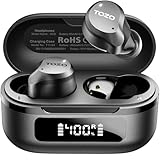
- True Wireless Earbuds: These are the most common type, consisting of two completely separate earbuds that connect to each other and your device wirelessly. They typically come with a charging case. Examples include Apple AirPods, Samsung Galaxy Buds, and Sony WF-1000XM series.
- Neckband Earbuds: These earbuds are connected by a wire or band that rests around your neck. The earbuds themselves are wireless, but they’re not completely independent. This design can offer better battery life and is often more affordable.
- Sports Earbuds: Designed for workouts and active use, these earbuds often feature a secure fit, sweat resistance, and sometimes even heart rate monitoring.
- Over-Ear Headphones (often include wireless earbuds): While not earbuds, some over-ear headphones also function wirelessly and often pair in a similar manner.
Devices You Can Sync Your Earbuds With
Wireless earbuds are versatile and can be synced with a wide range of devices, including:
- Smartphones: Android and iOS devices are the most common companions for wireless earbuds.
- Tablets: iPads, Android tablets, and other tablets support Bluetooth connectivity.
- Laptops and Computers: Most laptops and desktops have built-in Bluetooth or can be connected via a Bluetooth adapter.
- Smart TVs: Some smart TVs allow you to connect wireless earbuds for private listening.
- Gaming Consoles: PlayStation, Xbox, and Nintendo Switch often support Bluetooth audio devices.
- MP3 Players: Older devices like MP3 players might also be compatible.
The specific steps for syncing will vary slightly depending on the device you’re using, but the general principles remain the same.
How to Sync Wireless Earbuds: Step-by-Step Guides
Now, let’s dive into the step-by-step instructions for syncing your wireless earbuds with different devices. We’ll cover the most common scenarios: smartphones (Android and iOS), laptops, and other devices.
Syncing with Android Smartphones
Syncing your wireless earbuds with an Android smartphone is usually a breeze. Here’s a step-by-step guide:
- Put Your Earbuds into Pairing Mode: This is the crucial first step. Most earbuds have a button or a specific way to activate pairing mode. Often, you’ll need to press and hold a button on the earbuds or their charging case for a few seconds until an LED light starts flashing (usually blue or white). Refer to your earbud’s manual for the exact method, as it varies depending on the brand and model.
- Open Your Android Device’s Settings: Swipe down from the top of your screen to access the quick settings panel. Tap the gear icon to open the Settings app.
- Navigate to Bluetooth Settings: In the Settings app, look for the ‘Bluetooth’ option. It might be under ‘Connections’, ‘Connected devices’, or simply listed as ‘Bluetooth’. Tap on it.
- Enable Bluetooth: If Bluetooth is not already enabled, toggle the switch to turn it on. Your phone will then start scanning for available Bluetooth devices.
- Select Your Earbuds: Your earbuds should appear in the list of available devices, usually with their model name. Tap on the name of your earbuds to initiate the pairing process.
- Confirm the Pairing (if prompted): Some devices may ask you to confirm the pairing by tapping ‘Pair’ or entering a code (usually 0000 or 1234). Follow the on-screen prompts.
- Connect: Once paired, your earbuds should automatically connect to your phone. You should see the earbuds listed as ‘Connected’ in the Bluetooth settings.
- Test the Connection: Play some music or a video to make sure the audio is playing through your earbuds.
Syncing with iOS (iphone and Ipad)
Syncing with an iPhone or iPad is very similar to Android, with a few slight differences in the user interface:
- Put Your Earbuds into Pairing Mode: Just like with Android, you’ll need to put your earbuds into pairing mode. Refer to your earbud’s manual for the specific instructions.
- Open the Settings App: Tap the Settings app icon on your home screen.
- Navigate to Bluetooth: Scroll down and tap on ‘Bluetooth’.
- Enable Bluetooth: If Bluetooth is not already on, toggle the switch to turn it on. Your iPhone or iPad will begin searching for nearby Bluetooth devices.
- Select Your Earbuds: Your earbuds should appear in the list of ‘Other Devices’. Tap on the name of your earbuds.
- Connect: Your earbuds will connect automatically. The status will change to ‘Connected’ in the Bluetooth settings.
- Test the Connection: Play some audio to confirm the connection is working correctly.
Syncing with Laptops and Computers (windows and Macos)
Syncing with a laptop or computer requires slightly different steps, depending on whether you’re using Windows or macOS.
Windows
- Put Your Earbuds into Pairing Mode: As always, start by putting your earbuds into pairing mode.
- Open Settings: Click the Start button (Windows icon) and then click the gear icon to open the Settings app.
- Go to Bluetooth & devices: In the Settings app, click on ‘Bluetooth & devices’.
- Enable Bluetooth: Ensure that Bluetooth is turned on. If it’s off, toggle the switch to enable it.
- Add a Device: Click on ‘Add device’ and then select ‘Bluetooth’ from the list of options.
- Select Your Earbuds: Your earbuds should appear in the list of available devices. Click on the name of your earbuds.
- Pair and Connect: Windows will attempt to pair and connect to your earbuds. Follow any on-screen prompts.
- Test the Connection: Once connected, play some audio to verify that the sound is coming through your earbuds. You may need to select your earbuds as the output device in your sound settings (right-click the speaker icon in the system tray and select ‘Open Sound settings’).
Macos
- Put Your Earbuds into Pairing Mode: Make sure your earbuds are in pairing mode.
- Open System Preferences: Click the Apple menu () in the top-left corner of your screen and select ‘System Preferences’ (or ‘System Settings’ in newer versions of macOS).
- Go to Bluetooth: Click on the ‘Bluetooth’ icon.
- Enable Bluetooth: If Bluetooth is not already on, turn it on.
- Select Your Earbuds: Your earbuds should appear in the list of available devices. Click ‘Connect’ next to your earbuds’ name.
- Test the Connection: Play some audio to confirm that the sound is playing through your earbuds. You might need to select your earbuds as the output device in your sound settings (click the speaker icon in the menu bar and select your earbuds).
Syncing with Other Devices
The process for syncing with other devices, like smart TVs, gaming consoles, and MP3 players, will vary depending on the device. However, the general steps are similar:
- Put Your Earbuds into Pairing Mode: This is almost always the first step.
- Access the Device’s Bluetooth Settings: Locate the Bluetooth settings within the device’s menu or settings panel. The location varies depending on the device. Refer to the device’s manual if you’re unsure.
- Enable Bluetooth (if necessary): Some devices may require you to enable Bluetooth.
- Search for Devices: The device should start scanning for available Bluetooth devices.
- Select Your Earbuds: Your earbuds should appear in the list of available devices. Select them to initiate the pairing process.
- Pair and Connect: Follow any on-screen prompts to complete the pairing and connection.
- Test the Connection: Play some audio or test the device to confirm the connection is working.
Troubleshooting Common Syncing Issues
Sometimes, the syncing process doesn’t go as smoothly as planned. Here are some common issues and how to resolve them:
- Earbuds Not Appearing in the Device List:
- Ensure Earbuds are in Pairing Mode: Double-check that your earbuds are actually in pairing mode. The LED light should be flashing.
- Check Bluetooth Range: Make sure your earbuds are within the Bluetooth range of your device (usually around 30 feet).
- Reboot Your Earbuds and Device: Sometimes, a simple reboot can fix the problem. Turn off your earbuds and your device, then turn them back on.
- Charge Your Earbuds: Low battery can sometimes interfere with the pairing process. Make sure your earbuds are charged.
- Check for Interference: Other electronic devices or Wi-Fi routers can cause interference. Try moving your earbuds and device away from potential sources of interference.
- Forget and Re-pair: In your device’s Bluetooth settings, ‘forget’ or ‘unpair’ your earbuds and then try pairing them again from scratch.
- Earbuds Connected, but No Sound:
- Check Volume Levels: Make sure the volume is turned up on both your earbuds and your device.
- Select the Correct Output Device: Ensure that your earbuds are selected as the audio output device in your device’s sound settings.
- Restart Your Device: Sometimes, a simple restart can resolve audio routing issues.
- Check for Driver Issues (Computers): On a computer, you might need to update or reinstall your Bluetooth drivers.
- One Earbud Not Working:
- Check Charging: Make sure both earbuds are fully charged.
- Reset Your Earbuds: Some earbuds have a reset function. Refer to your earbud’s manual for instructions on how to reset them.
- Re-pair the Earbuds: Sometimes, re-pairing the earbuds can resolve this issue.
- Check for Physical Damage: Inspect the earbuds for any physical damage.
- Poor Sound Quality:
- Check Bluetooth Codec: Some earbuds support different Bluetooth codecs (e.g., SBC, AAC, aptX). The codec used can affect sound quality. Check your device’s Bluetooth settings to see which codec is being used and if you can change it.
- Check for Interference: As mentioned earlier, interference can affect sound quality.
- Clean Your Earbuds: Earwax or debris can sometimes affect sound quality. Clean your earbuds regularly.
- Update Firmware: Check if there are any firmware updates available for your earbuds.
- Earbuds Disconnecting Frequently:
- Bluetooth Range: Ensure you’re within the Bluetooth range of your device.
- Interference: Minimize potential sources of interference.
- Battery Life: Low battery can cause disconnections.
- Device Compatibility: Check if your earbuds are compatible with your device’s Bluetooth version.
Advanced Syncing Tips and Tricks
Here are some more advanced tips to enhance your wireless earbud experience:
- Multipoint Pairing: Some high-end earbuds support multipoint pairing, which allows you to connect to two devices simultaneously. This can be useful if you want to switch between your phone and your computer seamlessly.
- Automatic Switching: Some earbuds can automatically switch between paired devices, prioritizing the device that’s currently playing audio.
- Customization Apps: Many earbud manufacturers offer companion apps that allow you to customize settings, update firmware, and access other features.
- Factory Reset: If you’re still experiencing issues, consider performing a factory reset on your earbuds. This will erase all settings and restore them to their default state. Refer to your earbud’s manual for instructions.
- Check for Firmware Updates: Regularly check for firmware updates for your earbuds. These updates often include bug fixes, performance improvements, and sometimes even new features.
Maintaining Your Wireless Earbuds
Proper care and maintenance can extend the lifespan of your wireless earbuds and ensure optimal performance. Here are some tips:
- Clean Regularly: Clean your earbuds regularly with a soft, dry cloth. Avoid using water or harsh chemicals.
- Store Properly: Store your earbuds in their charging case when not in use to protect them from dust and damage.
- Avoid Extreme Temperatures: Don’t expose your earbuds to extreme temperatures, as this can damage the battery and other components.
- Charge Correctly: Follow the manufacturer’s instructions for charging your earbuds. Avoid overcharging or using chargers that are not compatible.
- Protect from Moisture: While many earbuds are water-resistant, they are not always waterproof. Avoid exposing them to excessive moisture.
Conclusion
Syncing your wireless earbuds might seem like a small detail, but it’s the gateway to enjoying your music, podcasts, and calls on the go. By following the steps outlined in this guide, you should be able to connect your earbuds to your devices quickly and easily. Remember to consult your earbud’s manual for specific instructions, as the process can vary slightly between different brands and models. With a little patience and these helpful tips, you’ll be enjoying the freedom of wireless audio in no time.
If you encounter any persistent issues, don’t hesitate to consult your earbud’s manual or contact the manufacturer’s customer support. They can provide specific troubleshooting steps tailored to your particular model. Happy listening!
Recommended Products