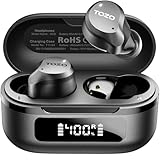
Why Wont My Tozo Earbuds Connect: Why Won’t My Tozo Earbuds…
Frustrated because your TOZO earbuds won’t connect? You’re definitely not alone! It’s a common issue that can be incredibly annoying when you just want to listen to your favorite tunes or take a call. Before you throw your earbuds across the room, take a deep breath. I’m here to walk you through the most common reasons why your TOZO earbuds might be giving you trouble and provide you with simple, step-by-step solutions.
We’ll cover everything from the simplest fixes, like checking the battery and ensuring Bluetooth is enabled, to more advanced troubleshooting techniques like resetting your earbuds and updating the firmware. I’ll explain each step clearly and concisely, so you can quickly get back to enjoying your music. Let’s get started and get those TOZO earbuds connected!
This comprehensive guide will help you understand the common causes behind connection problems and offer practical solutions. Whether you’re a seasoned tech user or a complete beginner, I’ve got you covered. Let’s troubleshoot and get your audio experience back on track!
Understanding the Problem: Why Tozo Earbuds Fail to Connect
Before jumping into solutions, it’s helpful to understand the various reasons why your TOZO earbuds might refuse to connect. The causes can range from simple oversights to more complex technical issues. Knowing the common culprits will help you pinpoint the problem faster.
1. Bluetooth Connectivity Issues: The Foundation of Connection
At the heart of the problem is Bluetooth. If Bluetooth isn’t working correctly on either your phone/device or your earbuds, you’re not going to get a connection. This can be due to a variety of factors.
- Bluetooth is turned off: This is the most basic, yet most frequent, issue. Your device needs to have Bluetooth enabled to search for and connect to your TOZO earbuds.
- Bluetooth isn’t discoverable: For your earbuds to be found, they need to be in pairing mode. This mode allows your device to see and connect to them.
- Device compatibility: While Bluetooth is a universal standard, older devices might not be fully compatible with the latest Bluetooth versions used by your TOZO earbuds.
- Interference: Bluetooth signals can be affected by other devices, like Wi-Fi routers, microwaves, or other Bluetooth devices operating nearby.
2. Pairing Mode: The Gateway to Connection
TOZO earbuds, like most Bluetooth devices, require you to put them in pairing mode before they can be discovered by your device. The process for entering pairing mode can vary slightly depending on the specific TOZO model you own. However, the general procedure involves:
- Earbud Power State: Ensure your earbuds are either off or in the charging case.
- Initiating Pairing Mode: Typically, you’ll need to remove the earbuds from the charging case (if they are in it) or press and hold a button on the earbuds themselves (or the charging case) for a few seconds until an indicator light starts flashing. This flashing light confirms that the earbuds are in pairing mode. The exact location of the button and the color/pattern of the light will vary by model. Refer to your TOZO earbuds’ manual for specifics.
- Discovering the Earbuds: On your device, go to your Bluetooth settings and search for available devices. Your TOZO earbuds should appear in the list of available devices.
- Selecting and Connecting: Tap on your TOZO earbuds’ name in the list, and your device will attempt to connect. You might be prompted to enter a pairing code (usually 0000 or 1234), or the connection will happen automatically.
3. Battery Life: Powering Your Connection
A dead battery is a common, often overlooked, reason for connection failures. If your TOZO earbuds don’t have enough power, they won’t be able to connect. Keep these points in mind:
- Charging the Earbuds: Always ensure your earbuds and the charging case are fully charged. Place the earbuds back in the charging case and close the lid. Then, connect the case to a power source using the provided USB-C cable. Check the LED indicators on the case to understand the charging status.
- Charging Case’s Role: The charging case not only protects the earbuds but also provides additional battery life. Make sure the charging case itself is charged.
- Checking Battery Levels: Many devices will show the battery level of connected Bluetooth devices. Check your phone or tablet’s Bluetooth settings to see the battery status of your TOZO earbuds.
4. Device Interference: The Signal Killers
Bluetooth signals are susceptible to interference from other electronic devices. This interference can disrupt the connection between your TOZO earbuds and your device. Here’s what you should consider:
- Wi-Fi Routers: Wi-Fi routers operate on the same 2.4 GHz frequency band as Bluetooth. Keeping your earbuds away from your router can help.
- Microwaves: Microwaves also emit radio frequencies that can interfere with Bluetooth signals.
- Other Bluetooth Devices: Having multiple Bluetooth devices operating simultaneously in the same area can lead to interference. Try turning off other Bluetooth devices to see if it resolves the issue.
- Physical Obstructions: Walls, especially those made of concrete or brick, can weaken Bluetooth signals. Try to minimize the distance between your earbuds and your device.
5. Software Glitches and Updates
Software issues on your device or the earbuds themselves can also prevent a successful connection. Keeping your device’s operating system updated and, where possible, updating the firmware of your TOZO earbuds is crucial.
- Device Operating System: Ensure your smartphone, tablet, or computer has the latest operating system updates. Older versions might have compatibility issues with your earbuds.
- Earbud Firmware Updates: Some TOZO models support firmware updates. Check the TOZO website or your earbuds’ manual to find out how to update the firmware. Firmware updates often fix bugs and improve performance.
- Software Conflicts: Sometimes, other apps or software on your device can interfere with Bluetooth connections. Try closing unnecessary apps or restarting your device.
6. Physical Damage and Wear and Tear
Physical damage to your TOZO earbuds or the charging case can affect their ability to connect. Here’s what to look for:
- Damaged Earbuds: Inspect your earbuds for any physical damage, such as cracks or broken components.
- Charging Case Issues: Check the charging case for damage to the charging contacts or the USB-C port.
- Water Damage: If your earbuds have been exposed to water, they might be damaged. Even if they are water-resistant, they have limits.
- Wear and Tear: Over time, the charging contacts in the case or on the earbuds can become worn, preventing a good connection.
Troubleshooting Steps: Fixing the Connection Problem
Now that you understand the common causes, let’s go through the practical steps to troubleshoot and fix the connection issues with your TOZO earbuds. We’ll start with the simplest solutions and move to more advanced techniques.
1. The Basics: Quick Checks
Before you dive into more complex solutions, start with these simple checks. Often, these basic steps resolve the problem quickly.
- Check Battery: Ensure both your earbuds and the charging case are adequately charged.
- Bluetooth is Enabled: Verify that Bluetooth is turned on in your device’s settings.
- Proximity: Make sure your earbuds and device are within Bluetooth range (usually about 33 feet or 10 meters).
- Restart Devices: Restart both your device (phone, tablet, etc.) and your TOZO earbuds. Sometimes, a simple restart can clear up temporary glitches.
2. Pairing and Re-Pairing
If the basic checks don’t work, try re-pairing your earbuds. This process refreshes the connection and often resolves pairing problems.
- Forget the Device: On your device, go to your Bluetooth settings and find your TOZO earbuds. Tap on the option to “forget” or “unpair” the earbuds. This removes the existing connection.
- Put Earbuds in Pairing Mode: Put your TOZO earbuds into pairing mode. (See instructions above in “Pairing Mode” section.)
- Re-Pair: On your device, search for available Bluetooth devices and select your TOZO earbuds from the list. Follow the on-screen prompts to pair them again.
3. Resetting Your Tozo Earbuds
Resetting your TOZO earbuds can often resolve more persistent connection issues. The specific steps for resetting your earbuds vary depending on the model, so consult your user manual for precise instructions. Here’s a general guide:
- Place Earbuds in the Charging Case: Ensure both earbuds are in the charging case and the case has power.
- Find the Reset Button: Most TOZO models have a reset button on the charging case. It might be a small button that you need to press with a pin or a similar tool. Refer to your manual to locate it.
- Press and Hold the Reset Button: Press and hold the reset button for a specific duration (e.g., 10-15 seconds) until the LED indicators on the case flash or change color. This indicates that the earbuds are being reset.
- Re-Pair the Earbuds: After the reset, put the earbuds back into pairing mode and re-pair them with your device.
4. Clearing Bluetooth Cache (android Devices)
On Android devices, clearing the Bluetooth cache can sometimes resolve connection problems. This action clears temporary data that might be causing issues.
- Go to Settings: Open the Settings app on your Android device.
- Select Apps or Application Manager: The exact wording may vary depending on your device, but look for a section related to apps.
- Find Bluetooth: Scroll through the list of apps and find “Bluetooth” or “Bluetooth Share.”
- Clear Cache: Tap on “Storage” and then tap “Clear Cache.” Do not clear data unless you want to remove all Bluetooth pairings.
- Restart Your Device: Restart your Android device after clearing the cache.
- Re-Pair Your Earbuds: After restarting, attempt to pair your TOZO earbuds again.
5. Updating Device and Earbud Firmware
Keeping your device’s operating system and, if available, your TOZO earbuds’ firmware updated is crucial for optimal performance and compatibility. Here’s how to do it:
- Device Operating System Updates: On your smartphone or tablet, go to “Settings” > “System” (or “About Phone”/”About Tablet”) > “Software Update.” Check for any available updates and install them.
- Earbud Firmware Updates: Check the TOZO website or your earbuds’ user manual to see if there’s a way to update the firmware. Some TOZO models have companion apps that allow you to update the firmware directly. Follow the instructions provided by TOZO.
6. Troubleshooting with Multiple Devices
If you have multiple devices, try connecting your TOZO earbuds to a different device to determine if the problem lies with the earbuds or your primary device.
- Test on Another Device: Try pairing your TOZO earbuds with another smartphone, tablet, or computer. If they connect successfully to the other device, the problem likely lies with your original device.
- Isolate the Problem: If the earbuds won’t connect to any device, the issue is more likely with the earbuds themselves.
7. Factory Resetting Your Device (last Resort)
If all other troubleshooting steps fail, you might consider factory resetting your device. This will erase all data on your device, so back up your important information first. This is a last resort.
- Back Up Your Data: Back up all important data on your device (photos, contacts, documents, etc.).
- Go to Settings: Open the Settings app on your device.
- Find the Reset Option: Look for “General Management” (or similar) > “Reset” > “Factory data reset.”
- Confirm the Reset: Follow the on-screen prompts to confirm the factory reset.
- Re-Pair Your Earbuds: After the reset, attempt to pair your TOZO earbuds again.
Detailed Troubleshooting by Issue
Here’s a breakdown of troubleshooting steps based on the specific symptoms you might be experiencing:
1. Earbuds Won’t Power On
- Check Charging: Ensure the earbuds are properly placed in the charging case and that the case is charging. Observe the LED indicators on the case.
- Clean Charging Contacts: Use a dry cotton swab to gently clean the charging contacts on both the earbuds and the charging case.
- Try a Different Cable/Adapter: The included USB-C cable might be damaged. Test a different cable and/or power adapter to eliminate them as the cause.
- Check the Case’s Power: Even if the earbuds are in the case, the case itself must have power to charge them.
2. Earbuds Won’t Pair
- Put in Pairing Mode: Confirm that you’ve correctly put the earbuds into pairing mode (refer to your manual for specific instructions).
- Forget Previous Connections: On your device, forget any previous connections to the earbuds and try pairing again.
- Reset the Earbuds: Perform a reset of the earbuds (see instructions above).
- Check Bluetooth Range: Ensure the earbuds are within the Bluetooth range of your device.
3. One Earbud Isn’t Working
- Check Charging: Make sure both earbuds are fully charged.
- Reset the Earbuds: Resetting the earbuds can often resolve this issue.
- Check Balance in Device Settings: Check your device’s audio settings to ensure the audio balance isn’t skewed to one side.
- Check for Physical Damage: Inspect the non-working earbud for any physical damage.
4. Sound Quality Issues
- Check for Obstructions: Ensure the earbud nozzles are clean and free of debris (earwax, dust, etc.). Use a soft brush or cotton swab.
- Adjust Volume: Adjust the volume on both your device and the earbuds.
- Check Bluetooth Interference: Move away from potential sources of interference (Wi-Fi routers, microwaves, etc.).
- Update Firmware: Ensure your earbuds’ firmware is up to date.
5. Intermittent Connection
- Check for Interference: Identify and move away from potential sources of Bluetooth interference.
- Check Bluetooth Range: Stay within the recommended Bluetooth range.
- Reset the Earbuds: Perform a reset of the earbuds.
- Update Device Software: Ensure your device’s operating system is up to date.
Tozo Earbud Models: A Quick Overview
TOZO offers a variety of earbud models, each with its own features and specifications. Here’s a quick look at some of the popular models:
| Model | Key Features |
|---|---|
| TOZO T10 | IPX8 waterproof, wireless charging, long battery life |
| TOZO T6 | Wireless charging, ergonomic design, touch controls |
| TOZO NC9 | Active Noise Cancellation (ANC), Transparency Mode, comfortable fit |
| TOZO A1 | Lightweight design, comfortable fit, affordable |
The troubleshooting steps provided in this guide generally apply to all TOZO earbud models. However, some specific features and reset procedures might vary. Always refer to your product’s user manual for model-specific instructions.
Preventative Measures: Keeping Your Earbuds Connected
Taking preventative measures can help you avoid future connection problems. Here’s how to keep your TOZO earbuds working smoothly:
- Regular Charging: Charge your earbuds and charging case regularly to maintain optimal battery levels.
- Proper Storage: When not in use, store your earbuds in the charging case to protect them from damage and dust.
- Cleaning: Clean your earbuds regularly with a dry, soft cloth to remove dust and debris. Avoid using water or harsh chemicals.
- Keep Firmware Updated: Check for firmware updates periodically and install them when available.
- Protect from Extreme Conditions: Avoid exposing your earbuds to extreme temperatures, humidity, or direct sunlight.
When to Seek Professional Help
If you’ve tried all the troubleshooting steps and your TOZO earbuds still won’t connect, it might be time to seek professional help. Consider these options:
- Contact TOZO Support: Visit the TOZO website and contact their customer support team. They can provide specific troubleshooting assistance and might offer warranty support if your earbuds are still covered.
- Check Your Warranty: Review your warranty information to see if your earbuds are eligible for repair or replacement.
- Take to a Repair Shop: If your earbuds have physical damage or the problem persists, you can take them to a local electronics repair shop.
Final Verdict
Troubleshooting connection issues with your TOZO earbuds can be frustrating, but with the right approach, you can often resolve the problem yourself. We’ve covered the common causes, from Bluetooth settings to battery life and physical damage, and provided a step-by-step guide to help you fix the issue. Remember to start with the basics, such as checking the battery and Bluetooth settings, and then move to more advanced solutions like resetting your earbuds and updating firmware.
By following these troubleshooting steps, you’ll be well-equipped to diagnose and fix the most common connection problems. Also, remember that preventative measures, such as proper charging, storage, and cleaning, can help keep your earbuds working smoothly for a long time. If the problem persists, don’t hesitate to reach out to TOZO support or seek professional help.
Hopefully, this guide has helped you reconnect your TOZO earbuds and get back to enjoying your music, podcasts, and calls. With a bit of patience and these troubleshooting tips, you can overcome connection issues and make the most of your audio experience. Happy listening!
Recommended Products