How to Turn on Jlab Sport Earbuds: A Simple Guide
So, you’ve got yourself a shiny new pair of JLab Sport earbuds – excellent choice! These earbuds are designed to keep up with your active lifestyle, whether you’re hitting the gym, pounding the pavement, or just navigating your daily commute. But before you can enjoy your favorite tunes or podcasts, you need to know how to get them powered up and connected.
Don’t worry, it’s a straightforward process. This guide will walk you through every step, ensuring you’re up and running in no time. We’ll cover everything from the initial setup to troubleshooting common issues, so you can focus on what matters most: enjoying your music. Let’s get started and make sure you’re ready to experience the freedom and convenience of wireless audio with your JLab Sport earbuds.
Ready to get connected? Let’s dive in!
Understanding Your Jlab Sport Earbuds
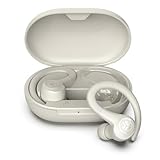
Before we jump into the ‘how,’ let’s quickly get acquainted with the basics. JLab Sport earbuds, like most wireless earbuds, rely on Bluetooth technology to connect to your devices. They usually come with a charging case that not only protects the earbuds but also provides additional battery life. Understanding these components is key to a smooth user experience.
Key Components
- Earbuds: These are the primary units you wear in your ears. They house the drivers, battery, and controls.
- Charging Case: This is the portable power bank for your earbuds. It protects them and recharges them on the go.
- Charging Cable: Typically a USB-C or Micro-USB cable used to charge the charging case.
- Eartips: Various sizes of silicone or foam tips are usually included to ensure a comfortable and secure fit.
Basic Functionality
Most JLab Sport earbuds feature touch or button controls on the earbuds themselves. These controls allow you to play/pause music, skip tracks, adjust volume, answer/end calls, and sometimes activate your device’s voice assistant. Familiarizing yourself with these controls will greatly enhance your user experience.
How to Turn on Jlab Sport Earbuds: Step-by-Step
Now, let’s get to the main event! Here’s a simple, step-by-step guide to turning on your JLab Sport earbuds.
Step 1: Check the Battery Level
Before you even think about turning them on, check the battery level of both your earbuds and the charging case. Most JLab Sport earbuds have LED indicators on the case that show the battery status. If the case or earbuds are low on power, charge them fully before proceeding. A fully charged case ensures you have ample listening time, and fully charged earbuds mean you can begin using them right away.
How to check the battery:
- Charging Case: Look for LED indicators. The number and color of the LEDs usually indicate the remaining battery percentage (e.g., green for full, yellow for medium, red for low).
- Earbuds: Some models have LEDs on the earbuds themselves that light up when placed in the case or when removed.
Step 2: Take the Earbuds Out of the Charging Case
The moment you take the earbuds out of their charging case, they should automatically turn on and enter pairing mode. The specific behavior can vary slightly depending on the model, but this is the standard operation. If they don’t turn on automatically, try the manual method described in Step 3.
Important Note: Ensure the charging case has enough charge. If the case is dead, the earbuds won’t receive power to turn on.
Step 3: Manual Power on (if Necessary)
If the earbuds don’t turn on automatically when removed from the case, don’t panic! Some models require a manual power-on. This usually involves a long press on the touch control or button on one or both earbuds. The exact method will be detailed in your earbuds’ manual, but it typically involves a 2-3 second press. Look for a visual cue, such as a flashing LED light, indicating that the earbuds are powering on.
Troubleshooting Tip: If the manual power-on doesn’t work, ensure the earbuds are correctly seated in the charging case and that the case itself has power.
Step 4: Pairing with Your Device (bluetooth Connection)
Once the earbuds are on, they should enter pairing mode. This means they’re ready to connect to your smartphone, tablet, or other Bluetooth-enabled device. Here’s how to pair them:
- Enable Bluetooth on your device: Go to your device’s settings and turn on Bluetooth.
- Search for available devices: Your device will begin scanning for nearby Bluetooth devices.
- Select your JLab Sport earbuds: Look for your earbuds’ model name (e.g., “JLab Sport”) in the list of available devices and tap on it to connect.
- Confirm the connection: You might be prompted to confirm the connection on your device. Follow the on-screen instructions.
Important Tip: Make sure the earbuds are close to your device during the pairing process. Obstacles can interfere with the Bluetooth signal.
Step 5: Testing the Connection
After pairing, play some music or a podcast to test the connection. If you hear audio, congratulations! You’re ready to go. If not, refer to the troubleshooting section below.
Troubleshooting Common Issues
Even with the best instructions, things can sometimes go wrong. Here are solutions to some common problems you might encounter.
Earbuds Won’t Turn On
- Check the Battery: Ensure both the earbuds and the charging case are adequately charged.
- Manual Power-On: Try the manual power-on method (long press on the touch control).
- Charging Case Contact: Make sure the earbuds are properly seated in the charging case and making contact with the charging pins. Clean the charging pins if necessary.
- Factory Reset: If all else fails, consider resetting the earbuds to factory settings. Refer to your earbuds’ manual for specific instructions on how to do this.
Earbuds Won’t Pair
- Bluetooth Enabled: Double-check that Bluetooth is enabled on your device.
- Pairing Mode: Ensure the earbuds are in pairing mode (usually indicated by a flashing LED).
- Device List: Clear any previous pairings with the earbuds from your device’s Bluetooth settings and try pairing again.
- Distance: Keep the earbuds and your device close together during pairing.
- Interference: Move away from potential sources of interference, such as other Bluetooth devices or Wi-Fi routers.
Sound Issues
- Volume: Make sure the volume is turned up on both your earbuds and your device.
- Connection: Ensure the earbuds are properly connected to your device.
- Eartip Fit: Try different sizes of eartips to ensure a good seal in your ear canal, which is crucial for optimal sound quality.
- Audio Source: Test with different audio sources (e.g., a different music app or podcast) to rule out any issues with the original audio file.
One Earbud Not Working
- Re-Pair: Try re-pairing the earbuds to your device.
- Balance: Check your device’s audio settings to ensure the audio balance isn’t skewed to one side.
- Charging: Ensure both earbuds are fully charged.
- Factory Reset: A factory reset can sometimes resolve this issue.
Maximizing Your Jlab Sport Earbud Experience
Now that you know how to turn on and connect your JLab Sport earbuds, let’s explore how to get the most out of them.
Customizing Your Fit
The included eartips are designed to provide a comfortable and secure fit. Experiment with different sizes (typically small, medium, and large) to find the best fit for your ears. A proper fit is crucial for both comfort and sound quality. A good seal also helps with noise isolation, allowing you to focus on your audio.
Understanding the Controls
Familiarize yourself with the touch or button controls on your earbuds. They usually allow you to:
- Play/Pause music
- Skip tracks (forward and backward)
- Adjust the volume
- Answer/End phone calls
- Activate your device’s voice assistant (Siri, Google Assistant, etc.)
Tip: Refer to the user manual for the specific controls for your JLab Sport model, as they can vary slightly.
Charging and Battery Life
Keep your charging case charged to ensure you always have power for your earbuds. The case provides multiple charges, extending your listening time. The battery life of the earbuds themselves will vary depending on the model and usage, but generally, you can expect several hours of playtime on a single charge. The charging case extends this significantly.
Charging Tips:
- Use the included charging cable or a compatible USB-C or Micro-USB cable.
- Avoid overcharging the charging case. Once it’s fully charged, disconnect it.
- Store the earbuds and case in a cool, dry place.
Cleaning and Maintenance
Regularly clean your JLab Sport earbuds to maintain their performance and longevity. Use a soft, dry cloth to wipe down the earbuds and charging case. You can gently clean the eartips with mild soap and water. Avoid getting moisture inside the earbuds or the charging case.
Cleaning Tips:
- Do not use harsh chemicals or abrasive cleaners.
- Remove the eartips before cleaning them.
- Ensure the earbuds and case are completely dry before use.
Advanced Features (if Applicable)
Some JLab Sport earbud models may offer advanced features, such as:
- Ambient Sound Mode: Allows you to hear your surroundings.
- Multipoint Pairing: The ability to connect to two devices simultaneously.
- Customizable EQ Settings: Allows you to adjust the sound profile to your preferences.
Tip: Consult your user manual to learn about any advanced features your earbuds may have.
Warranty and Support
JLab offers a warranty on its products. If you experience any issues with your earbuds, refer to the warranty information that came with your product. You can also contact JLab customer support for assistance.
Comparing Jlab Sport Earbud Models
JLab offers a variety of Sport earbud models, each with its own features and price point. Here’s a brief comparison of some popular models to help you understand the differences.
| Feature | JLab Go Air Sport | JLab Epic Air Sport ANC | JLab JBuds Air Sport |
|---|---|---|---|
| Price (Approx.) | $30 | $80 | $60 |
| Battery Life (Earbuds) | 8 hours | 12 hours (ANC off) | 6 hours |
| Battery Life (with Case) | 32 hours | 42 hours (ANC off) | 24 hours |
| Noise Cancellation | No | Yes (Active Noise Cancellation) | No |
| Water Resistance | IP55 | IP66 | IP66 |
| Touch Controls | Yes | Yes | Yes |
| Ambient Sound Mode | Yes | Yes | No |
Note: Prices and features may vary. Always check the latest specifications before making a purchase.
Here are answers to some frequently asked questions about JLab Sport earbuds.
How Do I Reset My Jlab Sport Earbuds?
The reset process varies depending on the model. Generally, you’ll need to place the earbuds in the charging case, close the lid, and then quickly open and close the lid several times. Refer to your user manual for specific instructions.
Can I Use Jlab Sport Earbuds with My Computer?
Yes, you can. As long as your computer has Bluetooth capabilities, you can pair your JLab Sport earbuds just like you would with a smartphone or tablet.
Are Jlab Sport Earbuds Waterproof?
Most JLab Sport earbuds are water-resistant, but not necessarily waterproof. The level of water resistance varies by model (e.g., IPX4, IP55, IP66). Check the product specifications for details.
How Do I Update the Firmware on My Jlab Sport Earbuds?
Firmware updates are typically done through the JLab app. Download the app and follow the on-screen instructions to update the firmware on your earbuds.
What If One Earbud Isn’t Working?
Try re-pairing the earbuds, checking the balance settings on your device, and ensuring both earbuds are charged. A factory reset can also sometimes resolve this issue. Consult the troubleshooting section of this guide.
Conclusion
Turning on your JLab Sport earbuds is a simple process. By following these steps, you’ll be enjoying your favorite music, podcasts, or audiobooks in no time. Remember to check the battery level, remove the earbuds from the case, and pair them with your device via Bluetooth.
If you encounter any issues, don’t hesitate to consult the troubleshooting tips provided in this guide. With a little patience and these instructions, you’ll be able to quickly resolve most common problems and get back to enjoying your active lifestyle with your JLab Sport earbuds.
Now go out there, get moving, and enjoy your tunes!
Recommended Products