How to Connect Tozo Earbuds to Phone: A Simple Guide
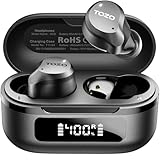
So, you’ve got yourself a pair of TOZO earbuds? Excellent choice! These little gems offer a fantastic audio experience, and the best part is that connecting them to your phone is a breeze. Whether you’re an Android aficionado or an iPhone enthusiast, the process is remarkably similar and straightforward. I’ll walk you through every step, ensuring a seamless connection so you can start enjoying your music, podcasts, and calls right away.
We’ll cover everything from the initial pairing process to troubleshooting common issues. You’ll learn how to get the most out of your TOZO earbuds, including tips for optimal sound quality and battery life. No technical jargon, just clear, concise instructions to get you connected and listening in minutes. Let’s get started!
Understanding Tozo Earbuds and Connectivity
Before we jump into the connection process, let’s understand the basics of how TOZO earbuds work. These earbuds, like most wireless audio devices, rely on Bluetooth technology to communicate with your phone. Bluetooth enables a wireless connection, allowing you to enjoy audio without the hassle of wires. The earbuds themselves contain a battery, a Bluetooth receiver, and drivers to produce sound. Your phone acts as the source, transmitting the audio signal to the earbuds.
TOZO earbuds come in various models, but the fundamental connection process remains consistent across them. The key is putting the earbuds into pairing mode, which allows your phone to ‘see’ and connect to them. Each earbud typically has a button or touch control that activates this mode. We’ll cover the specific steps for each type of control shortly.
Bluetooth Basics
Bluetooth operates on radio waves, and it’s designed to be a short-range, low-power technology. This means your phone and the earbuds need to be relatively close to each other for the connection to work reliably. The range usually extends to about 30-50 feet, but obstructions like walls can reduce this distance. It’s also worth noting that Bluetooth signals can sometimes interfere with other wireless devices, such as Wi-Fi routers or microwaves.
Earbud Controls Overview
TOZO earbuds often feature touch controls or physical buttons to manage playback, answer calls, and adjust the volume. Knowing what each control does can significantly improve your experience. Here’s a general overview, though specific functions may vary slightly depending on your TOZO model:
- Play/Pause: Often controlled by a single tap on either earbud.
- Next Track: Usually a double tap on the right earbud.
- Previous Track: Typically a double tap on the left earbud.
- Volume Up: A long press or triple tap on the right earbud.
- Volume Down: A long press or triple tap on the left earbud.
- Answer/End Call: A single tap on either earbud.
- Reject Call: A long press on either earbud.
- Activate Voice Assistant (Siri or Google Assistant): Often a long press.
Always consult your specific earbud’s user manual for the exact control layout.
Connecting Tozo Earbuds to Your Android Phone
Connecting your TOZO earbuds to an Android phone is a straightforward process. Here’s a step-by-step guide to get you connected quickly:
- Charge Your Earbuds: Ensure your TOZO earbuds are charged. Open the charging case and ensure the earbuds have enough battery. A low battery will interrupt the pairing process.
- Enable Bluetooth on Your Phone: Open your Android phone’s settings. Navigate to the ‘Connections’ or ‘Bluetooth’ settings. Toggle the Bluetooth switch to the ‘on’ position.
- Put Your Earbuds into Pairing Mode: Take your TOZO earbuds out of their charging case. They should automatically enter pairing mode. If not, consult your user manual for instructions on how to manually activate pairing mode (usually involving holding a button or tapping a touch control). Look for a flashing light on the earbuds, which indicates they’re in pairing mode.
- Scan for Devices: On your Android phone, tap ‘Pair new device’ or ‘Scan’ to search for available Bluetooth devices. Your phone will begin scanning for devices in range.
- Select Your Earbuds: Your TOZO earbuds (e.g., “TOZO T10”) should appear in the list of available devices. Tap on the name of your earbuds to initiate the pairing process.
- Pair the Devices: Your phone might display a pairing request, asking if you want to connect to your earbuds. Confirm the pairing by tapping ‘Pair’ or ‘OK’.
- Check the Connection: Once paired, your earbuds should show as ‘Connected’ in the Bluetooth settings. You can now start playing music or making calls.
Troubleshooting Tips for Android:
- If your earbuds don’t appear: Make sure your earbuds are in pairing mode (check the flashing light). Move the earbuds closer to your phone. Ensure that no other devices are connected to your earbuds.
- If you can’t hear audio: Check your phone’s volume and the earbud’s volume. Make sure the earbuds are selected as the audio output device in your phone’s settings.
- If the connection drops: Move closer to your phone. Ensure there are no obstructions between your phone and the earbuds. Try restarting both your phone and the earbuds.
Connecting Tozo Earbuds to Your iPhone
Connecting TOZO earbuds to an iPhone is just as easy as connecting to an Android device. Follow these steps:
- Charge Your Earbuds: Ensure your TOZO earbuds are charged.
- Enable Bluetooth on Your iPhone: Open the Settings app on your iPhone. Tap on ‘Bluetooth’. Toggle the Bluetooth switch to the ‘on’ position.
- Put Your Earbuds into Pairing Mode: Take your TOZO earbuds out of their charging case. They should automatically enter pairing mode. If not, consult your user manual for instructions on how to manually activate pairing mode.
- Select Your Earbuds: Your TOZO earbuds (e.g., “TOZO T10”) should appear in the list of available devices under ‘Other Devices’. Tap on the name of your earbuds.
- Pair the Devices: Your iPhone will connect to your earbuds automatically.
- Check the Connection: Once paired, your earbuds will show as ‘Connected’ in the Bluetooth settings. You can now start using them.
Troubleshooting Tips for iPhone:
- If your earbuds don’t appear: Make sure your earbuds are in pairing mode (check the flashing light). Move the earbuds closer to your iPhone. Restart your iPhone.
- If you can’t hear audio: Check your iPhone’s volume and the earbud’s volume. Make sure the earbuds are selected as the audio output device in your iPhone’s settings.
- If the connection drops: Move closer to your iPhone. Ensure there are no obstructions between your iPhone and the earbuds. Try forgetting the device in your Bluetooth settings and re-pairing.
Advanced Tips and Tricks for Tozo Earbuds
Once you’ve successfully connected your TOZO earbuds, there are several things you can do to optimize your experience:
Customizing Your Settings
Most modern smartphones allow you to customize Bluetooth device settings. You can often rename your earbuds, adjust the audio output settings (such as mono or stereo), and manage the connection preferences. In the Bluetooth settings on your phone, tap the ‘i’ icon (for iPhones) or the gear icon (for Android) next to your connected TOZO earbuds. This will open a settings menu where you can make these adjustments.
Using the Earbud Controls Effectively
As mentioned earlier, understanding the earbud controls is key. Experiment with the different taps and presses to master the functions. You can control playback (play/pause, next/previous track), answer calls, and adjust the volume directly from your earbuds, which is convenient when your phone is in your pocket or bag.
Optimizing Sound Quality
The sound quality of your TOZO earbuds can be affected by various factors. Here’s how to ensure the best audio experience:
- Proper Fit: Use the correct size ear tips. TOZO earbuds usually come with multiple sizes of silicone tips. Try different sizes to find the best fit for your ears. A snug fit will improve bass response and overall sound quality.
- Equalizer Settings: Most phones have built-in equalizer settings. Experiment with different presets (e.g., ‘Rock,’ ‘Pop,’ ‘Jazz’) or customize the equalizer to your liking.
- Audio Source Quality: The quality of the audio source matters. Higher-quality audio files (e.g., FLAC, lossless) will sound better than compressed files (e.g., MP3). Consider using a music streaming service that offers high-quality audio.
Extending Battery Life
Battery life is crucial for a great wireless audio experience. Here’s how to maximize your TOZO earbud’s battery life:
- Charge Regularly: Keep your charging case charged. This allows you to recharge your earbuds on the go.
- Volume Levels: Lower volume levels will generally consume less battery.
- Use One Earbud: If you only need to listen to audio in one ear (e.g., for phone calls or listening to podcasts), use a single earbud.
- Turn Off When Not In Use: When you’re not listening, put the earbuds back in their charging case to conserve power.
Troubleshooting Common Issues
Even with the best earbuds, you might encounter some issues. Here’s a troubleshooting guide:
- Earbuds Not Connecting: Make sure the earbuds are charged, in pairing mode, and within range of your phone. Restart your phone and the earbuds. Forget the device in your Bluetooth settings and re-pair.
- One Earbud Not Working: Ensure both earbuds are charged and properly seated in the charging case. Try resetting the earbuds (consult your user manual for instructions).
- Poor Sound Quality: Check the fit of the earbuds (try different ear tips). Adjust the equalizer settings on your phone. Make sure you’re using a high-quality audio source.
- Volume Issues: Check the volume levels on your phone and the earbuds. Clean the earbud tips to remove any debris that might be blocking the sound.
- Connection Drops: Move closer to your phone. Ensure there are no obstructions between your phone and the earbuds. Minimize interference from other Bluetooth or Wi-Fi devices.
Resetting Your Tozo Earbuds
If you’re experiencing persistent connection or performance issues, resetting your TOZO earbuds can often resolve the problem. The reset process varies depending on the model, so consult your user manual for specific instructions. Generally, it involves placing the earbuds in the charging case, pressing a button on the case or the earbuds themselves, and waiting for the indicator lights to flash. This will reset the earbuds to their factory settings, clearing any previous pairings and configurations.
Software Updates
Some TOZO earbuds support firmware updates. Check the TOZO website or app for information on how to update your earbuds. Firmware updates can improve performance, fix bugs, and add new features. Keeping your earbuds updated can enhance your overall experience.
Comparing Tozo Earbud Models
TOZO offers a range of earbud models, each with its own features and specifications. Here’s a quick comparison of some popular models to help you choose the right one for your needs:
| Feature | TOZO T10 | TOZO T6 | TOZO NC9 |
|---|---|---|---|
| Water Resistance | IPX8 | IPX8 | IPX8 |
| Battery Life (Earbuds) | 6 hours | 6 hours | 6 hours |
| Battery Life (with Case) | 30 hours | 30 hours | 24 hours |
| Noise Cancellation | No | No | Active Noise Cancellation (ANC) |
| Wireless Charging | Yes | Yes | Yes |
| Bluetooth Version | 5.0 | 5.0 | 5.0 |
| Key Features | Affordable, waterproof | Stylish design, comfortable fit | ANC, Transparency Mode |
Note: Specifications may vary. Always refer to the product specifications for the most up-to-date information.
Frequently Asked Questions (faq)
Here are answers to some frequently asked questions about connecting TOZO earbuds:
- Can I connect TOZO earbuds to multiple devices?
Yes, most TOZO earbuds can store multiple paired devices, but they can typically only connect to one device at a time. You’ll need to disconnect from one device to connect to another. - Do TOZO earbuds work with laptops and computers?
Yes, TOZO earbuds can connect to laptops and computers that have Bluetooth capabilities. The connection process is similar to connecting to a phone. - How do I know if my TOZO earbuds are fully charged?
The charging case usually has indicator lights that show the charging status. The earbuds themselves may also have lights that indicate when they are fully charged. Refer to your user manual for specific details. - What if my TOZO earbuds are not working after following these steps?
Try restarting both your earbuds and your phone. Reset the earbuds to their factory settings. Contact TOZO customer support for further assistance. - Are TOZO earbuds compatible with all phones?
Yes, TOZO earbuds are compatible with any phone that has Bluetooth capability, including both Android and iOS devices.
Final Verdict
Connecting your TOZO earbuds to your phone is a simple process, whether you have an Android or an iPhone. By following the steps outlined, you’ll be enjoying your favorite music, podcasts, and calls in no time. Remember to charge your earbuds, enable Bluetooth, and put them in pairing mode. Don’t forget to explore the advanced tips for optimizing sound quality, extending battery life, and troubleshooting any issues. With a little practice, you’ll become a TOZO earbud expert in no time.
Recommended Products