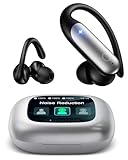
How to Turn on Bluetooth Earbuds: A Simple Guide
So, you’ve got yourself a shiny new pair of Bluetooth earbuds? Fantastic! Wireless audio is a game-changer, offering freedom and convenience that traditional wired headphones simply can’t match. However, the initial setup can sometimes feel a bit perplexing. Don’t worry, though; it’s usually a straightforward process.
This guide will walk you through everything you need to know about how to turn on Bluetooth earbuds, connect them to your devices, and troubleshoot any common issues you might encounter. We’ll cover different types of earbuds, from the classic in-ear models to the more advanced over-ear designs, and explain the nuances of pairing them with your phone, tablet, or computer.
Get ready to ditch the wires and enjoy your music, podcasts, and calls with ease. Let’s get started!
Understanding Bluetooth Earbuds: A Quick Overview
Bluetooth earbuds have become incredibly popular due to their portability, ease of use, and generally good sound quality. They connect wirelessly to your devices using Bluetooth technology, eliminating the need for a physical cable. This technology works by transmitting audio signals over radio waves, allowing your earbuds to receive the sound from your device without any wires in the way.
There are several types of Bluetooth earbuds available, each with its own set of features and design considerations:
- In-Ear Earbuds: These are the most common type, fitting directly into your ear canal. They are generally small, lightweight, and easy to carry around.
- On-Ear Headphones: These headphones sit on your ears, offering a more comfortable fit for some people and often providing a slightly better audio experience.
- Over-Ear Headphones: These headphones completely enclose your ears, providing the best noise isolation and sound quality. They are often larger and less portable than in-ear models.
- True Wireless Earbuds (TWS): These are a specific type of in-ear earbuds that are completely wireless, with no cable connecting the two earbuds. They usually come with a charging case.
Each type offers different advantages in terms of comfort, sound quality, and portability. The process of turning on and connecting them is generally similar across all types, though there might be slight variations depending on the specific model.
How to Turn on Your Bluetooth Earbuds: Step-by-Step Guide
The process of turning on your Bluetooth earbuds is typically very simple. Here’s a general step-by-step guide:
- Check the Power Button: Most Bluetooth earbuds have a dedicated power button. This button is usually located on one of the earbuds themselves (often the right one), on the charging case, or on an inline remote if your earbuds have a cable.
- Press and Hold: Press and hold the power button for a few seconds. The exact duration may vary depending on the model, but generally, holding it for 2-5 seconds should do the trick.
- Look for an Indicator Light: Once the earbuds are turned on, they will usually have an indicator light that illuminates or blinks. This light will indicate the status of the earbuds, such as whether they are powered on, pairing, or connected.
- Charging Case: If your earbuds come with a charging case, turning on the earbuds might involve taking them out of the case. The earbuds should automatically turn on when removed, provided they are charged. The charging case itself may have a power button as well.
Let’s look at more specific instructions, depending on the type of earbud you have:
In-Ear Earbuds
For in-ear earbuds, the process is usually as follows:
- Locate the Power Button: This is typically a small button on the side or the top of one of the earbuds.
- Press and Hold: Press and hold the power button until you see an indicator light or hear a confirmation sound.
- Check the Light: The light will usually blink in a specific pattern, indicating that the earbuds are in pairing mode (ready to connect to a device).
On-Ear Headphones
On-ear headphones often have a more prominent power button, usually located on one of the earcups. The process is similar to in-ear earbuds:
- Find the Power Button: It’s often a raised button or a switch.
- Press and Hold: Press and hold the power button until you see an indicator light or hear a power-on chime.
- Pairing Mode: The headphones will usually enter pairing mode automatically after being turned on.
Over-Ear Headphones
Over-ear headphones follow a similar process to on-ear headphones:
- Find the Power Button: Typically located on one of the earcups.
- Press and Hold: Press and hold the power button until the indicator light illuminates or you hear a sound.
- Pairing Mode: The headphones will usually enter pairing mode after being switched on.
True Wireless Earbuds (tws)
True wireless earbuds often turn on automatically when you take them out of the charging case. However, some models may have a power button on each earbud or the charging case. Here’s what to do:
- Take Out of Case: Remove the earbuds from their charging case.
- Check for Light: Look for an indicator light on the earbuds. They should automatically turn on and enter pairing mode.
- Power Button (If Applicable): Some TWS earbuds have a power button. If so, press and hold it as described above.
Pairing Your Bluetooth Earbuds with Your Device
Once your earbuds are turned on and in pairing mode, the next step is to connect them to your device. This process is called pairing. The steps for pairing vary slightly depending on the device you’re using (smartphone, tablet, computer), but the general principle is the same.
Pairing with a Smartphone (ios and Android)
Here’s how to pair your earbuds with your smartphone:
- Turn on Bluetooth: On your smartphone, go to the settings menu and find the Bluetooth option. Turn Bluetooth on.
- Scan for Devices: Your phone will automatically start scanning for nearby Bluetooth devices.
- Select Your Earbuds: Your earbuds should appear in the list of available devices. They might be listed by their model name or a generic name like “Bluetooth Earbuds.” Tap on the name of your earbuds to select them.
- Pair (If Necessary): Some devices may require you to confirm the pairing by tapping “Pair” or entering a PIN (usually “0000” if prompted).
- Connected: Once the pairing is successful, your earbuds will show as “Connected” in the Bluetooth settings, and you should be able to hear audio through them.
Pairing with a Tablet
The process of pairing with a tablet is very similar to pairing with a smartphone:
- Enable Bluetooth: Go to your tablet’s settings and turn on Bluetooth.
- Search for Devices: The tablet will scan for available Bluetooth devices.
- Choose Your Earbuds: Select your earbuds from the list of available devices.
- Confirm Pairing: If prompted, confirm the pairing.
- Enjoy Your Audio: You should now be able to listen to audio from your tablet through your earbuds.
Pairing with a Computer (windows and Macos)
Pairing with a computer requires slightly different steps:
Windows
- Open Settings: Click on the Start menu and go to Settings.
- Go to Devices: Select “Devices.”
- Add Bluetooth Device: Click on “Bluetooth & other devices” and then click “Add Bluetooth or other device.”
- Choose Bluetooth: Select “Bluetooth” from the options.
- Select Your Earbuds: Your computer will scan for nearby Bluetooth devices. Select your earbuds from the list.
- Pair: Follow any on-screen prompts to complete the pairing process.
- Connect: Once paired, your earbuds should show as connected. You may need to select your earbuds as the audio output device in your sound settings.
Macos
- Open System Preferences: Click on the Apple menu in the top-left corner of your screen and select “System Preferences.”
- Go to Bluetooth: Click on “Bluetooth.”
- Turn on Bluetooth: Make sure Bluetooth is turned on.
- Select Your Earbuds: Your computer will scan for available Bluetooth devices. Select your earbuds from the list.
- Connect: Click “Connect” next to your earbuds.
- Use Your Earbuds: Your earbuds are now connected and ready to use. You might need to select your earbuds as the audio output device in your sound settings.
Troubleshooting Common Bluetooth Earbud Issues
Sometimes, things don’t go as smoothly as planned. Here are some common issues and how to resolve them:
Earbuds Won’t Turn On
If your earbuds won’t turn on, try these troubleshooting steps:
- Check the Battery: Make sure your earbuds are charged. If the battery is dead, they won’t turn on. Put them in the charging case (if applicable) and charge them for a while.
- Press and Hold Longer: The power button may need to be held for a longer duration than you initially tried. Experiment with holding the button for 5-10 seconds.
- Check the Power Button: Make sure the power button is not stuck or damaged.
- Reset the Earbuds: Some earbuds have a reset function. Consult your user manual for instructions on how to reset your specific model.
Earbuds Won’t Pair
If your earbuds won’t pair with your device, try these steps:
- Make Sure Earbuds Are in Pairing Mode: Confirm that the earbuds are in pairing mode (the indicator light should be blinking).
- Turn Bluetooth On (and Off): Ensure that Bluetooth is enabled on your device. Try turning Bluetooth off and then back on to refresh the connection.
- Forget and Re-pair: On your device, go to the Bluetooth settings and “forget” the earbuds (remove them from the list of paired devices). Then, try pairing them again from scratch.
- Check for Interference: Bluetooth signals can be affected by interference from other devices. Move away from other electronic devices, such as Wi-Fi routers or microwaves.
- Restart Your Device: Sometimes, a simple restart of your smartphone, tablet, or computer can resolve pairing issues.
- Update Firmware: Check if there are any firmware updates available for your earbuds. These updates can often fix pairing problems.
Earbuds Won’t Connect After Pairing
If your earbuds have been paired before but won’t connect, try these solutions:
- Make Sure Earbuds Are Turned On: Double-check that the earbuds are powered on.
- Enable Bluetooth: Ensure that Bluetooth is enabled on your device.
- Select Earbuds: In your device’s Bluetooth settings, make sure your earbuds are selected as the audio output device.
- Move Closer: Make sure your device is within the Bluetooth range of your earbuds.
- Restart Your Devices: Restarting both your earbuds and your device can often resolve connectivity problems.
- Check for Interference: Interference from other devices can sometimes disrupt the connection.
Sound Quality Issues
If the sound quality is poor, try these steps:
- Check the Volume: Make sure the volume is turned up on both your earbuds and your device.
- Check the Connection: Ensure that the earbuds are properly connected to your device.
- Move Closer: Ensure that the earbuds are within range of your device.
- Check for Obstructions: Physical obstructions can interfere with the Bluetooth signal.
- Clean the Earbuds: Clean your earbuds to remove any earwax or debris that might be affecting sound quality.
- Equalizer Settings: Experiment with the equalizer settings on your device or in your music app to adjust the sound.
- Try a Different Device: Test your earbuds with a different device to see if the problem persists. If the sound quality is good on another device, the issue might be with your original device.
One Earbud Not Working
If only one earbud is producing sound, try these troubleshooting steps:
- Check the Balance: In your device’s audio settings, check the balance settings to make sure the sound isn’t skewed to one side.
- Re-pair the Earbuds: Try forgetting the earbuds from your device and re-pairing them.
- Clean the Earbuds: Make sure the earbud that isn’t working isn’t blocked by earwax or debris.
- Charge the Earbuds: Ensure both earbuds are sufficiently charged.
- Reset the Earbuds: Resetting the earbuds to their factory settings might resolve the issue. Refer to your user manual for instructions.
- Check for Firmware Updates: Outdated firmware can sometimes cause this issue.
Earbuds Not Charging
If your earbuds aren’t charging, try these steps:
- Check the Charging Case: If your earbuds use a charging case, make sure the case itself is charged.
- Check the Charging Connection: Ensure that the earbuds are properly seated in the charging case and that the charging contacts are clean.
- Try a Different Cable: Try using a different charging cable and power adapter.
- Clean the Charging Contacts: Clean the charging contacts on both the earbuds and the charging case with a dry cloth or cotton swab.
- Check the Power Source: Try plugging the charging case into a different power outlet or USB port.
- Check for Damage: Inspect the earbuds and charging case for any visible damage.
Bluetooth Range Issues
If you’re experiencing issues with the Bluetooth range, consider the following:
- Obstructions: Walls and other obstructions can interfere with the Bluetooth signal. Try moving closer to your device.
- Interference: Other electronic devices can cause interference.
- Device Placement: Keep your device and earbuds relatively close together.
- Update Firmware: Outdated firmware can affect the Bluetooth range.
Tips for Maximizing Your Earbud Experience
Here are some additional tips for getting the most out of your Bluetooth earbuds:
- Read the User Manual: Always read the user manual that comes with your earbuds. It contains specific instructions for your model and can help you troubleshoot any issues.
- Keep Them Charged: Regularly charge your earbuds to ensure they’re always ready to use.
- Clean Your Earbuds: Clean your earbuds regularly to remove earwax and debris, which can affect sound quality.
- Store Them Properly: Store your earbuds in their charging case or a protective case when not in use to prevent damage.
- Adjust the Fit: Ensure that your earbuds fit properly in your ears for optimal sound quality and comfort.
- Use the Controls: Familiarize yourself with the controls on your earbuds, such as volume adjustment, play/pause, and track skipping.
- Consider Noise Cancellation: If you need to block out external noise, look for earbuds with noise-canceling features.
- Update Firmware: Keep your earbuds’ firmware updated to ensure optimal performance and compatibility.
Final Thoughts
Turning on your Bluetooth earbuds is usually a straightforward process, involving pressing and holding a power button. The exact location and duration might vary slightly depending on the model, but the general principle remains the same. Once turned on, you’ll need to pair them with your device, which is also a simple process, typically involving enabling Bluetooth and selecting your earbuds from the device’s settings.
By understanding the basics of Bluetooth earbud operation, including how to turn them on, pair them, and troubleshoot common problems, you can enjoy a seamless and enjoyable wireless audio experience. With a little practice, you’ll be listening to your favorite music, podcasts, and taking calls with ease. Remember to consult your user manual for model-specific instructions and troubleshooting tips.
Recommended Products