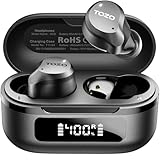
How to Connect to Tozo Earbuds: A Simple Guide
So, you’ve got yourself a shiny new pair of TOZO earbuds? Excellent choice! These little audio dynamos pack a lot of punch for their price. However, even the best tech can be a little tricky to set up at first. Don’t worry, though; connecting your TOZO earbuds is generally a straightforward process. I’m here to walk you through it step-by-step.
Whether you’re an Android aficionado, an Apple enthusiast, or somewhere in between, I’ll cover all the bases. We’ll explore the initial pairing, troubleshooting common issues, and even some helpful tips to maximize your listening experience. Forget fumbling with manuals; let’s get you connected and enjoying your music in no time. Let’s get started!
Getting Started: What You’ll Need
Before we jump in, let’s make sure you have everything you need. This is a short checklist to ensure the process goes smoothly:
- Your TOZO Earbuds: Obviously! Make sure they’re fully charged or at least have some battery life.
- Your Device: This could be your smartphone (Android or iPhone), tablet, laptop, or any other device with Bluetooth capabilities.
- Bluetooth Enabled: Ensure your device’s Bluetooth is turned on. You can usually find this in your device’s settings.
- The Earbud Case: This is crucial for pairing and charging.
Step-by-Step Connection Guide
Now, let’s get down to the nitty-gritty and connect your TOZO earbuds. The process is similar across most devices, but I’ll provide specific instructions for both Android and iOS devices.
Pairing Your Earbuds: The Initial Setup
Here’s how to initiate the pairing process:
- Open the Charging Case: Take your TOZO earbuds out of their charging case. This is usually the trigger that puts them into pairing mode. Some models may have a button on the case you need to press and hold. Check your specific model’s manual if you’re unsure.
- Enable Bluetooth on Your Device: Go to your device’s settings and find the Bluetooth option. Turn it on.
- Search for Available Devices: Your device will start scanning for nearby Bluetooth devices. Look for your TOZO earbuds in the list of available devices. They might appear as “TOZO T10,” “TOZO T6,” or a similar name, depending on your model.
- Select Your Earbuds: Tap on the name of your TOZO earbuds in the list.
- Pair the Devices: You might be prompted to confirm the pairing. Accept the prompt if it appears.
- Connection Confirmed: Once the pairing is successful, your earbuds should be connected to your device. You’ll typically see a connected status next to the earbuds’ name in your Bluetooth settings.
That’s it! You should now be able to hear audio through your TOZO earbuds. If you’re still having issues, don’t worry, we’ll cover troubleshooting next.
Connecting to Android Devices
Connecting TOZO earbuds to an Android device is very similar to the general steps above, but here’s a more Android-specific breakdown:
- Access Settings: Open the Settings app on your Android device.
- Navigate to Bluetooth: Scroll down and tap on “Connections” or “Bluetooth.” The exact wording may vary slightly depending on your Android version.
- Turn on Bluetooth: If Bluetooth is not already enabled, toggle the switch to turn it on. Your device will start scanning for available devices.
- Select Your TOZO Earbuds: Find your TOZO earbuds in the list of available devices (e.g., “TOZO T10”). Tap on their name to initiate pairing.
- Confirm Pairing (if prompted): You might see a pairing request. Tap “Pair” or “Accept.”
- Check Connection Status: Once paired, your earbuds’ name will show as “Connected” in the Bluetooth settings.
Important Note for Android: Some Android devices may also have a quick pairing feature. If your device supports it, you might see a pop-up notification when you open the TOZO earbud charging case, allowing you to connect with a single tap.
Connecting to iOS (iphone/ipad) Devices
Connecting TOZO earbuds to an iPhone or iPad is equally simple:
- Open Settings: Open the Settings app on your iPhone or iPad.
- Navigate to Bluetooth: Tap on “Bluetooth.”
- Turn on Bluetooth: If Bluetooth is not already enabled, toggle the switch to the green position to turn it on. Your device will automatically start searching for available devices.
- Select Your TOZO Earbuds: Find your TOZO earbuds in the list of available devices (e.g., “TOZO T6”). Tap on their name to connect.
- Connection Confirmed: Once paired, the status next to your TOZO earbuds’ name will change to “Connected.”
Tip for iOS: You can also access Bluetooth settings directly from the Control Center. Swipe down from the top-right corner of your screen (or up from the bottom on older iPhones) to open the Control Center. Tap the Bluetooth icon to quickly turn Bluetooth on or off.
Troubleshooting Common Connection Issues
Sometimes, things don’t go as planned. Here are some common problems and how to fix them:
Earbuds Not Appearing in the Bluetooth List
If your earbuds aren’t showing up, try these steps:
- Ensure Earbuds are in Pairing Mode: Make sure the earbuds are in pairing mode. Typically, this means opening the charging case or pressing a button on the case. Consult your manual if needed.
- Check Battery Life: Ensure the earbuds have sufficient battery power. Low battery can sometimes prevent pairing.
- Move Closer to the Device: Bring your earbuds and device closer together. Bluetooth has a limited range.
- Restart Your Device and Earbuds: Try restarting both your device and your earbuds. This can often resolve temporary glitches.
- Forget and Re-pair: In your device’s Bluetooth settings, “forget” the TOZO earbuds and then try pairing them again from scratch.
One Earbud Not Working
If only one earbud is producing sound:
- Check Earbud Placement: Make sure both earbuds are correctly placed in your ears.
- Check Balance in Audio Settings: Verify your device’s audio balance settings are centered. Sometimes, the balance can be inadvertently skewed.
- Reset the Earbuds: Some TOZO models have a reset function. Consult your manual for the specific reset procedure for your model. This often involves putting the earbuds back in the case and pressing a button.
- Clean the Earbuds: Ensure the earbuds are clean and free of debris that might be blocking the sound.
Intermittent Connection or Sound Issues
If you’re experiencing dropouts or choppy audio:
- Minimize Interference: Bluetooth signals can be affected by interference from other devices. Move away from Wi-Fi routers, microwaves, and other Bluetooth devices.
- Check for Obstacles: Avoid placing your device in a pocket or bag that might obstruct the Bluetooth signal.
- Update Firmware (if available): Check if there are any firmware updates available for your TOZO earbuds. These updates often include performance improvements.
- Reset Network Settings (Android): On some Android devices, resetting network settings can help. This will reset your Wi-Fi, mobile data, and Bluetooth settings. Be aware that you’ll need to re-enter your Wi-Fi passwords.
The Earbuds Won’t Connect to a Second Device
TOZO earbuds typically can only be connected to one device at a time. If you want to connect to a different device, you’ll need to disconnect from the current device first:
- Disconnect from the Current Device: Go to the Bluetooth settings on the device currently connected to your TOZO earbuds and disconnect or unpair the earbuds.
- Put Earbuds in Pairing Mode: Place the earbuds back in their charging case (or press the pairing button) to put them in pairing mode.
- Connect to the New Device: Follow the pairing steps for the new device.
Advanced Tips and Features
Let’s look at some extra features that can enhance your experience.
Understanding Touch Controls
Many TOZO earbuds feature touch controls. These allow you to control music playback, answer calls, and adjust the volume directly from the earbuds. Here’s a general overview; however, the exact functions vary by model, so always refer to your user manual.
- Play/Pause: Often, a single tap on either earbud will play or pause the music.
- Next Track: A double-tap on the right earbud typically skips to the next track.
- Previous Track: A double-tap on the left earbud usually goes back to the previous track.
- Answer/End Call: A single tap usually answers or ends a phone call.
- Reject Call: A long press (hold for a few seconds) often rejects an incoming call.
- Volume Control: Some models allow you to adjust the volume by tapping and holding on either earbud.
- Voice Assistant: Some models allow you to activate your device’s voice assistant (Siri, Google Assistant) with a triple tap.
Important: Always consult your TOZO earbuds’ user manual for the specific touch control functions of your model.
Using the Charging Case
The charging case is more than just a storage container; it’s essential for charging and often indicates the earbuds’ battery status:
- Charging: Place the earbuds in the case to charge them. The case itself also needs to be charged.
- Battery Indicator: The case often has LED lights that indicate the battery level of both the case and the earbuds. Refer to your manual to understand the meaning of the light patterns.
- Wireless Charging (on some models): Some TOZO models support wireless charging. Place the case on a wireless charging pad.
- USB-C Charging: Most TOZO cases charge via a USB-C cable.
Maximizing Battery Life
To get the most out of your earbuds’ battery:
- Charge Regularly: Keep the earbuds and the charging case charged.
- Store Properly: When not in use, store the earbuds in the charging case.
- Avoid Extreme Temperatures: Extreme heat or cold can affect battery performance.
- Manage Volume: Higher volumes drain the battery faster.
- Turn Off When Not in Use: If you’re not listening, turn off the earbuds or put them back in the charging case.
Software Updates (if Available)
Some TOZO models may receive software updates that improve performance and add new features. Check the TOZO website or app (if available for your model) for updates.
Cleaning and Maintenance
To keep your earbuds in good condition:
- Clean Regularly: Wipe the earbuds with a soft, dry cloth. Avoid using water or harsh chemicals.
- Clean the Mesh: Use a small brush or cotton swab to clean the mesh covering the speaker drivers.
- Store Properly: Store the earbuds in the charging case when not in use.
Pairing with Multiple Devices (switching Between Devices)
While TOZO earbuds generally don’t support simultaneous connection to multiple devices, you can easily switch between devices. Here’s how:
- Disconnect from the Current Device: On the device currently connected, go to Bluetooth settings and disconnect or unpair the earbuds.
- Put the Earbuds in Pairing Mode: Place the earbuds back in the charging case (or press the pairing button) to put them back into pairing mode.
- Connect to the New Device: On the new device, go to Bluetooth settings and select your TOZO earbuds from the list of available devices.
This allows you to seamlessly switch between your phone, tablet, or laptop.
Resetting Your Tozo Earbuds
If you’re experiencing persistent connection issues or other problems, resetting your TOZO earbuds can often resolve them. The reset procedure varies by model, so always consult your user manual. However, here’s a general guide:
- Place Earbuds in the Charging Case: Make sure both earbuds are in the charging case.
- Press and Hold the Reset Button (if applicable): Some models have a reset button on the case. Press and hold this button for a specific amount of time (e.g., 10 seconds).
- Close and Reopen the Case: Close the charging case, wait a few seconds, and then reopen it.
- Re-pair the Earbuds: Try pairing the earbuds with your device again.
The reset process will typically restore your earbuds to their factory settings, which can fix many software-related issues.
Understanding Bluetooth Versions and Compatibility
Bluetooth technology is constantly evolving, with new versions offering improvements in range, speed, and energy efficiency. TOZO earbuds utilize different Bluetooth versions depending on the model. Here’s a quick overview:
- Bluetooth 5.0 and Later: These versions offer improved range, faster pairing, and better energy efficiency compared to older versions.
- Compatibility: Your TOZO earbuds will be compatible with any device that supports Bluetooth. However, the performance you experience will depend on the Bluetooth version of both your earbuds and your device. For example, if your earbuds have Bluetooth 5.3 and your device has Bluetooth 4.2, you’ll still be able to connect, but you’ll experience the performance of Bluetooth 4.2.
Tip: Check the specifications of your TOZO earbuds and your device to determine their Bluetooth versions.
Frequently Asked Questions (faq)
Here are some frequently asked questions about connecting TOZO earbuds:
Can Tozo Earbuds Connect to Multiple Devices Simultaneously?
No, TOZO earbuds typically can only connect to one device at a time. You’ll need to disconnect from the current device before connecting to a new one.
Why Are My Tozo Earbuds Not Connecting?
There could be several reasons, including the earbuds not being in pairing mode, low battery, Bluetooth being turned off on your device, interference from other devices, or a temporary glitch. Refer to the troubleshooting section for solutions.
How Do I Reset My Tozo Earbuds?
The reset procedure varies by model. Consult your user manual for the specific steps. Generally, it involves putting the earbuds in the charging case and pressing a button.
How Do I Check the Battery Level of My Tozo Earbuds?
The charging case often has LED lights that indicate the battery level of both the case and the earbuds. Refer to your manual to understand the meaning of the light patterns.
Can I Use Tozo Earbuds with a Laptop?
Yes, you can connect TOZO earbuds to a laptop with Bluetooth capabilities. The pairing process is similar to connecting to a smartphone.
What If My Tozo Earbuds Are Not Charging?
Make sure the charging case is charged. Ensure the earbuds are properly seated in the case. Try a different USB-C cable or charging adapter. Clean the charging contacts on the earbuds and in the case.
Where Can I Find the User Manual for My Tozo Earbuds?
The user manual is usually included in the box with your earbuds. You can also often find it on the TOZO website or by searching online for your specific model.
Are Tozo Earbuds Compatible with All Smartphones?
Yes, TOZO earbuds are compatible with any smartphone that has Bluetooth capabilities.
Can I Use Tozo Earbuds for Phone Calls?
Yes, most TOZO earbuds have built-in microphones, allowing you to use them for phone calls.
How Do I Control the Volume with My Tozo Earbuds?
Volume control methods vary by model. Some models have touch controls on the earbuds, while others require you to adjust the volume on your device.
Final Thoughts
Connecting your TOZO earbuds might seem daunting at first, but I hope this guide has made the process clear and simple. Remember to follow the steps carefully, and don’t hesitate to consult your user manual if you have any questions. From initial pairing to troubleshooting, you should now be well-equipped to enjoy your music, podcasts, and calls with your new TOZO earbuds.
If you encounter any persistent issues, be sure to check the FAQ section or contact TOZO customer support for further assistance. With a little patience and these helpful tips, you’ll be enjoying your TOZO earbuds in no time. Happy listening!
Recommended Products