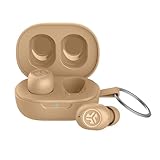
How to Connect Jlab Mini Earbuds: A Simple Guide
Hey there! If you’ve just unboxed your shiny new JLab Mini earbuds, welcome to the world of wireless audio! These little guys pack a punch, but getting them connected can sometimes feel like a mini-adventure. Don’t worry, though; it’s easier than you think. I’m going to walk you through every step, ensuring you can enjoy your tunes in no time.
We’ll cover everything from the initial pairing process to troubleshooting common issues. Whether you’re an Apple aficionado, an Android enthusiast, or just a music lover, this guide will help you get your JLab Mini earbuds up and running smoothly. So, let’s get started and make sure you’re listening to your favorite music, podcasts, or audiobooks in a snap!
Understanding Your Jlab Mini Earbuds
Before we jump into the connection process, let’s get familiar with your JLab Mini earbuds. Understanding their components and functions will make the process much smoother.
What’s in the Box?
Your JLab Mini earbuds typically come with the following:
- The JLab Mini Earbuds: Obviously! These are the stars of the show.
- Charging Case: This case not only protects your earbuds but also charges them on the go.
- Eartips: Usually, you’ll find multiple sizes (small, medium, and large) to ensure a comfortable fit.
- Charging Cable: Often a USB-C cable for charging the case.
- User Manual: Although we’re going through the steps here, it’s always good to have the manual handy.
Key Features and Controls
Knowing the basic controls is essential for a good experience. Here’s a quick overview:
- Power On/Off: The earbuds usually power on automatically when removed from the charging case and power off when placed back in. Some models might have a touch sensor you can use.
- Play/Pause: A single tap on either earbud usually plays or pauses your audio.
- Volume Control: Typically, you’ll need to adjust the volume from your connected device, but some models might offer tap controls.
- Track Control: Double-tap or triple-tap either earbud to skip tracks or go back.
- Call Management: A single tap answers or ends a call.
- Voice Assistant: Depending on your model, you can usually activate your voice assistant (Siri, Google Assistant) with a specific tap pattern.
Charging the Earbuds and Case
Before connecting, make sure your earbuds and charging case are charged. Here’s how:
- Charging the Case: Plug the USB-C cable into the charging case and a power source (like a wall adapter or your computer). The LED lights on the case indicate the charging status.
- Charging the Earbuds: Place the earbuds into the charging case. They will start charging automatically. The LED lights on the case or the earbuds will indicate their charging status.
- Battery Life: The JLab Mini earbuds typically offer several hours of playtime on a single charge, with the charging case providing additional charges. Refer to your specific model’s specifications for exact numbers.
Pairing Your Jlab Mini Earbuds: The Step-by-Step Guide
Now, let’s get your JLab Mini earbuds connected to your device. The process is straightforward, but here’s a detailed walkthrough to ensure success.
Step 1: Check for Compatibility
The JLab Mini earbuds are designed to be compatible with most Bluetooth-enabled devices. This includes:
- Smartphones: Both Android and iOS devices.
- Tablets: iPads, Android tablets, etc.
- Computers: Laptops and desktops with Bluetooth capability.
- Other Devices: Any device that supports Bluetooth audio streaming.
Step 2: Entering Pairing Mode
The first step is to put your earbuds into pairing mode. Here’s how:
- Remove Earbuds from the Case: Take both earbuds out of the charging case. They should automatically power on and enter pairing mode. You’ll often see a flashing light on the earbuds, indicating they are ready to pair.
- Manual Pairing (If Needed): If the earbuds don’t automatically enter pairing mode, you might need to manually initiate it. This often involves holding down a touch sensor or a button on the earbud. Consult your user manual for specific instructions for your model.
Step 3: Activating Bluetooth on Your Device
Next, enable Bluetooth on the device you want to connect to. The steps vary depending on your device’s operating system:
- Android:
- Go to Settings.
- Select “Connections” or “Bluetooth & device connection”.
- Tap on “Bluetooth.”
- Ensure Bluetooth is turned on. Your device will begin scanning for available devices.
- iOS (iPhone/iPad):
- Go to Settings.
- Tap on “Bluetooth.”
- Toggle Bluetooth to the “on” position. Your device will automatically start searching for nearby Bluetooth devices.
- Windows:
- Click the Windows icon (Start button).
- Go to Settings.
- Click on “Bluetooth & devices.”
- Turn Bluetooth on. Your computer will start searching for nearby Bluetooth devices.
- macOS:
- Click the Apple menu (top left corner).
- Go to System Preferences.
- Click on “Bluetooth.”
- Turn Bluetooth on. Your Mac will scan for available devices.
Step 4: Selecting Your Jlab Mini Earbuds
Once your device has scanned for Bluetooth devices, your JLab Mini earbuds should appear in the list. The name might be something like “JLab Mini” or a similar designation.
- Select Your Earbuds: Tap or click on the name of your JLab Mini earbuds in the list of available devices.
- Pairing Request: Your device may ask you to confirm the pairing. If prompted, accept the request.
- Connection Confirmation: Once paired, your earbuds should connect automatically. You’ll likely see a confirmation message on your screen. The earbuds themselves might also indicate a successful connection (e.g., a solid light instead of flashing).
Step 5: Testing the Connection
After pairing, it’s time to test the connection. Play some audio to ensure everything is working correctly.
- Play Audio: Open your favorite music app, podcast app, or any audio source.
- Adjust Volume: Make sure the volume on both your device and the earbuds is turned up to a comfortable level.
- Check Audio Quality: Listen to the audio to ensure there are no interruptions or distortions.
- Test Controls: Try the play/pause, skip track, and other controls to verify they’re functioning as expected.
Troubleshooting Common Connection Issues
Sometimes, things don’t go perfectly the first time. Here’s how to troubleshoot common issues you might encounter.
Earbuds Not Appearing in the Bluetooth List
If your earbuds don’t show up in the Bluetooth list, try these steps:
- Ensure Earbuds are in Pairing Mode: Double-check that your earbuds are actually in pairing mode. Remove them from the charging case, and look for a flashing light.
- Restart Your Earbuds: Put the earbuds back in the charging case, close the lid, and then take them out again. This can reset the pairing process.
- Restart Your Device: Sometimes, a simple device restart can fix Bluetooth issues. Turn off your phone, tablet, or computer, and then turn it back on.
- Check Bluetooth Range: Make sure your device and the earbuds are within Bluetooth range (typically about 30 feet). Obstacles like walls can interfere with the signal.
- Clear Bluetooth Cache (Android): On some Android devices, clearing the Bluetooth cache can help. Go to Settings > Apps > See all apps > Bluetooth > Storage & cache > Clear cache.
Earbuds Won’t Connect After Pairing
If your earbuds have paired but won’t connect, try these solutions:
- Check Bluetooth is Enabled: Ensure Bluetooth is turned on in your device’s settings.
- Forget and Re-pair: On your device, go to the Bluetooth settings, find your JLab Mini earbuds, and tap “Forget” or “Unpair.” Then, go through the pairing process again.
- Check for Interference: Other Bluetooth devices or Wi-Fi routers can sometimes interfere with the connection. Try moving away from potential sources of interference.
- Update Device Firmware: Make sure your device’s operating system is up-to-date.
- Factory Reset Earbuds (If Applicable): Some JLab Mini models have a factory reset option. Consult your user manual for instructions. This will reset the earbuds to their original settings.
Audio Cuts Out or Distorts
If you experience audio dropouts or distortion, try these fixes:
- Move Closer to Your Device: Bluetooth signals can be affected by distance. Move closer to your device.
- Reduce Interference: Avoid areas with many other Bluetooth devices or Wi-Fi routers.
- Check Battery Levels: Low battery levels can sometimes cause audio issues. Make sure both your earbuds and charging case are sufficiently charged.
- Reset the Connection: Disconnect and reconnect the earbuds to your device.
- Update Earbud Firmware: Check if there are any firmware updates available for your earbuds. You might need to use the JLab app or check the JLab website.
One Earbud Not Working
If only one earbud is producing sound, try these steps:
- Check Balance Settings: Make sure the audio balance in your device’s settings isn’t skewed to one side. Go to your device’s audio settings and adjust the balance.
- Restart Earbuds: Put both earbuds back in the charging case, close the lid, and then take them out again.
- Check for Individual Earbud Issues: Ensure both earbuds are charged and functioning correctly. Try swapping them to see if the problem follows the earbud.
- Reset the Earbuds: Perform a factory reset of the earbuds (refer to your user manual).
Advanced Tips and Tricks
Once you’ve mastered the basics, here are some advanced tips to enhance your JLab Mini earbud experience.
Using the Jlab App (if Applicable)
Some JLab Mini models support the JLab app. This app allows you to customize your listening experience.
- Download and Install: Download the JLab app from the App Store (iOS) or Google Play Store (Android).
- Connect Your Earbuds: Open the app and follow the on-screen instructions to connect your earbuds.
- Customize Settings: Within the app, you can often customize the following:
- Equalizer Settings: Adjust the sound profile to your preferences (e.g., bass boost, balanced, etc.).
- Touch Controls: Customize the touch controls on your earbuds.
- Firmware Updates: Check for and install firmware updates.
- Product Support: Access product support and FAQs.
Multipoint Pairing (if Supported)
Some JLab Mini models support multipoint pairing, allowing you to connect to two devices simultaneously.
- Check for Multipoint Support: Consult your user manual or the JLab website to see if your model supports multipoint pairing.
- Pair to Both Devices: Pair your earbuds to both devices following the standard pairing process.
- Switching Between Devices: Depending on the model, you may need to manually switch between devices or the earbuds will automatically switch based on which device is playing audio.
Optimizing Battery Life
To maximize the battery life of your JLab Mini earbuds:
- Charge Regularly: Keep the earbuds and charging case charged.
- Store Properly: Store the earbuds in the charging case when not in use.
- Adjust Volume: Lowering the volume can conserve battery life.
- Disable Features (If Applicable): If your model has features like voice assistant activation or special sound modes, disabling them when not needed can save battery.
Cleaning and Maintenance
Regular cleaning and maintenance will ensure your earbuds last longer and sound better.
- Clean Regularly: Wipe down the earbuds and charging case with a soft, dry cloth.
- Clean Eartips: Remove the eartips and clean them with mild soap and water. Make sure they are completely dry before reattaching them.
- Avoid Moisture: Protect the earbuds from moisture and extreme temperatures.
Frequently Asked Questions (faqs)
Here are some frequently asked questions about the JLab Mini earbuds.
Q: How Do I Reset My Jlab Mini Earbuds?
A: The reset process varies depending on the model. Refer to your user manual for the specific steps. Typically, it involves putting the earbuds in the charging case and holding a button for a certain duration.
Q: How Do I Know When My Earbuds Are Fully Charged?
A: The charging case usually has LED lights that indicate the charging status. When the earbuds are fully charged, the lights will typically turn solid. Also, the earbuds themselves often have LED indicators that show their charging status.
Q: Can I Use My Jlab Mini Earbuds with Multiple Devices?
A: Yes, you can pair your JLab Mini earbuds with multiple devices. However, you can only actively connect to one device at a time, unless your model supports multipoint pairing.
Q: My Earbuds Are Not Connecting. What Should I Do?
A: Start by restarting your earbuds and your device. Then, check that Bluetooth is enabled on your device and that your earbuds are in pairing mode. If the problem persists, try forgetting and re-pairing the earbuds or consulting the troubleshooting steps mentioned earlier.
Q: How Do I Control the Volume?
A: Usually, you control the volume through your connected device. Some JLab Mini models may have touch controls on the earbuds for volume adjustment. Check your user manual for specific instructions.
Q: Are Jlab Mini Earbuds Waterproof?
A: The water resistance of JLab Mini earbuds varies by model. Check the product specifications to determine the level of water resistance. Some models are splash-proof or sweat-resistant, while others are not water-resistant at all.
Q: What Do the LED Lights on the Charging Case Mean?
A: The LED lights on the charging case indicate the charging status of both the case and the earbuds. The specific meanings of the lights depend on the model. Refer to your user manual for details.
Q: What If I Lose an Earbud or the Charging Case?
A: Contact JLab customer support for assistance. They may be able to provide a replacement earbud or case, depending on the warranty and availability.
Conclusion
Connecting your JLab Mini earbuds is a straightforward process, and with this guide, you should be up and running in no time. Remember to check for compatibility, put your earbuds in pairing mode, enable Bluetooth on your device, and select your earbuds from the list. If you encounter any issues, refer to the troubleshooting tips provided. Enjoy your music!
Recommended Products