How to Connect Tozo Earbuds to iPhone: A Simple Guide
So, you’ve got yourself a shiny new pair of TOZO earbuds, and you’re eager to start enjoying your music, podcasts, or audiobooks. But you’re an iPhone user, and you might be wondering: how do I get these things connected? Don’t worry, it’s a straightforward process, and I’ll walk you through every step.
Whether you’re new to the world of wireless earbuds or just need a refresher, I’ll provide a clear, easy-to-follow guide to pairing your TOZO earbuds with your iPhone. We’ll cover everything from the initial setup to troubleshooting common issues. By the end of this guide, you’ll be listening to your favorite tunes in no time.
Let’s get started and make sure you’re ready to experience the convenience and quality of your TOZO earbuds paired with your iPhone. I’ll provide clear instructions and helpful tips to make the process as smooth as possible.
Understanding Tozo Earbuds and iPhone Compatibility
Before we jump into the connection process, let’s clarify a few things. TOZO earbuds are designed to be compatible with a wide range of devices, including iPhones. They use Bluetooth technology, which is the standard for wireless audio transmission. This means that as long as your iPhone has Bluetooth capabilities (which all modern iPhones do), you’re good to go.
Bluetooth Basics: Bluetooth is a short-range wireless technology that allows devices to communicate with each other. It’s what enables your earbuds to receive audio from your iPhone without any wires. The connection is established through a pairing process, which we’ll cover in detail.
iPhone Compatibility: All iPhones from the iPhone 5 and later models support Bluetooth and are fully compatible with TOZO earbuds. You shouldn’t encounter any compatibility issues based on your iPhone model.
Preparing Your Tozo Earbuds
Before you can connect your TOZO earbuds to your iPhone, you need to ensure they’re ready to pair. This involves a few simple steps, including charging and powering them on.
Charging Your Earbuds
Most TOZO earbuds come with a charging case. This case not only protects your earbuds but also provides additional battery life. Here’s how to charge your earbuds and the charging case:
- Charge the Case: Use the charging cable that came with your TOZO earbuds to connect the charging case to a power source (like a USB wall adapter or your computer). The charging case typically has an indicator light that shows the charging status. The light will change color or blink to indicate charging and will usually turn solid when fully charged.
- Charge the Earbuds: Place the earbuds inside the charging case. They will automatically start charging when they’re properly seated. Again, the charging case will usually have indicator lights to show the charging status of each earbud.
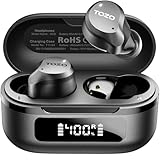
- Check the Battery: Some TOZO models have a digital display on the charging case that shows the battery percentage for both the case and the earbuds. If your model doesn’t have a display, you can usually check the battery level of the case by pressing a button on the case. The earbuds will be fully charged within about 1-2 hours.
Why Charging Matters: You’ll want to charge your earbuds before connecting them so that you can use them right away. A fully charged battery ensures the best possible audio experience.
Powering on Your Earbuds
Once your earbuds are charged, you’ll need to power them on to initiate the pairing process. The method for powering on your TOZO earbuds can vary slightly depending on the model. Here’s a general guide:
- Automatic Power On: Many TOZO earbuds automatically power on when you take them out of the charging case.
- Manual Power On: Some models have a physical button on each earbud that you need to press and hold to turn them on. Refer to your specific user manual for the exact instructions.
- Indicator Lights: Look for indicator lights on the earbuds. These lights usually flash or change color when the earbuds are powered on and in pairing mode.
Tip: If your earbuds don’t power on, make sure they are charged. If they still don’t power on, consult your user manual for troubleshooting steps.
Pairing Your Tozo Earbuds with Your iPhone
Now that your earbuds are charged and powered on, it’s time to pair them with your iPhone. This is where the magic happens, and the steps are quite simple.
Step-by-Step Pairing Instructions
- Enable Bluetooth on Your iPhone: On your iPhone, go to the Settings app. Tap on “Bluetooth.” Make sure the Bluetooth switch is toggled to the on position (it should be green).
- Put Your Earbuds into Pairing Mode: As mentioned earlier, your earbuds will likely enter pairing mode automatically when you take them out of the charging case. However, some models might require you to press and hold a button on the earbuds to activate pairing mode. Refer to your user manual. The earbuds will typically flash a light, indicating they are in pairing mode.
- Find Your Earbuds in the Bluetooth Settings: In the Bluetooth settings on your iPhone, you should see a list of available devices. Look for your TOZO earbuds in the list. They might be listed as “TOZO \[model number]” or something similar.
- Tap to Connect: Tap on the name of your TOZO earbuds in the list. Your iPhone will attempt to connect to the earbuds.
- Confirmation: Once the connection is successful, the status of your TOZO earbuds in the Bluetooth settings will change to “Connected.” You might also hear a confirmation sound from your earbuds.
Important Notes:
- If you don’t see your earbuds listed: Make sure your earbuds are in pairing mode and close to your iPhone. Also, try restarting your iPhone and your earbuds.
- If you’re connecting to a new iPhone: You might need to “forget” the earbuds on any other devices they are paired with to avoid conflicts. Do this by going to the Bluetooth settings on the other device and tapping on the “i” icon next to the earbuds’ name, then selecting “Forget This Device.”
Troubleshooting Pairing Issues
Sometimes, the pairing process doesn’t go as smoothly as planned. Here are some common issues and how to resolve them:
- Earbuds Not Showing Up:
- Solution: Ensure your earbuds are in pairing mode. Make sure Bluetooth is enabled on your iPhone. Restart both your iPhone and your earbuds. Move the earbuds closer to your iPhone.
- Connection Dropping:
- Solution: Ensure both your iPhone and your earbuds are fully charged. Move closer to your iPhone and avoid obstructions. Reset your earbuds (see instructions below).
- One Earbud Not Working:
- Solution: Place both earbuds back in the charging case and close the lid. Take them out again. Ensure both earbuds are charged. Reset your earbuds (see instructions below).
- Audio Issues (Static, Distortion):
- Solution: Move closer to your iPhone. Reduce interference from other devices. Try resetting your earbuds.
Resetting Your Tozo Earbuds
If you’re experiencing persistent connection or audio issues, resetting your TOZO earbuds can often solve the problem. The exact reset procedure varies depending on the model, but here’s a general guide:
- Place the Earbuds in the Charging Case: Make sure both earbuds are inside the charging case and the lid is open.
- Locate the Reset Button: Most TOZO charging cases have a small reset button. It is usually located at the bottom or on the back of the case.
- Press and Hold the Reset Button: Press and hold the reset button for about 10-15 seconds. The indicator light on the charging case will usually flash or change color, indicating that the reset process is in progress.
- Remove and Re-pair the Earbuds: After the reset is complete, take the earbuds out of the charging case and try pairing them with your iPhone again, following the steps outlined earlier.
Tip: If you’re unsure how to reset your specific TOZO model, consult the user manual that came with your earbuds.
Using Your Tozo Earbuds with Your iPhone
Once your TOZO earbuds are successfully paired with your iPhone, you can start using them to listen to music, make calls, and more. Here’s how to make the most of your new wireless audio experience.
Adjusting Volume and Playback
You can control the volume and playback of your audio directly from your TOZO earbuds or your iPhone.
- Volume Control: Most TOZO earbuds have touch controls. Typically, you can increase or decrease the volume by tapping or swiping on the touch-sensitive surface of the earbuds. Consult your user manual for the specific controls for your model. You can also adjust the volume using the volume buttons on your iPhone.
- Playback Controls: You can usually control playback (play, pause, skip track, previous track) using the touch controls on your earbuds. Again, refer to your user manual for the specific controls.
Tip: Experiment with the touch controls on your earbuds to learn how to control your music playback.
Making and Receiving Calls
TOZO earbuds usually have built-in microphones, allowing you to make and receive phone calls.
- Making Calls: When you make a call from your iPhone, the audio will be routed through your TOZO earbuds.
- Answering Calls: When you receive a call, you can usually answer it by tapping on one of the earbuds.
- Ending Calls: You can typically end a call by tapping on one of the earbuds.
Tip: Make sure the microphone isn’t blocked by your clothing or other objects.
Using Siri
You can often activate Siri (the iPhone’s voice assistant) using your TOZO earbuds.
- Activation: Depending on your TOZO model, you might be able to activate Siri by tapping a specific earbud multiple times or by pressing and holding a touch control.
- Commands: Once Siri is activated, you can give her voice commands to make calls, send texts, play music, set reminders, and more.
Tip: Experiment with the touch controls to find out how to activate Siri on your earbuds.
Advanced Features and Tips
Beyond the basic functions, TOZO earbuds often offer advanced features that enhance your listening experience. Here are some of them.
Touch Controls Customization
Some TOZO models allow you to customize the touch controls. This means you can change what happens when you tap, double-tap, or long-press on the earbuds. You can usually customize the controls through the TOZO app (if available) or in the Bluetooth settings on your iPhone.
Tozo App
Many TOZO earbuds come with a companion app that offers additional features and customization options. These apps are usually available on the App Store.
- Equalizer Settings: You can adjust the sound profile to your liking.
- Firmware Updates: The app can install firmware updates to improve the performance of your earbuds.
- Find My Earbuds: Some apps have a “Find My Earbuds” feature to help locate your earbuds if they get lost.
Battery Life Optimization
To maximize the battery life of your TOZO earbuds, consider the following:
- Charge Regularly: Keep your charging case and earbuds charged.
- Use the Charging Case: The charging case provides extra battery life.
- Turn Off Earbuds When Not in Use: If you’re not using your earbuds, put them back in the charging case to conserve battery.
- Adjust Volume: Listening at very high volumes will drain the battery faster.
Comparing Tozo Earbud Models
TOZO offers a wide range of earbud models, each with its own set of features and price points. Here’s a brief comparison of some popular models:
| Feature | TOZO T10 | TOZO T6 | TOZO NC9 |
|---|---|---|---|
| Water Resistance | IPX8 | IPX8 | IPX5 |
| Active Noise Cancellation | No | No | Yes |
| Battery Life (Earbuds) | 6 hours | 6 hours | 8 hours |
| Battery Life (with Case) | 30 hours | 30 hours | 24 hours |
| Wireless Charging | Yes | Yes | Yes |
| Price (Approximate) | $25-$35 | $25-$35 | $35-$45 |
Note: Prices and features may vary. Always refer to the product specifications for the most up-to-date information.
Common Questions and Answers
Here are some frequently asked questions about connecting TOZO earbuds to iPhones:
- Q: Can I connect my TOZO earbuds to multiple devices?
- A: Yes, you can. However, you can only listen to audio from one device at a time. To switch between devices, you’ll need to disconnect from the current device and connect to the other device.
- Q: Why is the sound quality bad?
- A: Ensure your earbuds are properly seated in your ears. Try adjusting the volume on both your iPhone and your earbuds. Make sure there is no dirt or debris on the earbud tips. Resetting the earbuds can also help.
- Q: How do I know if my earbuds are fully charged?
- A: The charging case usually has indicator lights that show the charging status. Refer to your user manual for specifics on your model.
- Q: My earbuds won’t connect. What should I do?
- A: Make sure Bluetooth is enabled on your iPhone. Put your earbuds in pairing mode. Restart your iPhone and earbuds. Make sure the earbuds are charged. If the problem persists, try resetting your earbuds.
- Q: Can I use TOZO earbuds for phone calls?
- A: Yes, TOZO earbuds have built-in microphones, allowing you to make and receive phone calls.
- Q: Do TOZO earbuds have noise cancellation?
- A: Some TOZO models have active noise cancellation (ANC), while others do not. Check the product specifications for the model you have.
Further Resources
If you need more help, here are some resources you can consult:
- TOZO Website: The official TOZO website provides product information, FAQs, and support.
- User Manual: Your user manual contains detailed instructions specific to your TOZO earbud model.
- Online Forums and Communities: Search online forums and communities for TOZO earbuds to find answers from other users.
- YouTube Tutorials: Search YouTube for video tutorials on connecting and using your specific TOZO earbud model.
Final Verdict
Connecting your TOZO earbuds to your iPhone is a simple process that unlocks a world of wireless audio enjoyment. By following the steps outlined in this guide, you should be able to pair your earbuds quickly and easily. Remember to charge your earbuds, enable Bluetooth on your iPhone, and put your earbuds in pairing mode. If you encounter any issues, refer to the troubleshooting tips and resources provided. With your TOZO earbuds connected, you’re ready to experience the freedom and convenience of wireless audio. Enjoy your music, podcasts, and calls!
Recommended Products