How to Connect Shokz Earbuds: A Simple, Step-by-Step Guide
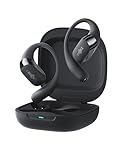
So, you’ve got your hands on a pair of Shokz earbuds – fantastic! These bone conduction headphones are a game-changer for anyone who wants to enjoy music or podcasts while staying aware of their surroundings. Whether you’re a runner, cyclist, or simply someone who enjoys listening while working, Shokz offers a unique listening experience. But before you can experience the magic, you need to know how to connect Shokz earbuds. Don’t worry, it’s a straightforward process, and I’m here to guide you through it.
This guide will walk you through everything, from initial pairing to troubleshooting common connection issues. We’ll cover the basics for both Android and iOS devices, ensuring you can quickly get your Shokz headphones up and running. We’ll also delve into some useful tips and tricks to optimize your listening experience. Let’s get started!
Understanding Shokz Bone Conduction Technology
Before we jump into the connection process, let’s briefly touch on what makes Shokz special: bone conduction technology. Unlike traditional earbuds that sit in your ear canal, Shokz headphones rest on your cheekbones, delivering sound through vibrations directly to your inner ear. This design allows your ears to remain open, letting you hear ambient sounds – a crucial safety feature for outdoor activities.
This technology has several advantages. First, it offers enhanced situational awareness. You can hear traffic, conversations, and other important sounds, making it safer to run on busy streets or cycle in traffic. Second, it often provides greater comfort, especially for extended listening sessions. Because the headphones don’t go in your ear, they can be a more comfortable option for people who find traditional earbuds irritating. Third, bone conduction can also be beneficial for those with certain types of hearing loss, as it bypasses the eardrum.
Shokz headphones are designed for different activities and preferences. Some models are specifically geared toward sports, featuring a secure fit and sweat resistance. Others are more suited for everyday use, with a sleek design and comfortable fit for all-day wear. The connection process is generally the same across all Shokz models, but it’s always a good idea to consult the user manual for your specific device for model-specific instructions.
Preparation: What You Need
Before you begin the pairing process, ensure you have the following:
- Your Shokz headphones: Make sure they are fully charged. A low battery can sometimes interfere with the pairing process.
- Your smartphone or other device: This could be an Android phone, an iPhone, a tablet, or even a computer with Bluetooth capabilities.
- Bluetooth enabled: Ensure Bluetooth is turned on in your device’s settings.
- The Shokz user manual: While this guide covers the general process, referring to your specific model’s manual can be helpful.
Charging your Shokz headphones is a crucial first step. Most Shokz models use a magnetic charging cable. Locate the charging port on your headphones and connect the cable. You’ll typically see an LED indicator light that shows the charging status. The light will usually change color when charging is complete. Fully charging your headphones before pairing ensures a smooth and uninterrupted connection.
Make sure your device is also ready. Ensure Bluetooth is enabled on your phone or other device. On an iPhone or iPad, you can usually find this setting in the Control Center or under Settings > Bluetooth. On an Android device, you’ll find it in the Settings menu, often under ‘Connections’ or ‘Bluetooth’.
Pairing Your Shokz Headphones: Step-by-Step Guide
Now, let’s get to the main event: pairing your Shokz headphones with your device. The process is similar for most Shokz models and devices, but I’ll provide detailed instructions for both Android and iOS.
Pairing with Android Devices
- Power on your Shokz headphones: Press and hold the power button on your headphones until the LED indicator light flashes. This usually indicates that the headphones are in pairing mode. The specific location of the power button may vary slightly depending on your Shokz model, so refer to your user manual if you’re unsure.
- Open your Android device’s Settings: Swipe down from the top of your screen to access the notification shade and tap the gear icon to open the Settings app.
- Navigate to Bluetooth settings: Scroll down and tap on ‘Connections’ or ‘Bluetooth’. The exact wording may differ based on your Android device’s manufacturer and version.
- Turn on Bluetooth: If Bluetooth is not already enabled, toggle the switch to turn it on. Your device will begin searching for available devices.
- Select your Shokz headphones: Your Shokz headphones should appear in the list of available devices, usually with the model name (e.g., ‘Shokz OpenRun’). Tap on the name to initiate the pairing process.
- Confirm the connection: You might be prompted to enter a pairing code (usually ‘0000’ or ‘1234’) or simply confirm the connection. Follow the on-screen instructions.
- Connection Successful!: Once paired, your Shokz headphones will be connected to your Android device, and you should be able to play audio through them. The status of your Shokz headphones should change to ‘Connected’ in the Bluetooth settings.
Pairing with iOS Devices (iphone, Ipad)
- Power on your Shokz headphones: Press and hold the power button on your Shokz headphones until the LED indicator light flashes. This indicates pairing mode.
- Open your iOS device’s Settings: Tap the ‘Settings’ icon on your home screen.
- Navigate to Bluetooth settings: Tap on ‘Bluetooth’.
- Turn on Bluetooth: If Bluetooth is not already enabled, toggle the switch to turn it on. Your device will begin searching for available devices.
- Select your Shokz headphones: Your Shokz headphones should appear in the list of available devices. Tap on the name to initiate the pairing process.
- Confirm the connection: No pairing code is usually needed for iOS devices. The connection should be automatic.
- Connection Successful!: Once paired, your Shokz headphones will be connected to your iOS device, and you should be able to play audio through them. You’ll see the status of your Shokz headphones change to ‘Connected’ in the Bluetooth settings.
Troubleshooting Common Connection Issues
Sometimes, things don’t go as planned. Here are some common connection issues and how to resolve them:
Headphones Not Showing Up
- Make sure your headphones are in pairing mode: The LED indicator light should be flashing. If it’s not, try turning them off and on again, holding the power button until the light flashes.
- Check the battery level: Low battery can sometimes cause pairing issues. Charge your headphones fully and try again.
- Move closer to your device: Ensure the headphones are within range of your device, usually within 33 feet (10 meters).
- Forget and re-pair: On your device, go to Bluetooth settings and ‘forget’ the Shokz headphones, then try pairing them again from scratch.
Headphones Connecting but No Sound
- Check the volume levels: Make sure the volume is turned up on both your headphones and your device.
- Select the correct audio output: In your device’s audio settings, ensure that the Shokz headphones are selected as the audio output device.
- Restart your device and headphones: Sometimes a simple restart can resolve connection issues. Turn off both your device and your Shokz headphones, then turn them back on and try again.
- Check for interference: Bluetooth signals can be affected by other devices, such as Wi-Fi routers or other Bluetooth devices. Try moving to a different location.
Intermittent Connection or Dropouts
- Check for interference: As mentioned above, interference can cause connection problems. Try moving to a different location.
- Make sure your device is compatible: Shokz headphones are generally compatible with most Bluetooth-enabled devices. However, older devices might have compatibility issues. Check the Shokz website for compatibility information.
- Update your device’s software: Ensure that your device’s operating system is up to date. Software updates often include Bluetooth improvements.
- Reset your headphones: Some Shokz models have a reset function. Consult your user manual for instructions on how to reset your specific model. This can often resolve persistent connection issues.
Advanced Tips and Tricks
Once you’ve successfully connected your Shokz headphones, you can enhance your listening experience with these tips and tricks:
Multi-Point Pairing
Some Shokz models support multi-point pairing, allowing you to connect to two devices simultaneously. This is particularly useful if you have a phone and a computer. To use multi-point pairing, follow these steps:
- Pair your headphones with the first device: Follow the standard pairing process for your first device (e.g., your smartphone).
- Pair your headphones with the second device: Put your headphones back into pairing mode (usually by pressing and holding the power button). Then, pair them with your second device (e.g., your laptop).
- Switch between devices: Your headphones will typically automatically switch between the two devices, depending on which one is playing audio. You might need to manually pause the audio on one device before playing on the other. Refer to your Shokz user manual for specific instructions on how to manage multi-point pairing.
Using the Shokz App (if Applicable)
Some Shokz models have a companion app that allows you to customize settings, update firmware, and access other features. The app is usually available for both Android and iOS devices. Check the app store for the Shokz app that corresponds to your model. Key features of the app often include:
- Firmware updates: Keeping your headphones’ firmware up-to-date can improve performance and fix bugs.
- Customization of sound profiles: Some apps allow you to adjust the sound profile to your preferences.
- Battery level monitoring: The app can show you the remaining battery life of your headphones.
- User manual and support: The app often provides easy access to the user manual and customer support.
Optimizing Sound Quality
While bone conduction technology is different from traditional headphones, you can still optimize the sound quality:
- Proper fit: Ensure your headphones fit correctly. The transducers should sit comfortably on your cheekbones, just in front of your ears. A proper fit is crucial for optimal sound transmission.
- Volume levels: Experiment with the volume levels. Avoid turning the volume up too high, as this can lead to sound leakage and discomfort.
- Equalizer settings: Use the equalizer settings on your device or in the Shokz app (if available) to adjust the sound profile to your liking. Some users prefer a slightly boosted bass for a richer sound.
- Consider your environment: In noisy environments, you might need to increase the volume slightly to overcome background noise. However, be mindful of the potential for hearing damage if you listen at high volumes for extended periods.
Cleaning and Maintenance
Proper cleaning and maintenance will prolong the life of your Shokz headphones:
- Clean regularly: Wipe down your headphones after each use, especially if you’ve been sweating. Use a damp cloth to remove any dirt or debris.
- Avoid harsh chemicals: Do not use harsh chemicals or solvents to clean your headphones. These can damage the materials.
- Store properly: When not in use, store your headphones in a safe place, away from extreme temperatures and direct sunlight.
- Protect the charging port: Ensure that the charging port is free of debris. This will ensure proper charging and prevent damage to the charging cable.
Understanding Bluetooth Codecs
Bluetooth audio uses codecs to compress and transmit audio data. Different codecs offer varying levels of audio quality. Understanding these can help you get the best possible sound from your Shokz headphones.
SBC (Subband Codec) is the standard Bluetooth codec, offering a basic level of audio quality. It’s widely compatible but generally provides the lowest sound quality. Most Shokz headphones support SBC.
AAC (Advanced Audio Coding) is a more advanced codec that often provides better audio quality than SBC. It’s commonly used by Apple devices. Some Shokz headphones support AAC.
aptX is a high-quality codec that provides near-CD quality audio. It’s often used by Android devices. Some Shokz headphones support aptX.
aptX HD is an even higher-quality version of aptX, offering even better audio quality. Few Shokz headphones support aptX HD.
LDAC is a high-resolution audio codec developed by Sony. It offers the highest possible audio quality over Bluetooth. Few Shokz headphones support LDAC.
The codec used by your Shokz headphones depends on the device you’re connected to and the capabilities of your headphones. Generally, your device and headphones will automatically negotiate the best supported codec. To check which codec is being used, you might need to use a third-party app or consult your device’s settings.
Bluetooth Version and Compatibility
Bluetooth technology has evolved over the years, with newer versions offering improved performance and features. The Bluetooth version of your Shokz headphones can affect the connection stability, range, and battery life. Most Shokz headphones use Bluetooth 5.0 or later, which provides significant improvements over older versions.
Bluetooth 5.0 and later offer several advantages, including:
- Faster speeds: Faster data transfer rates.
- Longer range: Improved range for a more stable connection.
- Improved battery efficiency: Reduced power consumption.
Your device’s Bluetooth version also matters. For the best performance, it’s recommended to use a device with a recent Bluetooth version. However, Shokz headphones are generally backward-compatible with older Bluetooth versions, although you might not experience the full benefits of the latest features.
Bluetooth Profiles
Bluetooth profiles define the different ways devices can communicate with each other. Several profiles are relevant to Shokz headphones:
A2DP (Advanced Audio Distribution Profile) is the primary profile for streaming audio from your device to your headphones. This profile is essential for listening to music, podcasts, and other audio content.
HFP (Hands-Free Profile) and HSP (Headset Profile) are used for making and receiving phone calls. These profiles allow you to use the built-in microphone on your Shokz headphones for phone calls.
AVRCP (Audio/Video Remote Control Profile) allows you to control audio playback, such as play/pause, skip track, and adjust volume, from your headphones. This is a convenient feature that enhances the user experience.
Pairing with Multiple Devices
While some Shokz models support multi-point pairing, you can also manually switch between devices. If you’ve paired your headphones with multiple devices, but your model doesn’t support multi-point, you’ll need to manually disconnect from one device and connect to another. Here’s how:
- Disconnect from the current device: Go to the Bluetooth settings on your currently connected device and disconnect or forget the headphones.
- Connect to the new device: Put your Shokz headphones into pairing mode and connect them to the new device, following the standard pairing process.
This method works for all Shokz models, but it’s less convenient than multi-point pairing. If you frequently switch between devices, consider a model that supports multi-point pairing for a seamless experience.
The Future of Bone Conduction
Bone conduction technology continues to evolve, with ongoing advancements in sound quality, comfort, and battery life. We can expect to see further improvements in the coming years, including:
- Enhanced sound quality: Manufacturers are constantly working to improve the sound quality of bone conduction headphones, reducing sound leakage and improving bass response.
- Improved comfort: Innovations in materials and design are leading to more comfortable and secure fits.
- Extended battery life: Battery technology continues to advance, allowing for longer listening sessions.
- Integration with smart features: We can expect to see more integration with smart assistants and other advanced features.
Shokz is at the forefront of this innovation, continuously releasing new models with improved features and performance. As the technology matures, bone conduction headphones will likely become even more popular for a wide range of activities.
Verdict
Connecting your Shokz earbuds is a simple process, typically involving powering them on, putting them into pairing mode, and selecting them from your device’s Bluetooth settings. Whether you’re using an Android device or an iOS device, the steps are straightforward. Remember to ensure your headphones are charged, Bluetooth is enabled, and you’re within range of your device.
If you encounter any issues, don’t hesitate to consult the troubleshooting tips provided in this guide or your Shokz user manual. With a little patience, you’ll be enjoying your favorite music, podcasts, and audiobooks in no time. The unique experience of bone conduction technology offers a blend of audio enjoyment and situational awareness, making Shokz a great choice for various activities.
By following these steps and understanding the basics, you’ll be well on your way to enjoying the freedom and convenience of your Shokz headphones. Embrace the open-ear listening experience and stay connected to both your audio and your surroundings. Happy listening!
Recommended Products