How to Connect Earbuds to iPad: A Simple Guide
Hey there! Ever found yourself wanting to listen to your favorite tunes, catch up on a podcast, or join a video call on your iPad but struggling with how to get your earbuds connected? Don’t worry, it’s a common situation, and the solution is usually simpler than you think.
Whether you’ve got the latest wireless earbuds or a trusty pair with a traditional headphone jack, connecting them to your iPad is a straightforward process. This guide will walk you through every step, from ensuring compatibility to troubleshooting common issues.
We’ll cover Bluetooth connections, wired connections, and even some tips for optimizing your audio experience. So, grab your earbuds, and let’s get started. By the end of this guide, you’ll be enjoying your audio in no time!
Understanding iPad Audio Capabilities
Before we jump into connecting your earbuds, let’s quickly go over the audio capabilities of your iPad. iPads, like most modern tablets, support a variety of audio input and output methods. Understanding these methods will help you choose the right type of earbuds and ensure a smooth connection.
Bluetooth Connectivity
Bluetooth is the most common method for connecting earbuds to an iPad. It’s wireless, convenient, and allows for a clutter-free experience. Most modern earbuds, including those from Apple (AirPods, AirPods Pro, AirPods Max), Samsung, Sony, and many other brands, utilize Bluetooth technology.
Wired Connections (headphone Jack and Adapters)
Older iPads, and some newer ones, may have a 3.5mm headphone jack. If your earbuds have a standard headphone plug, you can simply plug them in. However, many newer iPads, especially the iPad Pro models, have removed the headphone jack to offer a sleeker design. In this case, you’ll need an adapter.
Adapters: Lightning to 3.5 Mm Headphone Jack Adapter
If your iPad uses a Lightning port, you’ll need a Lightning to 3.5 mm headphone jack adapter to connect wired earbuds. Apple sells its own adapter, which is generally reliable, but many third-party options are also available. These adapters convert the digital signal from the Lightning port to an analog signal that the earbuds can understand. Make sure to get one that is compatible with your specific iPad model.
USB-C to 3.5 Mm Headphone Jack Adapter
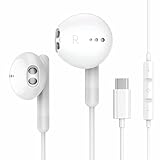
If your iPad has a USB-C port, you’ll need a USB-C to 3.5 mm headphone jack adapter. The principle is the same as the Lightning adapter, converting the digital signal from the USB-C port to an analog signal. As with Lightning adapters, there are numerous options available from various manufacturers.
iPad Compatibility: A Quick Guide
Here’s a quick overview of which iPads support which connection types:
| iPad Model | Headphone Jack | Lightning Port | USB-C Port | Bluetooth |
|---|---|---|---|---|
| iPad (All Generations) | Yes (Older models) / No (Newer Models) | Yes (All models) | No | Yes |
| iPad mini (All Generations) | Yes (Older models) / No (Newer Models) | Yes (All models) | No | Yes |
| iPad Air (All Generations) | Yes (Older models) / No (Newer Models) | Yes (All models) | Yes (iPad Air 4th and later) | Yes |
| iPad Pro (All Generations) | Yes (Older models) / No (Newer Models) | Yes (Older models) | Yes (All models) | Yes |
Connecting Bluetooth Earbuds to Your iPad
Connecting Bluetooth earbuds to your iPad is a simple process. Here’s a step-by-step guide:
Step 1: Put Your Earbuds in Pairing Mode
This is the crucial first step. Each pair of earbuds has a different way of entering pairing mode. Consult your earbuds’ manual for specific instructions. However, the general process involves:
- AirPods: Open the charging case near your iPad.
- Other Earbuds: Press and hold the power button or the pairing button on the earbuds (or the charging case) until the indicator light starts flashing, indicating that it is in pairing mode.
Step 2: Access Bluetooth Settings on Your iPad
On your iPad, navigate to the Settings app. Tap on the “Bluetooth” option. This will take you to the Bluetooth settings screen, where you can manage your Bluetooth connections.
Step 3: Enable Bluetooth
If Bluetooth is not already enabled, toggle the Bluetooth switch to the “on” position. The switch will turn green when Bluetooth is active. Your iPad will now start scanning for available Bluetooth devices.
Step 4: Select Your Earbuds
Your iPad will display a list of available Bluetooth devices. Look for your earbuds in the list. The name of your earbuds should appear. Tap on the name of your earbuds to initiate the pairing process.
Step 5: Confirm the Connection (if Necessary)
Sometimes, your iPad might ask you to confirm the connection by entering a code or accepting a pairing request. Follow the on-screen prompts to complete the pairing process. If no code is required, the connection happens automatically.
Step 6: Enjoy Your Audio
Once the connection is successful, your earbuds will be connected to your iPad. You should see a “Connected” status next to your earbuds’ name in the Bluetooth settings. Now, play some audio on your iPad to ensure the sound is coming through your earbuds.
Troubleshooting Bluetooth Connection Issues
Sometimes, you might encounter issues while connecting your Bluetooth earbuds. Here are some common problems and their solutions:
Earbuds Not Appearing in the List
Make sure your earbuds are in pairing mode. Double-check that the indicator light is flashing, indicating that they are discoverable. Also, ensure that your earbuds are charged. Low battery can sometimes prevent the earbuds from being detected.
Move closer to your iPad. Bluetooth has a limited range. The earbuds need to be within range of your iPad to connect.
Restart your iPad and earbuds. Sometimes, a simple restart can resolve connection issues. Turn off both your iPad and your earbuds, then turn them back on and try pairing again.
Connection Dropping or Unstable
Check for interference. Bluetooth signals can be affected by other devices, such as microwaves, Wi-Fi routers, or other Bluetooth devices. Try moving away from potential sources of interference.
Ensure your earbuds are charged. Low battery can cause connection instability.
Forget and re-pair the earbuds. In the Bluetooth settings on your iPad, tap the “i” icon next to your earbuds’ name. Then, tap “Forget This Device.” Put your earbuds back in pairing mode and try pairing them again.
Update your iPad’s software. Outdated software can sometimes cause Bluetooth issues. Go to Settings > General > Software Update and install any available updates.
Sound Quality Issues
Check the volume levels. Make sure the volume is turned up on both your iPad and your earbuds.
Check for audio interference. Move away from potential sources of interference, as mentioned above.
Try different audio sources. The issue might be with the audio file itself. Try playing audio from different apps or sources to see if the problem persists.
Reset your earbuds. Consult your earbuds’ manual for instructions on how to reset them to their factory settings. This can sometimes resolve sound quality issues.
Connecting Wired Earbuds to Your iPad
Connecting wired earbuds to your iPad is straightforward, especially if your iPad has a headphone jack. However, if your iPad uses a Lightning or USB-C port, you’ll need an adapter.
iPad with a Headphone Jack
If your iPad has a 3.5mm headphone jack, simply plug the earbud’s connector into the jack. Your iPad should automatically recognize the earbuds, and the audio will be routed through them.
iPad with a Lightning Port
If your iPad has a Lightning port, you’ll need a Lightning to 3.5 mm headphone jack adapter. Plug the adapter into the Lightning port on your iPad, and then plug your earbuds into the adapter. Your iPad should automatically recognize the earbuds, and the audio will be routed through them.
iPad with a USB-C Port
If your iPad has a USB-C port, you’ll need a USB-C to 3.5 mm headphone jack adapter. The process is the same as with the Lightning adapter: plug the adapter into the USB-C port and then plug your earbuds into the adapter. Your iPad should automatically recognize the earbuds, and the audio will be routed through them.
Troubleshooting Wired Connection Issues
While wired connections are generally more reliable than Bluetooth, you might still encounter some issues. Here’s how to troubleshoot them:
No Sound
Make sure the earbuds are properly plugged in. Ensure the connector is fully inserted into the headphone jack or the adapter.
Check the volume levels. Make sure the volume is turned up on both your iPad and the audio source (e.g., the app you’re using).
Test with different earbuds. Try connecting a different pair of earbuds to see if the issue is with the earbuds themselves.
Check the adapter (if using one). Make sure the adapter is functioning correctly. Try using a different adapter or testing the adapter with another device.
Sound Quality Issues
Check the audio source. The quality of the audio source can affect the sound quality. Try playing audio from different apps or sources.
Inspect the earbud connector. Make sure the connector is clean and free of debris. Clean the connector with a soft, dry cloth if necessary.
Try a different adapter (if using one). Some adapters might offer better audio quality than others. Try using a different adapter if you’re not satisfied with the sound.
Optimizing Your Audio Experience on iPad
Once your earbuds are connected, there are several ways to optimize your audio experience on your iPad:
Adjusting Volume Levels
You can adjust the volume using the volume buttons on your iPad or the volume controls on your earbuds (if they have them). You can also adjust the volume within the app you’re using.
Using the Control Center
The Control Center on your iPad provides quick access to volume controls and audio playback controls. Swipe down from the top-right corner of the screen to open the Control Center (or swipe up from the bottom on older iPads). From here, you can adjust the volume, play, pause, skip tracks, and control other audio-related functions.
Equalizer Settings
Some apps and your iPad’s settings offer equalizer (EQ) settings that allow you to customize the sound output. You can adjust the EQ settings to enhance the bass, treble, or other frequencies to suit your preferences. Navigate to Settings > Music > EQ to adjust the system-wide EQ settings. Many music apps also have their own EQ settings.
Spatial Audio (if Supported)
Some iPads and earbuds support spatial audio, which creates a more immersive listening experience. Spatial audio simulates a three-dimensional sound field, making it feel like the sound is coming from different directions. To enable spatial audio, go to Control Center and tap on the Spatial Audio icon (if available). The availability of spatial audio depends on your iPad model, the type of earbuds, and the audio content.
Headphone Safety
Be mindful of your listening volume. Listening to loud audio for extended periods can damage your hearing. Use the volume controls responsibly and avoid listening at excessively high volumes. The iPad has a volume limiter setting in Settings > Sounds > Headphone Safety. You can set a maximum volume level to protect your hearing.
Choosing the Right Earbuds for Your iPad
Choosing the right earbuds depends on your needs and preferences. Here are some factors to consider:
Wireless vs. Wired
Wireless earbuds offer convenience and freedom of movement, but they require charging. Wired earbuds don’t require charging but are tethered to your iPad. Consider your usage habits and preferences when choosing between these options.
Sound Quality
Look for earbuds with good sound quality. Read reviews and compare specifications to find earbuds that deliver the audio experience you desire. Consider factors like frequency response, impedance, and driver size.
Features
Consider the features you need. Some earbuds offer active noise cancellation (ANC), which can block out background noise. Others offer water resistance for workouts. Some have built-in microphones for calls and voice assistants. Choose the features that are important to you.
Comfort
Comfort is essential, especially if you plan to wear your earbuds for extended periods. Try on different earbuds to find a pair that fits comfortably in your ears. Consider the size, shape, and materials of the earbuds.
Price
Set a budget and compare prices. Earbud prices vary widely. Determine how much you’re willing to spend and explore options within your budget.
Connecting Earbuds to iPad: A Summary
Connecting earbuds to your iPad is usually a simple process. Whether you are using Bluetooth or a wired connection, you should be able to get your favorite tunes playing in no time at all. By following the steps outlined in this guide and troubleshooting any issues that may arise, you can enjoy an enhanced audio experience on your iPad.
Final Verdict
Connecting your earbuds to your iPad is a breeze, whether you’re using Bluetooth or a wired connection. Just follow the steps outlined in this guide, and you’ll be enjoying your favorite audio content in no time. Remember to troubleshoot any issues you encounter, and don’t hesitate to consult your earbuds’ manual or Apple’s support resources for further assistance. With the right connection, your iPad becomes an even more versatile entertainment and productivity tool.
From enjoying music and podcasts to participating in video calls and watching movies, your earbuds will significantly enhance your iPad experience. So, take the time to connect your earbuds, and get ready to immerse yourself in a world of sound! Happy listening!
Recommended Products