How to Turn on Shocks Earbuds: A Simple Guide
So, you’ve got your hands on a pair of Shocks earbuds, and you’re ready to experience the world of wireless audio. Fantastic! But before you can immerse yourself in your favorite tunes, podcasts, or audiobooks, you need to know how to get those earbuds powered up and connected. Don’t worry, it’s a straightforward process, and I’ll walk you through every step.
Whether you’re new to wireless earbuds or just new to the Shocks brand, this guide will provide you with all the necessary information to get your listening experience started. We’ll cover everything from the initial charging process to the various ways to turn on your earbuds, and even some troubleshooting tips if you run into any snags. Let’s get started and make sure you are enjoying the best audio experience.
Understanding Your Shocks Earbuds
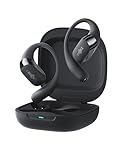
Before we jump into turning on your Shocks earbuds, let’s get a basic understanding of their components and how they function. This will help you troubleshoot any potential issues and maximize your listening experience. Shocks earbuds, like most wireless earbuds, consist of the earbuds themselves, a charging case, and potentially some additional accessories like different-sized ear tips.
The Earbuds
The earbuds are the primary components responsible for delivering sound directly to your ears. They house the drivers, which convert electrical signals into sound waves. They also contain the battery, the Bluetooth receiver, and the controls (usually touch-sensitive or physical buttons) for managing playback, calls, and volume. Some Shocks models may feature additional sensors for in-ear detection, which can automatically pause or play music when you remove or insert an earbud.
The Charging Case
The charging case serves multiple purposes. First and foremost, it protects your earbuds when they’re not in use. Second, and perhaps most importantly, it charges the earbuds. The case has a built-in battery that can recharge the earbuds multiple times before needing to be recharged itself. The charging case typically has a USB-C port for charging, and often, it will display the battery level of both the case and the earbuds through LED indicators.
Ear Tips
Many Shocks earbuds come with a variety of ear tips in different sizes. These tips are crucial for a comfortable fit and optimal sound quality. They create a seal within your ear canal, which helps to isolate external noise and enhance the bass response. Experimenting with different sizes is often necessary to find the best fit for your ears. A good fit will also help with passive noise cancellation.
Charging Your Shocks Earbuds
Before you can turn on and use your Shocks earbuds, you’ll need to make sure they’re charged. The initial charge is especially important, and it’s generally recommended to fully charge both the earbuds and the charging case before the first use. Here’s a step-by-step guide to charging your Shocks earbuds:
Charging the Case
- Locate the charging port. The charging port is usually a USB-C port located on the bottom of the charging case.
- Connect the charging cable. Use the USB-C cable that came with your Shocks earbuds and plug it into the charging port on the case.
- Connect to a power source. Plug the other end of the cable into a USB power adapter (like the one that came with your phone) or a USB port on your computer or a wall adapter.
- Check the charging indicator. The charging case usually has an LED indicator that will show the charging status. It might blink or change color to indicate that it’s charging. Once the case is fully charged, the indicator will typically turn solid or change to a different color.
Charging the Earbuds
- Place the earbuds in the case. Open the charging case and carefully place the earbuds into their respective slots. Make sure they are seated correctly.
- Close the case. Close the charging case. The earbuds will automatically start charging when they are properly seated and the case has power.
- Check the charging indicators. The charging case or the earbuds themselves might have LED indicators that show the charging status of each earbud. These indicators might blink or change color to indicate charging.
- Wait for the earbuds to fully charge. The charging time will vary depending on the model of your Shocks earbuds and the remaining battery level. Typically, it takes about an hour to fully charge the earbuds from empty.
Important Tip: Always use the charging cable that came with your Shocks earbuds. While other USB-C cables might work, using the original cable ensures optimal charging performance and helps prevent potential damage to your earbuds or the charging case.
Turning on Your Shocks Earbuds: Step-by-Step Guide
Now that your Shocks earbuds are charged, it’s time to turn them on. The exact method for turning on your earbuds may vary slightly depending on the specific model, but the general process is usually the same. Here’s how to do it:
Method 1: Automatic Power on (most Common)
Most Shocks earbuds are designed to automatically turn on when you remove them from the charging case. This is the most convenient method and the one you’ll likely use most often.
- Open the charging case. Open the case to expose the earbuds.
- Remove the earbuds. Gently remove the earbuds from the case. As you take them out, they should automatically power on.
- Check for pairing mode. Once powered on, the earbuds will usually enter pairing mode automatically, indicated by flashing lights or a voice prompt.
- Connect to your device. Go to the Bluetooth settings on your smartphone, tablet, or other device and select your Shocks earbuds from the list of available devices. You may need to select the model number of the earbuds.
Method 2: Manual Power on (if Applicable)
Some Shocks earbuds may also have a manual power-on option. This is less common, but it’s good to know in case the automatic method doesn’t work or you need to turn on the earbuds without removing them from the case.
- Locate the power button. Look for a small button on each earbud. This button might be located on the outer surface of the earbud.
- Press and hold the power button. Press and hold the power button on each earbud for a few seconds (usually 3-5 seconds) until you see the LED indicator lights blink or hear a power-on tone.
- Check for pairing mode. Once powered on, the earbuds will usually enter pairing mode automatically.
- Connect to your device. Go to the Bluetooth settings on your device and select your Shocks earbuds.
Troubleshooting Power-on Issues
If your Shocks earbuds aren’t turning on, don’t panic! Here are some troubleshooting steps to try:
- Check the battery level. Make sure both the earbuds and the charging case have sufficient battery power. Place the earbuds in the case and check the LED indicators.
- Ensure proper placement in the case. Double-check that the earbuds are correctly seated in the charging case. Sometimes, they might not make proper contact with the charging pins.
- Clean the charging contacts. Over time, dust or debris can accumulate on the charging contacts, preventing the earbuds from charging or turning on. Use a soft, dry cloth or a cotton swab to clean the contacts on both the earbuds and the charging case.
- Reset the earbuds. Many Shocks earbuds have a reset function. Consult your user manual for instructions on how to reset your specific model. This can often resolve software glitches that might be preventing the earbuds from turning on.
- Try a different charging cable. If you suspect a problem with the charging cable, try using a different USB-C cable to charge the case.
- Contact customer support. If you’ve tried all the troubleshooting steps and your earbuds still won’t turn on, contact Shocks customer support for further assistance. They can provide specific troubleshooting steps for your model or arrange for a repair or replacement.
Pairing Your Shocks Earbuds with Your Device
Once your Shocks earbuds are powered on, the next step is to pair them with your smartphone, tablet, laptop, or other Bluetooth-enabled device. This process allows your device to wirelessly connect to your earbuds and stream audio.
Pairing Steps
- Put the earbuds in pairing mode. As mentioned earlier, your earbuds will usually enter pairing mode automatically when you take them out of the charging case. If not, refer to your user manual for specific instructions on how to activate pairing mode. This usually involves pressing and holding a button on the earbuds.
- Enable Bluetooth on your device. Go to the settings menu on your device and enable Bluetooth. The location of the Bluetooth settings will vary depending on your device (e.g., in the settings app on Android devices or in the control center on iOS devices).
- Search for available devices. Your device will automatically start searching for nearby Bluetooth devices.
- Select your Shocks earbuds. Once your earbuds appear in the list of available devices (they may be listed by their model number or a specific name), select them to initiate the pairing process.
- Confirm the pairing (if necessary). Some devices may require you to confirm the pairing by entering a passcode or tapping a confirmation prompt. If prompted, follow the on-screen instructions.
- Pairing successful. Once the pairing is successful, your device will be connected to your Shocks earbuds, and you should hear a confirmation tone or message.
Pairing Tips
- Make sure your earbuds are close to your device. For the best pairing experience, keep your earbuds and your device within a few feet of each other during the pairing process.
- Turn off Bluetooth on other devices. If you have previously paired your Shocks earbuds with another device, make sure Bluetooth is turned off on that device to avoid pairing conflicts.
- Check your device’s Bluetooth compatibility. Ensure that your device is compatible with Bluetooth technology. Most modern smartphones, tablets, and laptops support Bluetooth.
- Consult your user manual. If you encounter any issues during the pairing process, refer to the user manual for your Shocks earbuds and your device for specific instructions and troubleshooting tips.
Using Your Shocks Earbuds
Now that your Shocks earbuds are powered on and paired with your device, you’re ready to start using them! Here’s a quick overview of how to use your earbuds for various tasks:
Listening to Music
- Open your music app. Launch your preferred music streaming app (e.g., Spotify, Apple Music, YouTube Music) or music player on your device.
- Start playing music. Select a song, album, or playlist and start playing it. The audio should automatically stream to your Shocks earbuds.
- Control playback. Most Shocks earbuds have touch controls or physical buttons that allow you to control playback. Common controls include:
- Play/Pause: Tap or press a button on one of the earbuds.
- Next Track: Double-tap or press a button on one of the earbuds.
- Previous Track: Triple-tap or press a button on one of the earbuds.
- Volume Up: Tap or press a button on one of the earbuds.
- Volume Down: Tap or press a button on one of the earbuds.
Making and Receiving Calls
- Answer a call. When you receive an incoming call, tap or press a button on one of the earbuds to answer.
- End a call. During a call, tap or press a button on one of the earbuds to end the call.
- Reject a call. When you receive an incoming call, press and hold a button on one of the earbuds to reject the call.
- Use the built-in microphone. Your Shocks earbuds have a built-in microphone that allows you to make and receive calls. Speak directly into the microphone for the best audio quality.
Using Voice Assistants
Many Shocks earbuds are compatible with voice assistants like Siri, Google Assistant, or Alexa. Here’s how to activate your voice assistant:
- Activate the voice assistant. Depending on your model, you may need to tap, press, or hold a button on one of the earbuds to activate your voice assistant.
- Give voice commands. Once the voice assistant is activated, you can speak commands to control music playback, make calls, get information, and more.
Optimizing Your Listening Experience
To get the most out of your Shocks earbuds, consider these tips:
Choosing the Right Ear Tips
The ear tips play a crucial role in sound quality and comfort. Experiment with the different sizes of ear tips that came with your earbuds to find the best fit for your ears. A proper fit will:
- Improve sound quality. The ear tips create a seal that enhances bass response and reduces sound leakage.
- Enhance noise isolation. A good seal helps to block out external noise, allowing you to focus on your music or calls.
- Increase comfort. Choose ear tips that fit comfortably in your ears to prevent discomfort during extended listening sessions.
Adjusting the Volume
Adjust the volume to a comfortable listening level. Prolonged exposure to loud volumes can damage your hearing. Most earbuds have volume controls on the earbuds themselves and on your connected device. Find the right balance that suits your listening environment.
Cleaning Your Earbuds
Regularly clean your Shocks earbuds to maintain their performance and hygiene. Use a soft, dry cloth or a cotton swab to wipe away any dirt or debris. Avoid using water or harsh chemicals, which can damage the earbuds.
Updating the Firmware
Check for firmware updates for your Shocks earbuds. Firmware updates can improve performance, fix bugs, and add new features. Consult your user manual or the Shocks website for instructions on how to update the firmware.
Advanced Features and Settings
Depending on the model of your Shocks earbuds, you might have access to advanced features and settings. These features can enhance your listening experience and provide more control over your audio. Check the user manual or the Shocks website for details on these features.
Active Noise Cancellation (anc)
Some Shocks earbuds offer Active Noise Cancellation (ANC), which uses built-in microphones to detect and cancel out external noise. This feature can be particularly useful in noisy environments, such as on airplanes or in crowded public spaces. To enable ANC, you typically need to press a button on the earbuds or use the companion app.
Transparency Mode
Transparency mode allows you to hear the sounds of your surroundings while still listening to your music. This can be useful when you need to be aware of your environment, such as when crossing the street or having a conversation. To enable transparency mode, you typically need to press a button on the earbuds or use the companion app.
Companion App
Many Shocks earbuds have a companion app that allows you to customize the settings and features of your earbuds. The app may allow you to:
- Customize the touch controls. Reassign the functions of the touch controls on your earbuds.
- Adjust the equalizer. Fine-tune the sound profile to your preferences.
- Update the firmware. Update the software on your earbuds to improve performance and add new features.
- Find your earbuds. Use the app to locate your earbuds if you misplace them.
Troubleshooting Common Issues
Even with the best earbuds, you might occasionally encounter some issues. Here are some common problems and how to solve them:
Earbuds Not Pairing
- Make sure Bluetooth is enabled. Verify that Bluetooth is turned on in your device’s settings.
- Check the battery level. Ensure that your earbuds have enough power.
- Restart your device and earbuds. Sometimes a simple restart can resolve pairing issues.
- Clear the Bluetooth cache. On your device, try clearing the Bluetooth cache or forgetting the previous pairing.
One Earbud Not Working
- Check the battery level. Ensure both earbuds are charged.
- Reset the earbuds. Resetting the earbuds to their factory settings can often fix this.
- Check the connection. Make sure the earbuds are properly connected to your device.
Sound Quality Issues
- Ensure a proper fit. Make sure the ear tips are creating a good seal in your ears.
- Adjust the equalizer. Use the equalizer settings in your device or the companion app to adjust the sound profile.
- Clean the earbuds. Clean the earbuds to remove any dirt or debris that might be affecting the sound quality.
Connectivity Problems
- Keep your earbuds close to your device. Bluetooth has a limited range, so keep your earbuds and device within a reasonable distance.
- Minimize interference. Avoid using your earbuds in areas with a lot of wireless interference, such as near Wi-Fi routers or other Bluetooth devices.
- Update the firmware. Make sure your earbuds have the latest firmware updates.
Maintenance and Care
Proper maintenance and care will extend the lifespan of your Shocks earbuds and ensure they continue to perform optimally. Here are some tips:
- Clean your earbuds regularly. Wipe down the earbuds and charging case with a soft, dry cloth or a cotton swab to remove any dirt or debris.
- Store your earbuds properly. When not in use, store your earbuds in the charging case to protect them from damage.
- Avoid extreme temperatures. Do not expose your earbuds to extreme temperatures, such as direct sunlight or freezing conditions.
- Protect from moisture. While some earbuds are water-resistant, avoid exposing them to excessive moisture.
- Handle with care. Avoid dropping or mishandling your earbuds, which can cause damage.
Final Thoughts
Turning on your Shocks earbuds is a simple process, typically involving removing them from the charging case or pressing a button. By following the steps outlined in this guide, you should be able to quickly power on your earbuds, pair them with your device, and start enjoying your favorite audio content. Remember to charge your earbuds fully before the first use and to experiment with different ear tips to achieve the best fit and sound quality. If you encounter any issues, refer to the troubleshooting tips provided or consult the Shocks user manual for further assistance. With a little care and attention, you can keep your Shocks earbuds in great shape for many hours of listening pleasure.
Recommended Products